Connecting to your dedicated server
How to access your dedicated server depending on the OS and your needs.
Once your dedicated server is activated, you can connect using three main methods:
- SSH — for Linux/Unix-like systems
- RDP — for Windows Server
- IPMI — hardware-level console access (BIOS, bootloader, OS recovery)
Connection details (IP address, username, password) are provided in your personal account → Dedicated Servers → Overview tab.
1. SSH Connection (Linux/Unix-like systems)
SSH is the standard way to manage Linux-based servers remotely.
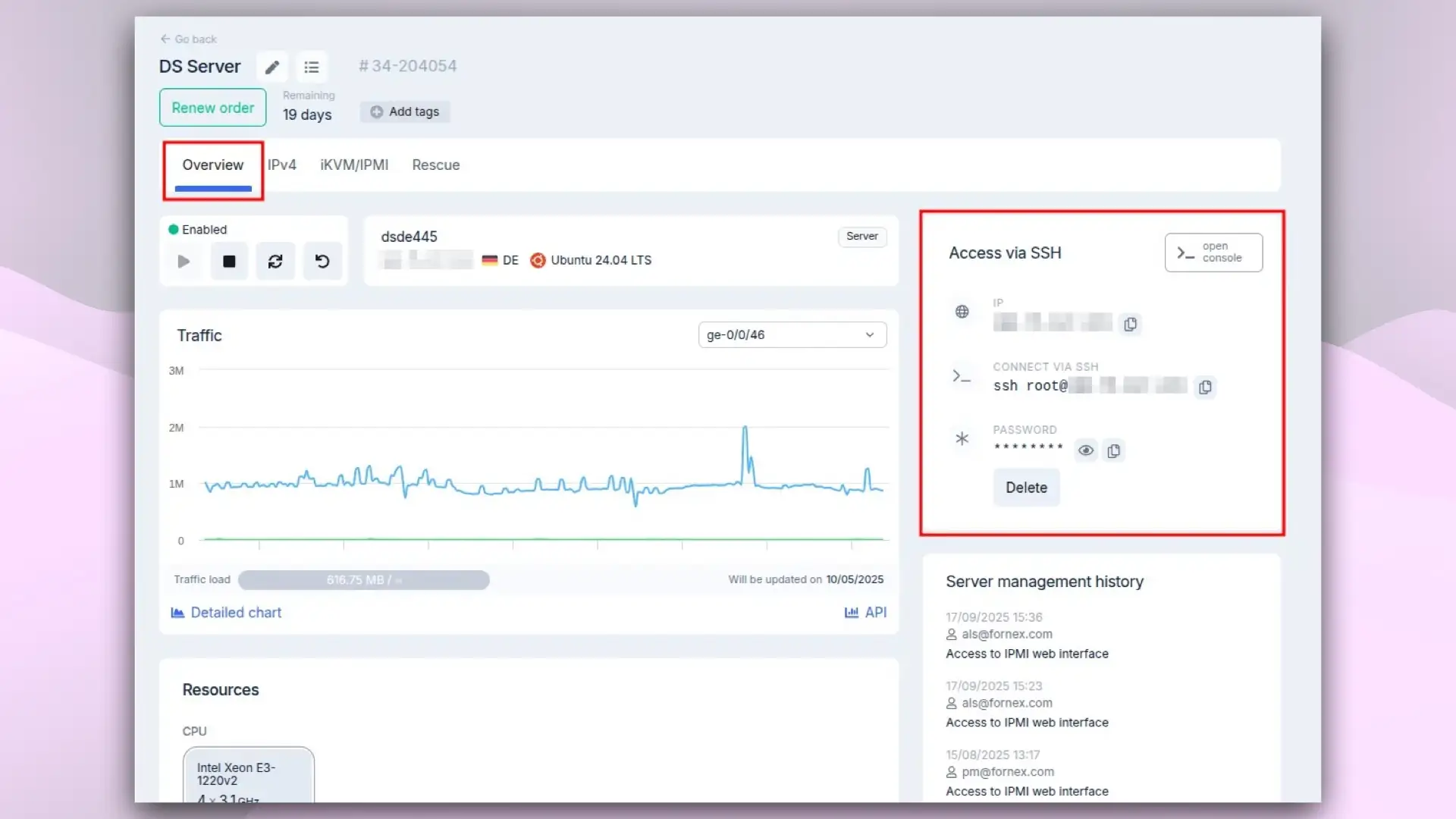 SSH details in Fornex dashboard
From Linux or macOS:
- Open a terminal.
- Run the command:
ssh root@YOUR_SERVER_IP - Enter the password when prompted. On first connection, accept the host key fingerprint.
After successful login, you'll see the command prompt, for example:
root@hostname:~#Detailed guide for macOS: Connecting to VPS or dedicated server via SSH on macOS ➪
On Windows:
Use PuTTY or Windows Terminal (with OpenSSH built-in).
Step-by-step guide: Connecting to VPS or dedicated server via SSH on Windows ➪
2. RDP Connection (Windows Server)
RDP (Remote Desktop Protocol) provides full graphical access to Windows Server. Guides for different devices:
- RDP to Windows Server from macOS
- RDP to Windows Server from Ubuntu
- RDP to Windows Server from Windows
- RDP to Windows Server from Android/iOS
3. IPMI Connection (Hardware Console Access)
IPMI (Intelligent Platform Management Interface) gives you out-of-band access to the server console — independent of the OS. Use it for BIOS/UEFI access, boot loader, OS reinstallation, power control, and hardware monitoring.
Requirements:
- Any modern browser
- Java Runtime Environment (JRE) — download from official site
Steps to connect:
- Log in to your account → Dedicated Servers → iKVM/IPMI section.
- Activate the IPMI web interface if not already active.
- Click
Go to— this opens the IPMI web console.
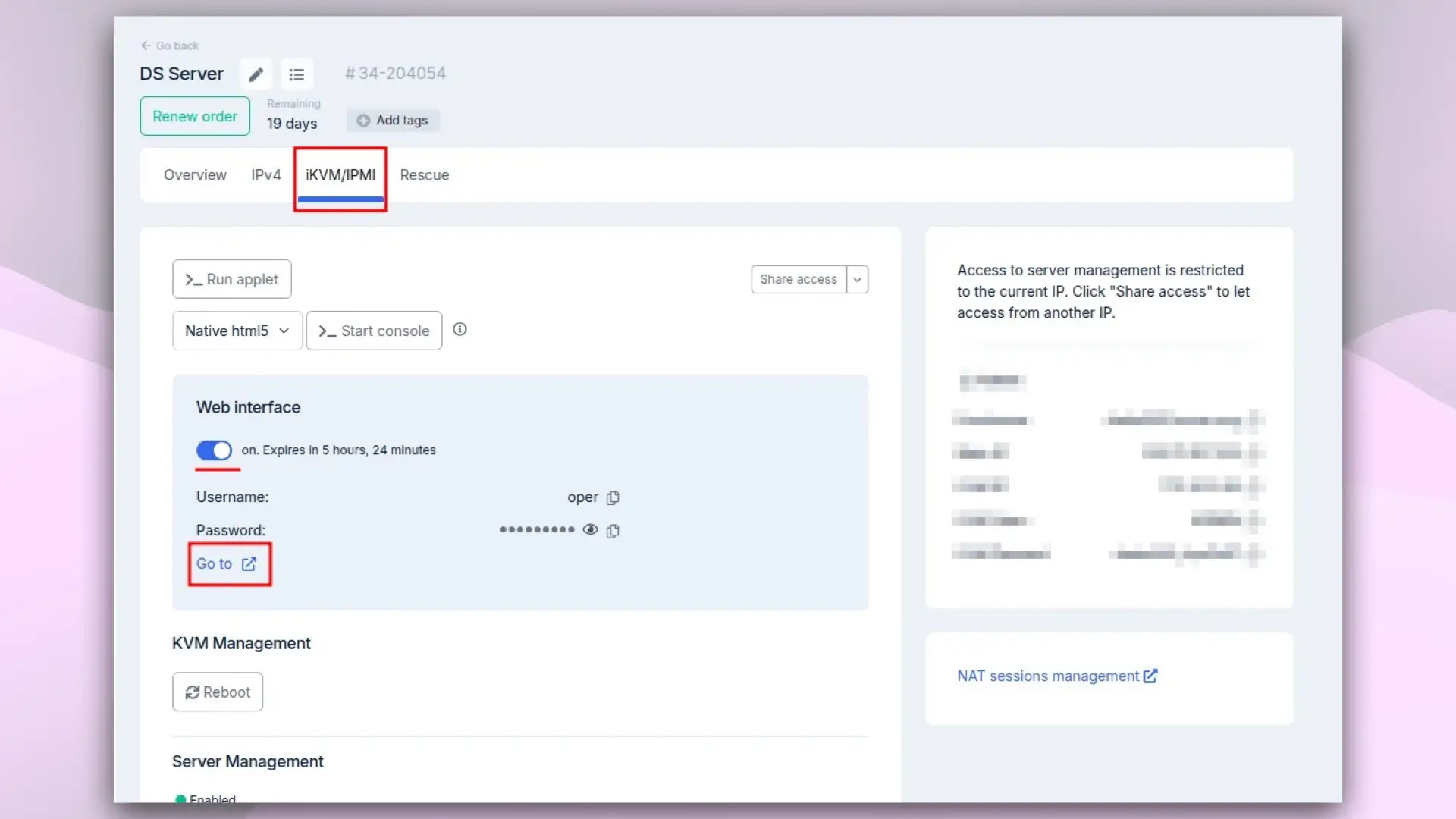 Activating the IPMI web interface
- Log in using the username and password provided during activation.
- Go to Remote Control → Console Redirection.
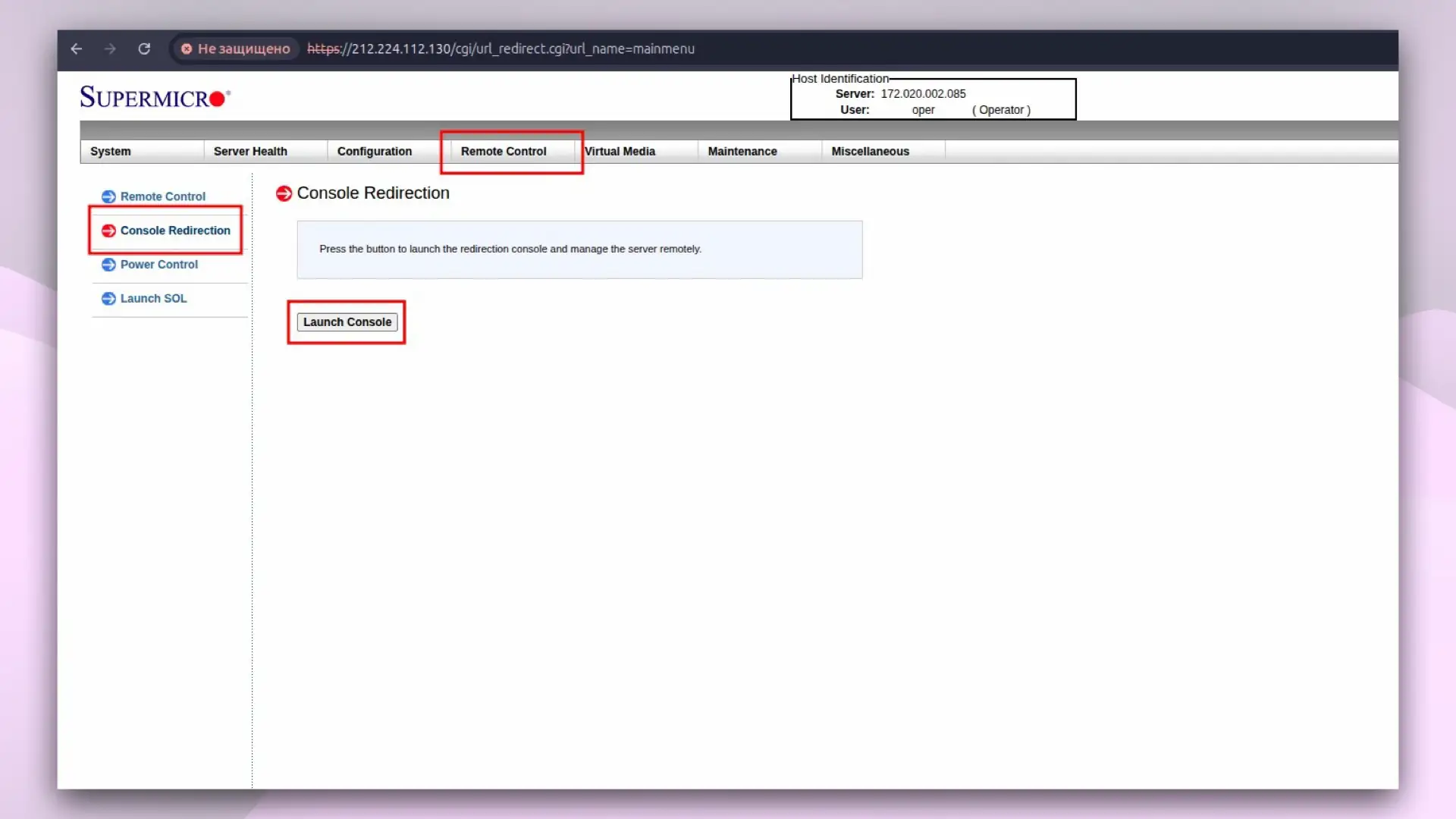 Launching the Java console
- Click
Launch Console— a Java file will download. - Open the file and log in with your system credentials (usually root).
IPMI console capabilities:
- Full BIOS/UEFI and bootloader access
- Remote power on/off and reboot
- ISO image mounting for OS installation
- Hardware monitoring (temperature, fans, power supply)
Alternative to Java console: use IPMIView software.
More about IPMI: What is IPMI?
Useful Notes
- SSH and RDP work only after the OS has booted. Use IPMI if the server fails to boot.
- Change the root/admin password immediately after first login.
- For better security: enable 2FA in your personal account and use SSH keys instead of passwords.
Help
If you have any questions or need assistance, please contact us through the ticket system — we're always here to help!