Cloning your VPS
How to create an exact copy of your virtual server in the Fornex dashboard.
Cloning lets you quickly duplicate your VPS — including all installed software, settings, files, databases, and configurations. It's useful for testing changes safely, building a standby server, or scaling your project without starting from scratch.
Before cloning, always create a snapshot (backup) of the current server state.
Step 1. Create a snapshot (backup)
- Go to your dashboard → VPS → select the server → go to the Backups tab.
- Click Create snapshot and wait for completion (usually 1–10 minutes, depending on data size).
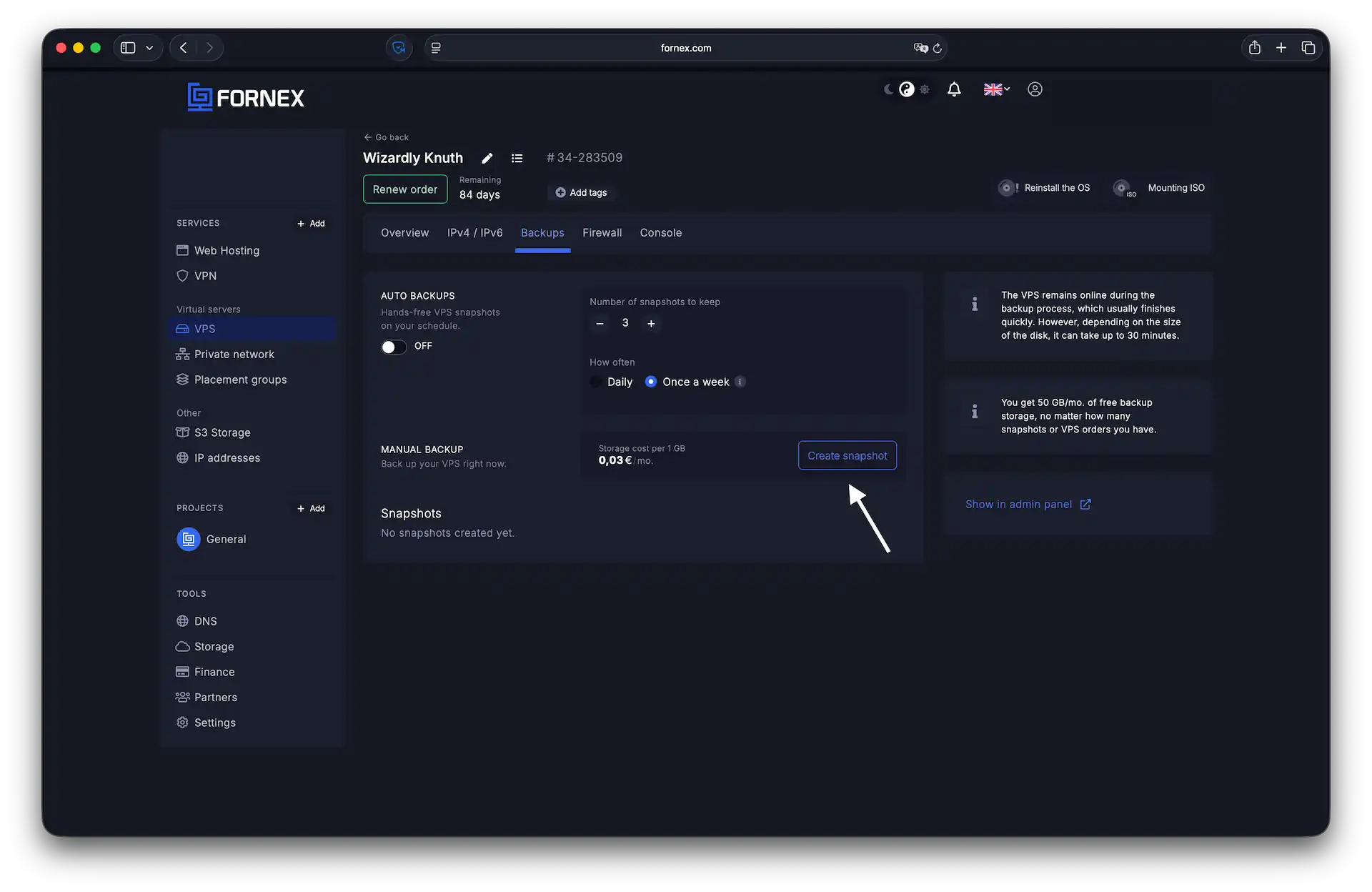 Creating a backup before cloning
Step 2. Clone the server
- In the same Backups tab, find the desired snapshot.
- Click it → select Clone VPS.
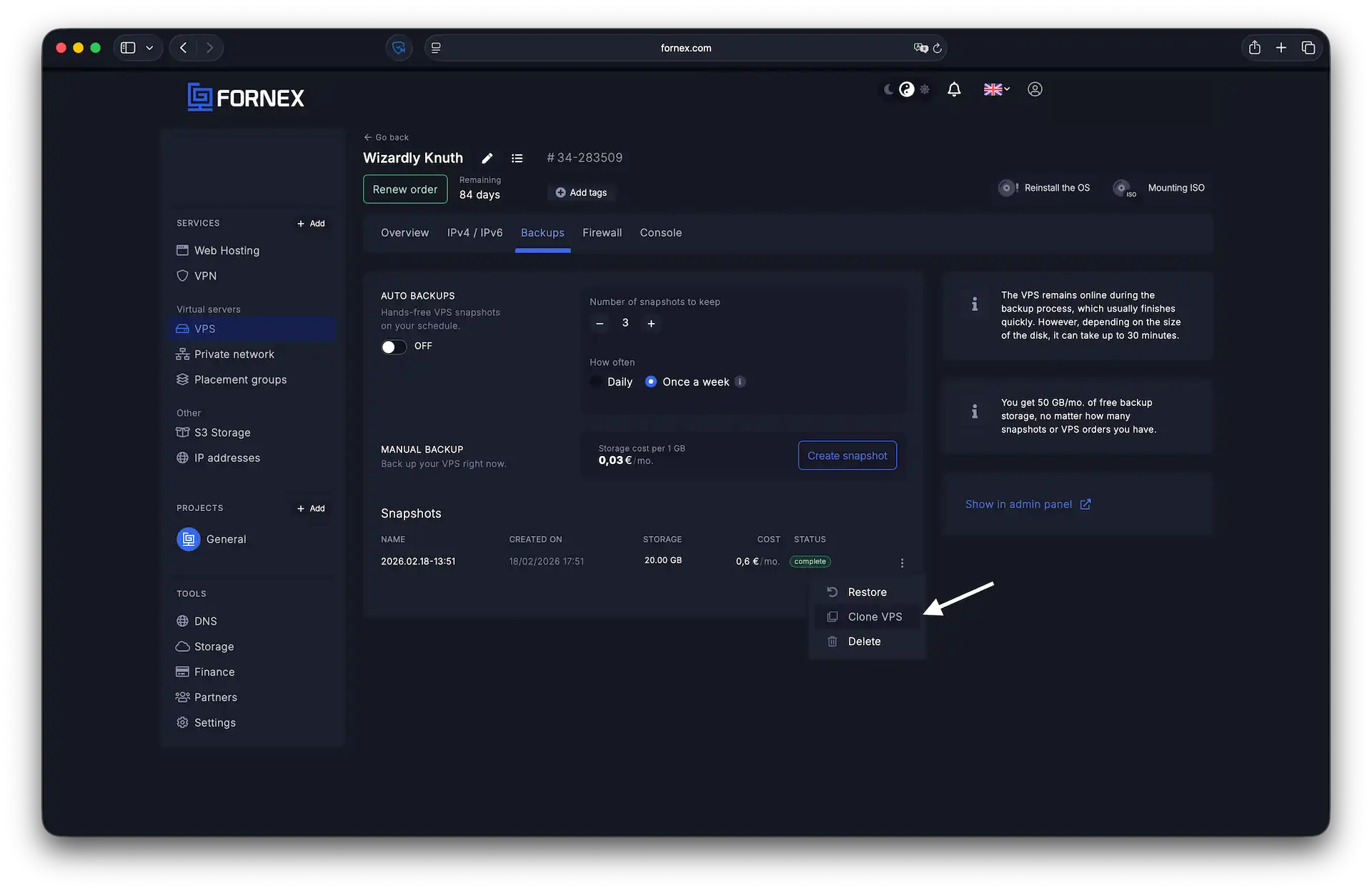 Starting clone from backup
-
In the form that appears:
- Choose the tariff — it must match the current one.
- Select the location — it must match the original server’s location.
- Add any extra services (placements groups, SSH keys, etc.) if needed.
-
Confirm and create.
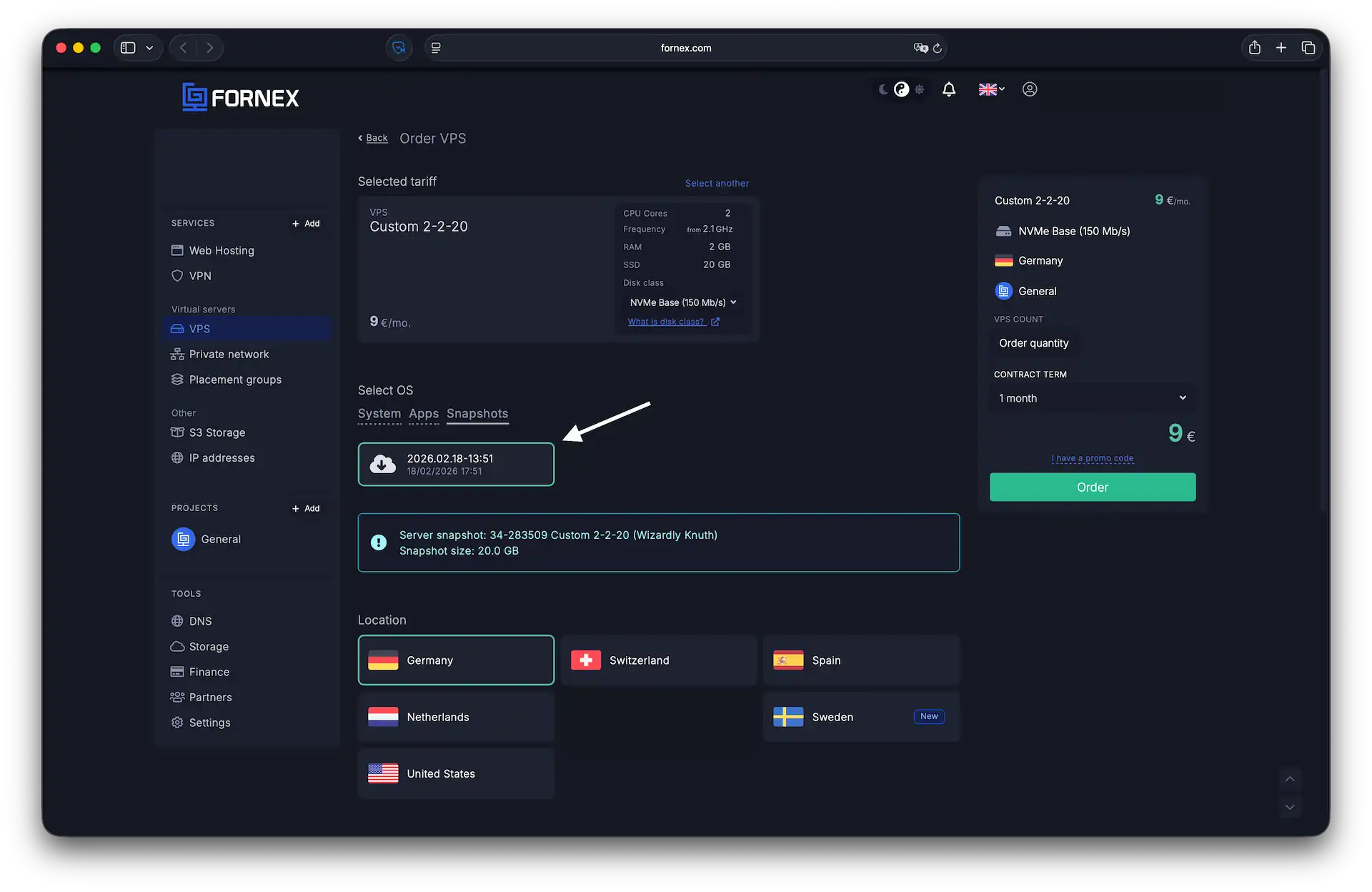 Selecting tariff and location during cloning
The new VPS appears in your server list as a separate order.
All data, settings, and software are copied exactly as they were at the moment of the snapshot.
Step 3. Actions after cloning
- The new server receives a new IP address.
- Update all domains and services to point to the new IP (change A records in DNS).
- Verify that applications, databases, and connections work correctly (you may need to update internal configs, e.g., in CMS settings).
Useful notes
- Cloning does not transfer existing payments or auto-renewal — the new server is billed separately.
- The original server remains unchanged and continues running normally.
Please note!
For an active order, it is not possible to change the IP address or location. You can only clone the order as described above, or cancel it and place a new one. However, we cannot guarantee that a different IP address will be assigned.
Help
If you have any questions or need assistance, please contact us through the ticket system — we're always here to help!