Managing your Web Hosting order
Overview of key features for managing your Web Hosting order.
When ordering Web Hosting, you can perform most basic settings directly in the billing panel of your dashboard — without needing to log into cPanel.
Initial order dashboard
This section can be divided into six main parts:
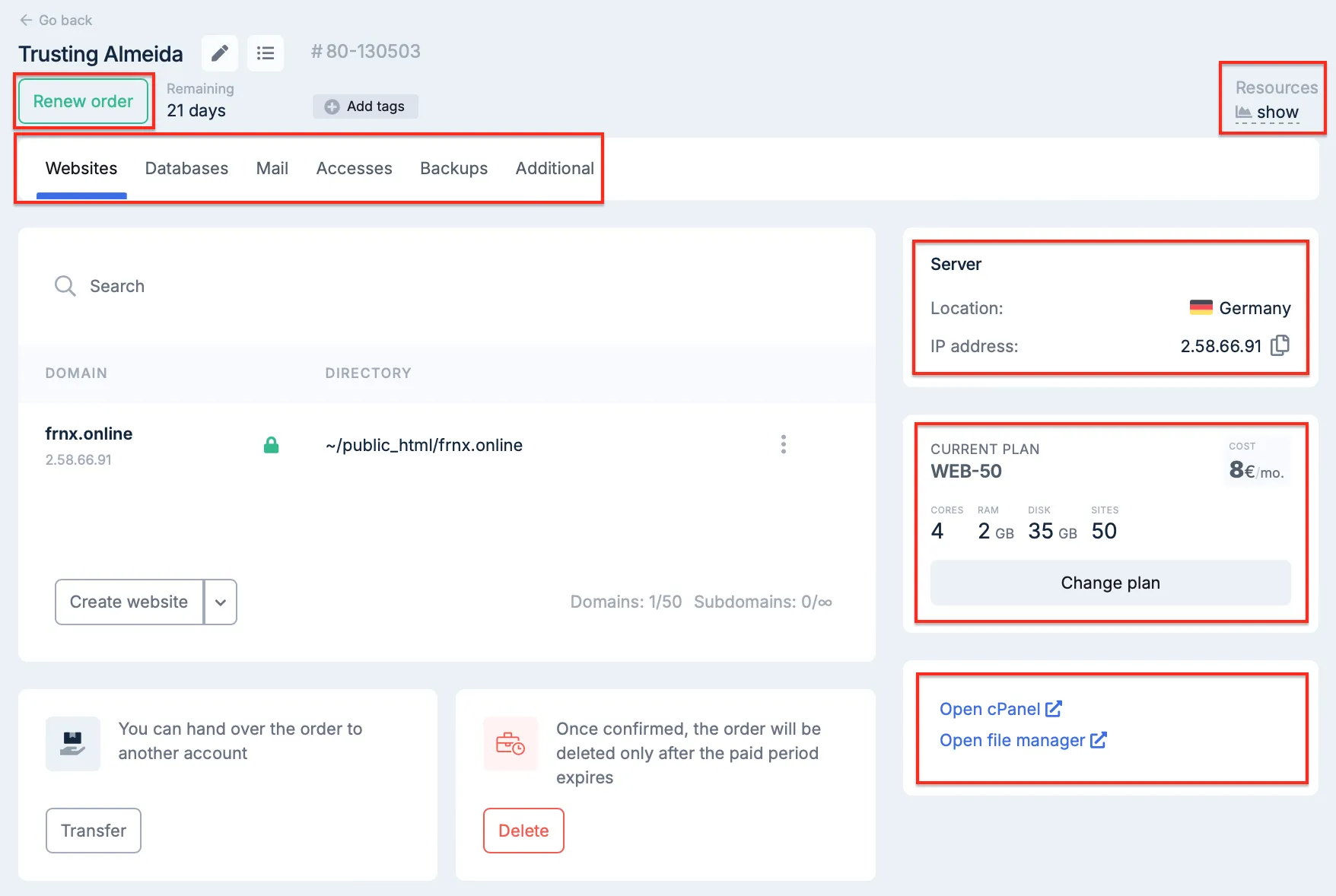 Initial dashboard for managing a Web Hosting order
- Order management sections.
- Order information.
- Current plan details.
- Quick links to the control panel.
- Resource usage information and paid period expiration.
- Renew Order button.
Renew an order
To renew your order, click the corresponding button, select the order you wish to renew, choose the renewal period, and click Pay.
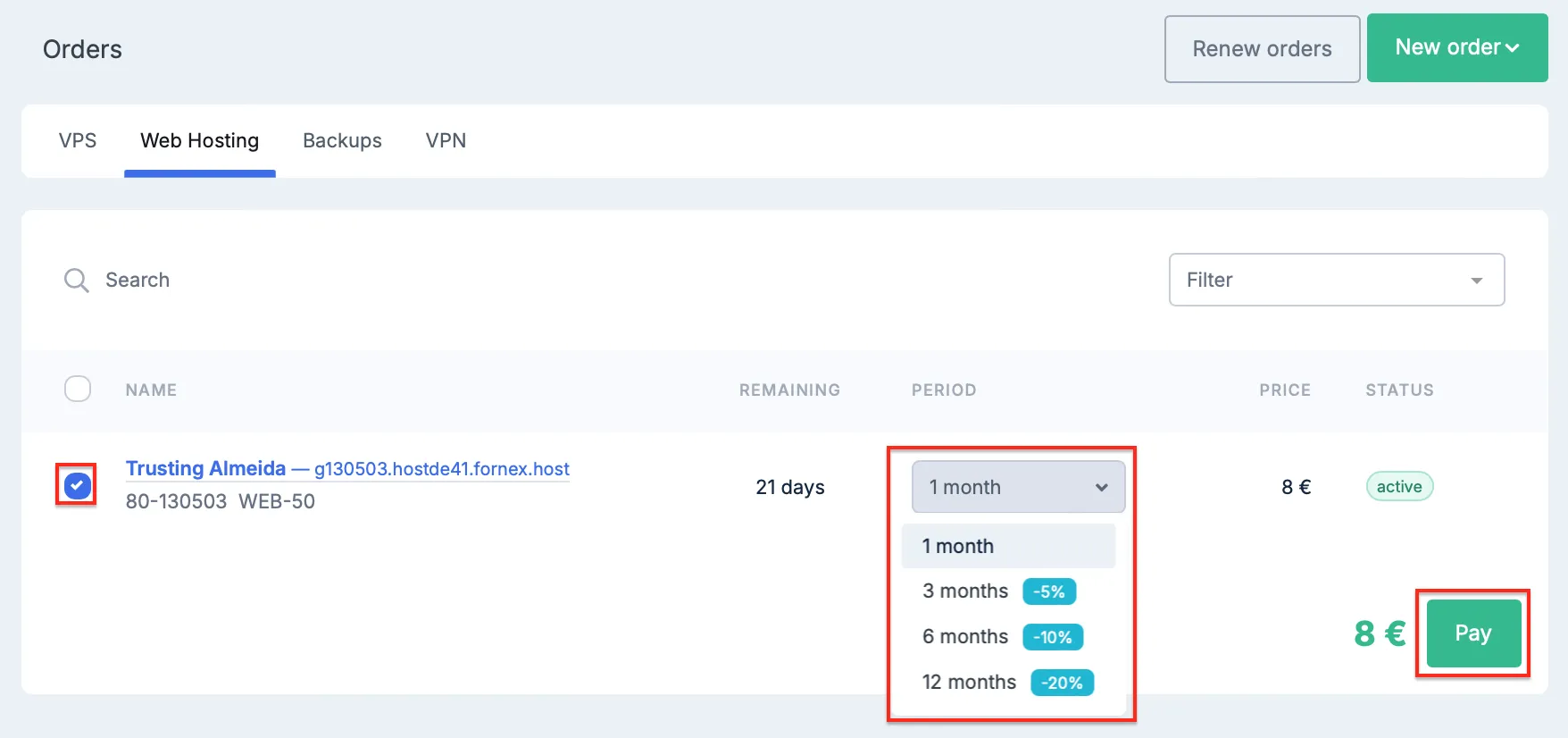 Order renewal form
Change the plan
Detailed instructions on how to upgrade or change your plan are available in the dedicated article: How to change your Web Hosting plan.
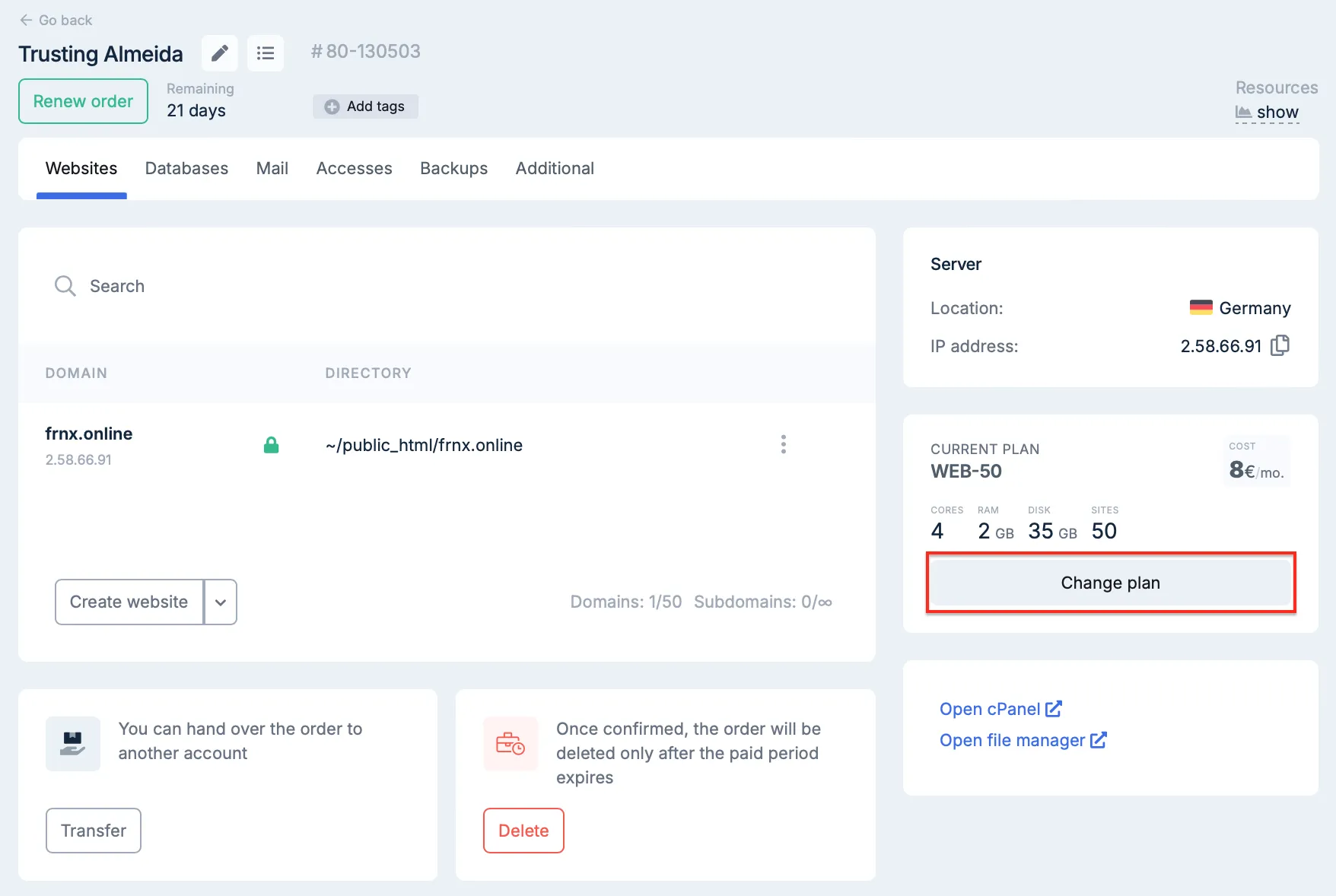 Selecting a new plan
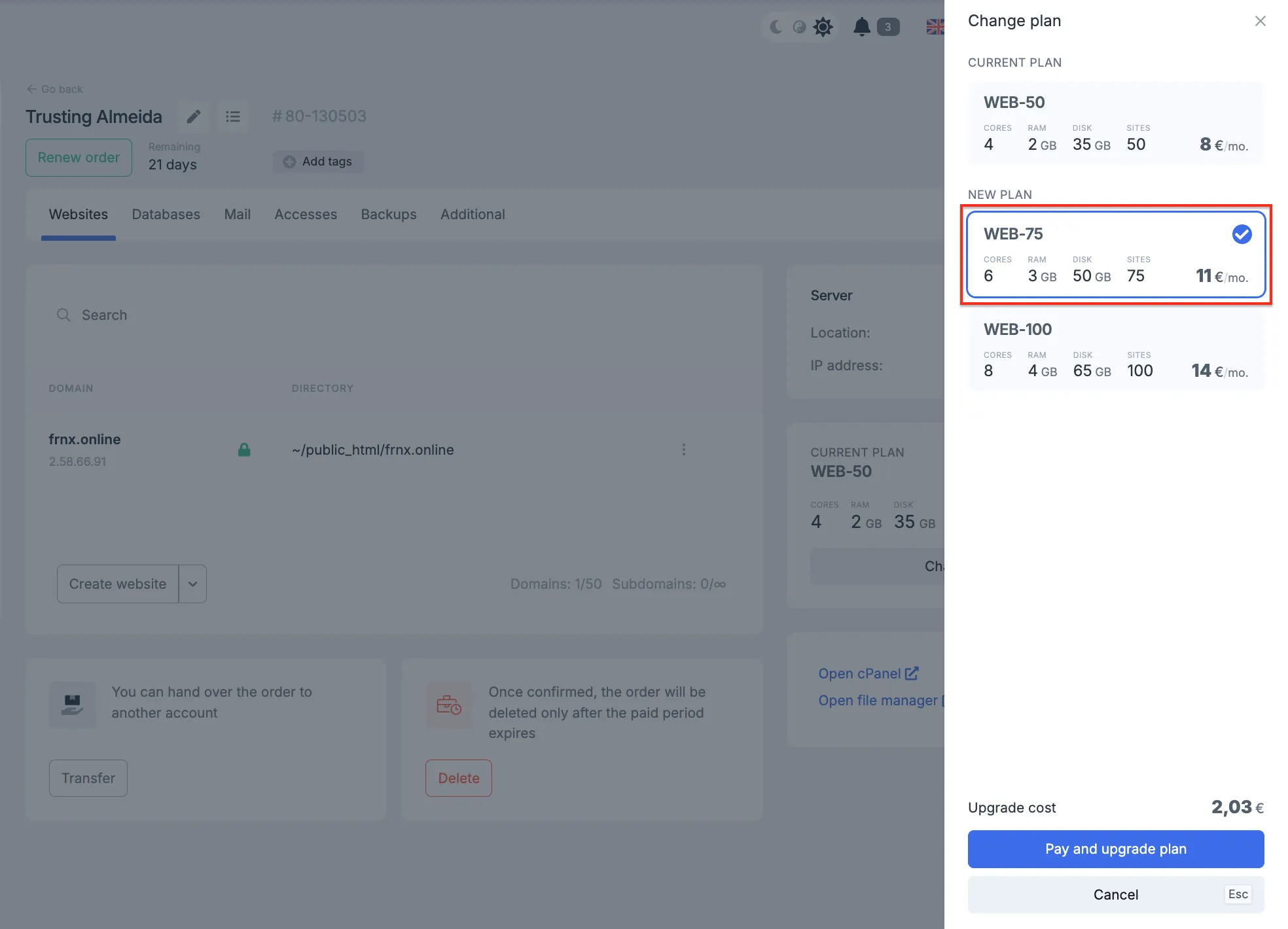 Confirming the plan upgrade
Add Tags
You can assign tags to your orders for easy grouping and searching.
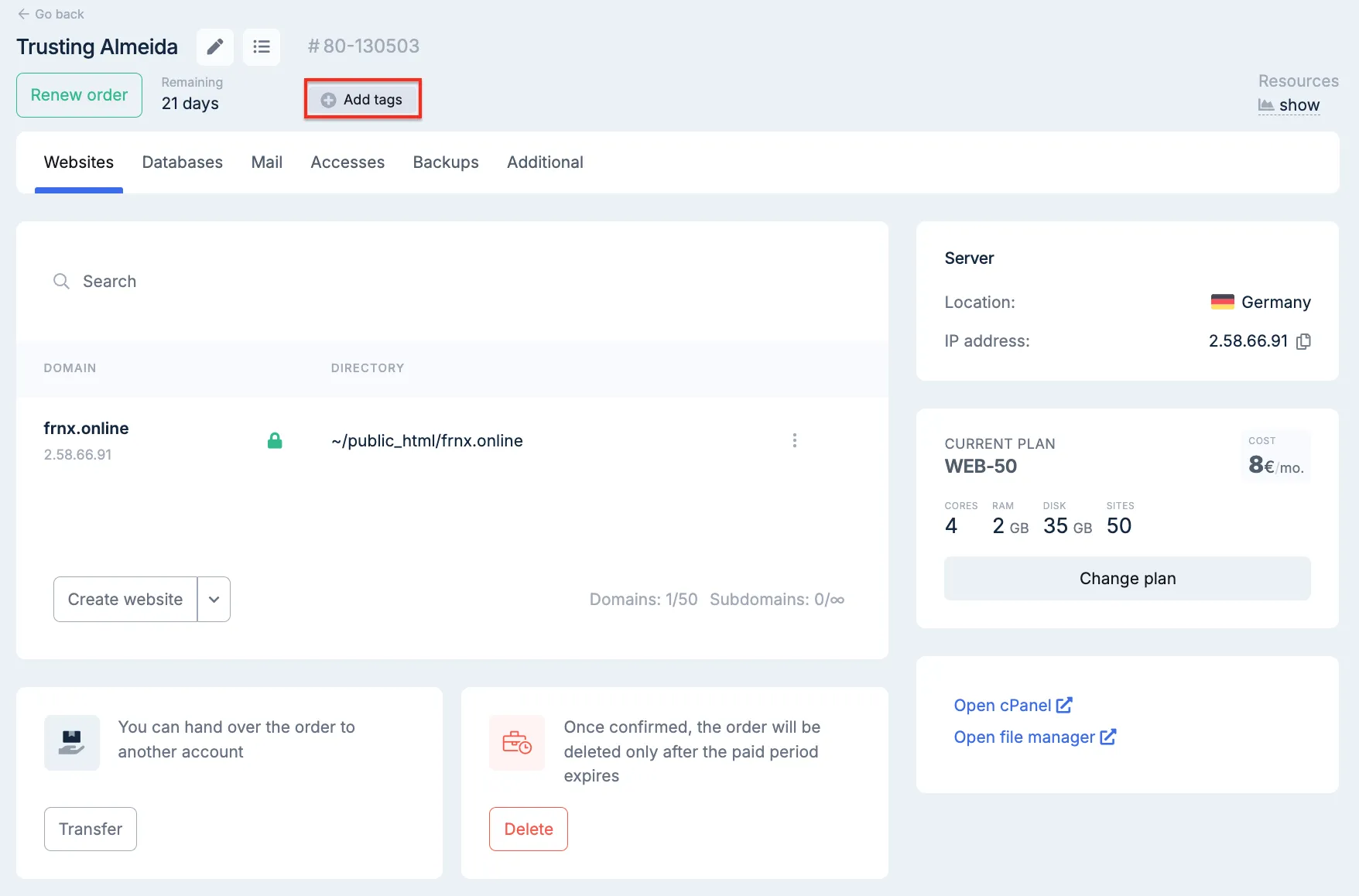 Tag addition form
 Tag management interface
Cancel an Order
Clicking Cancel Order does not delete the service — it only disables auto-renewal. If there are sufficient funds in your balance, the order will continue until the end of the paid period.
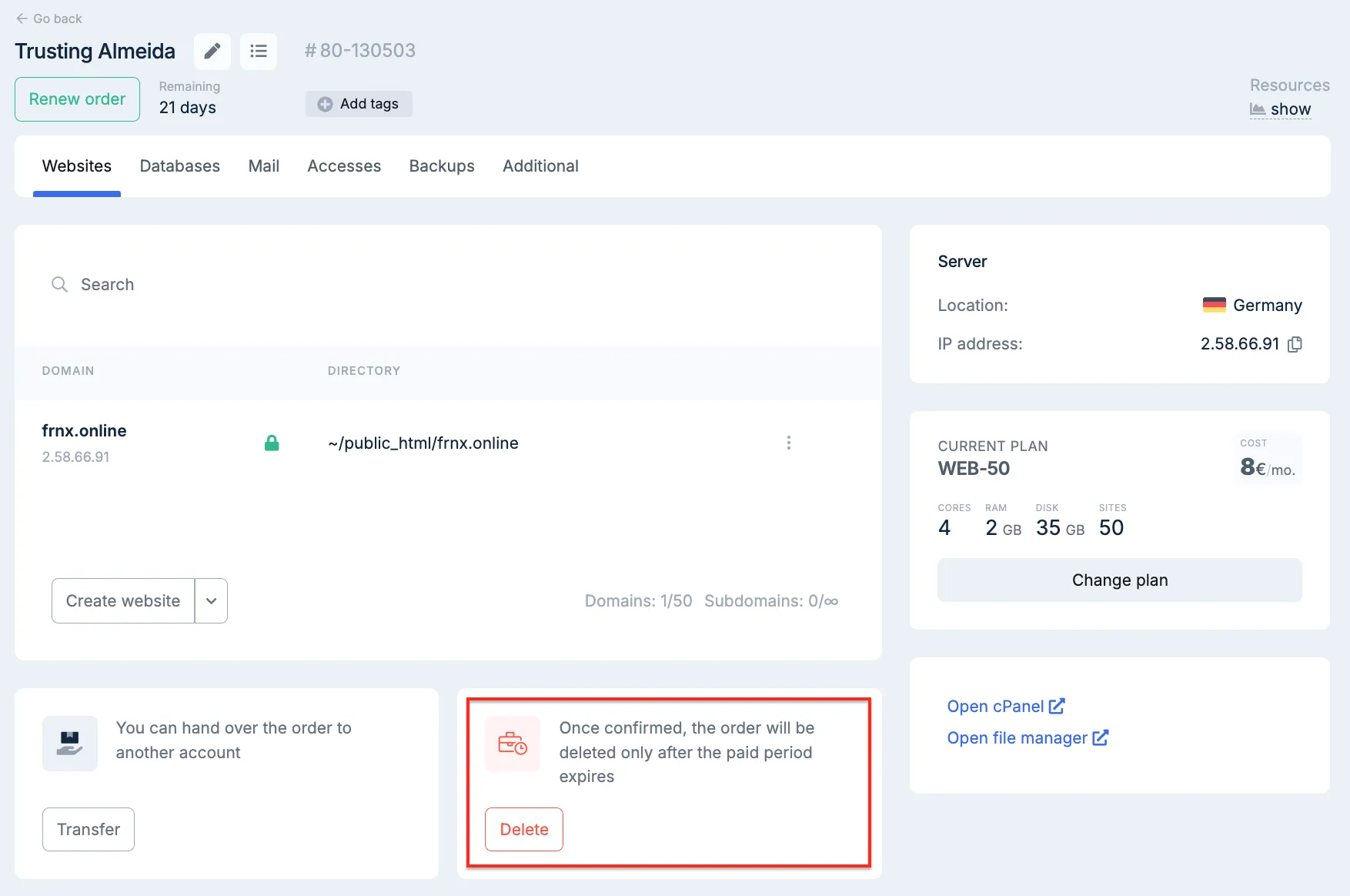 Auto-renewal cancellation button
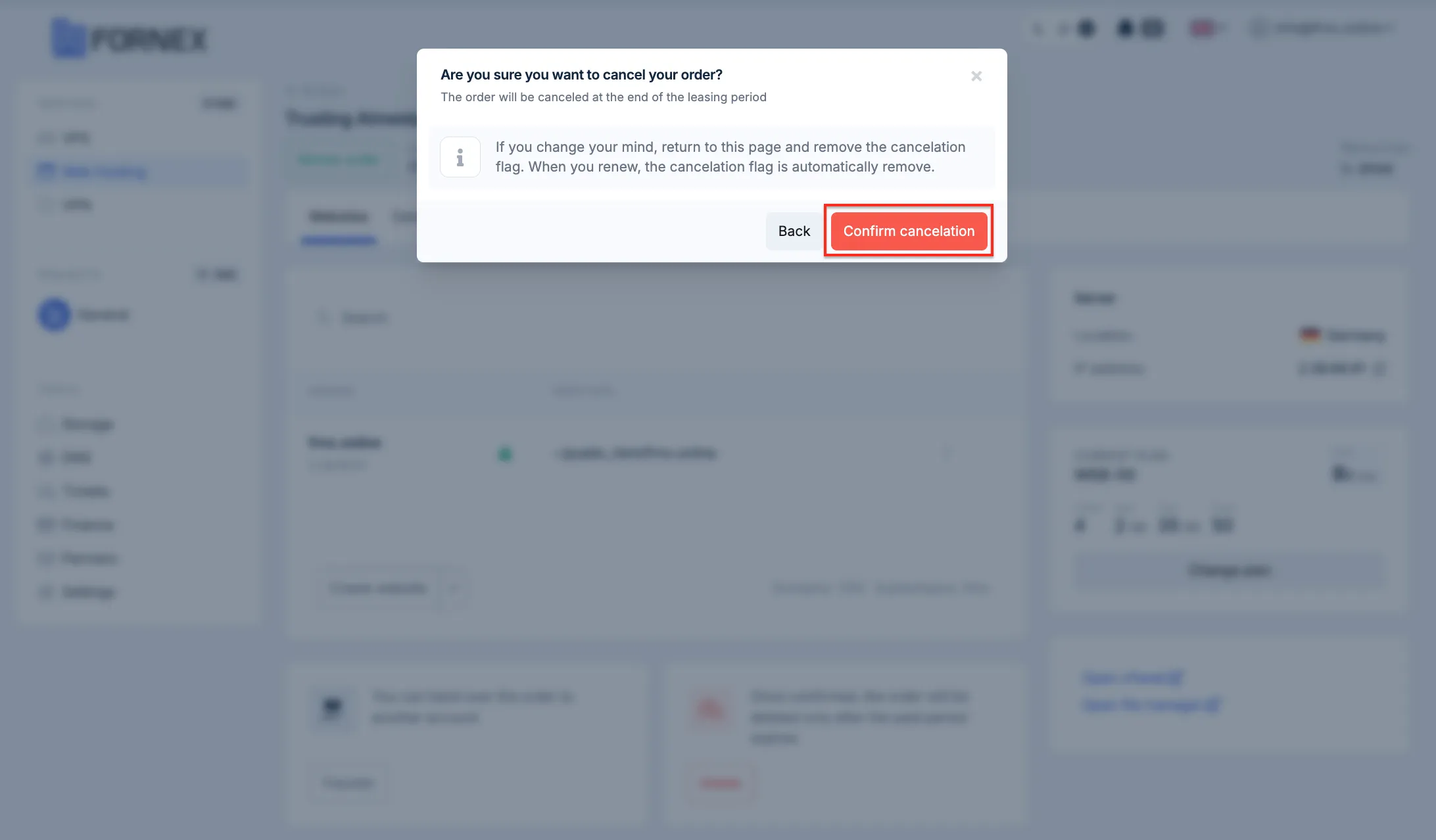 Confirmation of disabling auto-renewal
Note
If you wish to fully cancel the order and receive a refund for unused days — please create a ticket in our support.
We will review the possibility of a refund and assist you.
Management Sections
Here you can perform common technical operations without logging into cPanel.
Sites
Add and remove domains and subdomains, choose the directory, and add domains to our DNS panel.
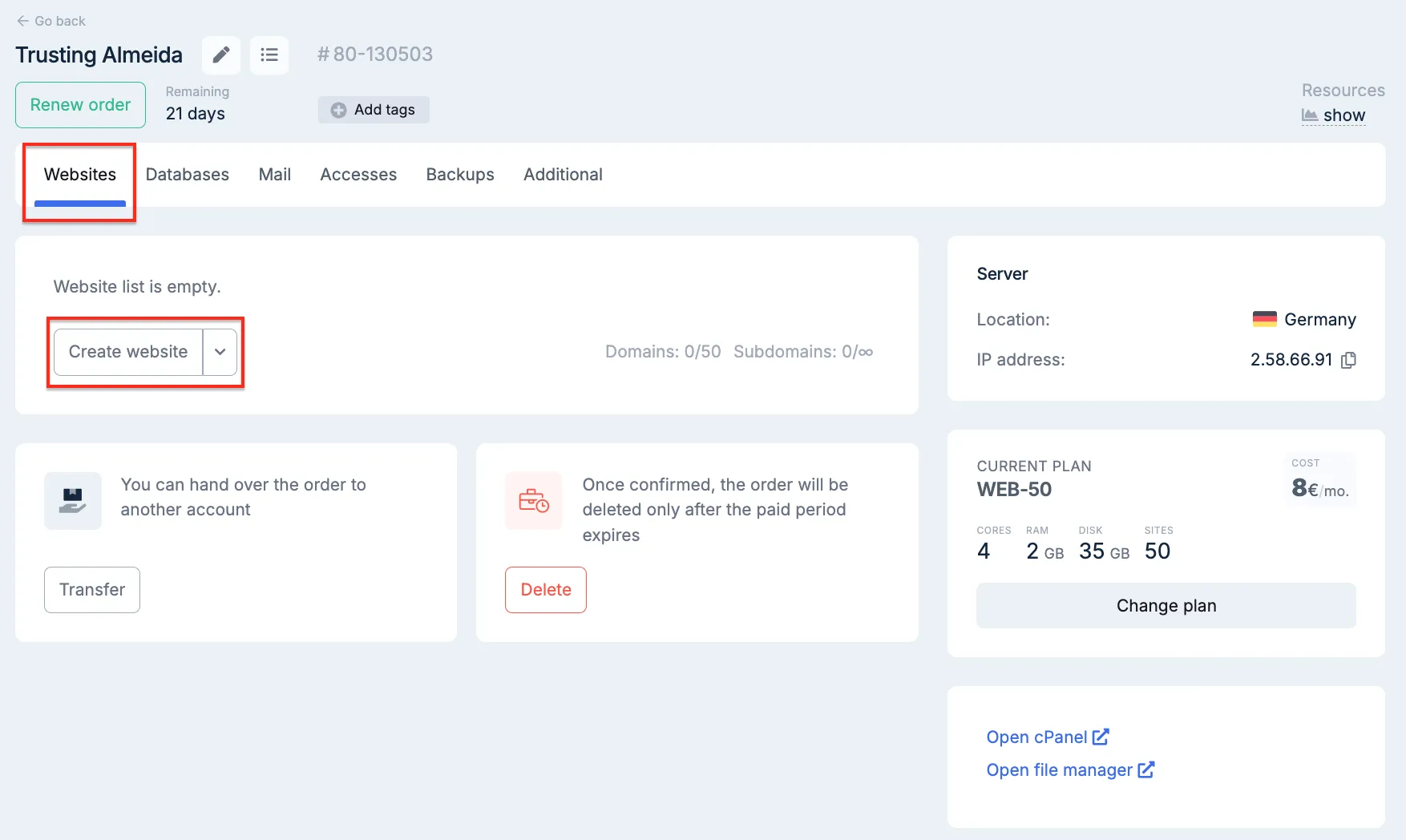 Site management section
Domains are added by delegating to our NS servers.
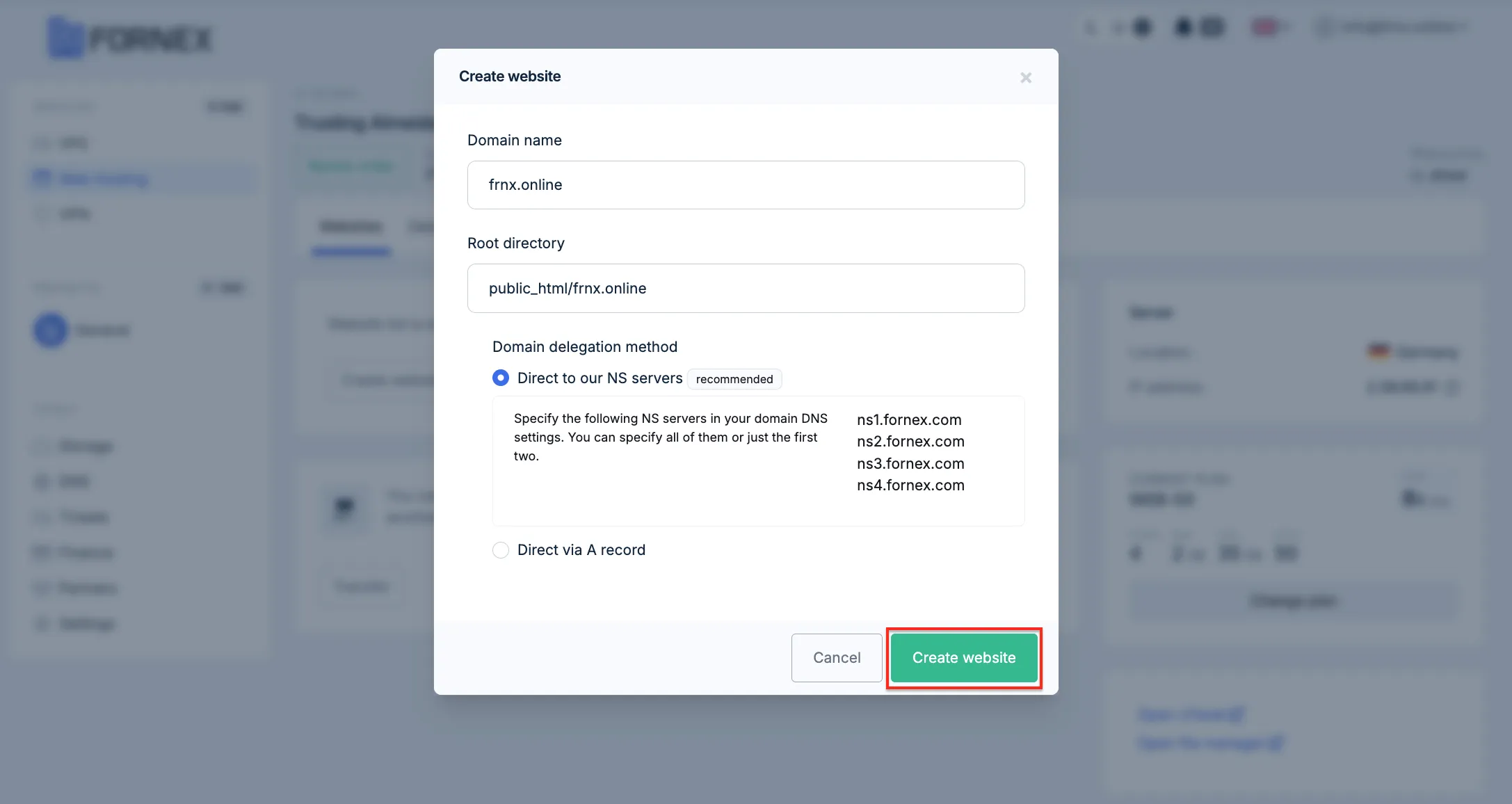 Domain addition form
DKIM and SPF records are automatically created, and a Let’s Encrypt certificate is generated and installed.
An additional domain (subdomain) is treated as a subdomain of the main site.
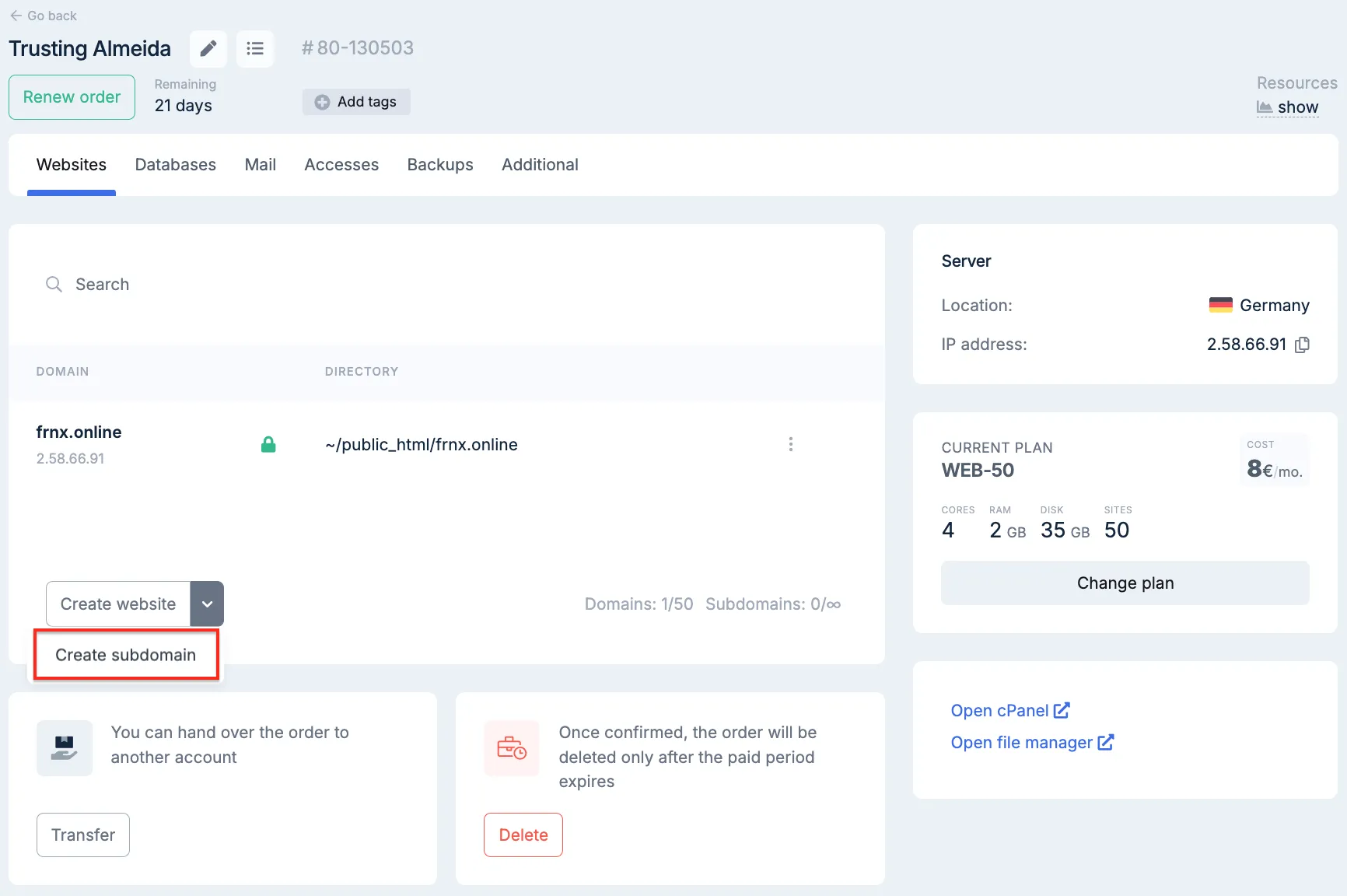 Subdomain addition form
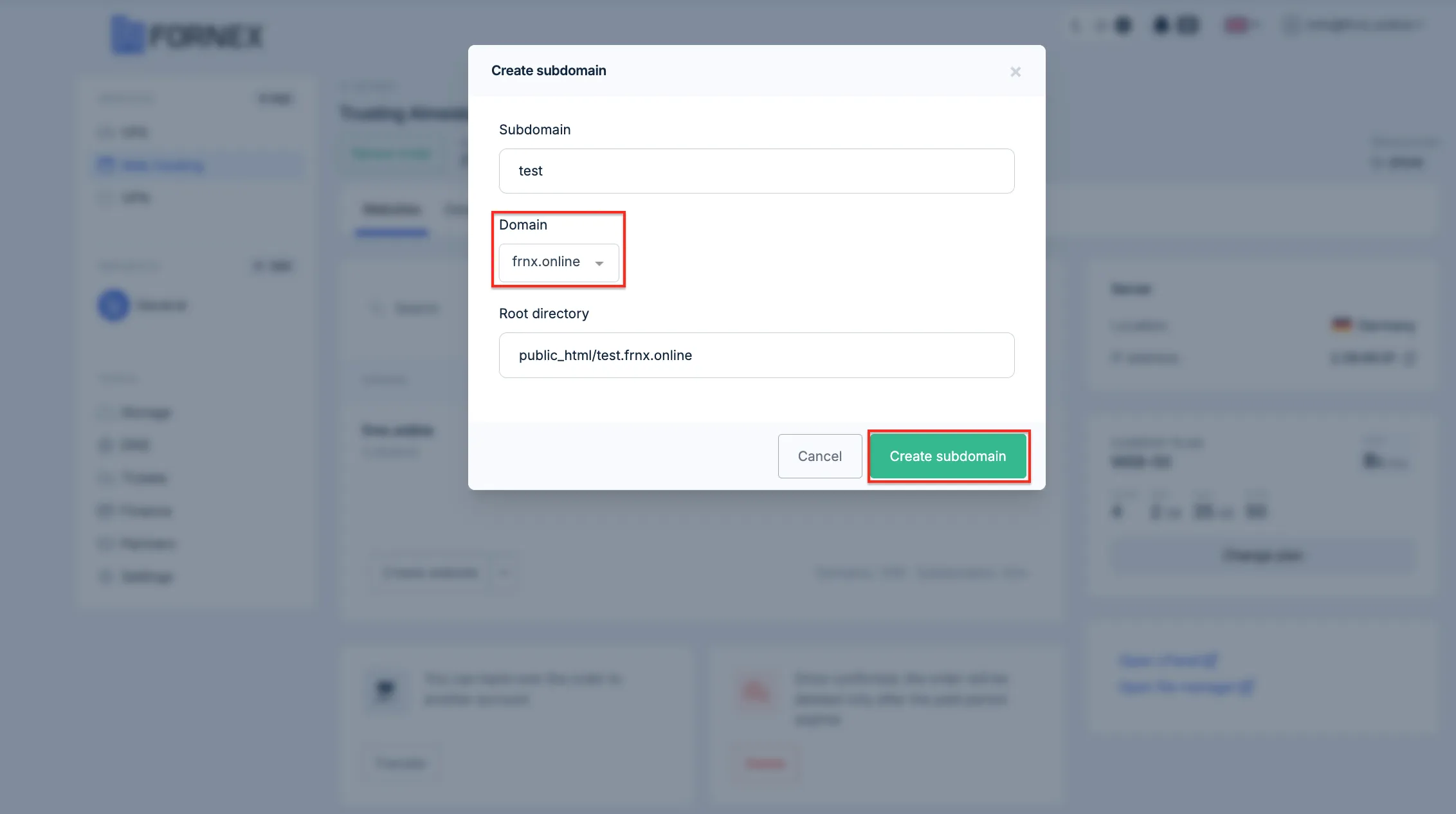 List of added domains and subdomains
SSL Certificates
Install SSL certificates for your sites.
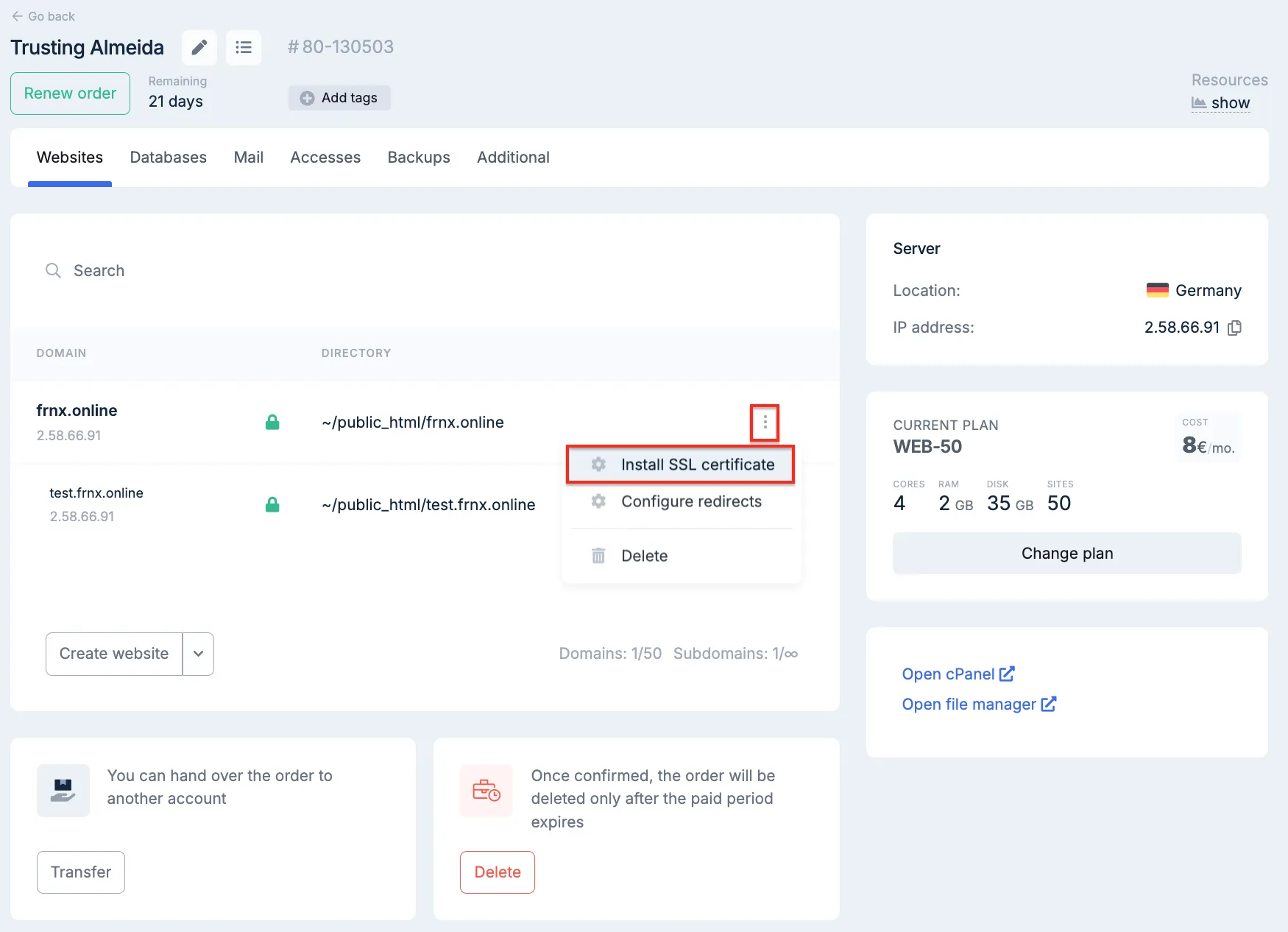 SSL management section
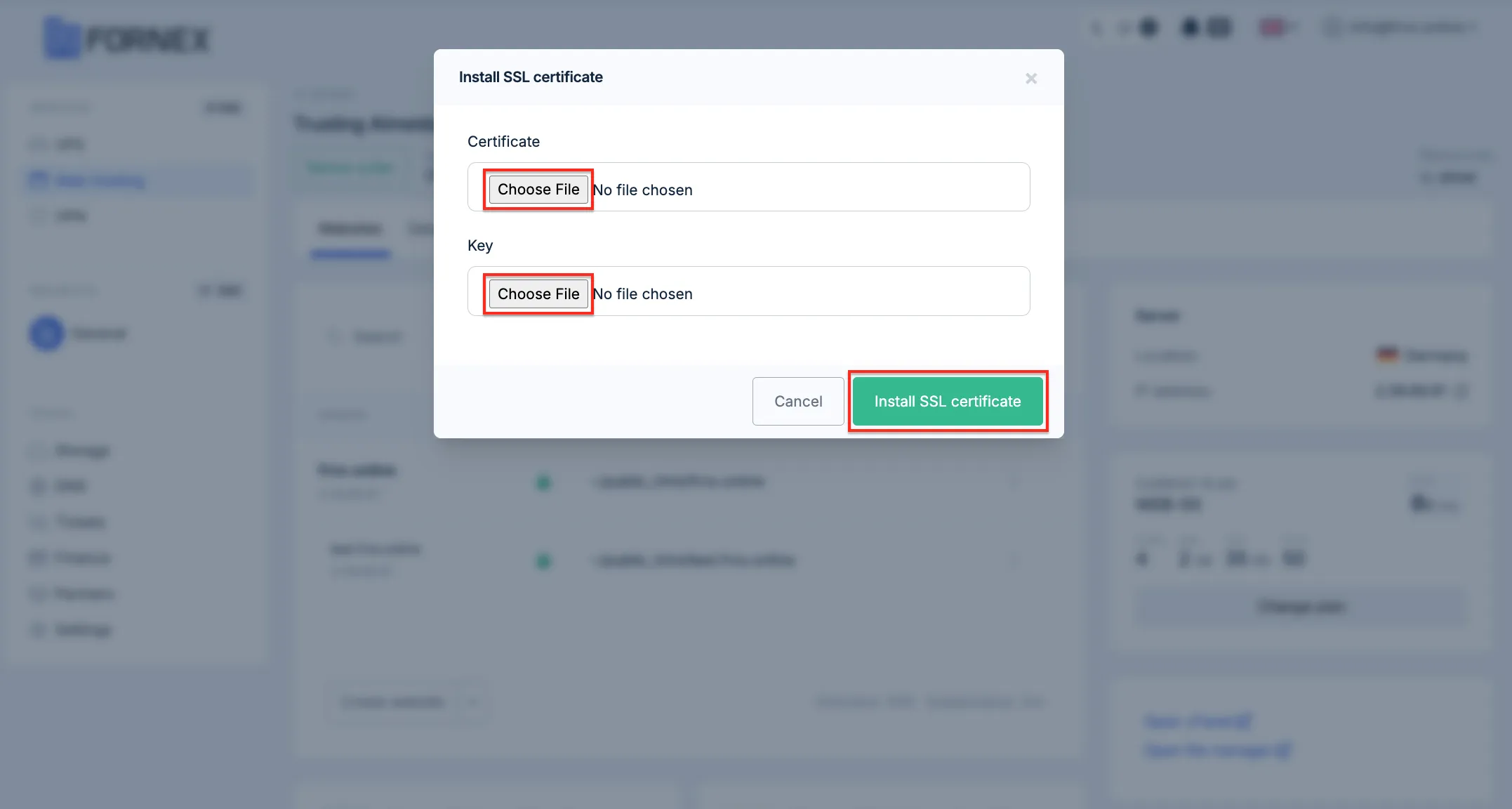 Certificate installation form
Redirects
Create redirects from domain to domain or from one page to another.
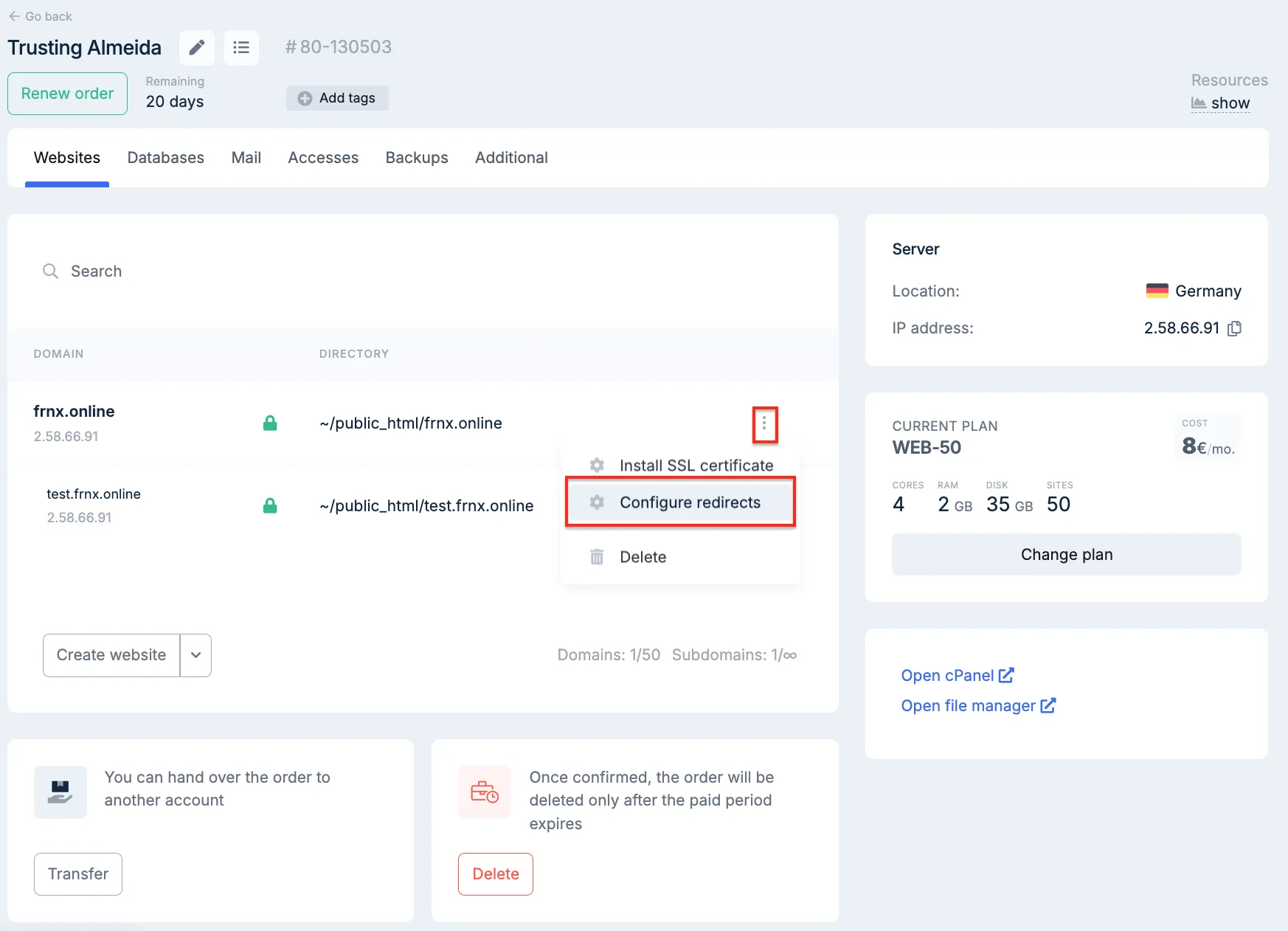 Redirects section
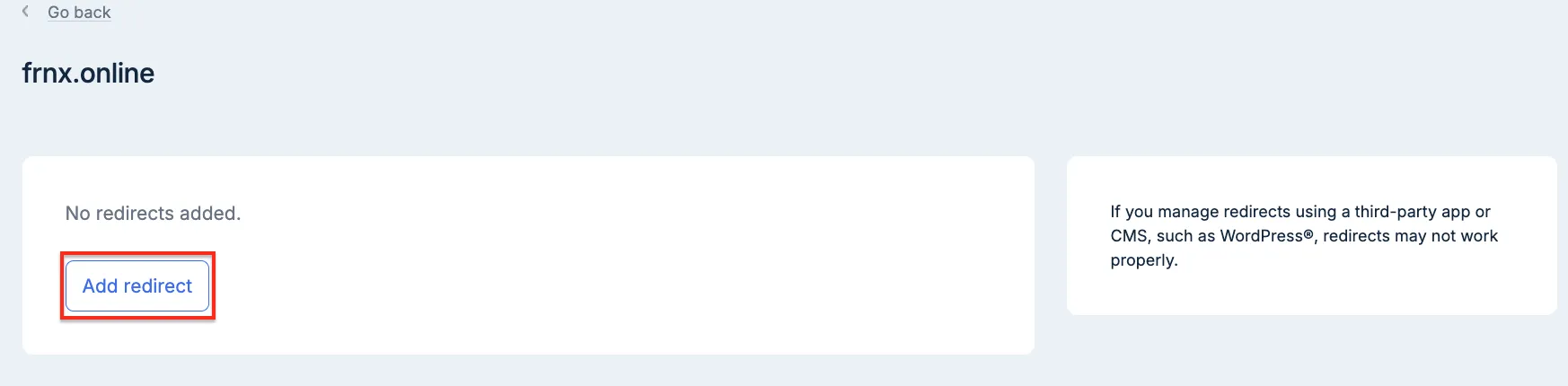 Redirect creation form
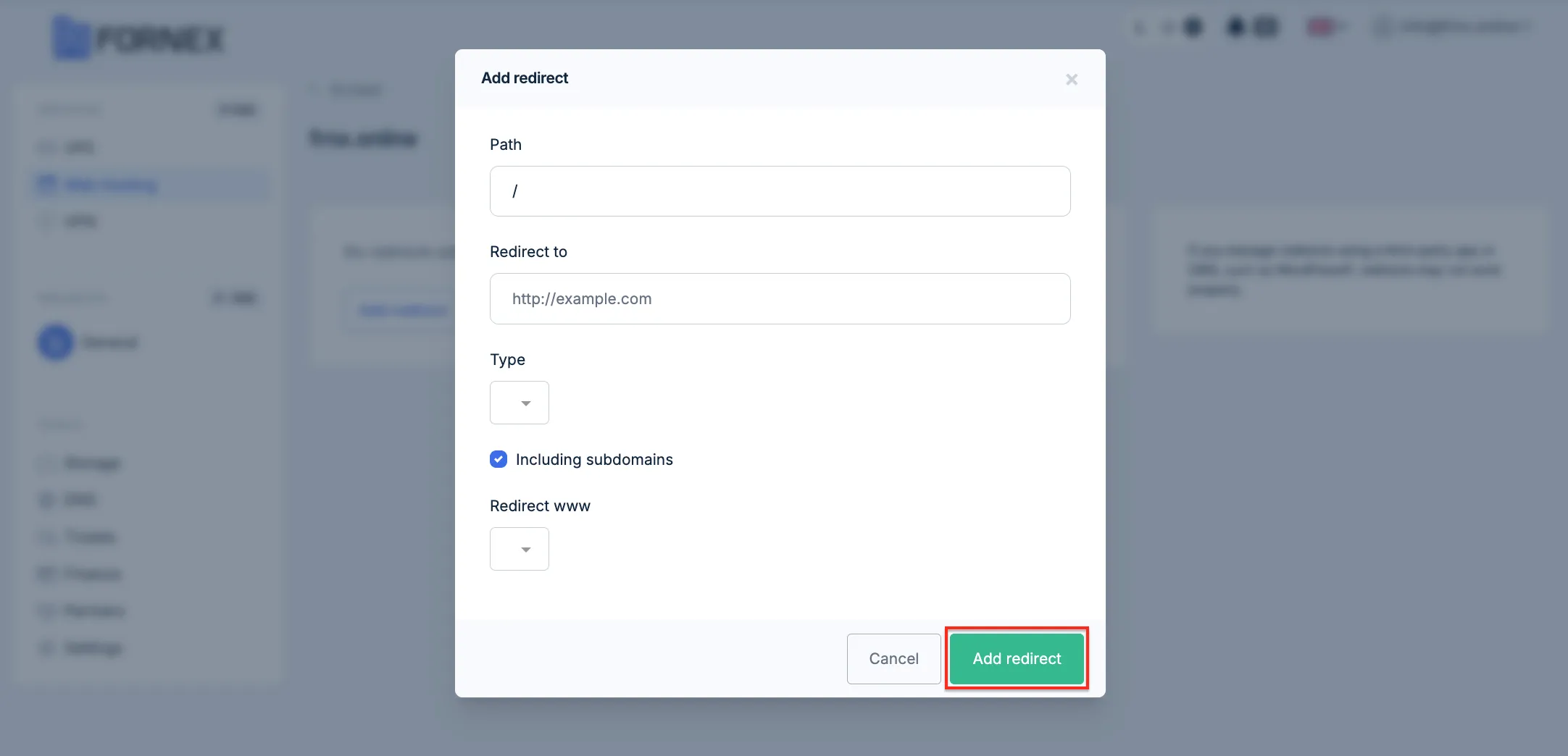 List of created redirects
Databases
Manage databases: add new databases, add users, change names, passwords, assign privileges. Includes a button to open phpMyAdmin.
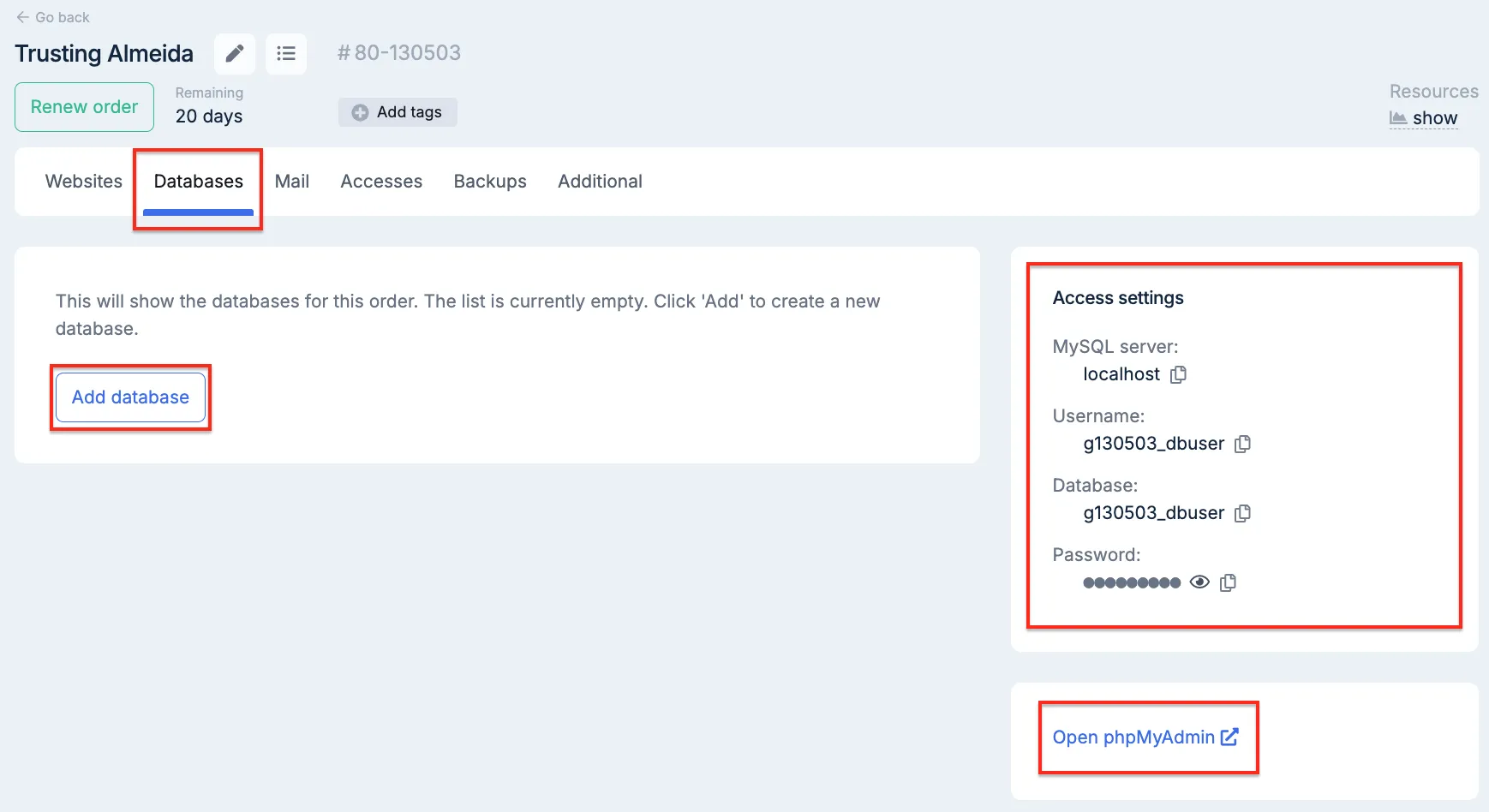 Database management section
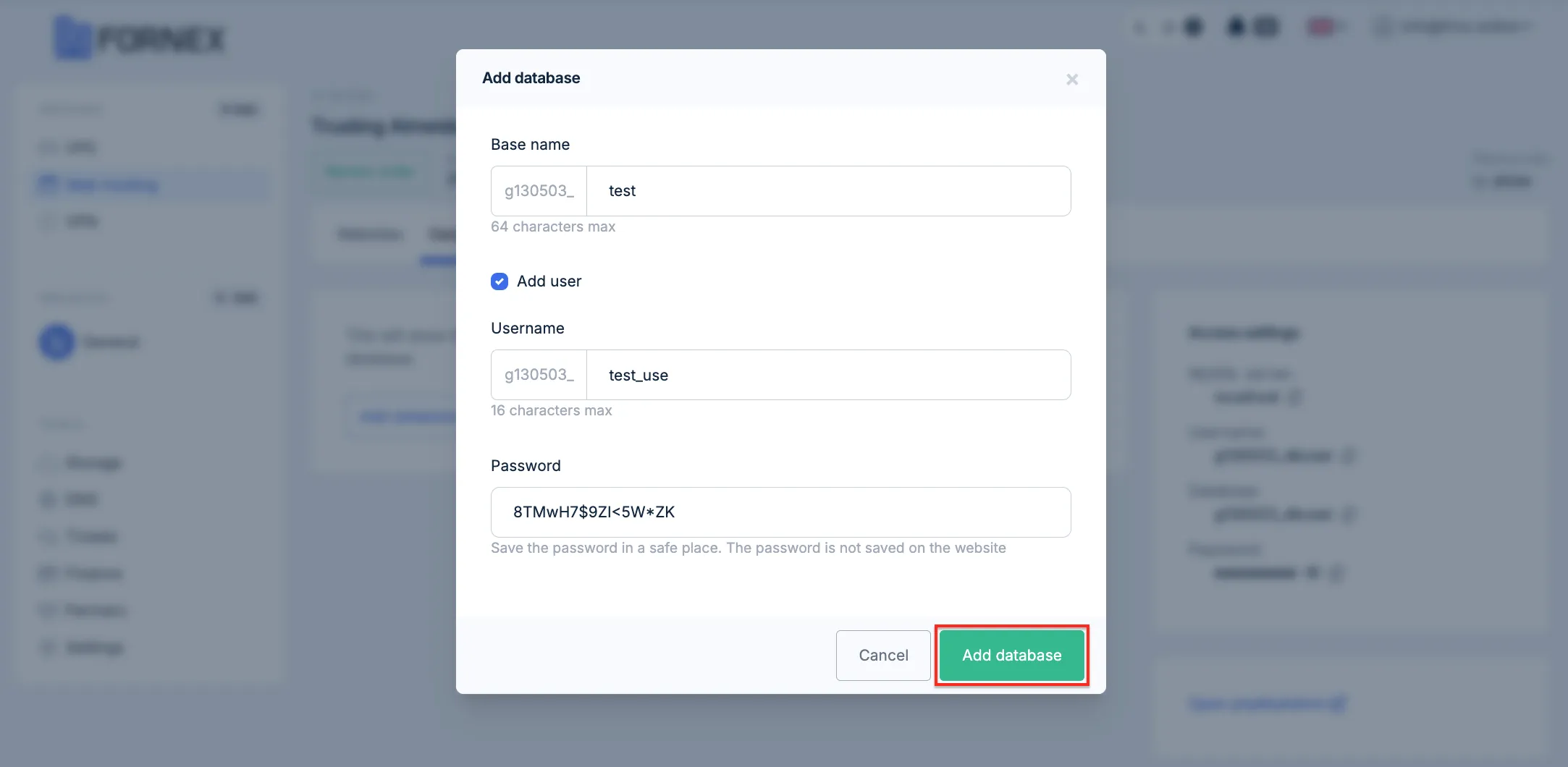 Database creation form
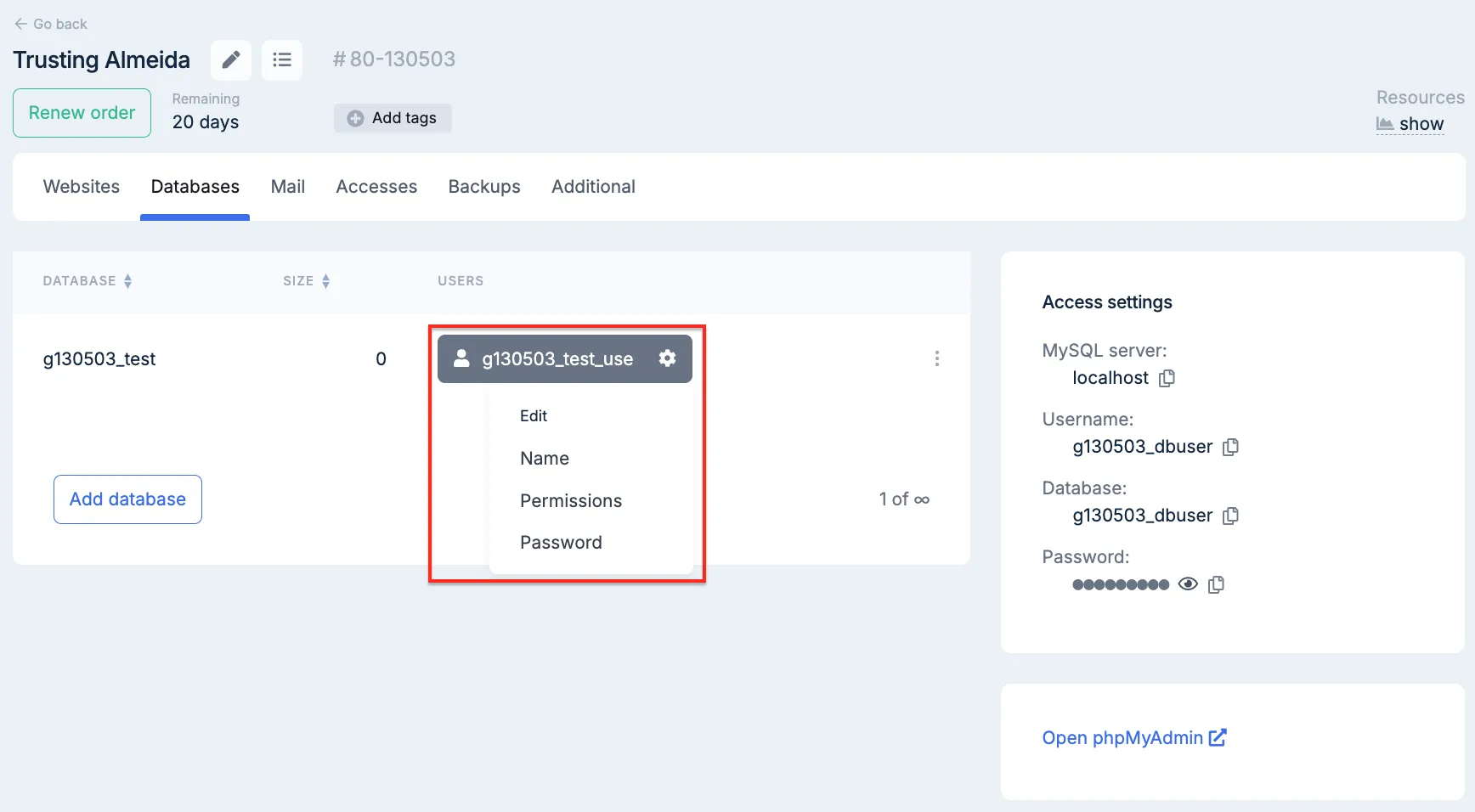 Database user creation form
Add and remove email accounts, set quotas, view email setup instructions.
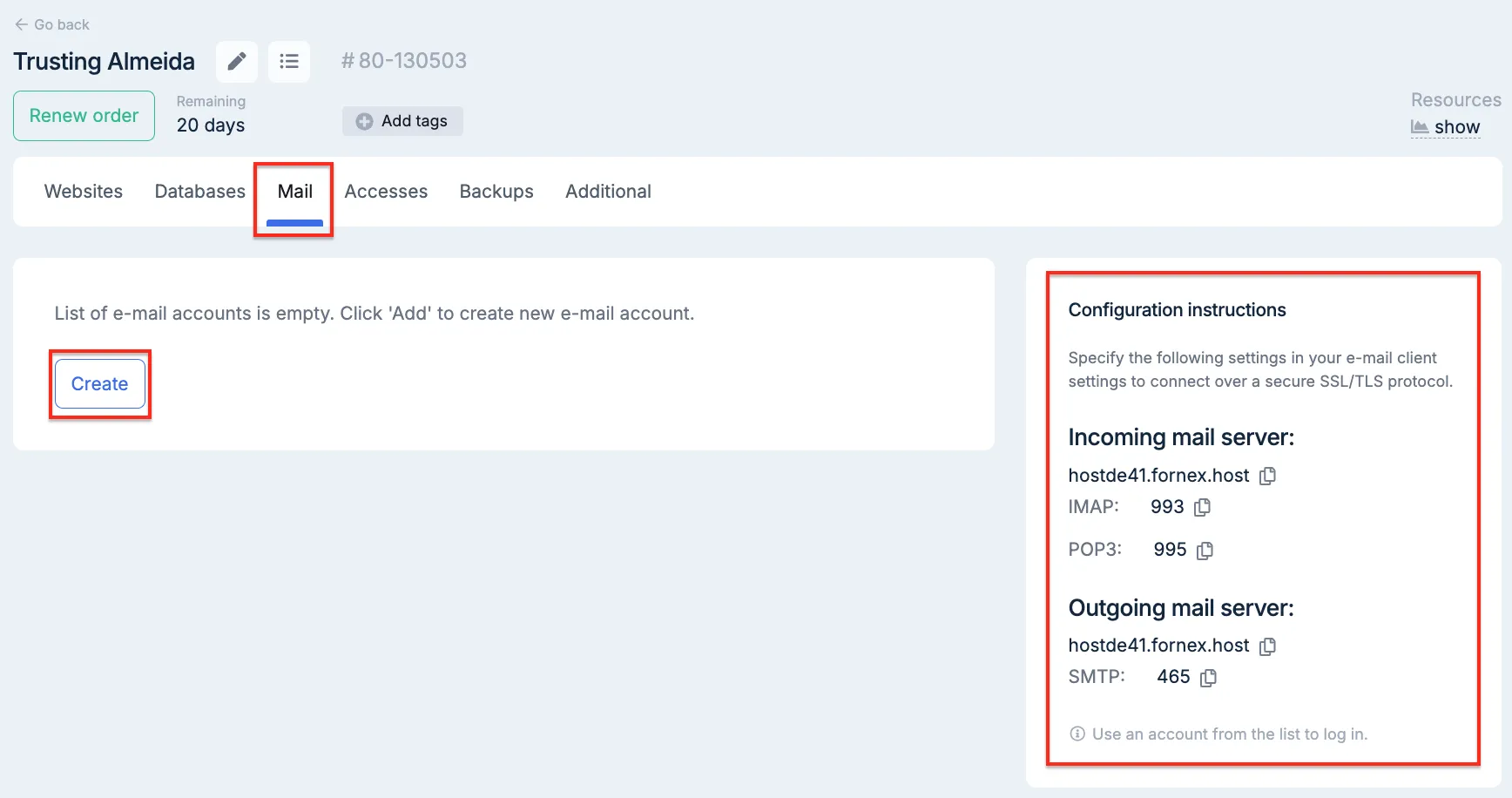 Email management section
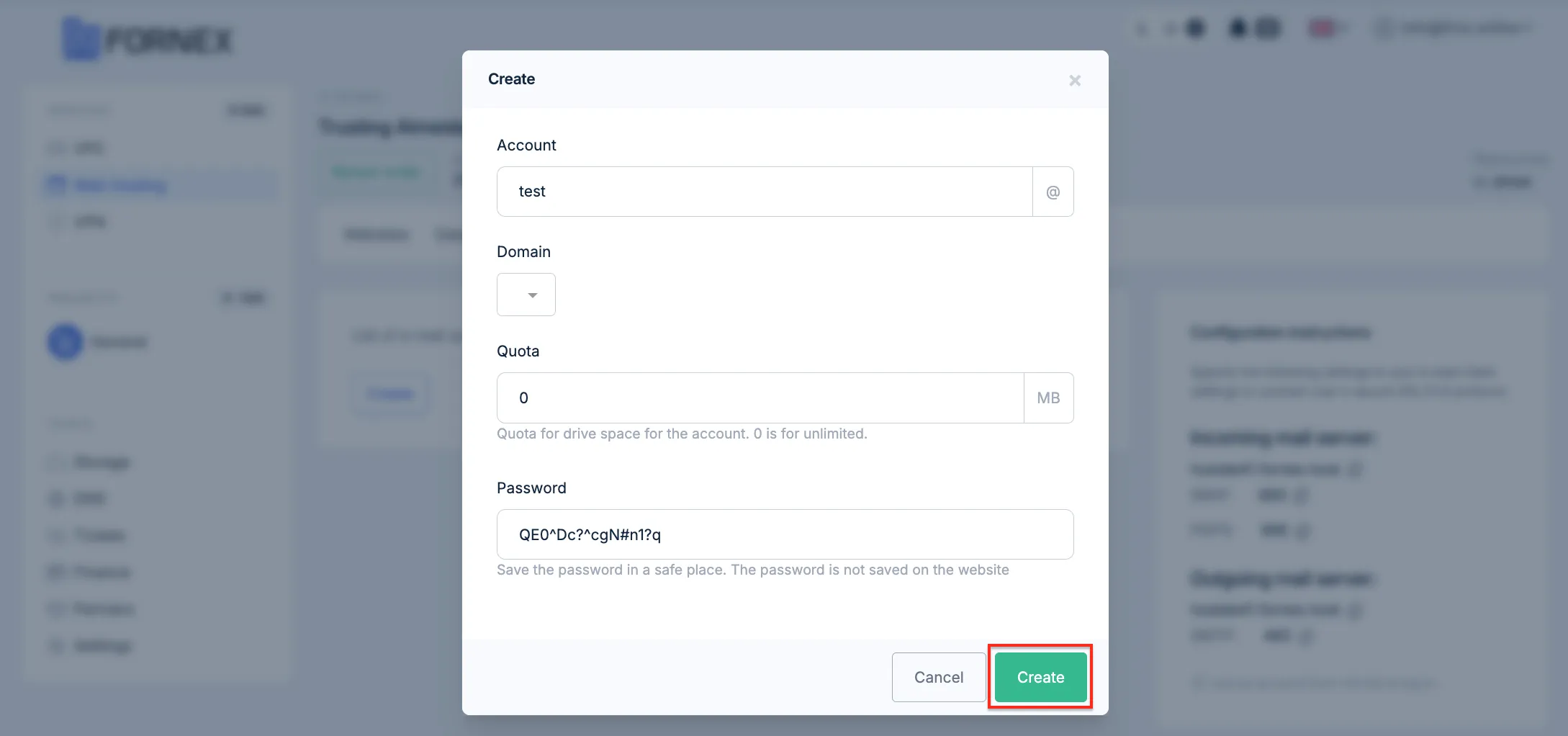 Email account creation form
Access Credentials
- Add and remove FTP accounts with root directory and quota settings
- Add SSH keys for passwordless access
- View SSH and FTP connection details
- Connection instructions
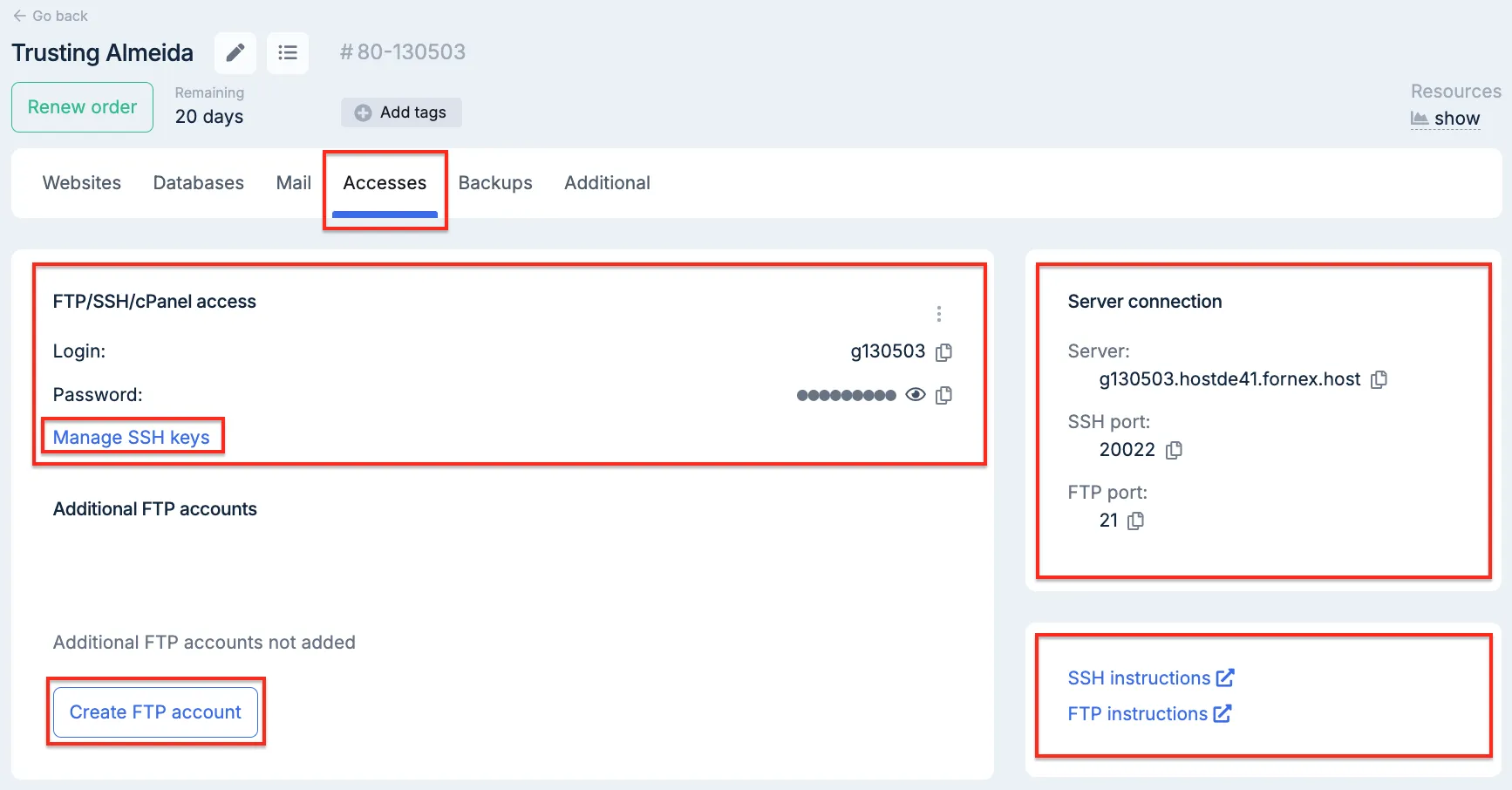 Access credentials section
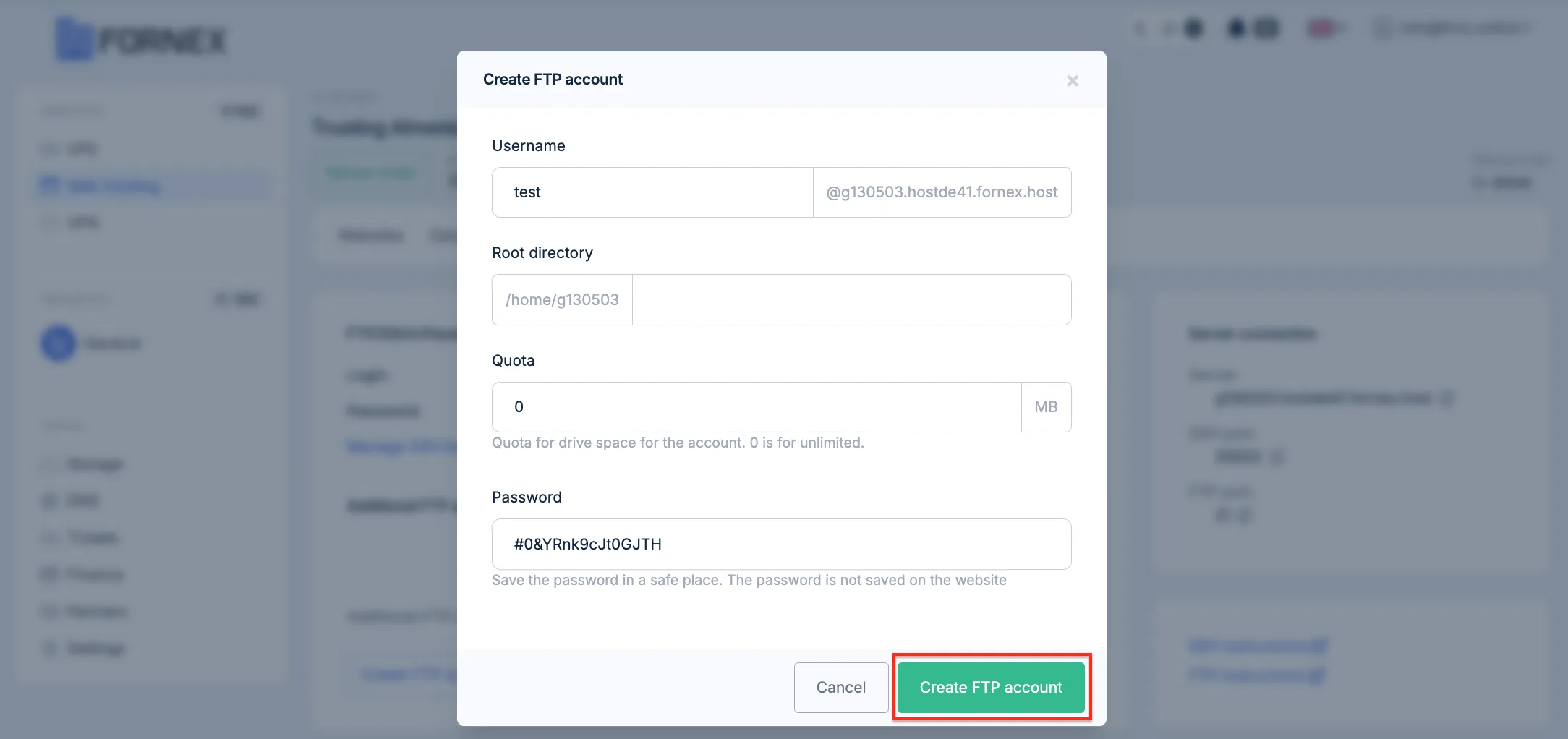 FTP account creation form
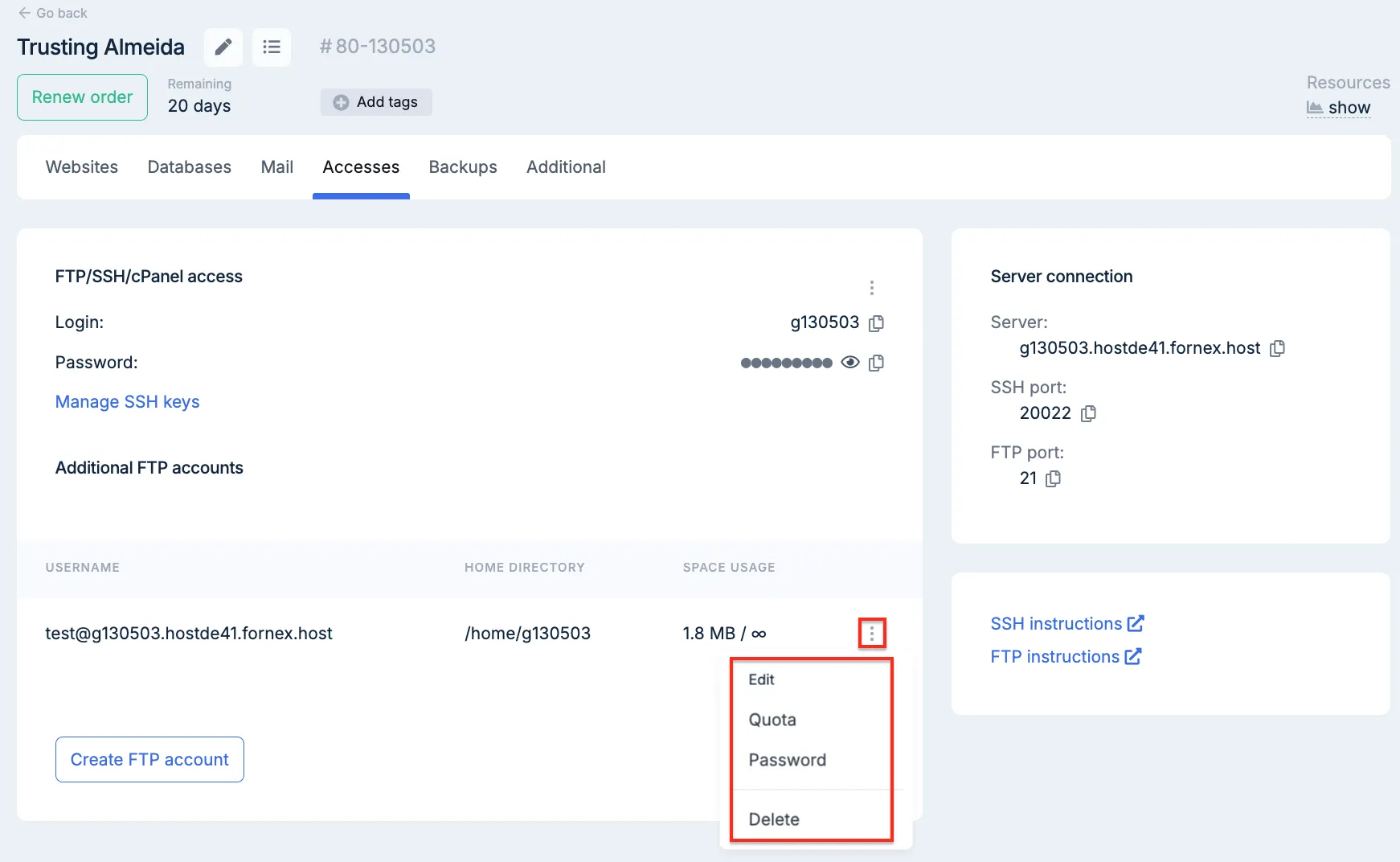 SSH keys and connection information
Backups
Download backups or request full order restoration (sites, SSL, email, databases).
Attention
We store 1 daily backup and 2 monthly backups (from the 1st and 15th of each month).
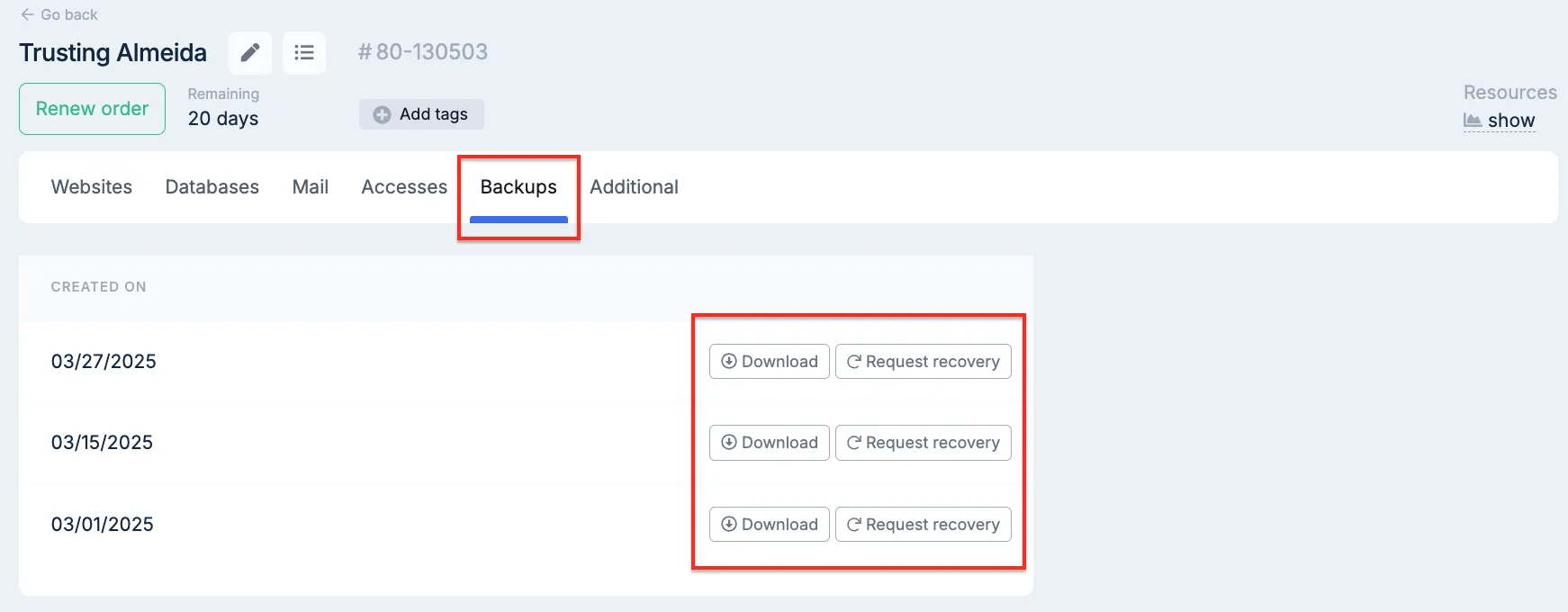 Backup management section
Additional Settings
PHP Versions
Select the PHP version for each domain.
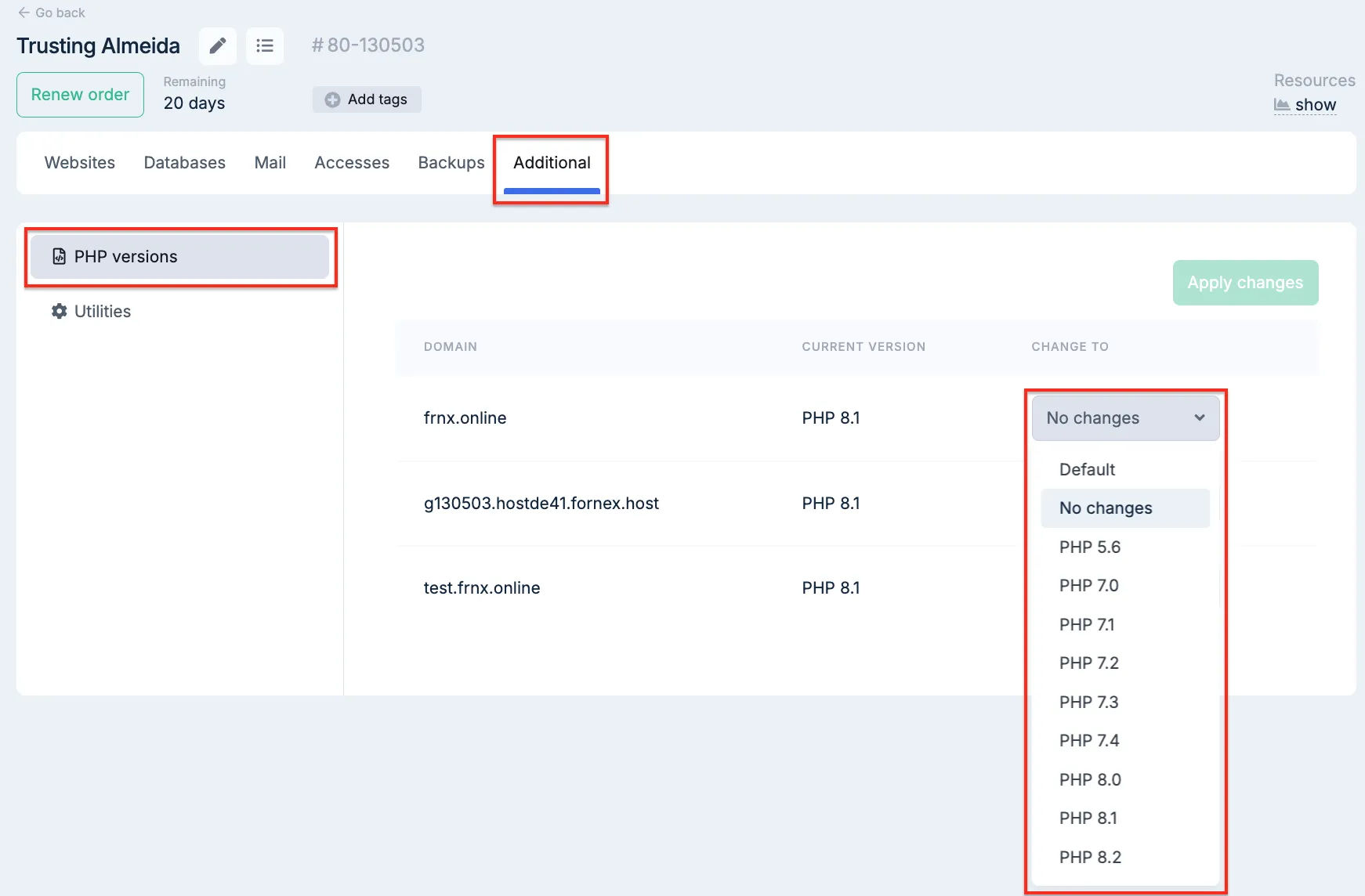 Selecting PHP version for a domain
Utilities
Quick links to:
- cPanel control panel.
- phpMyAdmin.
- File manager.
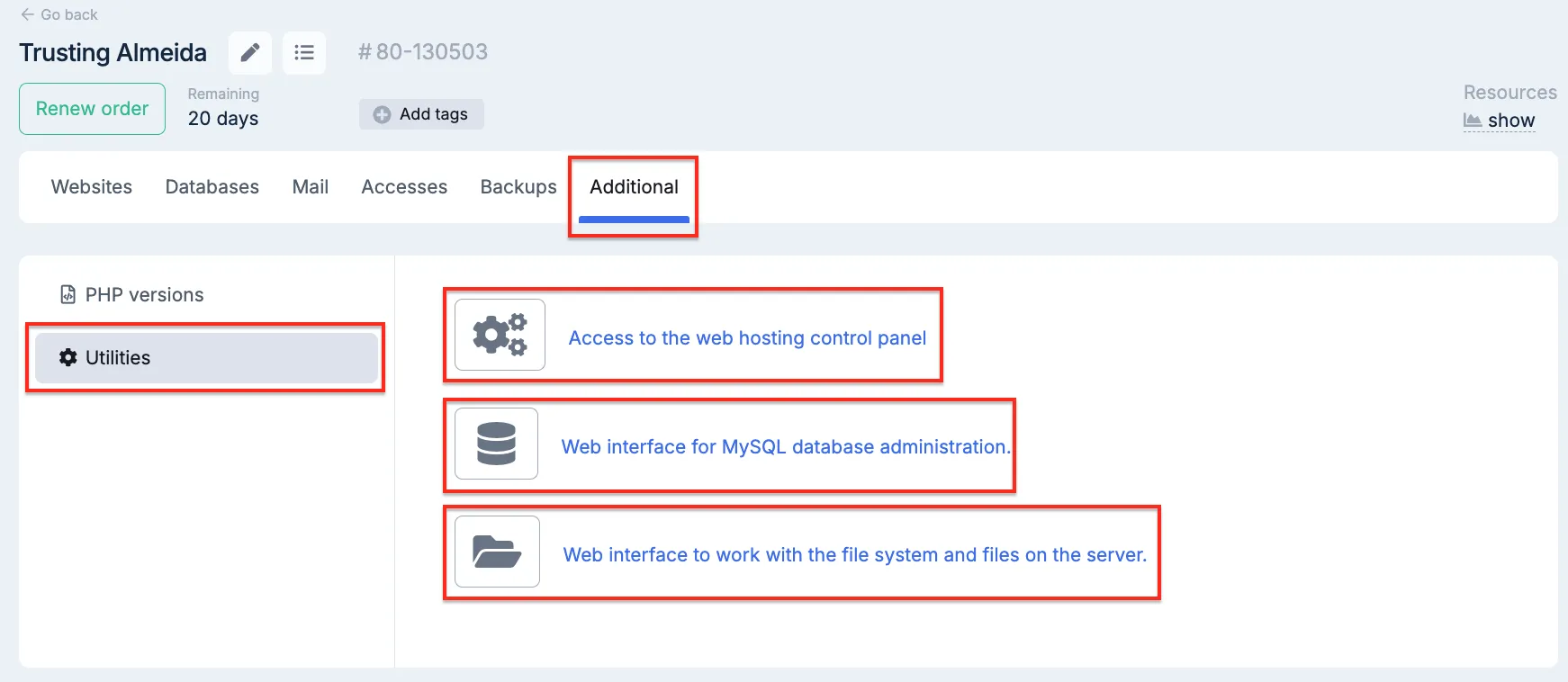 Quick utilities and shortcuts section
Our products and services
Help
If you have any questions or need assistance, please contact us through the ticket system — we're always here to help!