Resetting the root password on a CentOS 9 VPS or dedicated server
How to regain access to your server using GRUB and the IPMI console.
Resetting the root password on a VPS
If the server is running, reboot it using the Send Ctrl+Alt+Del button in your control panel.
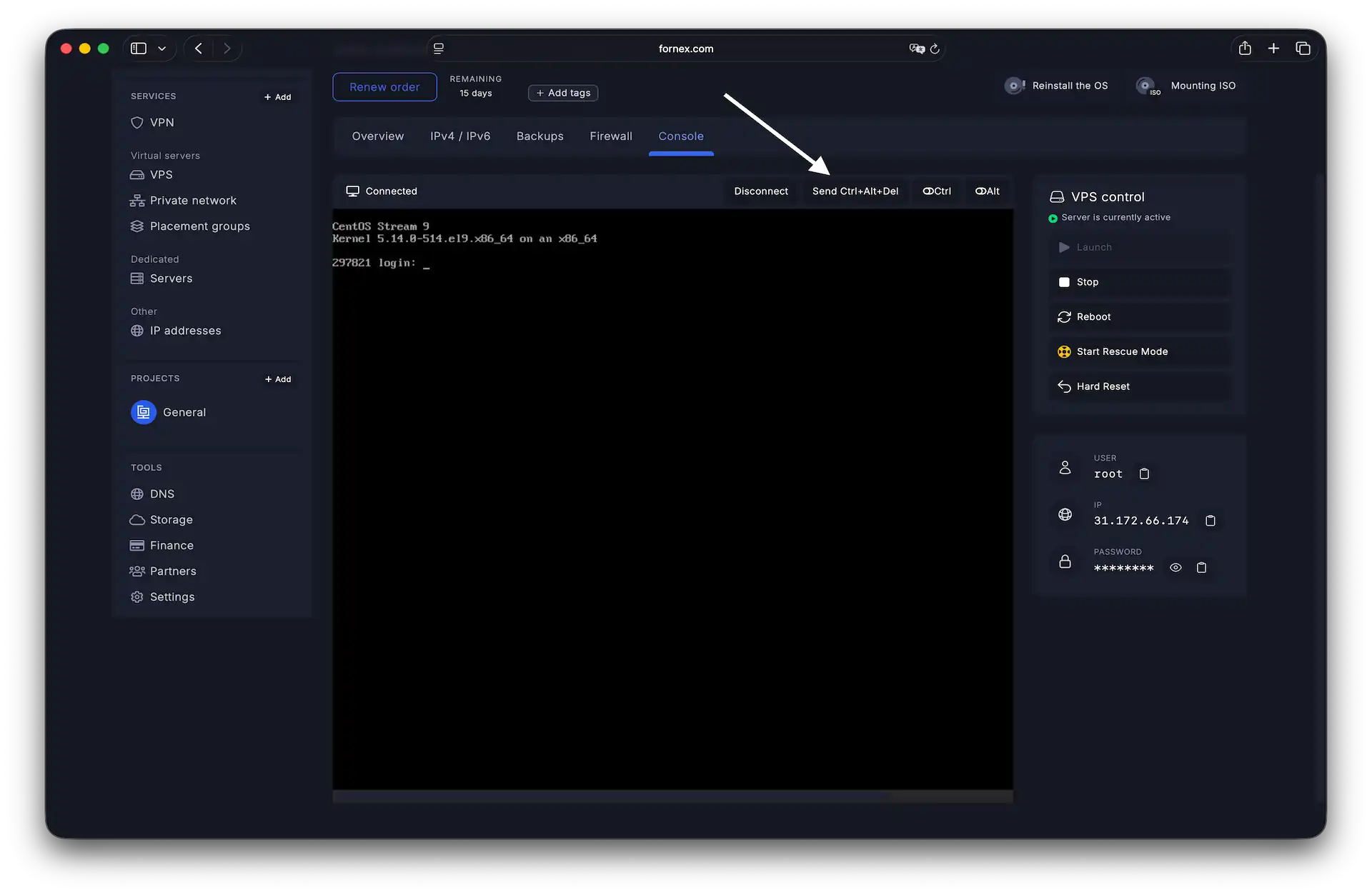 Reboot button in the control panel
After the BIOS screen, the GRUB bootloader menu will appear.
 GRUB bootloader menu
Use the ↑ and ↓ arrow keys to navigate, select your boot entry, and press e to edit the boot parameters.
Find the line starting with linux ($root)/boot/...
 Kernel boot line in the GRUB editor
The ro parameter mounts the filesystem read-only. To make your password change stick, replace ro with rw and append init=/sysroot/bin/sh:
 Boot line after editing
Press Ctrl+X or F10 to boot into single-user mode.
Run the following commands to change the root password:
chroot /sysroot
passwd root
exit
reboot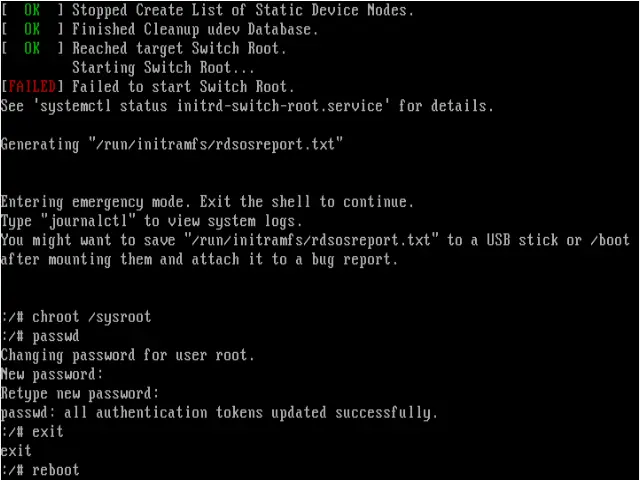 Changing the root password in single-user mode
Resetting the root password on a dedicated server
On a dedicated server, you'll use IPMI to access the console remotely.
In the IPMI web interface, go to Remote Control → Console Redirection and click Launch Console.
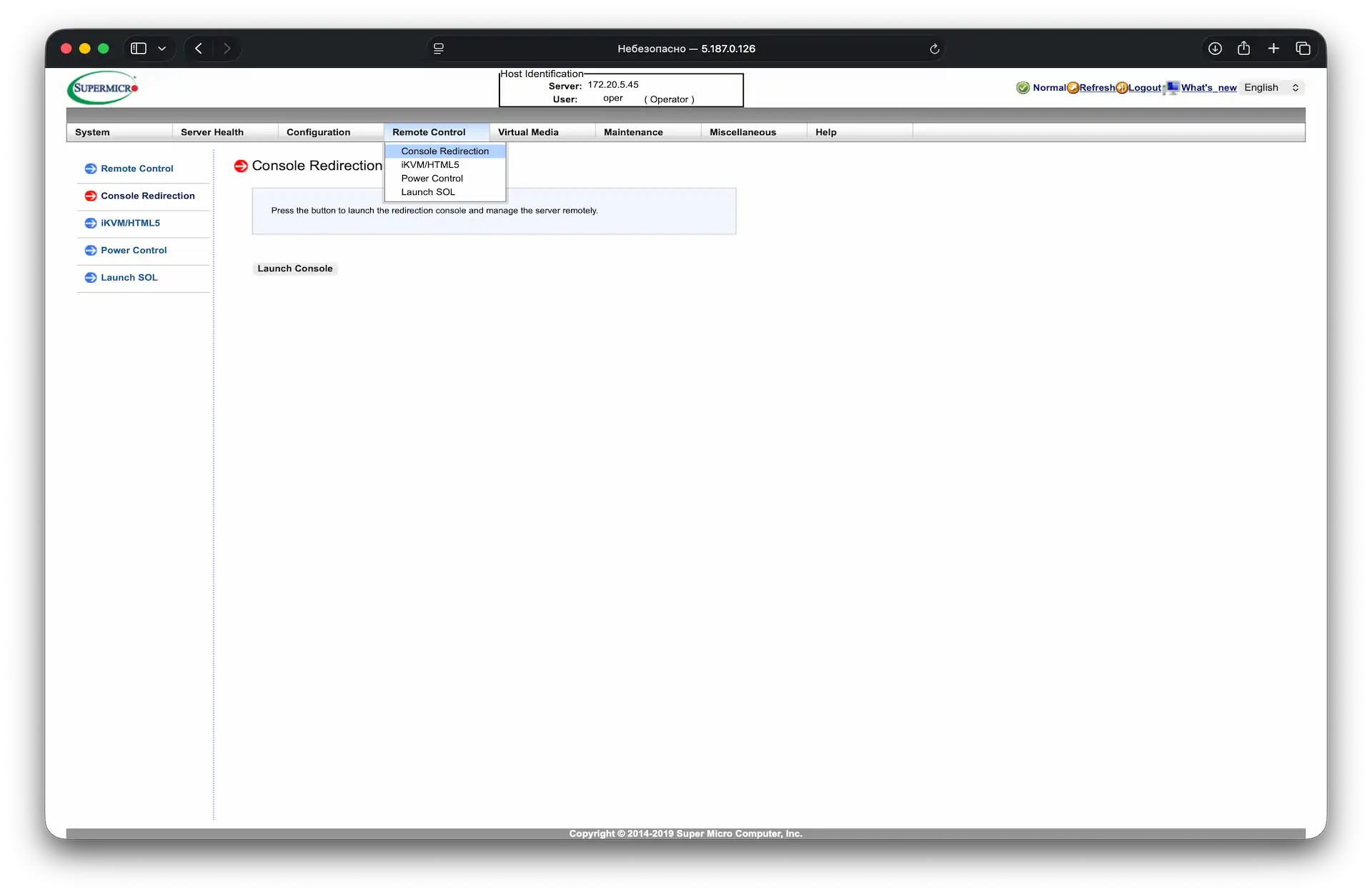 Launching the console in the IPMI interface
You'll need Java Runtime Environment installed. The installer will download automatically when you click Launch Console.
Once the file downloads, run it, check the checkbox in the dialog that appears, and click Run.
 Confirming the Java application launch
If Java's security system throws a warning, add the IPMI IP address (both http:// and https://) to your Java exception list. The Java documentation walks you through it.
Once you're in the console, reboot the server: Remote Control → Power Control → Reset server.
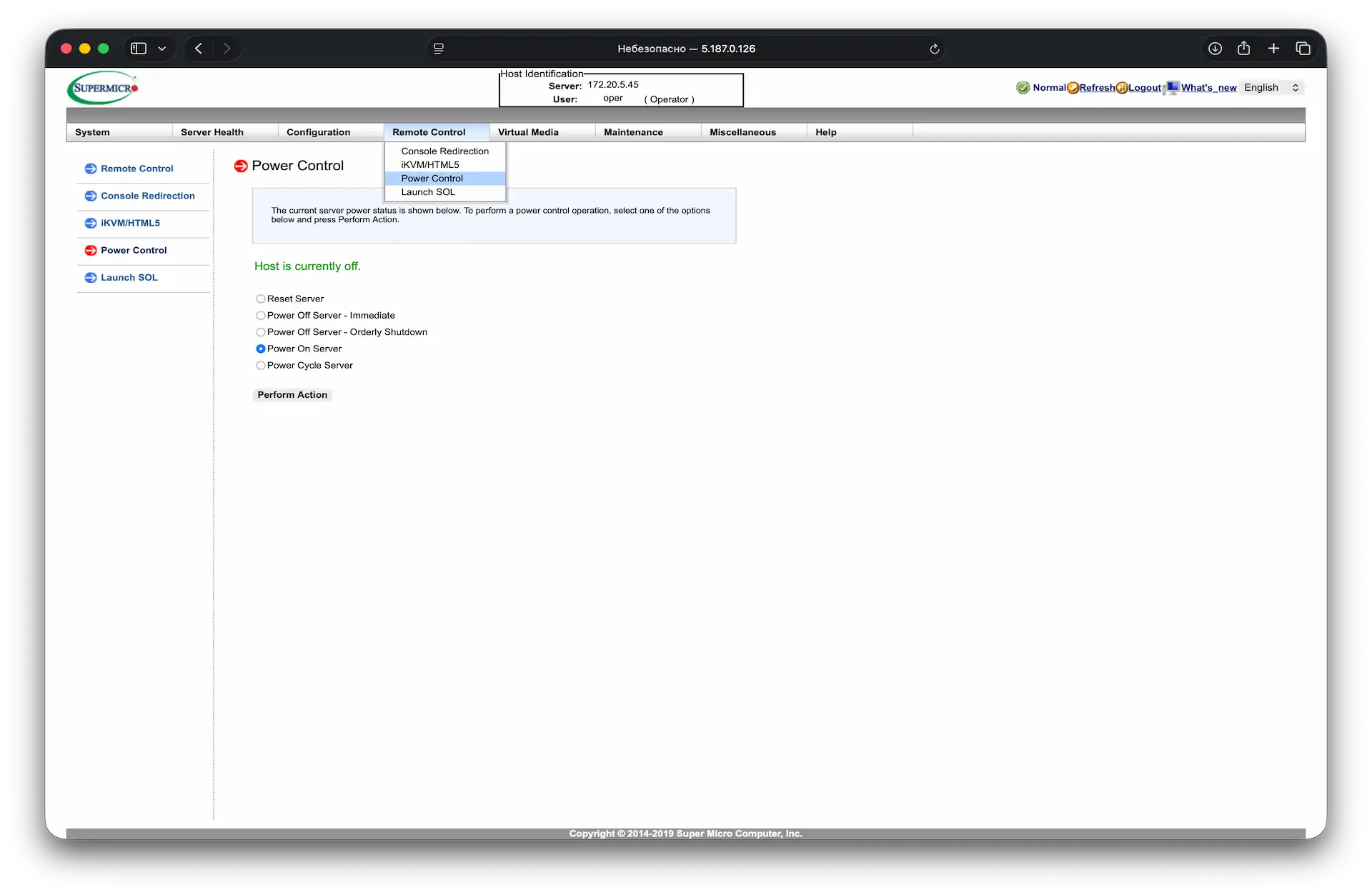 Rebooting the server via Power Control
After the reboot, the GRUB menu will appear. Press e to edit the boot entry.
 GRUB bootloader menu on the dedicated server
Find the correct kernel line — the name depends on your system:
- linux — 64-bit IBM Power systems
- linux16 — x86-64 BIOS systems
- linuxefi — UEFI systems
Replace ro with rw and remove the nofb and quiet parameters:
 Editing the kernel boot line
Then add rd.break enforcing=0 at the end of the line:
 Adding rd.break to the boot line
Press Ctrl+X to boot into single-user mode.
Run the following commands:
chroot /sysroot
passwd root
touch /.autorelabel
exit
reboot
The touch /.autorelabel command triggers an SELinux relabeling on the next boot. Skipping it can result in being locked out of the system even after changing the password successfully.
Help
If you have any questions or need assistance, please contact us through the ticket system — we're always here to help!