Resetting the ESXi root password
How to reset the root password by editing the shadow file via LiveCD.
If you've lost or forgotten the root password on an ESXi host running on a dedicated server or VPS, there's no need to reinstall. The password is stored in encrypted form in the shadow file inside the system partition — and you can change it directly by booting into a LiveCD environment.
This guide applies to ESXi 6.x, 7.x, and 8.x. Partition names and layout may vary slightly between versions, but the overall process remains the same.
Before you start
Boot the server from any Linux LiveCD. Good options include:
- SystemRescueCD — actively maintained, recommended
- GRML
- Ubuntu Live
Finding the right partition
Once you're in the LiveCD environment, list all disk partitions:
fdisk -l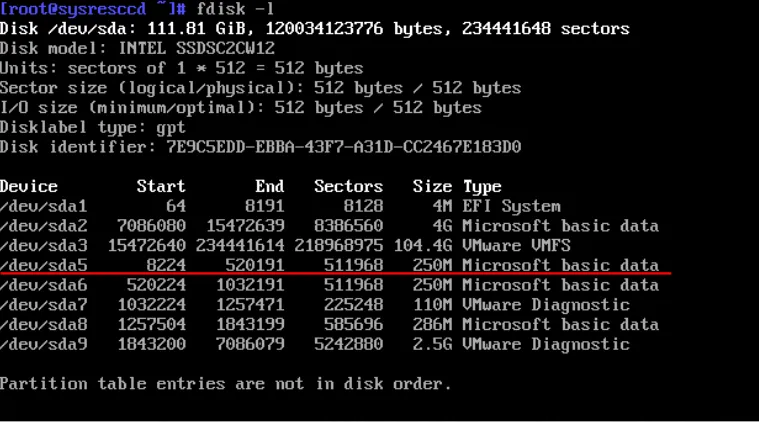 Disk partition list
Look for /dev/sda5 — it's roughly 250 MB in size and corresponds to the /bootbank partition where ESXi stores its OS image and configuration.
On some hardware configurations the partition name may differ. Use the ~250 MB size as your main identifier.
Mount and extract
Mount the partition:
mount /dev/sda5 /mntExtract the nested archives into a temporary directory:
tar -xf /mnt/state.tgz -C /tmp/
tar -xf /tmp/local.tgz -C /tmp/
Clean up the extracted archives:
rm /tmp/*.tgzOur products and services
Edit the shadow file
Open the shadow file in a text editor:
nano /tmp/etc/shadowFind the line for the root user. It looks something like this:
root:66
6password_hash...:12345:0:99999:7:::
Delete the password hash — everything between the first and second colon. The result should look like:
root::12345:0:99999:7::: shadow file before editing
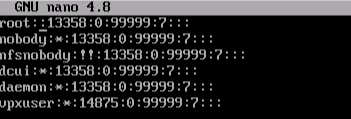 shadow file after removing the hash
Save the file: Ctrl + O → Enter → Ctrl + X.
Repack and write back
Navigate to the temp directory and repack the files in reverse order:
cd /tmp
tar -czf local.tgz etc
tar -czf state.tgz local.tgz
Move the new archive back to the ESXi partition:
mv state.tgz /mnt/Unmount the partition:
umount /mntReboot the server:
rebootSet a new password
When ESXi boots, it will automatically unpack local.tgz and copy the updated shadow file into /etc. The root account will now have an empty password.
Press F2 to open the configuration menu. When prompted for a password, just press Enter.
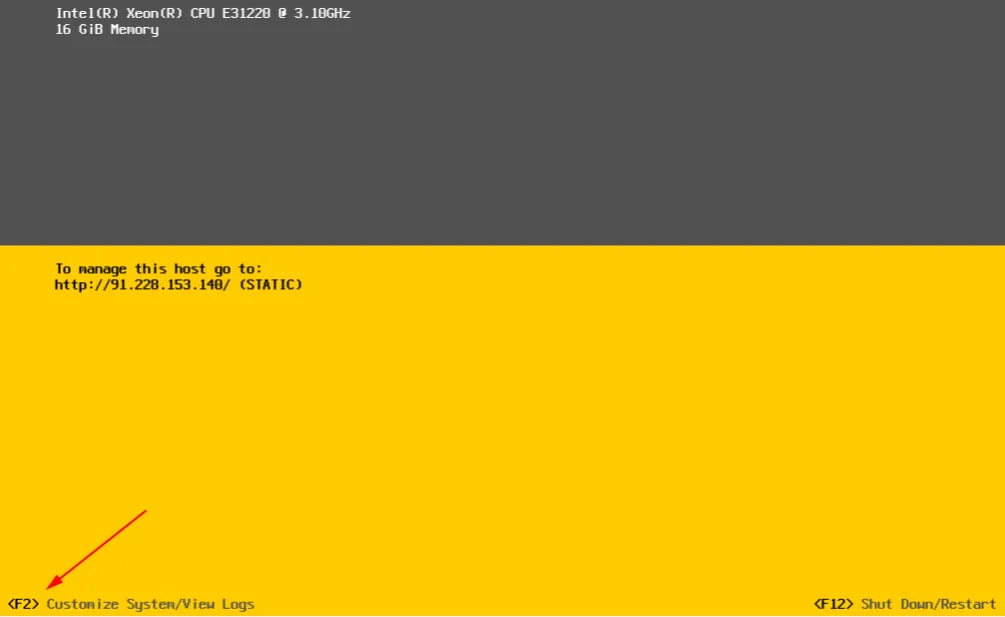 ESXi login screen
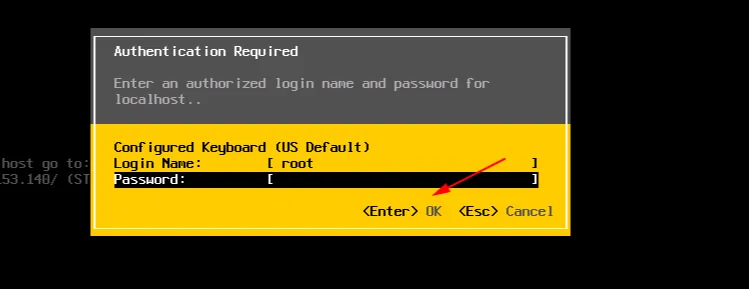 Configuration menu
Select Configure Password and enter your new password.
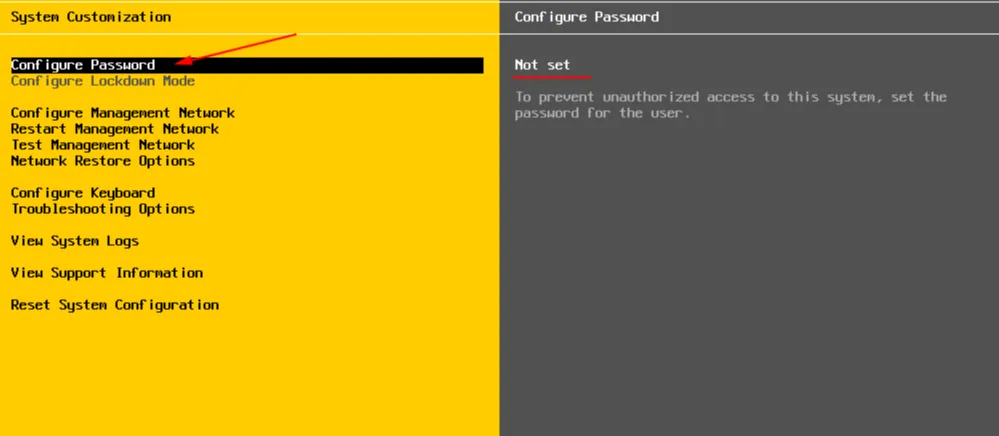 Selecting Configure Password
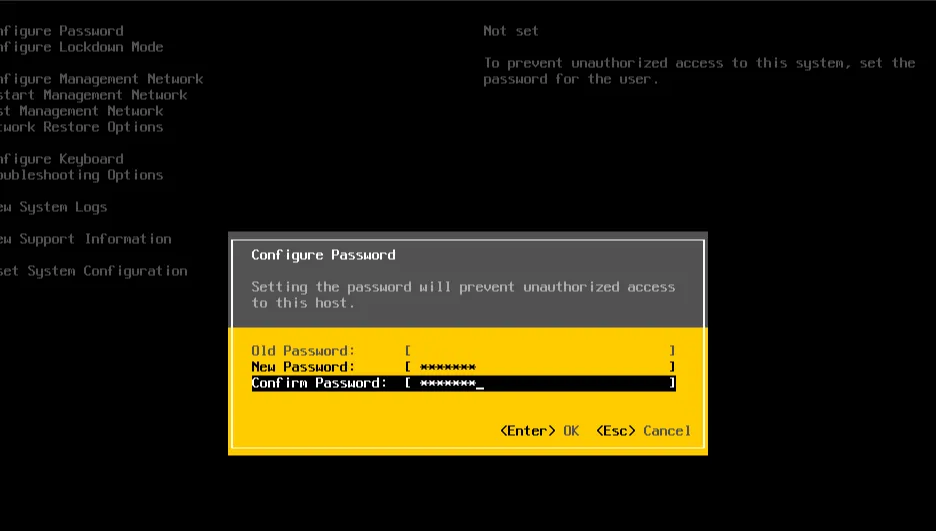 Setting the new password
Starting with ESXi 7.0, password requirements became stricter: at least 8 characters, with a mix of uppercase and lowercase letters, numbers, and special characters.
Help
If you have any questions or need assistance, please contact us through the ticket system — we're always here to help!