DNS basics
How to point your domain to Fornex nameservers and edit DNS records.
Once you order Web Hosting, VPS, or a dedicated server, you get access to the Fornex DNS panel.
The DNS panel lets you manage all your domain's records (A, CNAME, MX, TXT, etc.) and use our nameservers for fast propagation.
Adding a domain to the DNS panel
- Log in to your account → go to the DNS section.
- Click Add domain.
- In the Domain name field, enter your domain (e.g., example.com).
- In the IP address dropdown, select the IP of your hosting, VPS, or dedicated server.
- Click Add.
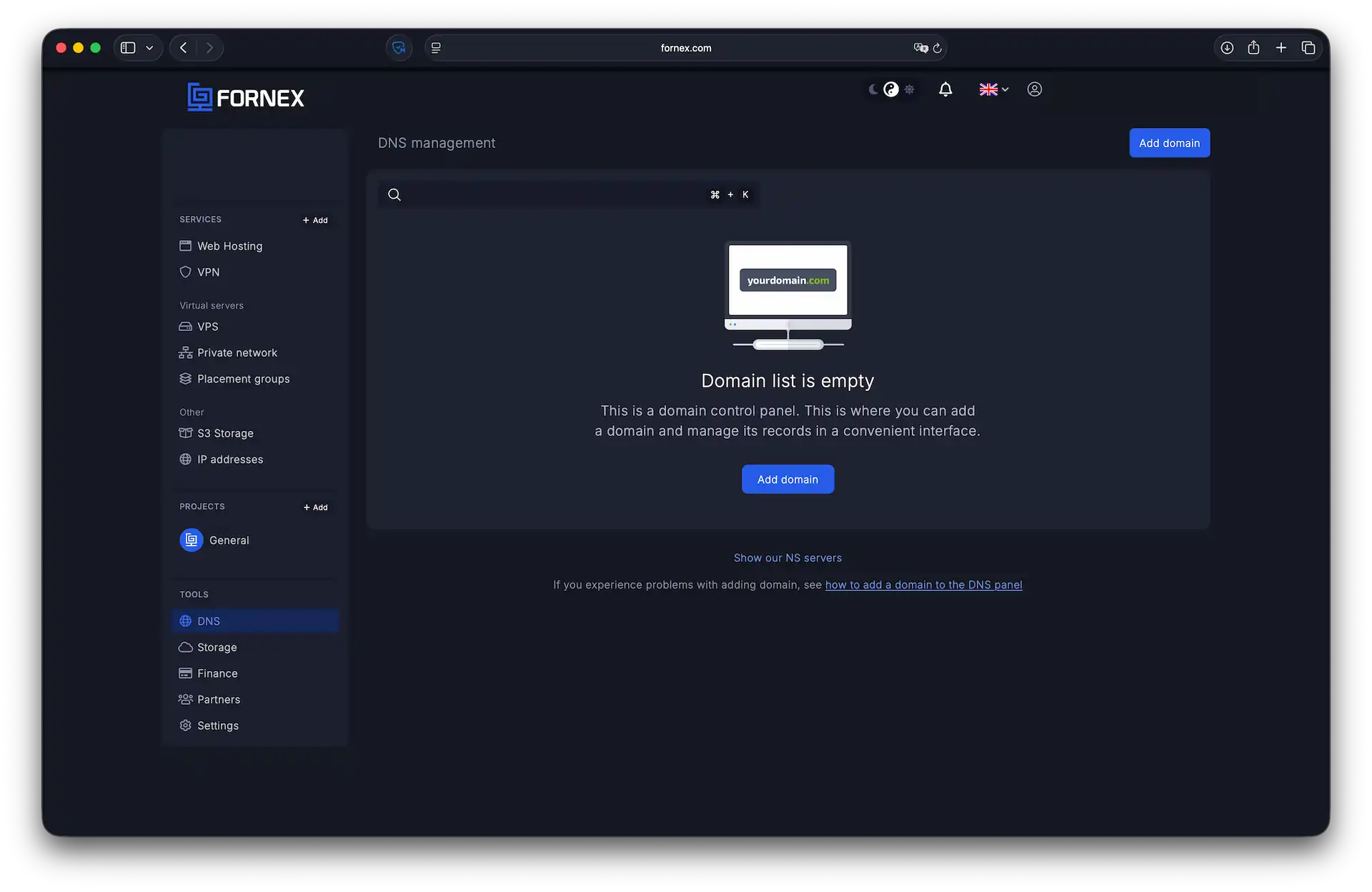 Domain addition form
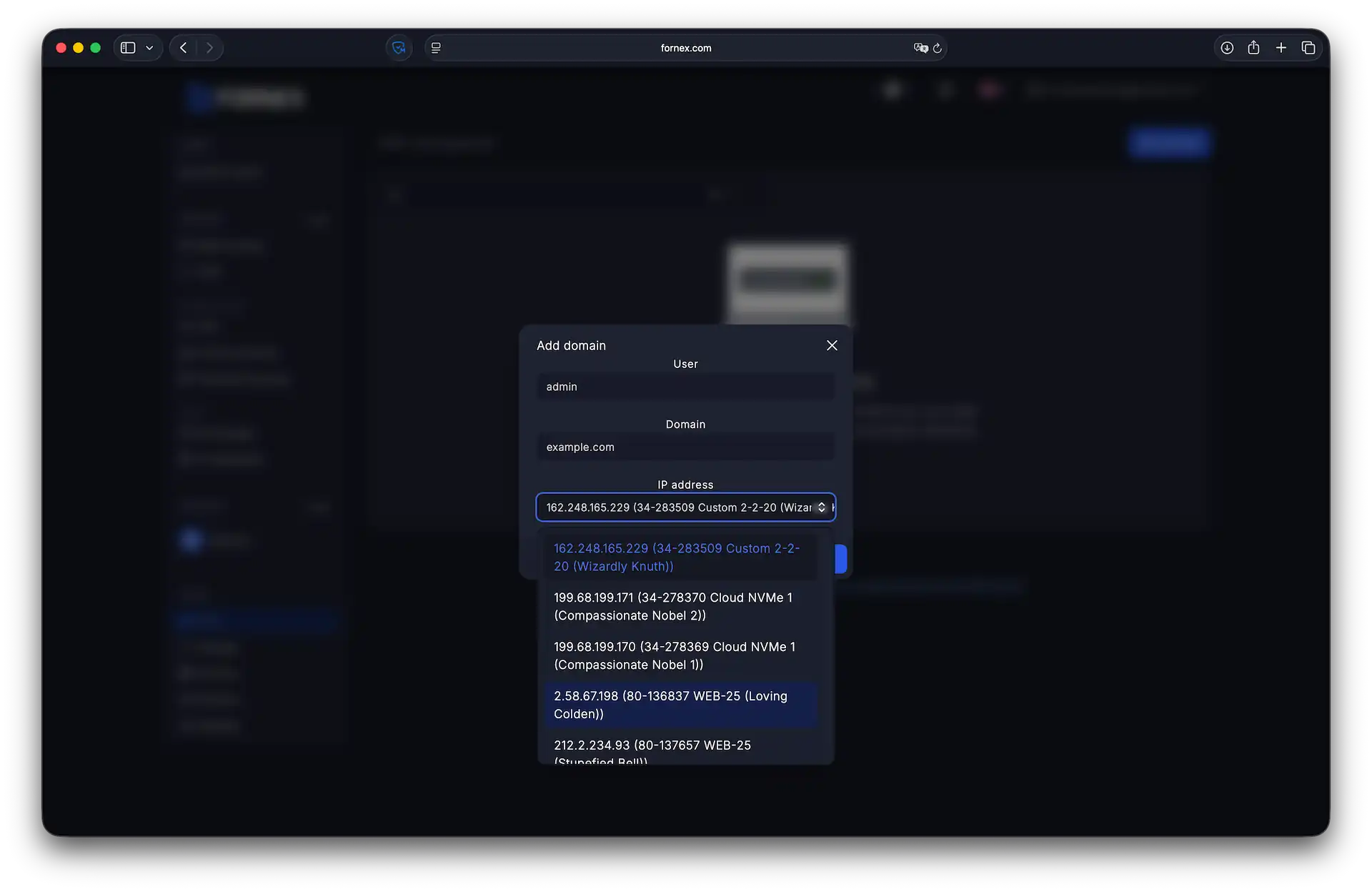 Choosing IP from your orders
Changes take effect on Fornex DNS servers within ~1 minute.
Propagation on root DNS servers (after updating nameservers) usually takes 15 minutes to 72 hours, depending on your registrar and TTL.
Updating nameservers at your registrar
To start using Fornex DNS, change your domain's nameservers at your registrar to:
- ns1.fornex.com
- ns2.fornex.com
- ns3.fornex.com
- ns4.fornex.com
You can use 2 or all 4 — both work fine.
After the change, your domain will be managed by our DNS servers.
Managing DNS records
- In the DNS section, click on your domain.
- Select the record you want to edit and click Edit.
- Update the value (IP, destination, TTL, etc.).
- Click Save.
TTL (Time to Live) — how long (in seconds) resolvers cache the record.
Common value: 3600 (1 hour).
Lower TTL makes changes propagate faster but increases DNS query load.
Useful tips
- After updating nameservers, test your site safely: use the site availability checker.
- To verify changes before nameserver propagation — use our Looking Glass tool.
- Quick check of new records from command line:
dig @ns1.fornex.com example.com AHelp
If you have any questions or need assistance, please contact us through the ticket system — we're always here to help!