Setting up Cron in BeAdmin panel
A step-by-step guide to creating and managing scheduled tasks using BeAdmin.
BeAdmin is a modern, flexible, and user-friendly control panel designed to streamline server and website administration. Whether you are hosting websites, managing databases, or configuring services, panel provides all the essential tools in a single, intuitive interface.
Creating a Cron task
Step 1. Go to the Cron section
To start automating your tasks, open the Cron section in the control panel's sidebar:
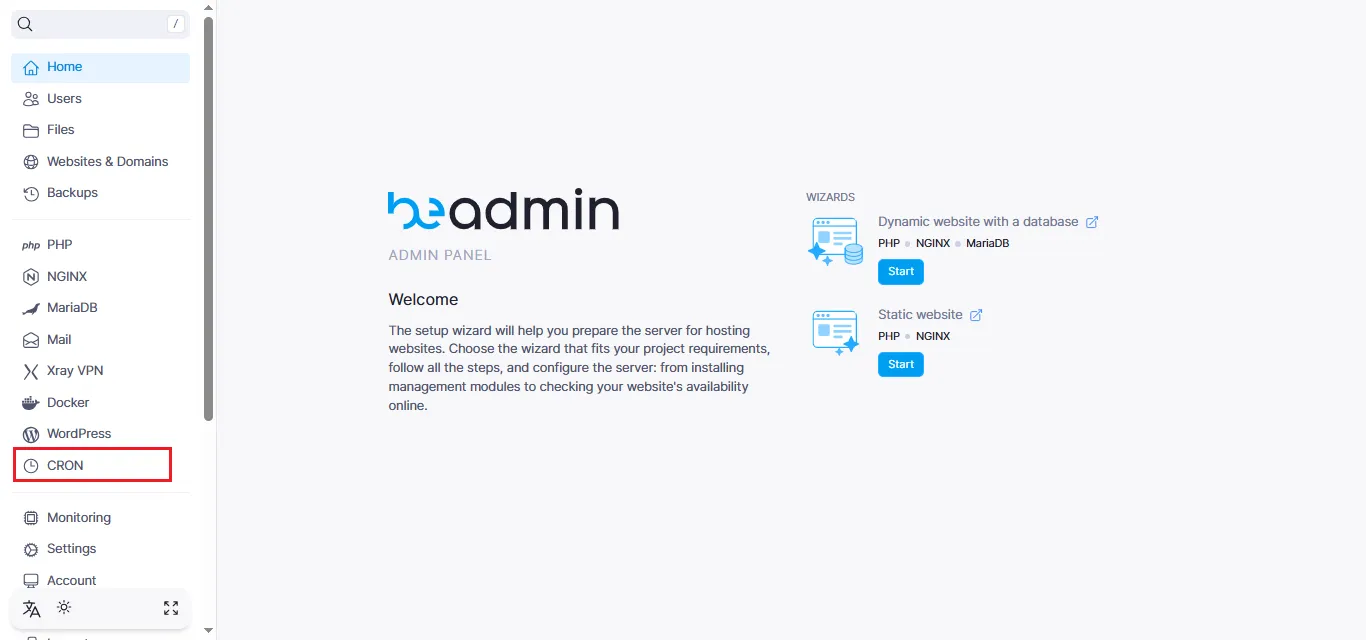 The Cron section in the control panel
Step 2. Prepare your script
Before scheduling a task, you need to prepare the script that will be executed:
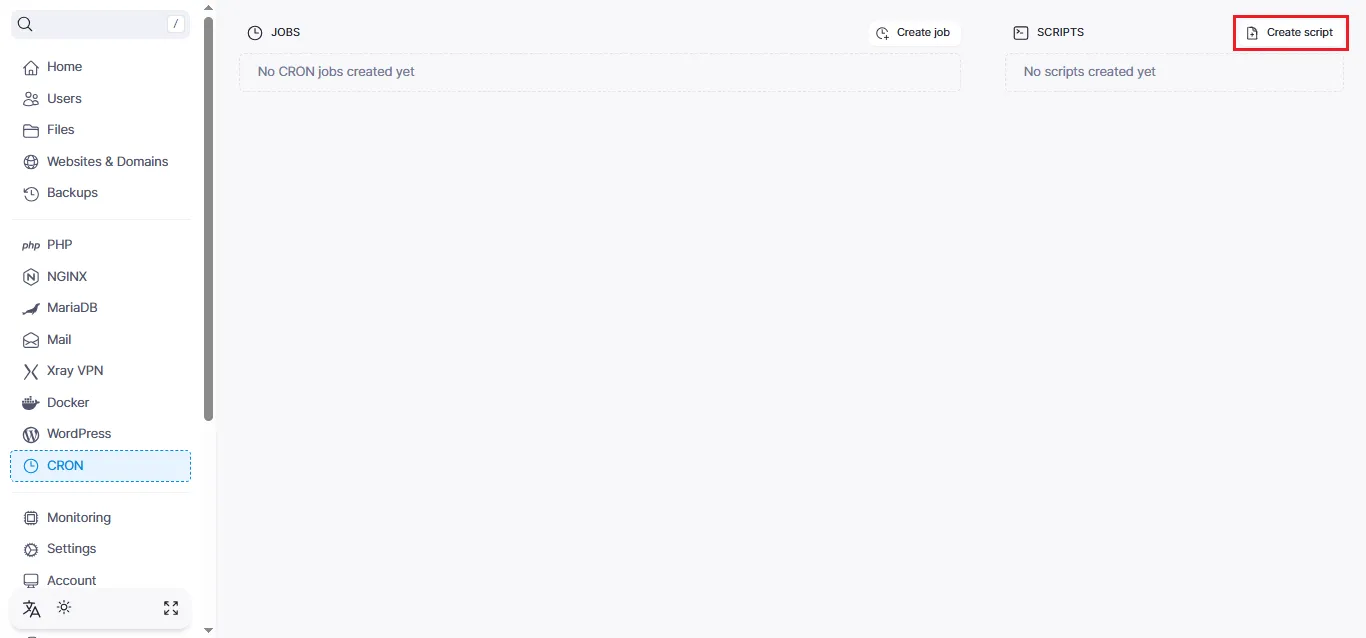 Navigating to the script creation menu
This example script identifies and removes backups older than 14 days:
find /var/lib/beadmin/backup -type f -mtime +14 -printClick the Create script button. In the pop-up window:
- Filename — enter a name for your script.
- Script content — paste your code into the corresponding field.
- Hit the
Createbutton.
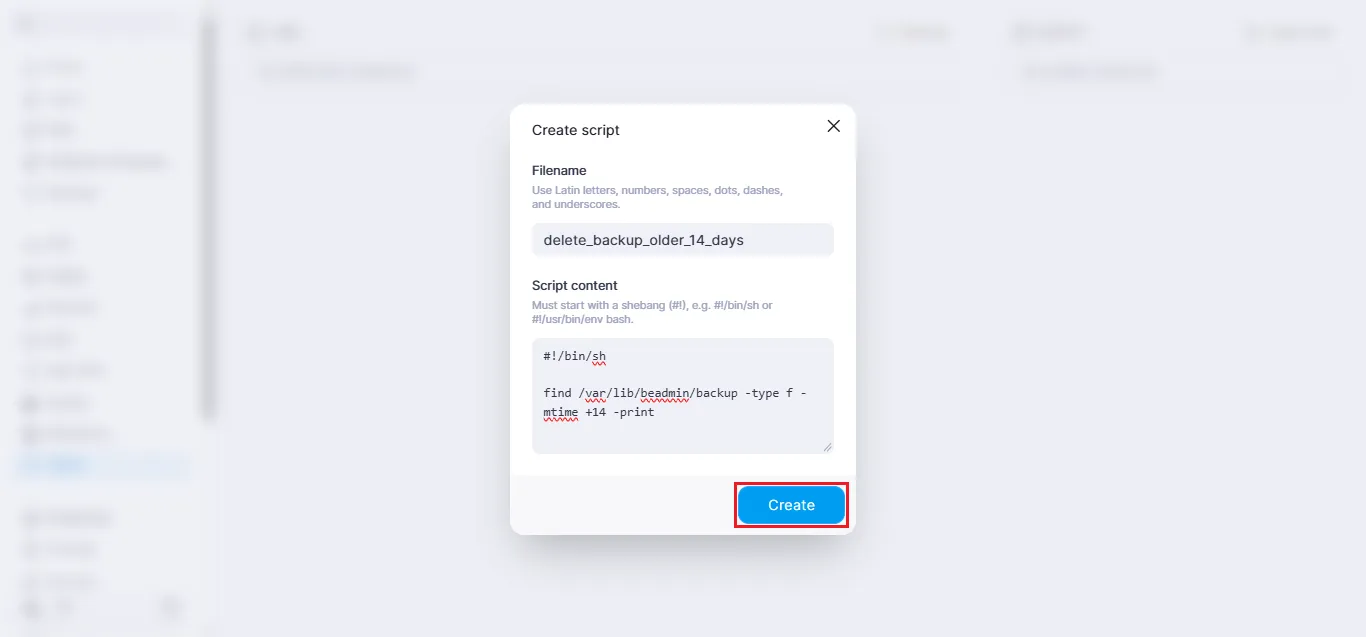 Script creation parameters
Note
By default, BeAdmin saves system backups to the /var/lib/beadmin/backup directory. You can find more details about this feature in our backup guide.
Step 3. Configure the task schedule
Once your script is ready, it is time to automate its execution. Click the Create job button:
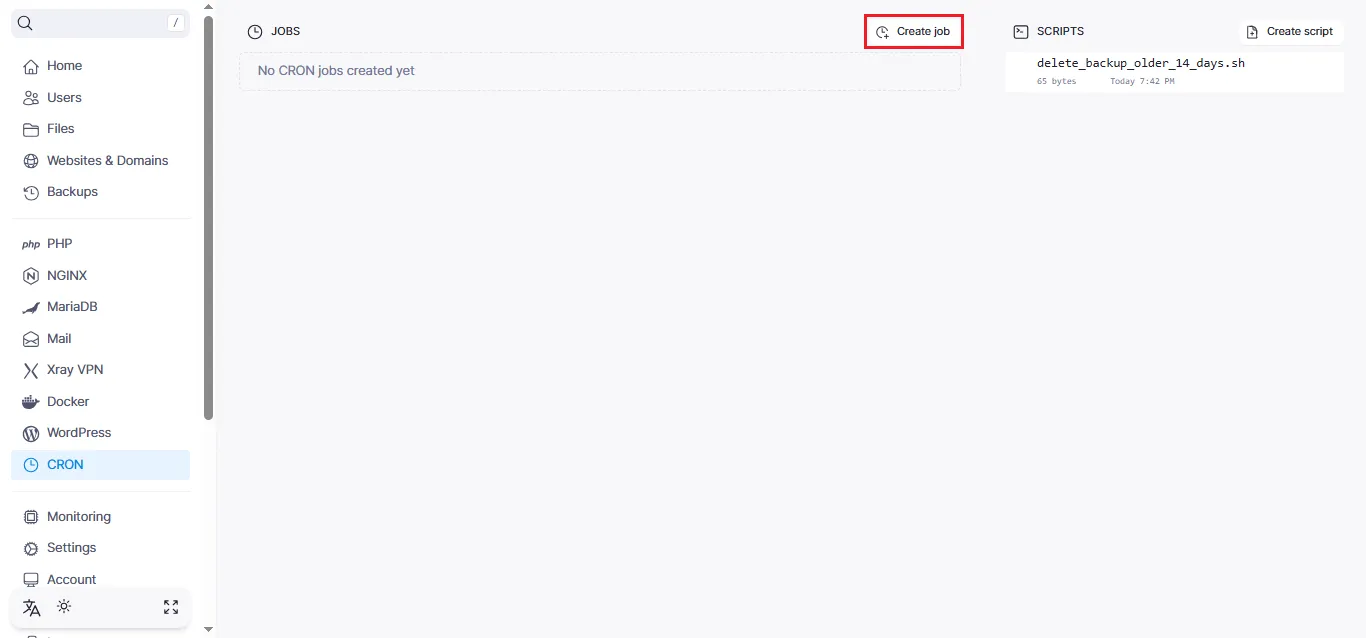 Accessing the schedule settings
Fill in the following parameters in the task creation form:
- Name — enter a brief description of the task.
- Script — select your previously created script from the dropdown menu.
Tip
By clicking the plus icon, you can create a new script directly within the Cron task settings—handy if you forgot to prepare one beforehand.
Advanced options:
- Run on the last day of the month — a useful feature for tasks that must trigger at the end of the month regardless of whether it has 28, 30, or 31 days.
- Run as superuser — enable this option if the script requires elevated permissions to access system directories.
Run schedule:
- Enter the execution time in cron format, for example:
0 5 15 * *.
Note
The example schedule above means the task will run on the 15th of every month at 5:00 AM.
Toggle the switch to Activated and click the Create button:
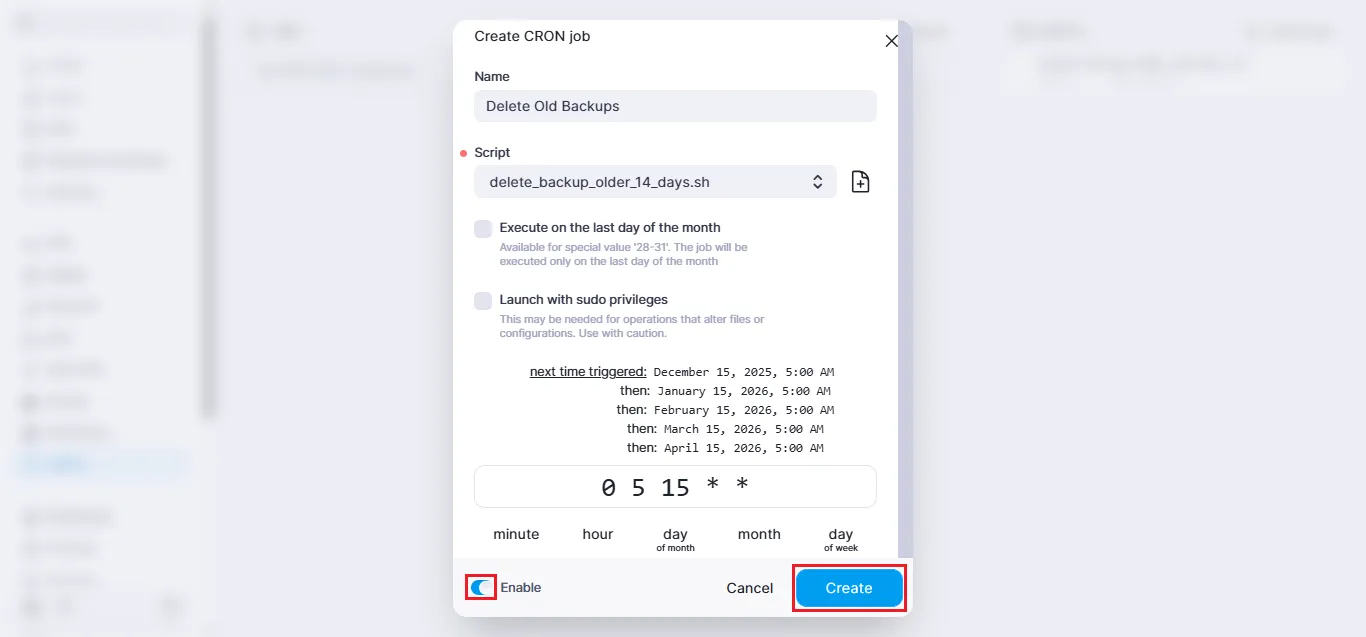 Finalizing the task setup
Success! Your task has been created and will now appear in the general list:
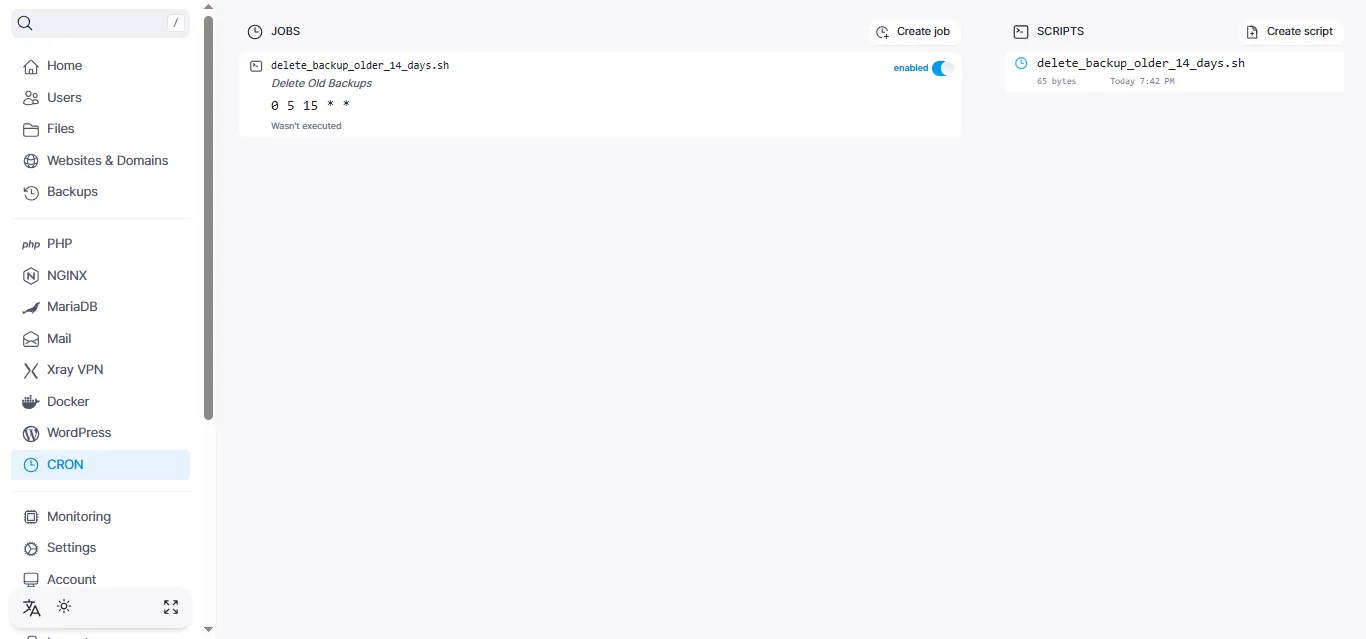 The list of active tasks in the panel
Managing tasks
Manual execution
If you need to trigger a task immediately without waiting for the scheduled time, click the Play button next to the desired task:
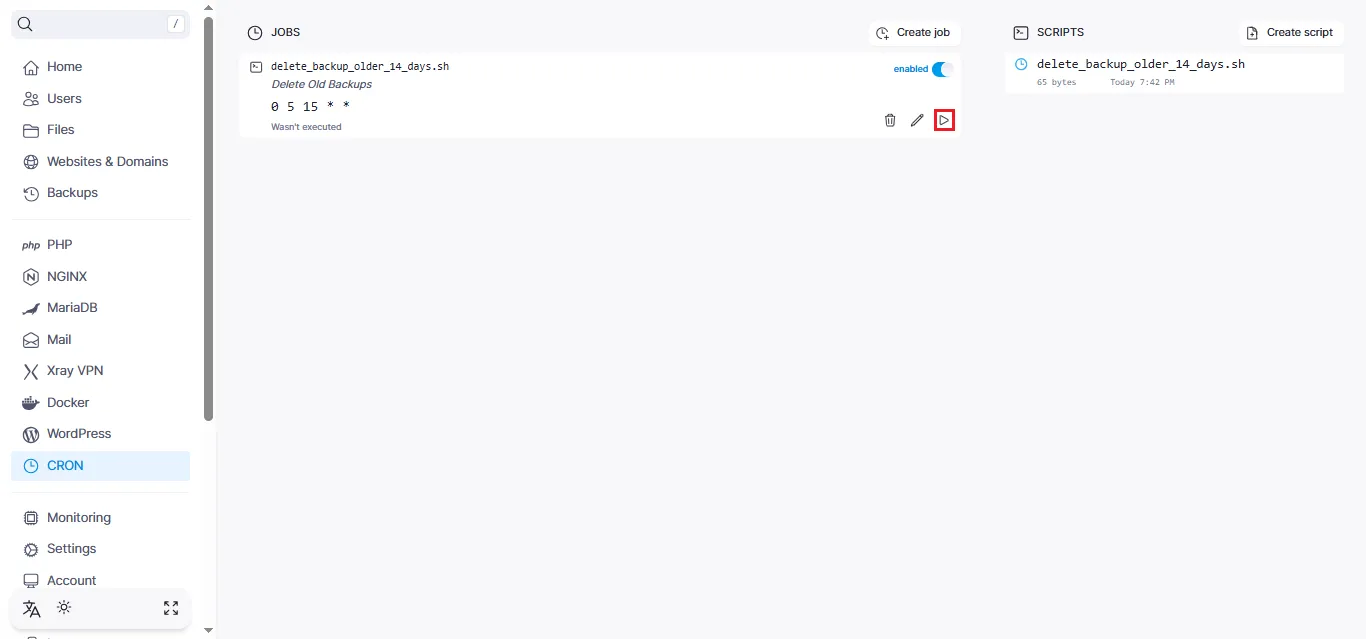 Instant run button
Editing tasks
To modify the parameters of an existing task, click the`pencil icon:
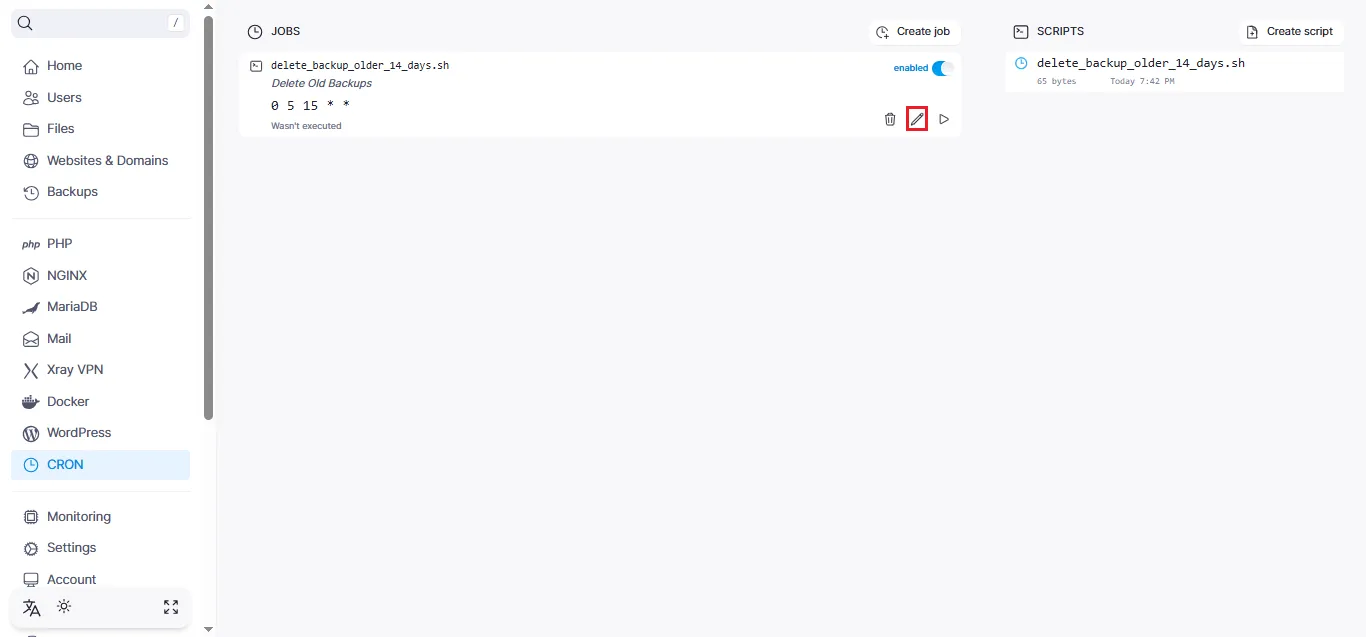 Entering edit mode
Apply your changes and click the Update button:
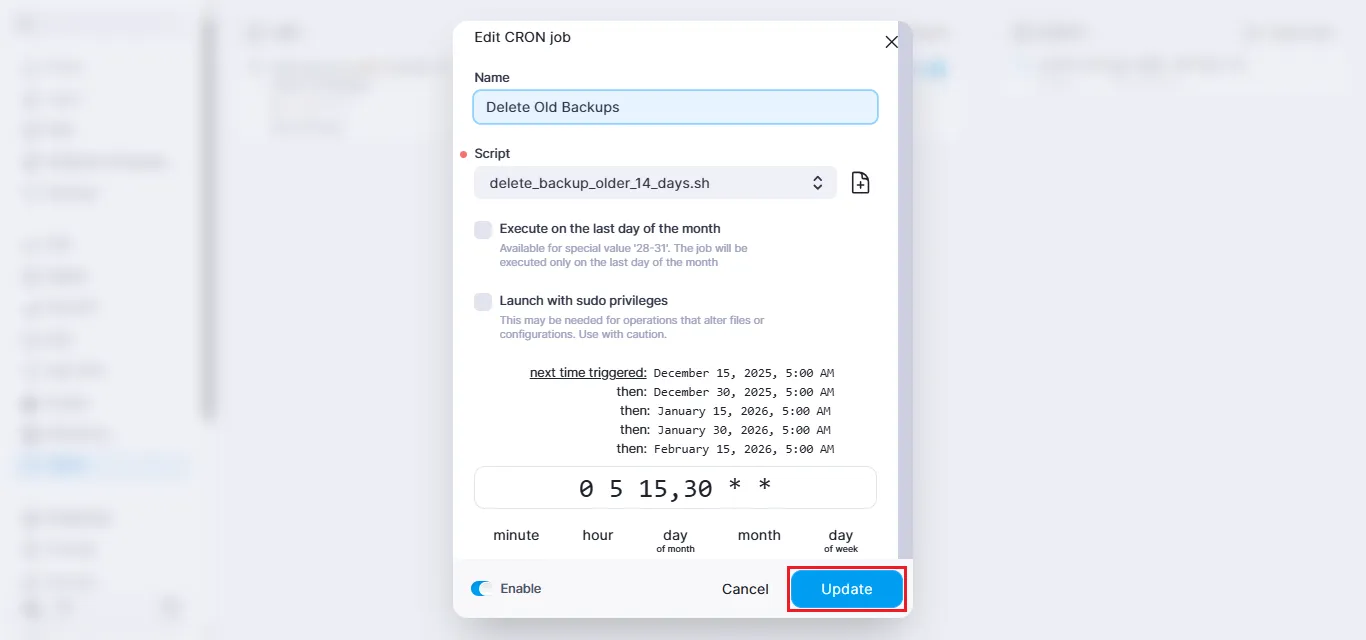 Saving changes to the task
Deleting tasks
If a task is no longer needed, click the trash icon:
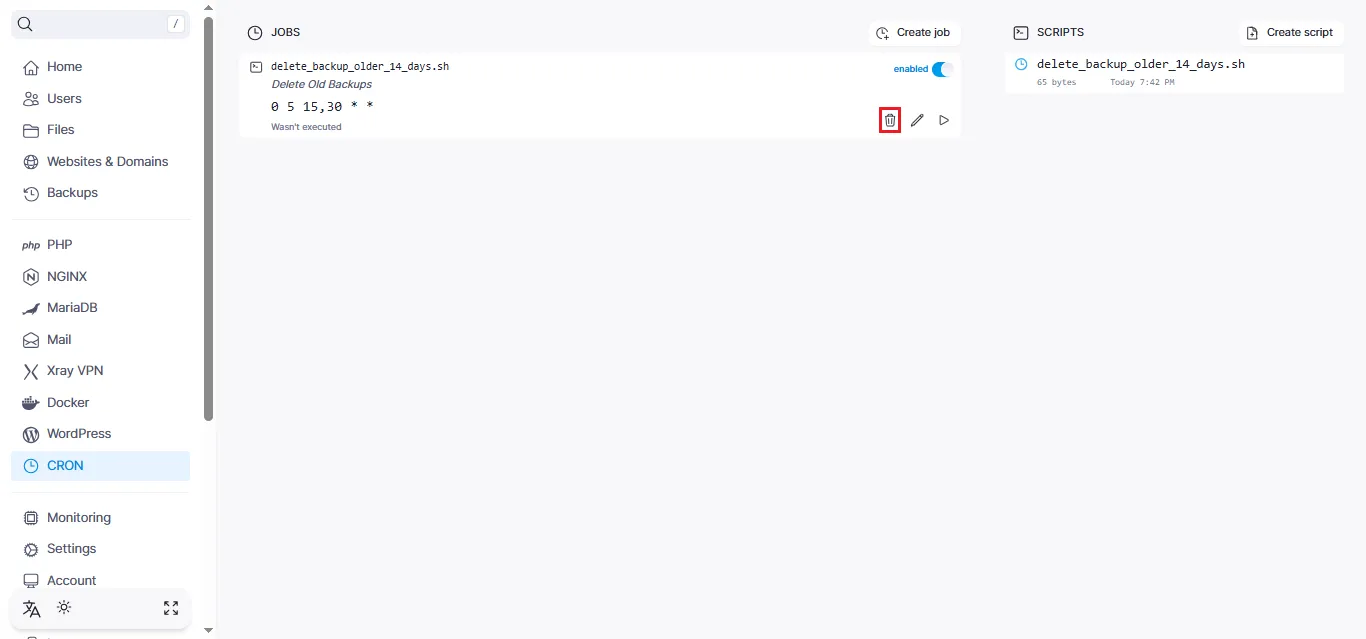 Removing a task
Confirm the action in the dialog box:
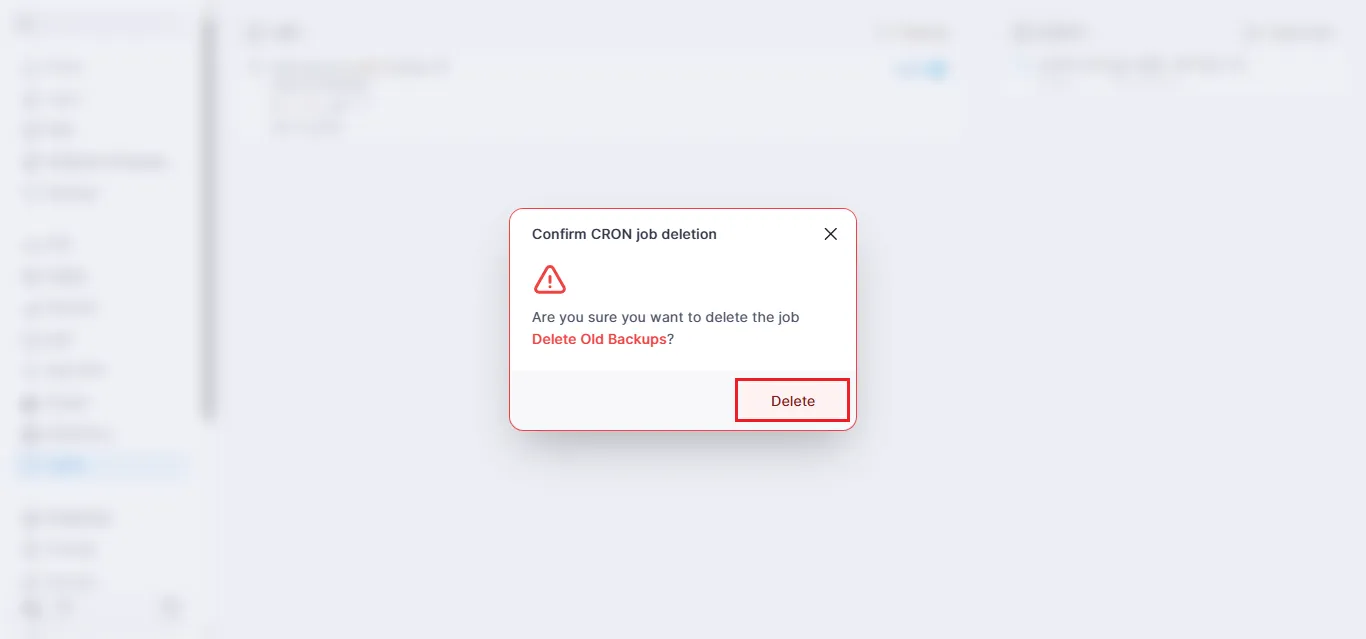 Deletion confirmation window
Managing scripts
Editing script content
To modify a script's code, click the pencil icon in the scripts subsection:
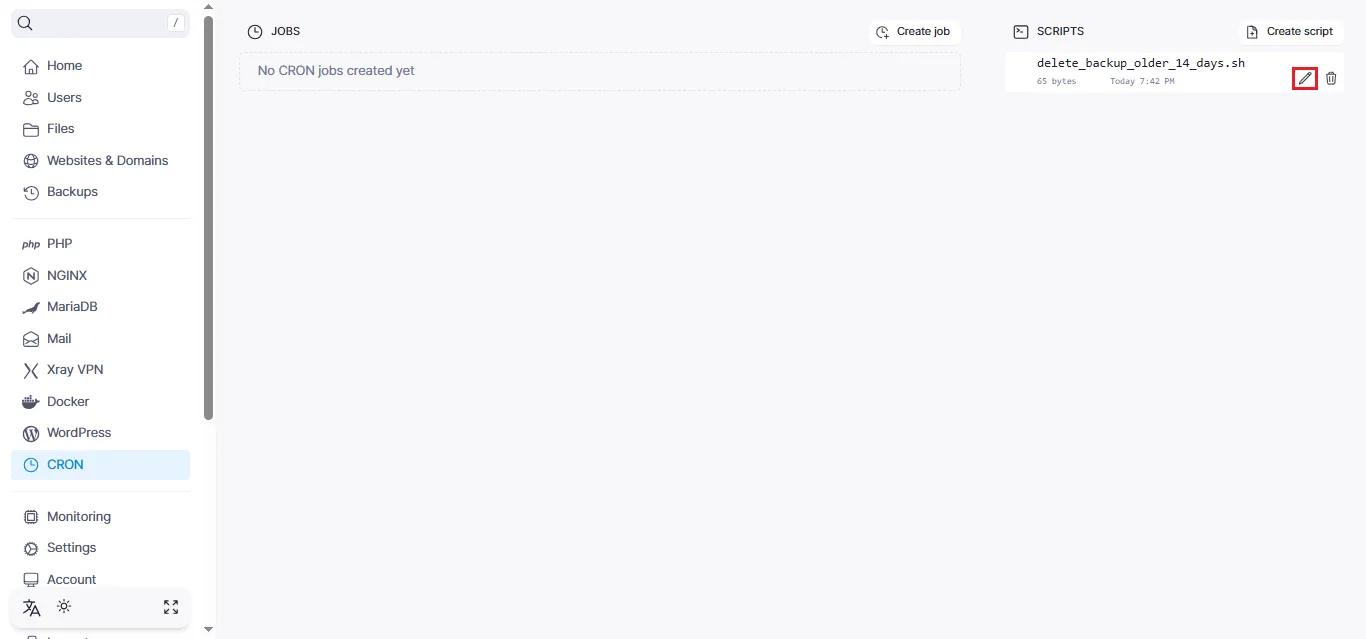 Editing an existing script
Updat the code and click the Save button:
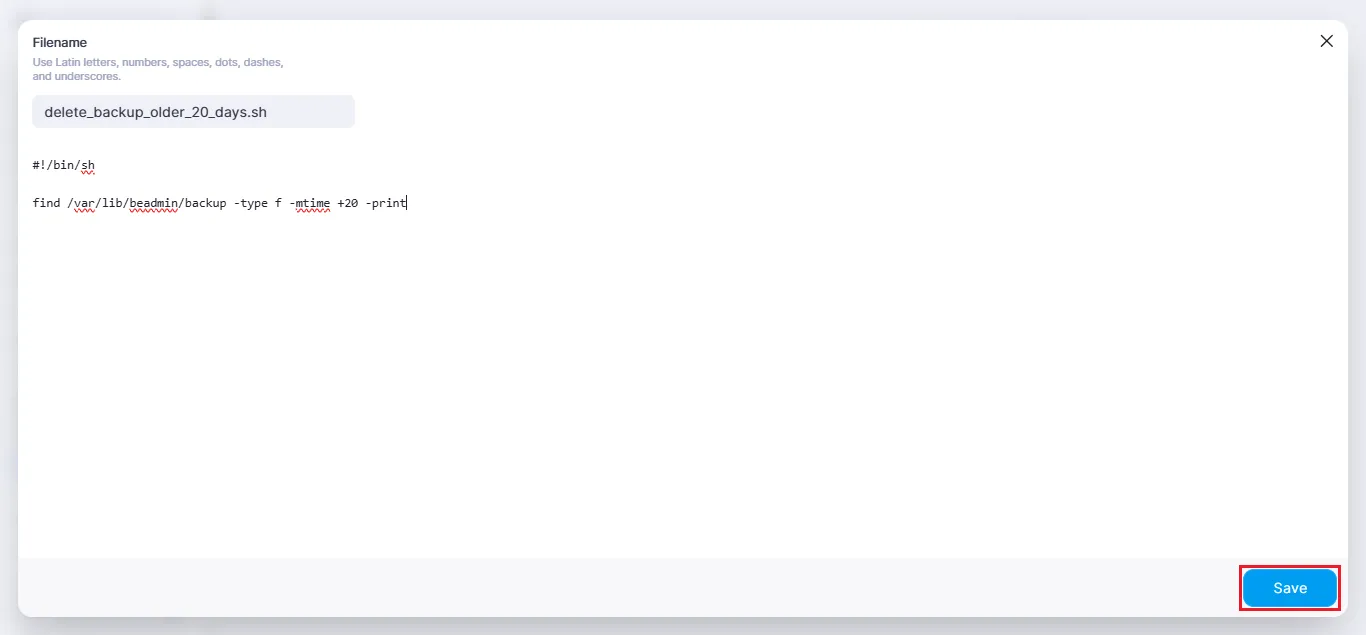 Applying changes to the script
Deleting scripts
To remove an unused script, click the trash icon and confirm the action:
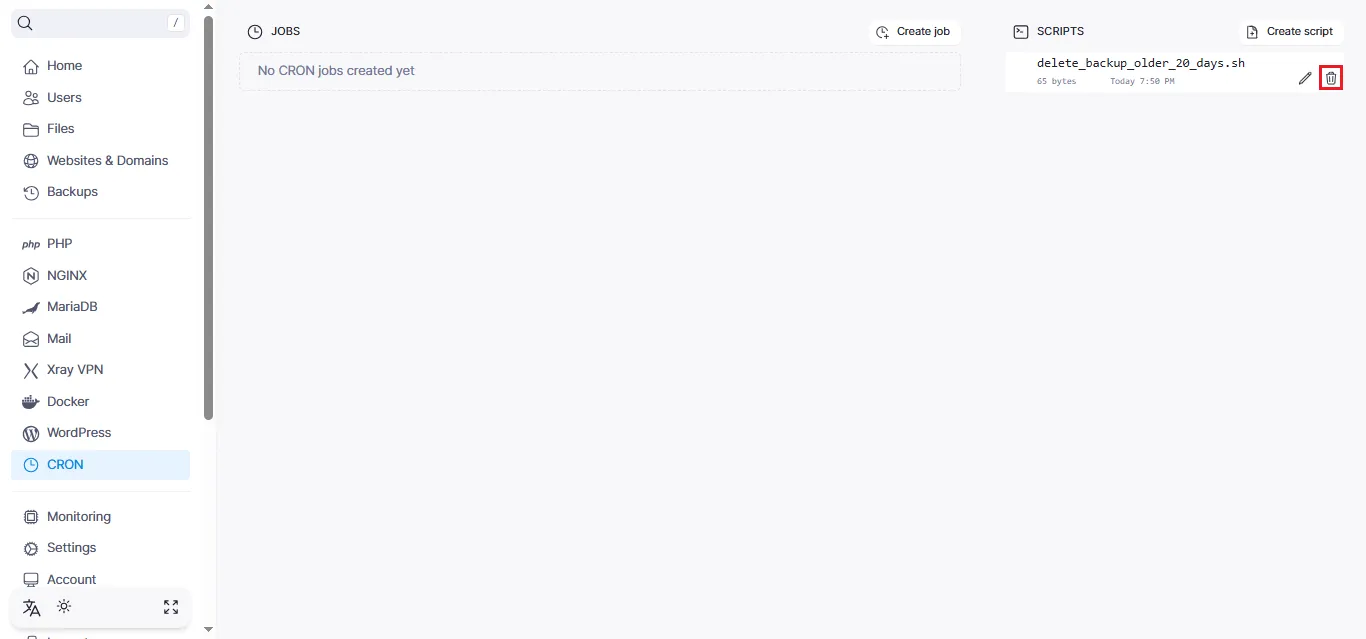 Removing a script from the system
Help
If you have any questions or need assistance, please contact us through the ticket system — we're always here to help!