Setting up Amnezia VPN in BeAdmin
Step-by-step guide to installing and configuring Amnezia VPN.

Amnezia is a high-performance VPN protocol based on WireGuard, featuring advanced traffic obfuscation to ensure stability in even the most restrictive network environments. By masking the VPN signature, it effectively bypasses Deep Packet Inspection (DPI). BeAdmin offers seamless integration: installation, key generation, user management, and configuration distribution are all fully automated.
Activating the Amnezia module
Before adding users, you need to initialize the server-side environment. BeAdmin handles all backend dependencies automatically.
- Log in to your control panel and navigate to the Amnezia section.
- Click the
Installbutton. - Wait for the process to complete. The panel will automatically fetch and configure all necessary components in the background.
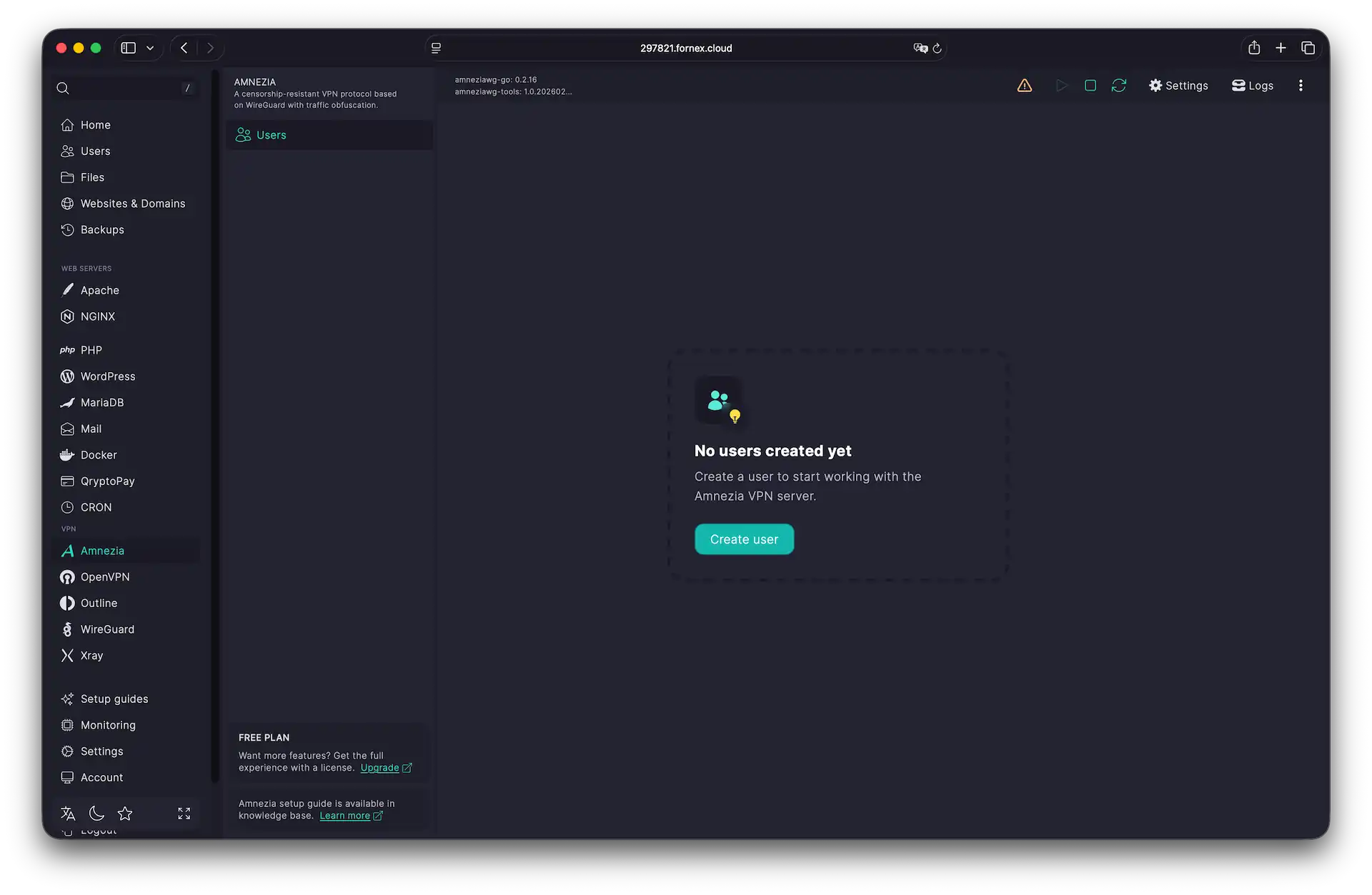 Amnezia module interface
Onboarding a new user
To grant access to the VPN tunnel, create a new user profile.
- Click
Create User. - Email: Enter the recipient's address to send them the configuration file.
- Name: Assign a custom name for easy tracking.
- Click
Create. The user will appear in the list and is immediately ready to connect.
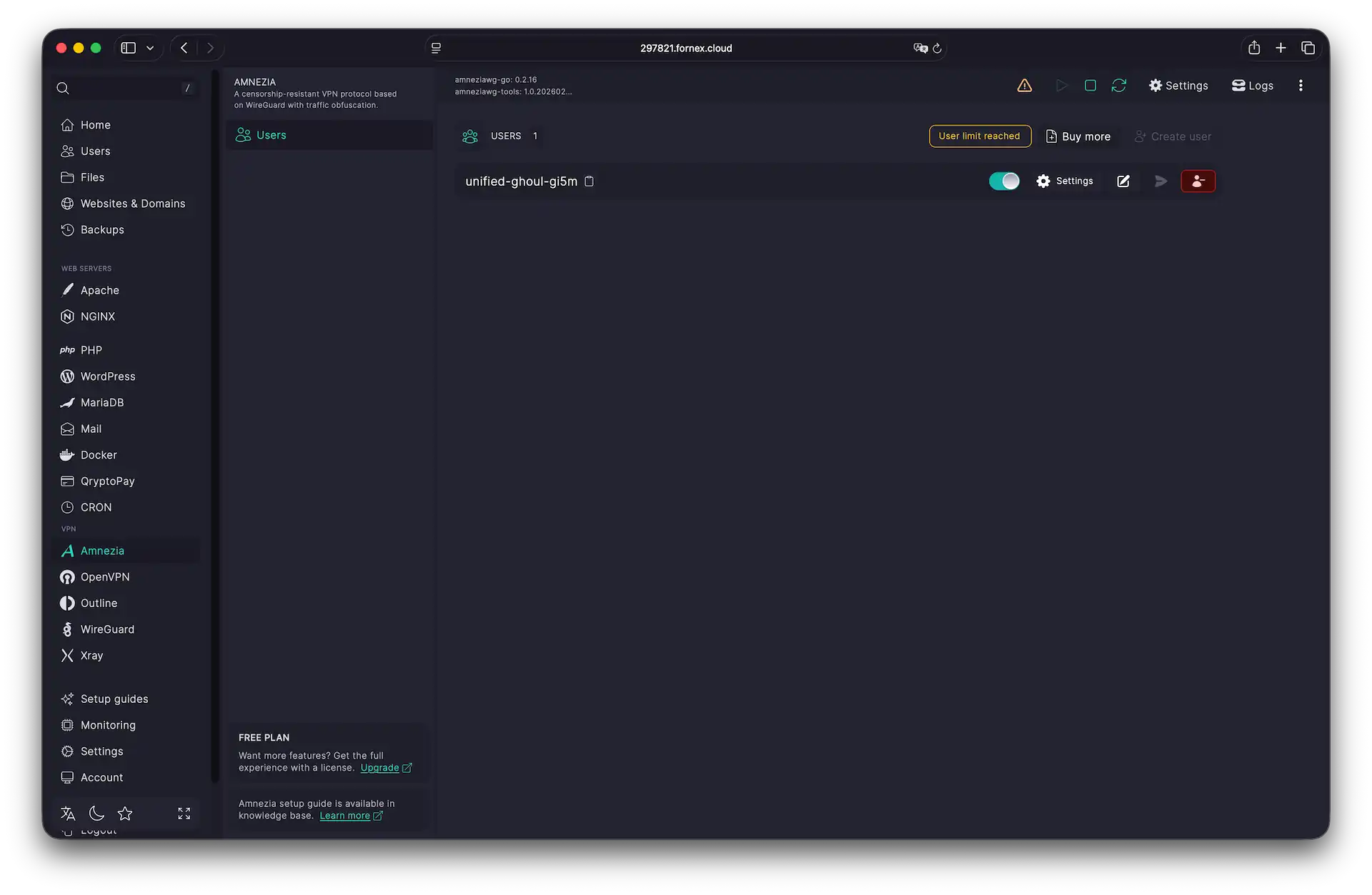 Managing your active connections
Connecting on your device
To get started, download the official client for your platform:
- Amnezia VPN — Windows, macOS, Linux, Android, and iOS
- AmneziaWG — Windows, Android, iOS
To retrieve access credentials, go to the Users section and click the Settings (gear icon) next to the specific user. You can:
- Download the
.conffile — A universal format compatible with both apps. - Scan a QR code — Displayed directly on your screen for mobile setup.
- Send via Email — Automatically dispatch the access key to the user.
Important
QR codes for AmneziaVPN and AmneziaWG are distinct. Ensure you scan the one that matches your installed app. You must scan the code within the app by selecting "Add configuration via QR."
 Retrieving connection credentials
Setting up the app:
- On mobile: Open the app, select
Add Configuration→QR Code, and scan the screen. - On desktop: Open the app, click
Import, and select your downloaded.conffile.
Quick Tip
Once connected, verify your new location by visiting a service like myip.com.
User management & scaling
The BeAdmin panel includes one free user by default. If you need to scale your setup, you can upgrade your license at any time.
To add more users:
- In the Amnezia/Xray section, click
Buy More. - Log in to your BeAdmin client area.
- Specify the number of additional VPN slots and complete the checkout.
Managing access: You can temporarily revoke a user's access by toggling the switch next to their name. This removes them from the server configuration instantly.
Re-enabling a user generates a fresh key pair. This invalidates their previous configuration; you will need to download the new .conf file or scan the new QR code to restore their access.
Advanced module settings
Under Settings → General, you can modify network parameters, including the connection port.
Changing the port can help hide VPN traffic if the default ports are restricted on your network. However, ensure there are no conflicts with other server services. BeAdmin will notify you if a selected port is already in use.
Warning: Saving new settings will trigger a module restart. All active sessions will be dropped, and all users will need to re-import their configurations to reconnect.
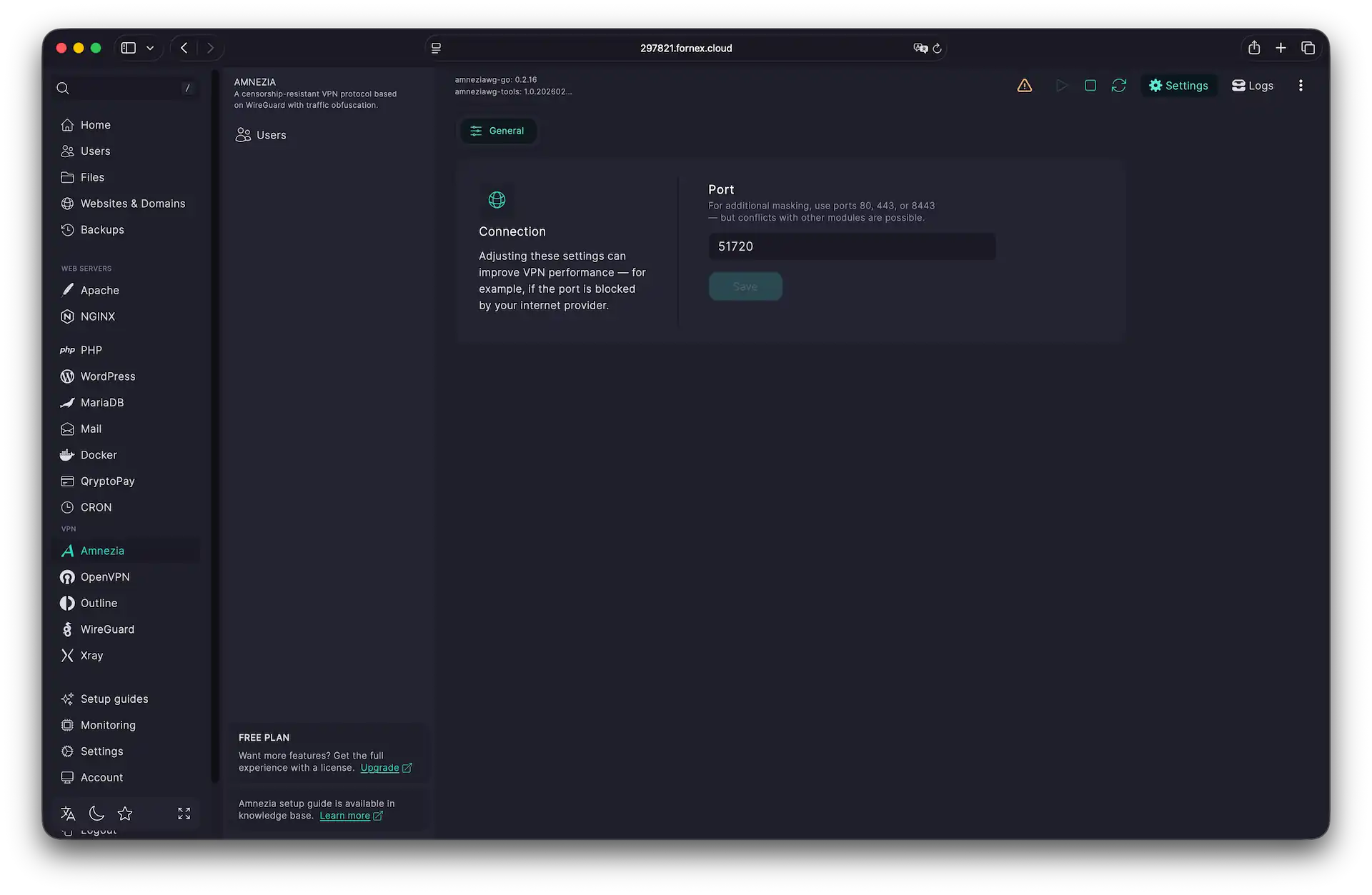 Fine-tuning your VPN parameters
Help
If you have any questions or need assistance, please contact us through the ticket system — we're always here to help!