Setting up multi-hop Amnezia VPN in BeAdmin
Step-by-step guide to building an Amnezia cascade from two BeAdmin servers: an entry hop and an exit hop.
With cascade mode, two separate BeAdmin installations act as a single route: the device dials into the nearer server, while the real exit to the internet happens on the farther one. It's what you reach for when a single AmneziaWG server no longer cuts it — its IP became unreachable, or you simply need traffic to surface in a particular country. Spreading the entry and the exit across two networks means trouble at one end doesn't drag down the other.
How the cascade works
Normally an AmneziaWG client and the open internet meet in one place — your server. Every site you visit logs that server's IP, and your provider sees a connection heading to it. A cascade pulls those two roles apart:
- Entry hop — the side your provider observes. On the wire it's just obfuscated AmneziaWG traffic, hard to tell apart from random noise.
- Exit hop — the side the destination sees. Websites record the request as coming from this hop's IP, usually on an unrelated network in another country.
This won't give you Tor-style layering — it's a single extra hop, enough to relocate the exit IP and nothing beyond that.
The role belongs to a user, not a server
Multi-hop is set on a per-user basis, not switched on for the whole installation. One server can run ordinary users, entry hops, and exit hops all at once — and nothing stops a single installation from serving as the entry for some chains and the exit for others.
What you'll need
- Two BeAdmin servers, in different locations. A cascade only earns its keep when the two ends sit on separate networks, so one machine won't do. Install the Amnezia module on both — we'll call them installation A (entry) and installation B (exit).
- Keep the entry hop near the user, ideally in the same country. That first leg is the one the device holds open, so the shorter it is, the steadier the connection. The distant server becomes the exit hop, chosen for the IP you want to show the internet.
- You'll need edit rights on both panels. There's no automatic pairing — you link the two by hand, carrying a link from one panel into the other.
A cascade needs two users
Every chain costs two users — the exit hop on one server and the entry hop on the other — each taking up a license slot where it lives. Need a second cascade? That's another license on each server.
Don't have the two servers yet? Fornex rents NVMe-based VPS with full root access across a range of countries — pick whichever regions your setup calls for, one near the user and one for the exit. Order a VPS.
Creating the exit hop on installation B
Pairing runs one way, and you drive it by hand: the exit hop mints an awgmh://… link, which you carry over and drop into the entry hop on the other server. Build the exit end first, the entry second.
- On installation B, open the Amnezia module and press Create user.
- Set Mode to Multi-hop — a Role in the chain selector appears; choose Exit hop. Fill in the rest and save.
- An exit hop carries no config or QR code of its own; its expanded row says exactly that, noting it has no connection settings. That's deliberate — it only relays incoming traffic onward and never dials out on its own behalf.
- Press Link for the entry hop. The panel builds an
awgmh://…link and copies it to your clipboard — it carries this hop's connection details. Get it over to installation A however suits you.
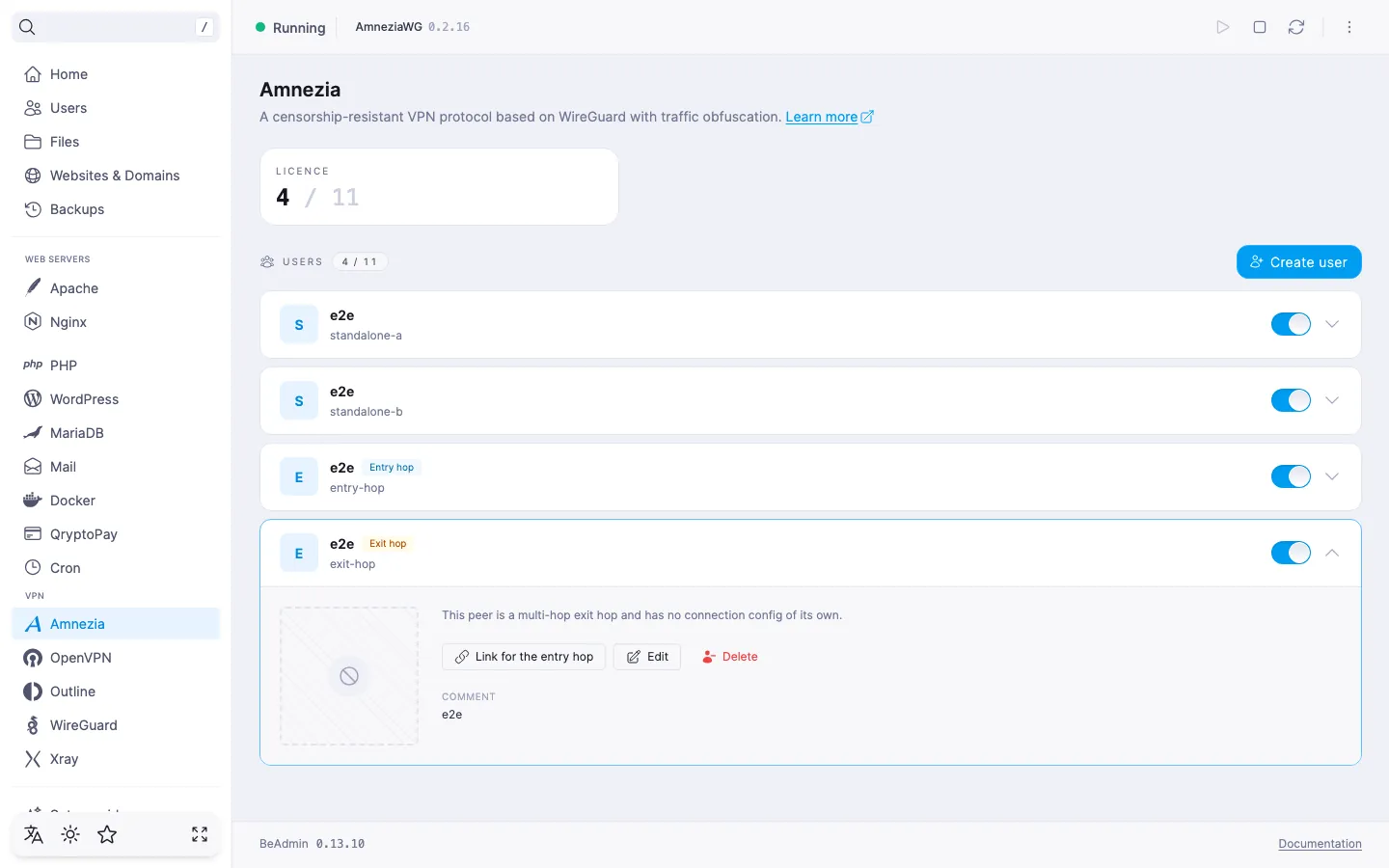 Exit hop row: a "Link for the entry hop" button instead of a QR code
Creating the entry hop on installation A
- Over on installation A, open the Amnezia module and press Create user.
- Set Mode to Multi-hop, then pick Entry hop under Role in the chain.
- An Exit hop link field shows up — paste the
awgmh://…link from the previous step into it. - Complete the remaining fields and save.
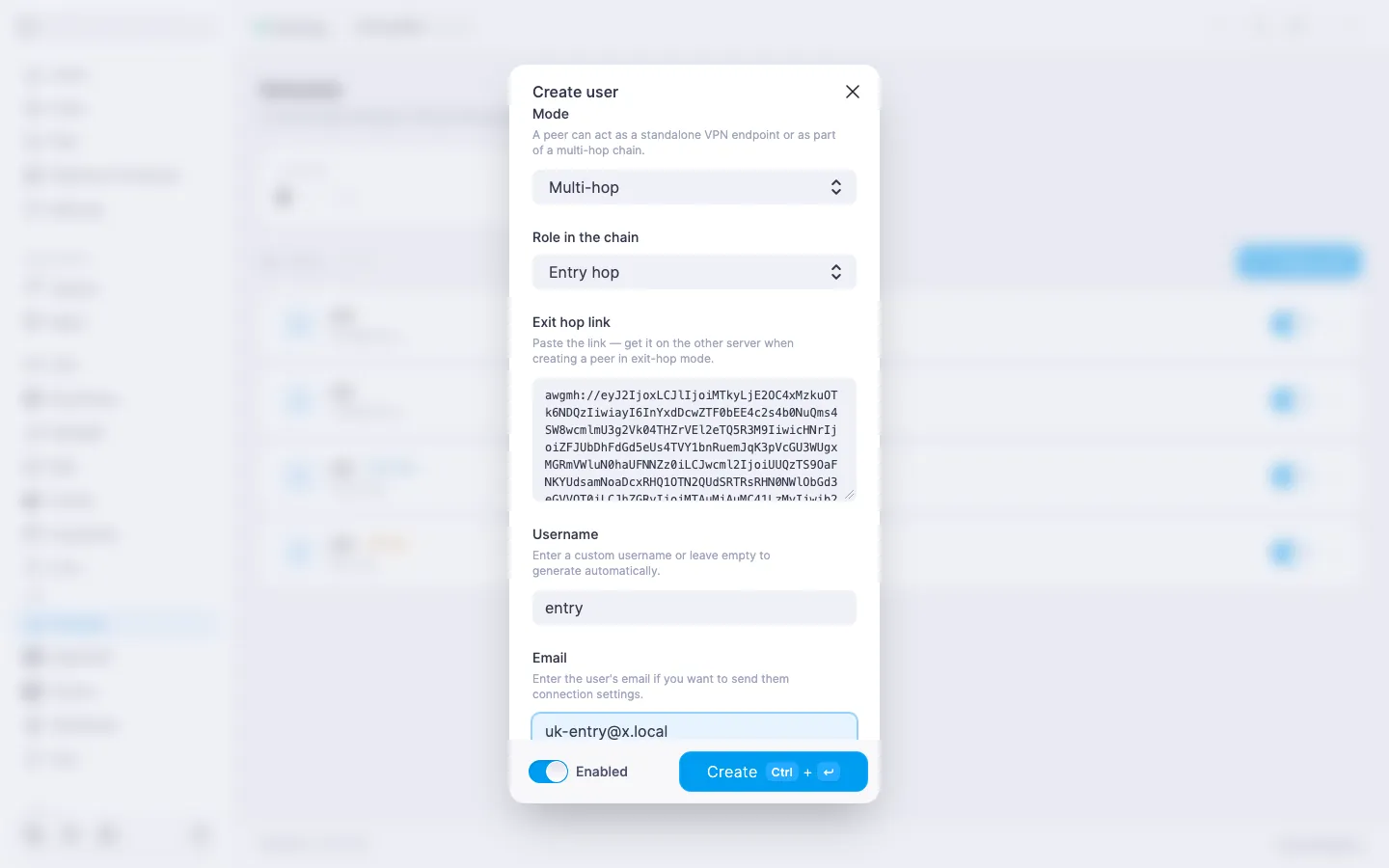 Creating an entry hop: Multi-hop mode, Entry hop role, and the pasted awgmh:// link
No rush on the link
You can paste the exit hop link while creating the user or add it later — the entry hop's Edit user dialog carries the very same field.
Unlike its exit counterpart, the entry hop is a normal, connectable user. Expand its row and you'll find two QR codes — one each on the AmneziaVPN and AmneziaWG tabs — plus a downloadable .conf. Hand those to the end device exactly as you would for any user; from there the traffic threads the chain on its own.
Our products and services
Checking the cascade status
Expand the entry hop and you'll see a Multi-hop status tile reporting whether it can actually reach its exit. Once a link is in place, an Exit hop tile beside it shows the exit's address.
| Status | What it means and what to do |
|---|---|
| Active | The link is up and the exit answers — the chain is live. |
| Checking… | The panel is still probing the exit. Give it a moment; it refreshes on its own. |
| Exit not bound | No link has been pasted yet. Edit the entry hop and add the awgmh://… link. |
| Exit unreachable | The exit isn't answering. Confirm the Amnezia service is up on installation B, the server is online and reachable over the network, and its address and port haven't moved. |
Converting an existing user into an exit hop
An existing user can take on the exit role too: open Edit user, switch Mode to Multi-hop and the role to Exit hop. Because an exit hop keeps no config, the panel pauses to confirm with a Convert to exit hop prompt — saving wipes the user's connection settings and cuts any live session. If devices are currently using that user, weigh it first: once converted, there's nothing left for them to re-import.
Relinking and unlinking the exit hop
The exit a given entry points at isn't fixed:
- Point it at a different exit. Generate a fresh
awgmh://…link on the new exit hop and paste it into the entry's Exit hop link field in the edit dialog; the old binding gives way to the new one. The field always opens blank — the link is a secret the panel won't show twice — so the current binding is spelled out in the Bound to … line just above it. - Drop the exit entirely. In the entry hop's expanded row, press Unbind. The user falls back to exiting straight to the internet through the entry itself, with the second server out of the picture.
Swapping exits never touches the end devices — the entry keeps the same QR codes and .conf, so nothing has to be re-imported.
What the cascade doesn't do
- It won't merge the two panels into one. A and B stay separate installations, and every link is laid by hand. Nothing flows back the other way, either — the exit hop has no idea which entries are feeding it.
- It isn't anonymity. All a visitor sees is the exit hop's IP — you've changed your address, not erased your trail.
Help
If you have any questions or need assistance, please contact us through the ticket system — we're always here to help!