Setting up multi-hop Xray VPN in BeAdmin
Step-by-step guide to building an Xray cascade from two BeAdmin servers: an entry hop and an exit hop.
Cascade mode links two independent BeAdmin installations into an "entry → exit" chain: your device connects to the first server, but reaches the internet through the second. This helps when a single Xray server stops working — its REALITY handshake has been detected by DPI, or its IP has become unreachable. The cascade separates the connection point and the exit address across different networks, so even if one of them goes down, the other stays out of reach.
How the cascade works
For a regular Xray user, traffic reaches the internet from your server's IP, and the provider sees the connection to that same server. The cascade splits apart the two points where the server is visible from the outside:
- Entry hop — what the user's provider sees. To it, this is an ordinary REALITY server, indistinguishable from a website.
- Exit hop — what the internet sees. Destination sites receive requests from the exit hop's IP, on a different network and usually in a different country.
This isn't Tor-level anonymization: the chain adds exactly one intermediate node to change the exit IP, nothing more.
The role belongs to a user, not a server
Multi-hop is a role of a specific user, not a mode for the whole installation. A single server happily hosts standalone users, entry hops, and exit hops side by side. One installation can be an entry for some users and an exit for others at the same time.
What you'll need
- At least two BeAdmin servers in different locations — otherwise the cascade makes no sense. The Xray module must be installed on each. Let's call them installation A (the future entry) and installation B (the future exit).
- Place the entry hop closer to the user, ideally in the same country: the device connects to it directly, and the shorter this leg, the more stable the link. The distant point is the exit hop — it provides the exit IP you need.
- Edit access to both panels — linking is done manually, by copying a link from one panel into the other.
A cascade needs two users
The chain is built from two users: an exit hop on one server and an entry hop on the other. Each occupies a license slot on its own server. If you need more than one cascade connection, you'll have to buy a license on both servers.
If you haven't picked servers for the entry and exit hops yet, we offer NVMe-based VPS with full root access in several countries — pick whichever locations your setup calls for. Order a VPS.
Creating the exit hop on installation B
The link is one-way and built by hand: the exit hop issues a special bemh://… link, which you copy and paste into the entry hop on the other server. Order matters — exit first, then entry.
- On installation B, open the Xray module and click Create user.
- In the Mode field, select Multi-hop, and in the Role in the chain field that appears, select Exit hop. Fill in the required fields and create the user.
- The exit hop has no link or QR code of its own — instead, the expanded row shows a note that this is an exit hop with no connection settings of its own. This is normal: such a user only forwards other traffic to the internet and doesn't connect directly itself.
- Click Link for the entry hop — the panel generates and copies a link in the form
bemh://…. It encodes this exit hop's connection parameters. Send it to installation A by any convenient means.
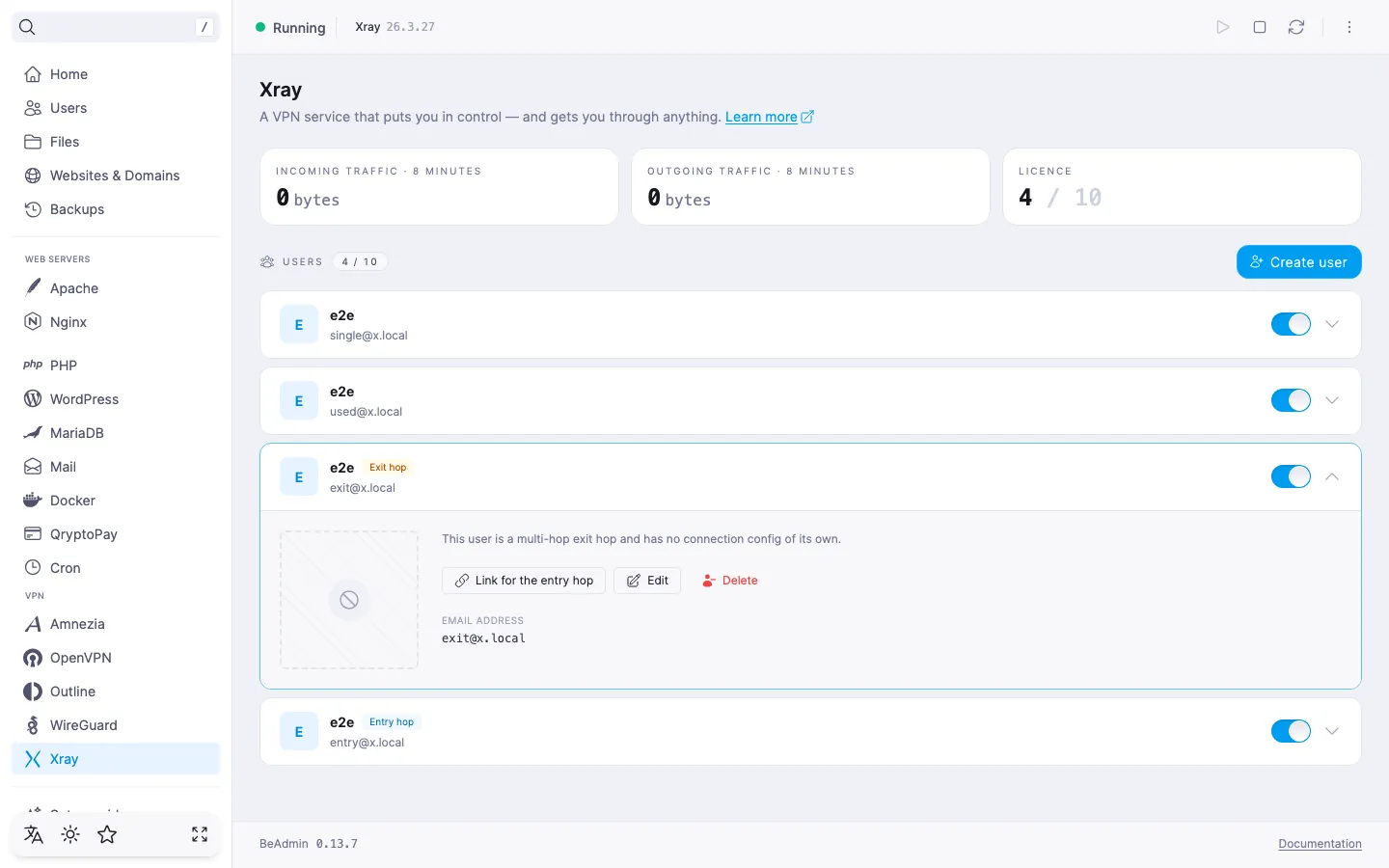 Exit hop row: a "Link for the entry hop" button instead of a QR code
Creating the entry hop on installation A
- On installation A, open the Xray module and click Create user.
- In the Mode field, select Multi-hop, and in the Role in the chain field, select Entry hop.
- In the Exit hop link field that appears, paste the
bemh://…link you copied in the previous step. - Fill in the required fields and create the user.
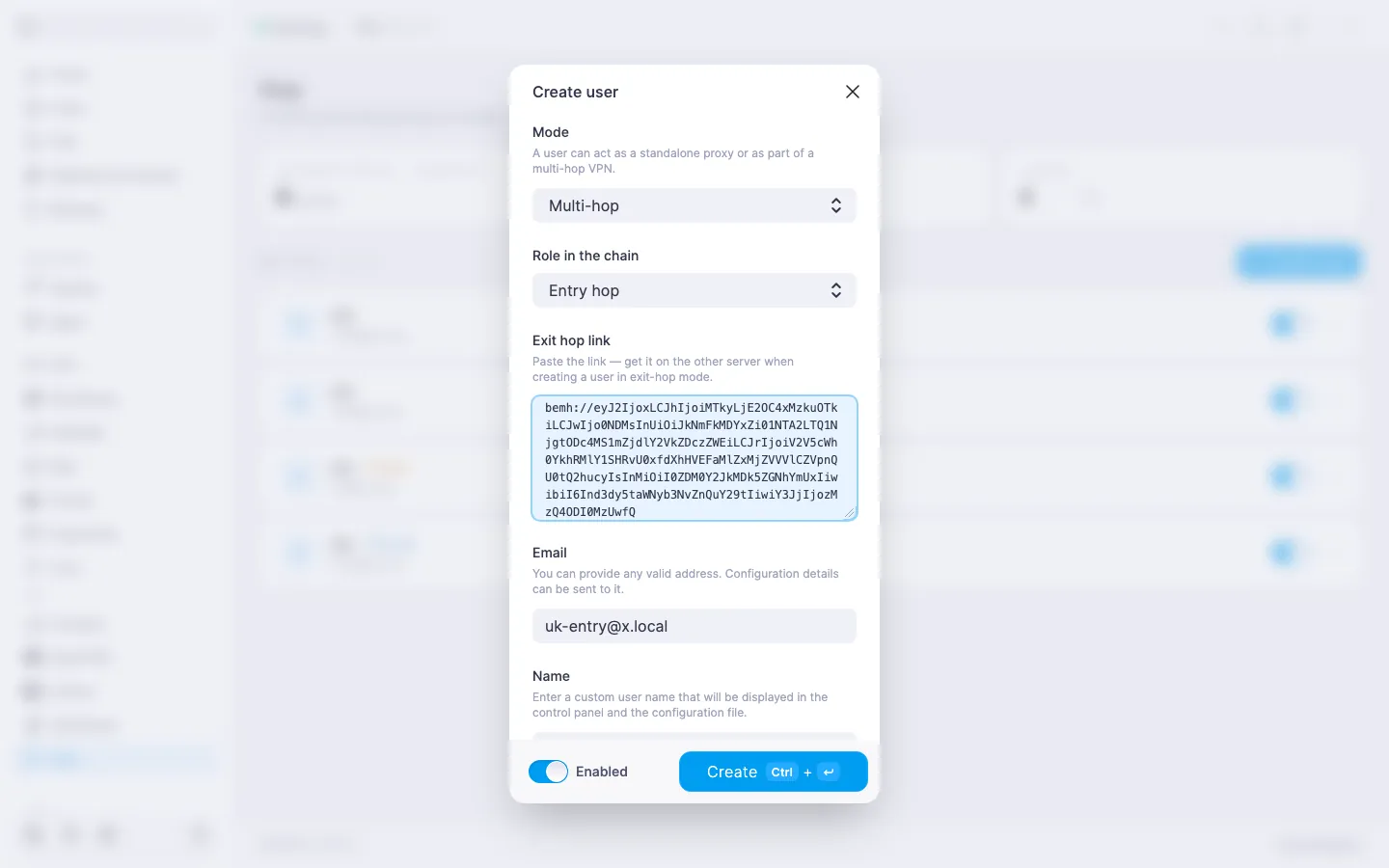 Creating an entry hop: Multi-hop mode, Entry hop role, and the pasted bemh:// link
You can paste the link later
You can paste the exit hop link either when creating the user or later — the same field is available in the Edit user dialog of an existing entry hop.
The entry hop is a full-fledged user with its own vless://… link and QR code. Those are what you hand out to the end device, just like a regular user. From there, traffic follows the chain on its own.
Our products and services
Checking the cascade status
The entry hop's expanded row shows a Multi-hop status tile — it indicates whether the entry can reach its exit. Next to it, once the link is set up, an Exit hop tile with the exit hop's address appears.
| Status | What it means and what to do |
|---|---|
| Active | The link is up and the exit hop is reachable — the chain is working. |
| Checking… | The panel is polling the exit hop. Wait — the status will update on its own. |
| Exit not bound | The exit hop link hasn't been pasted yet. Open the entry hop for editing and paste the bemh://… link. |
| Exit unreachable | The exit hop isn't responding. Check that the Xray service is running on installation B, the server is on and reachable over the network, and the exit address and port haven't changed. |
| Version mismatch | The Xray version on the exit hop is below the minimum required by the link. Update the Xray module on installation B and regenerate the link for the entry hop. |
Converting an existing user into an exit hop
You can also turn an existing user into an exit hop — through the Edit user dialog, by changing Mode to Multi-hop and the role to Exit hop. Since an exit hop has no config of its own, the panel asks you to confirm in a Convert to exit hop dialog: the user loses their connection settings and any active connection is dropped. If the user has connected devices, do this deliberately — after the switch there's nothing left for them to import.
Relinking and unlinking the exit hop
You can change the entry hop's link to its exit at any time:
- Relink to a different exit. Get a new
bemh://…link on the desired exit hop and paste it into the entry hop's Exit hop link field — the previous link is replaced by the new one. - Unlink. In the entry hop's expanded row, click Unbind (or clear the link field in the edit dialog). The user returns to a direct internet exit — traffic again goes through the entry hop itself, without the second server.
When you switch exits, end devices re-import nothing: the entry hop keeps its existing vless://… link.
What the cascade doesn't do
- It doesn't merge management of the two panels. Installations A and B remain independent, and all linking is manual, via the link. There's no reverse channel between the panels: the exit hop doesn't know who's connected to it.
- It doesn't replace anonymization. The destination site sees the exit hop's IP — it's a change of address, not a way to hide your identity.
Help
If you have any questions or need assistance, please contact us through the ticket system — we're always here to help!