Get started with BeAdmin
A step-by-step guide to configuring and using the BeAdmin control panel.

BeAdmin is a sleek, lightweight control panel designed for streamlined VPS administration. It strikes a perfect balance between flexible web server configuration and a user-friendly interface, making it easy to deploy projects of any complexity in minutes.
Quick Start
- Log in to the BeAdmin control panel on your VPS using the credentials provided in your Fornex dashboard.
- Familiarize yourself with the main dashboard. This page provides a real-time snapshot of your server’s health, including CPU load, RAM usage, and disk space.
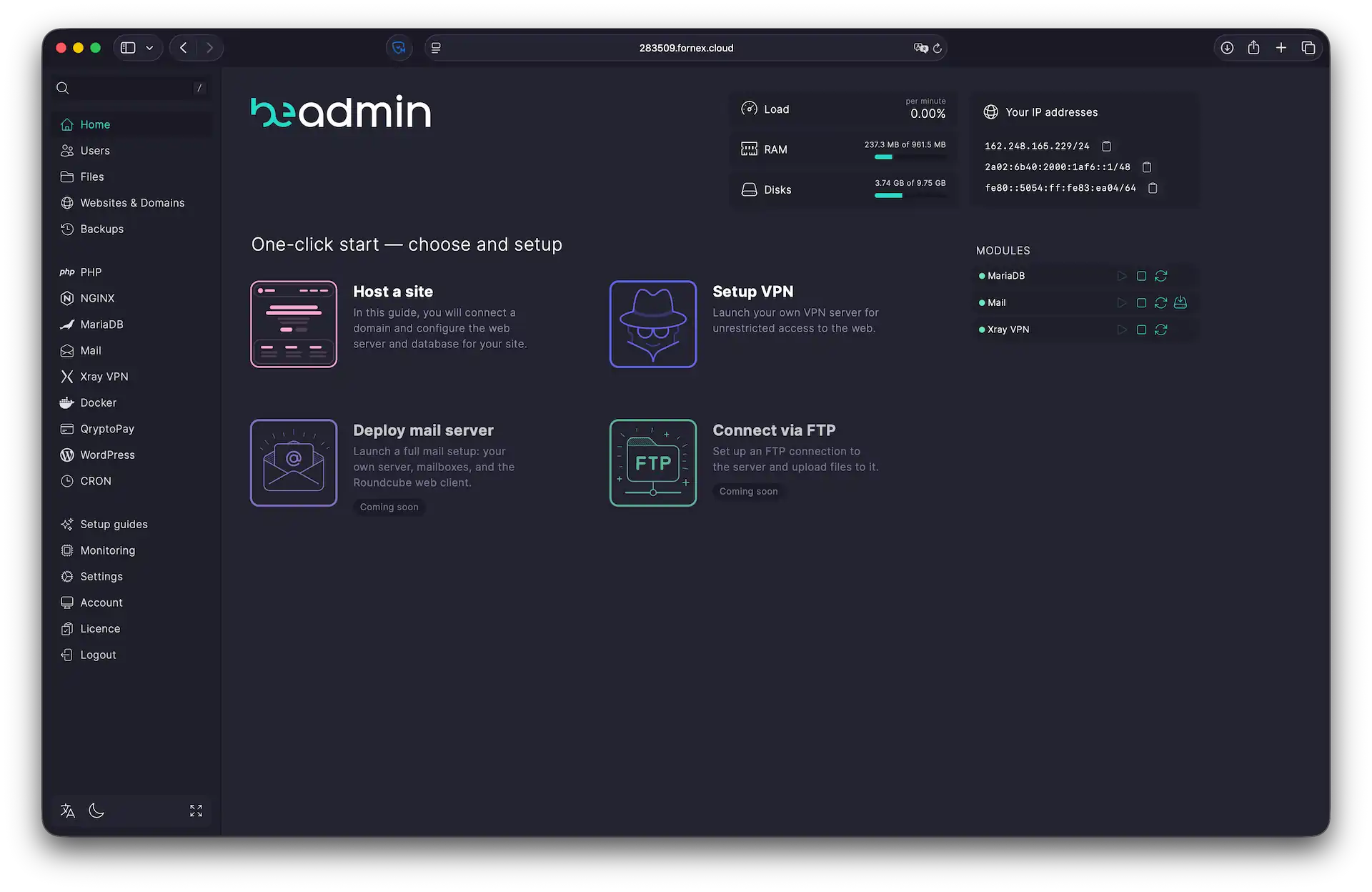 BeAdmin Main Dashboard
Deploy a site and Configure PHP
To get your project online:
- Click Host a site on the main dashboard.
- Choose your site type:
- Static Site: optimized for NGINX, caching, SSL, and fast file delivery.
- PHP Site: includes NGINX, PHP-FPM, and MariaDB. For a detailed walkthrough, see our guide: Launching PHP sites in BeAdmin.
- During setup, specify your domain, upload your files, and configure your database and other parameters.
BeAdmin automatically handles the environment setup, allowing you to fine-tune settings for each domain individually.
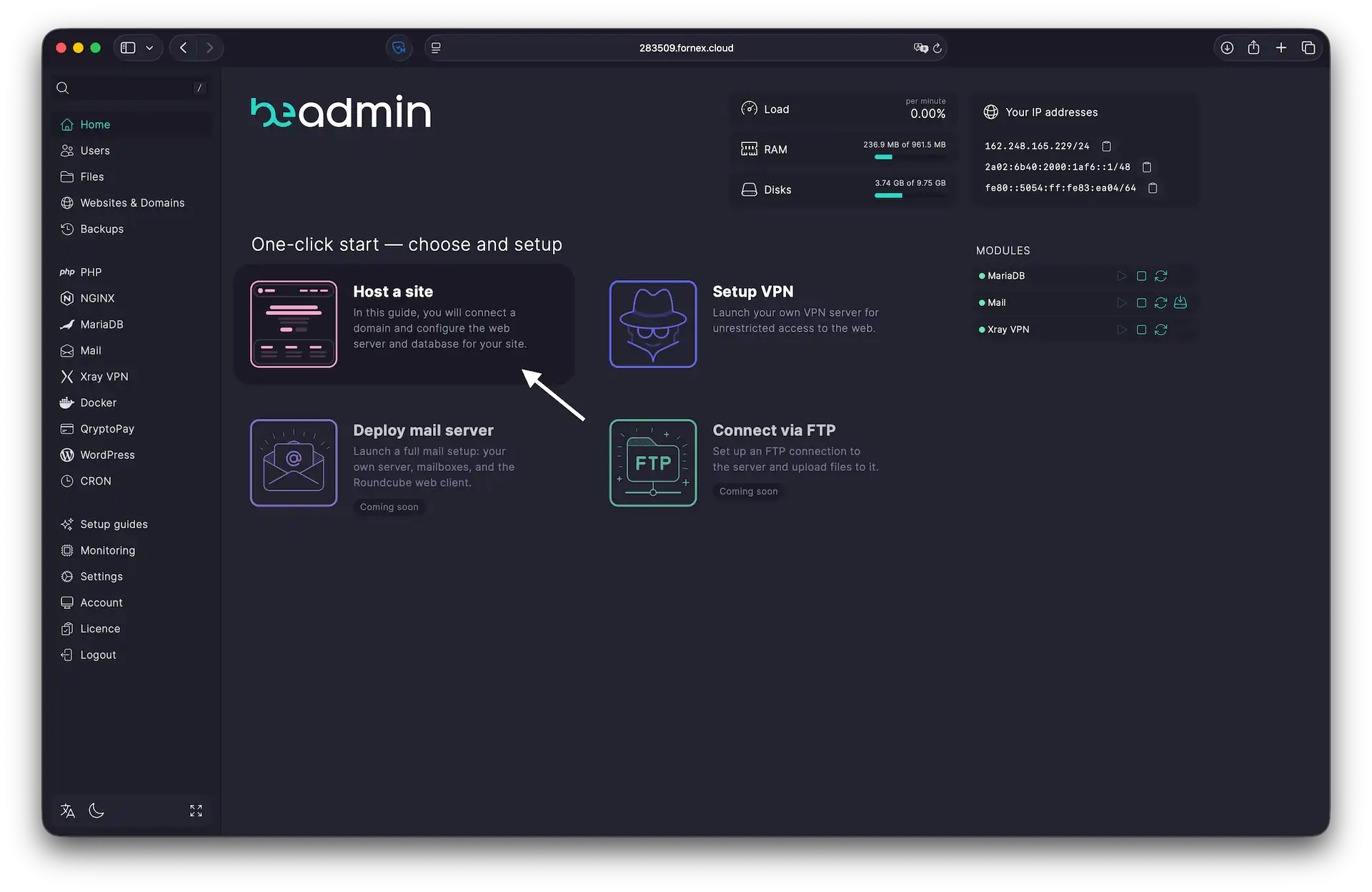 BeAdmin site creation
Email setup and notifications
BeAdmin gives you the choice between running your own mail server or routing outbound mail through external services.
- Go to the Mail section in the sidebar.
- Set MariaDB as the default database and specify the domain for your email accounts.
Detailed setup guides:
- Self-hosted Mail Server: How to deploy a mail server in BeAdmin
- External Delivery: How to set up SMTP relay in BeAdmin
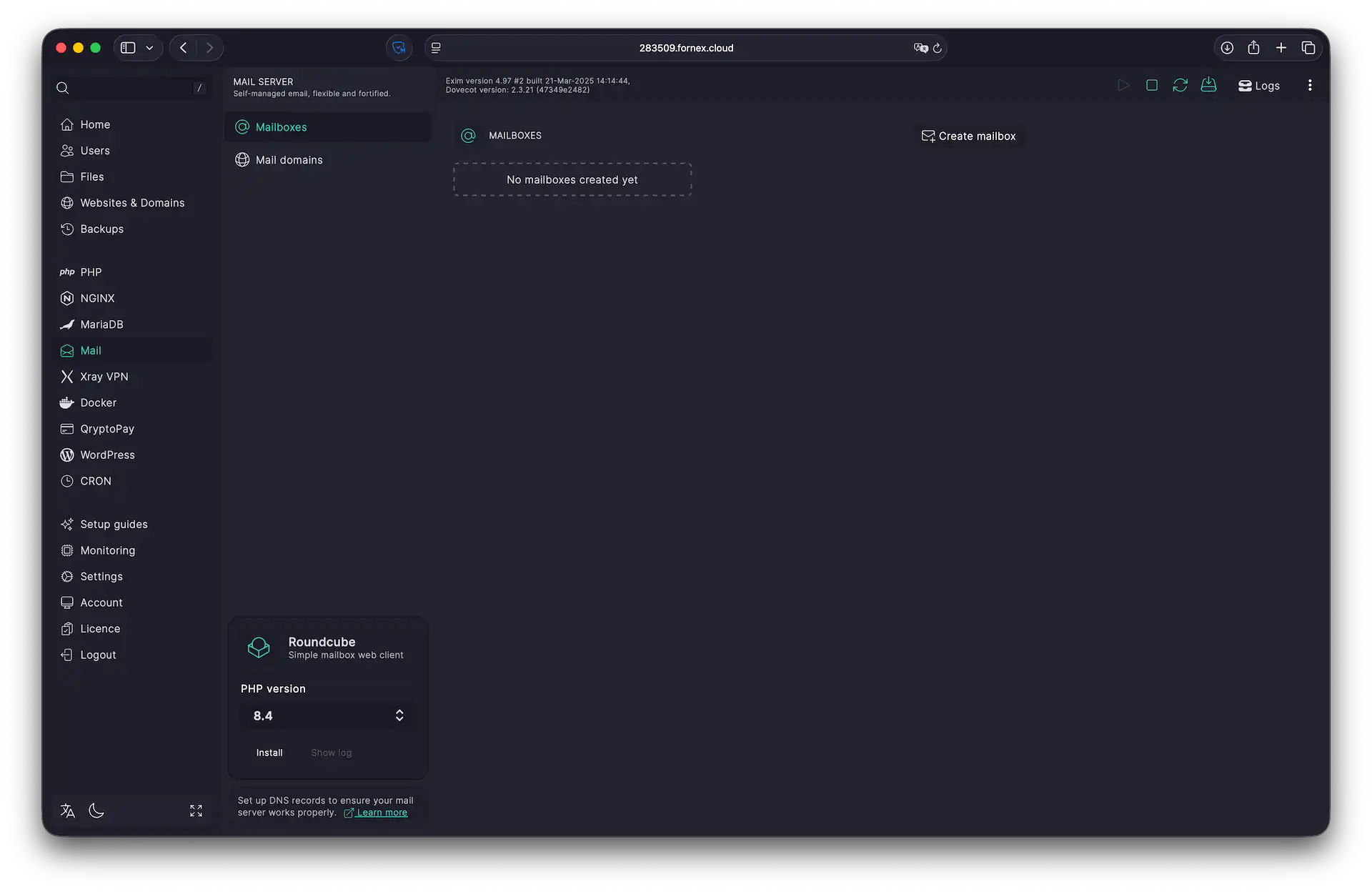 Managing email in BeAdmin
Task schedule (Cron)
Automate recurring tasks (jobs and scripts)—such as clearing caches or generating data feeds—using the Cron module.
- Go to the CRON section in the sidebar.
- Click Create job.
For details on syntax and advanced configuration, see: Setting up Cron in BeAdmin panel
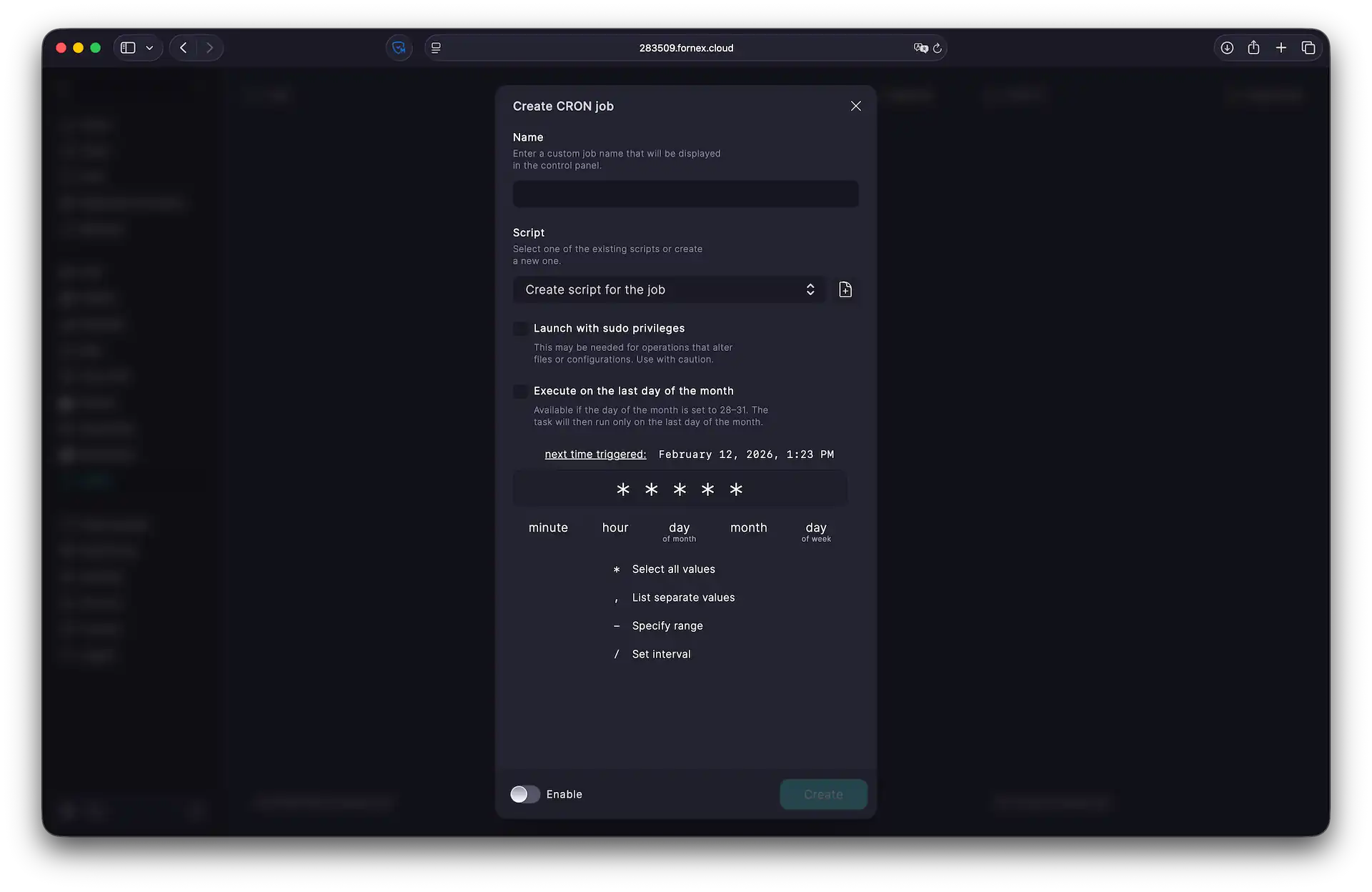 Cron job manager in BeAdmin
Backups
Data integrity is a top priority. BeAdmin includes built-in tools for backing up both your websites and your databases.
- Go to the Backups section in the sidebar.
- You will find three key subsections:
- Jobs: create, edit, and manually trigger backups.
- Destinations: define where your backup copies are stored on the server.
- Backups: Access and manage existing archive files.
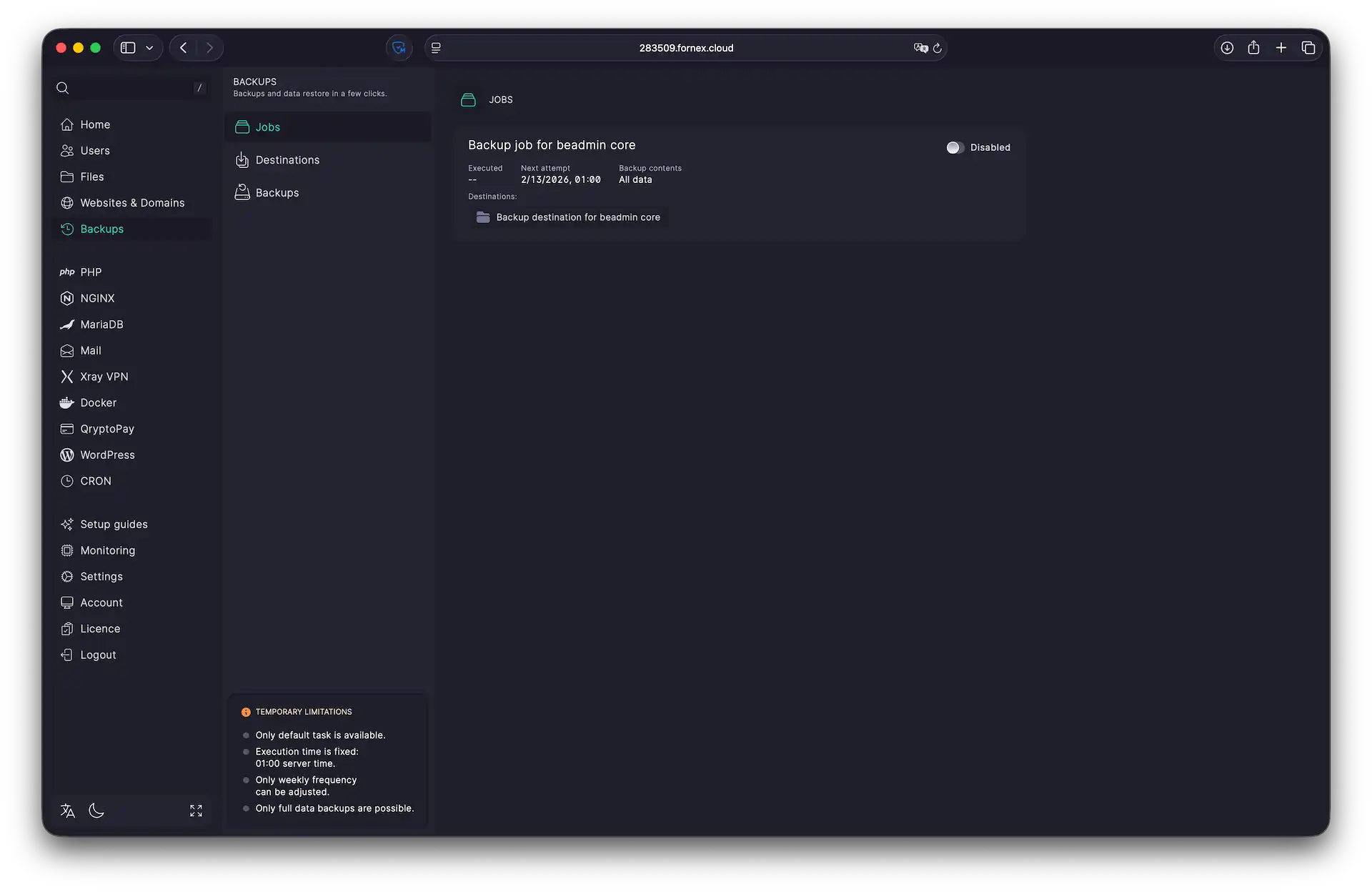 Backup management in BeAdmin
Advanced features
The panel provides granular control over server processes through several intuitive modules:
- User management: in the Users section, you can create additional accounts with customizable permission levels to facilitate team collaboration.
- File management: the Files section allows you to browse directories, upload/download assets, and edit code directly in your browser.
- Performance monitoring: the Monitoring section provides in-depth, real-time analytics. Track resource consumption graphs to identify and resolve performance bottlenecks.
Help
If you have any questions or need assistance, please contact us through the ticket system — we're always here to help!