Launching PHP websites in BeAdmin panel
A step-by-step guide to deploying PHP-based projects in BeAdmin.
BeAdmin is a modern, flexible, and user-friendly control panel designed to simplify server and website administration. Whether you are hosting websites, managing databases, or configuring services, panel provides all the necessary tools in a single, intuitive interface.
To deploy a website, you can use one of the automated deployment scenarios.
Deploying a dynamic website with a database
Navigate to the main page of the panel and select the Dynamic website with a database scenario, then click Launch.
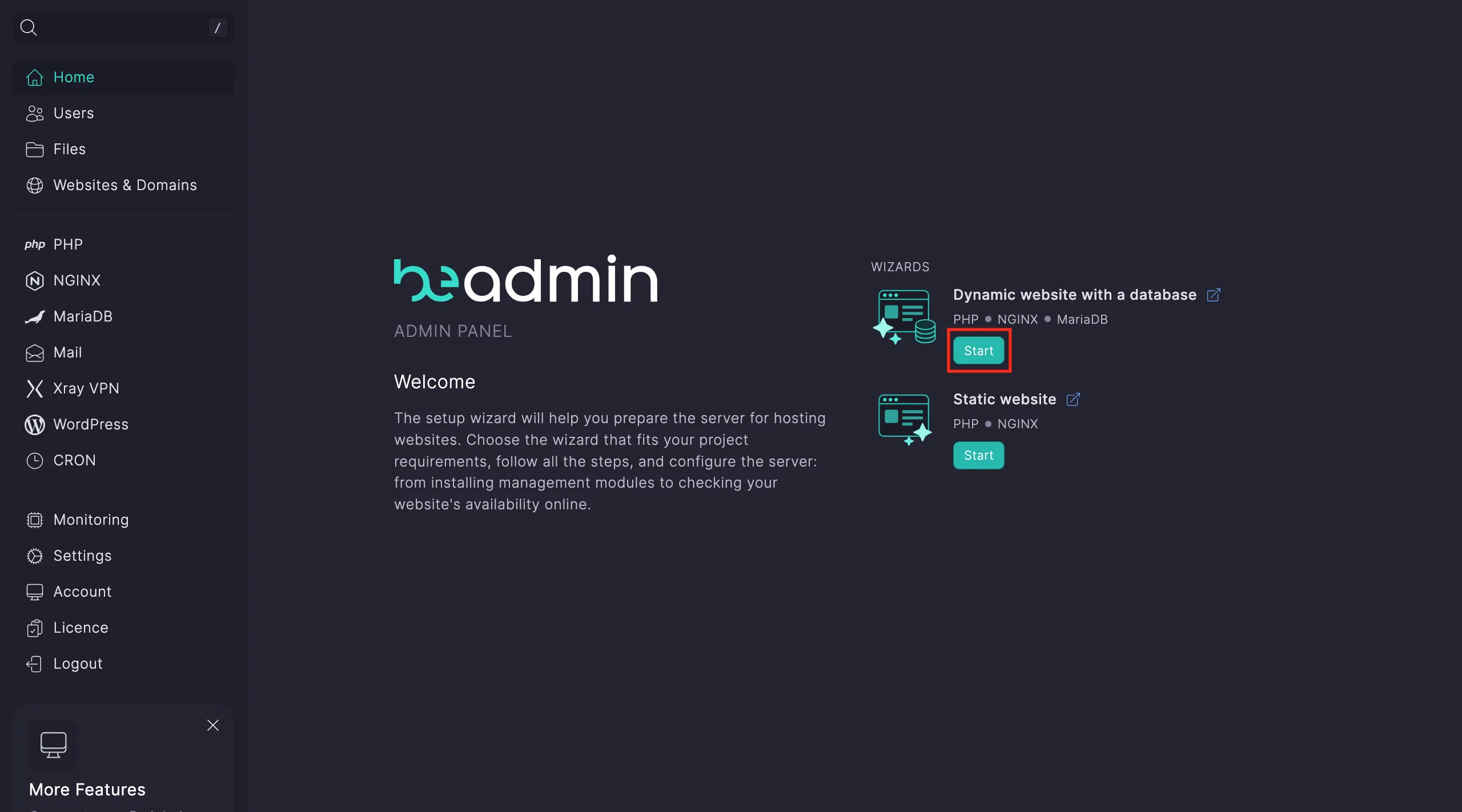 Selecting a deployment scenario
Step 1. Start the module installation process.
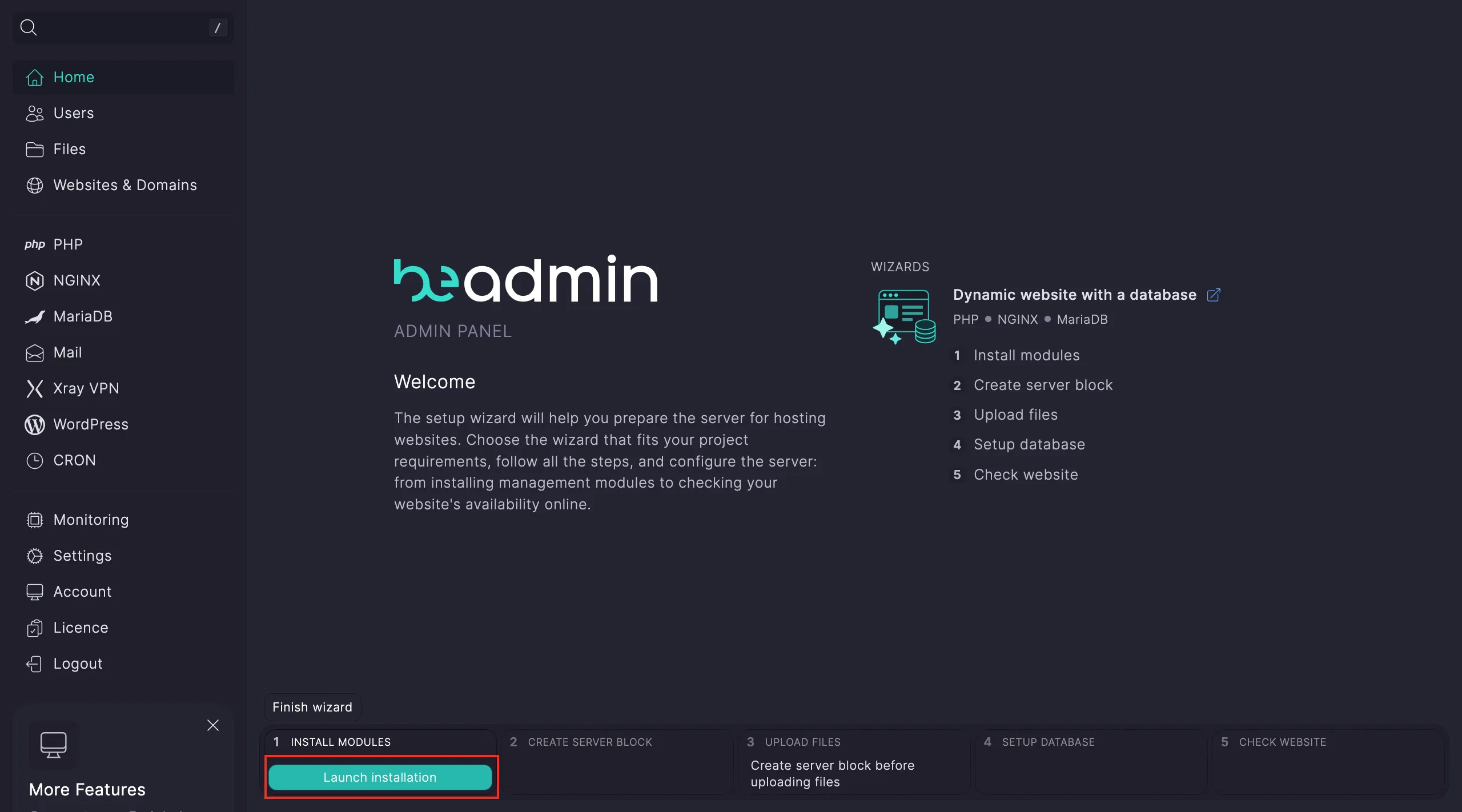 Module installation step
Note
Installing Nginx takes approximately 15 seconds. Once finished, you can proceed to the next step—the remaining modules will continue to install automatically in the background.
Step 2. Configure the virtual host. Click Go to hosts and then select Create virtual host.
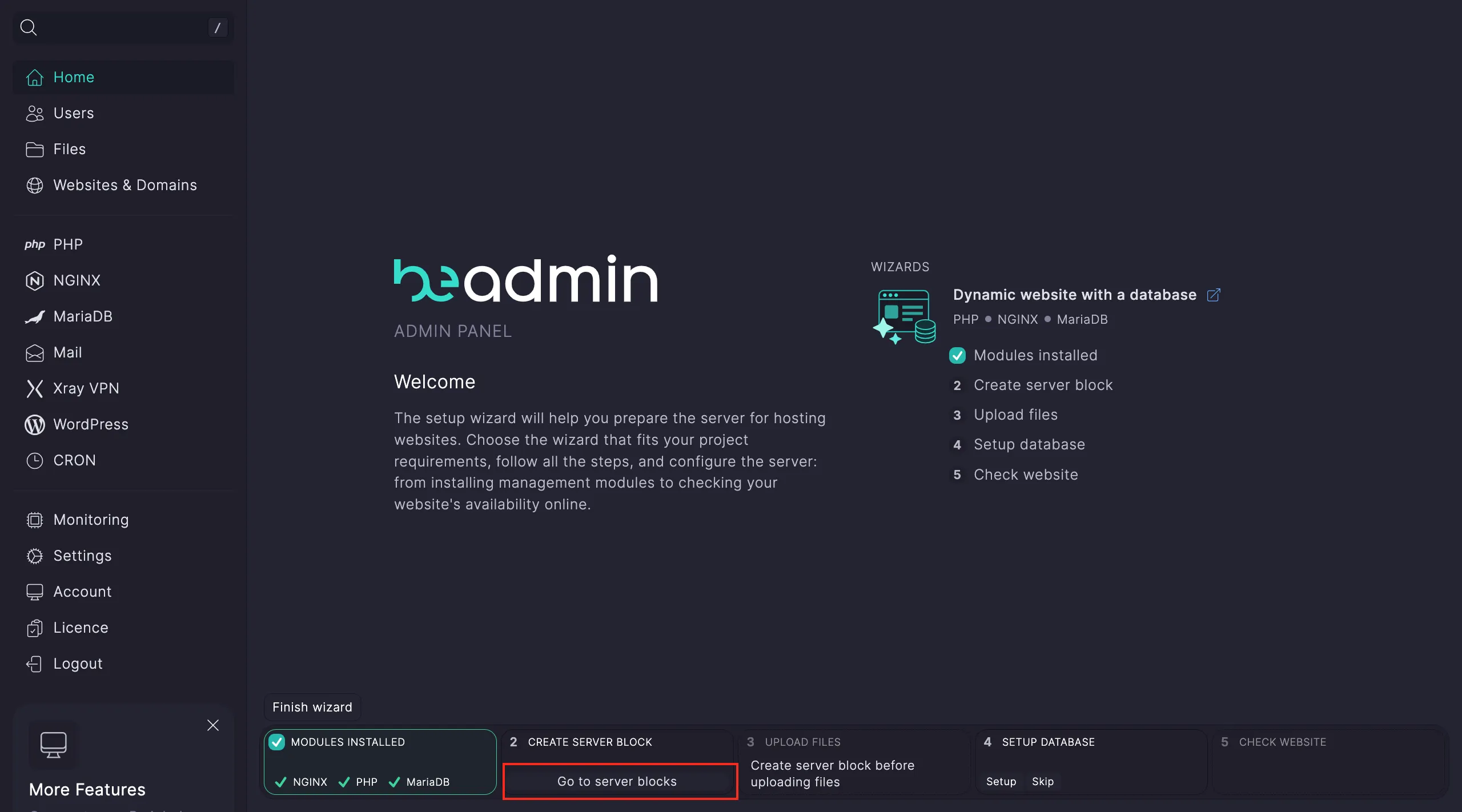 Navigating to host management
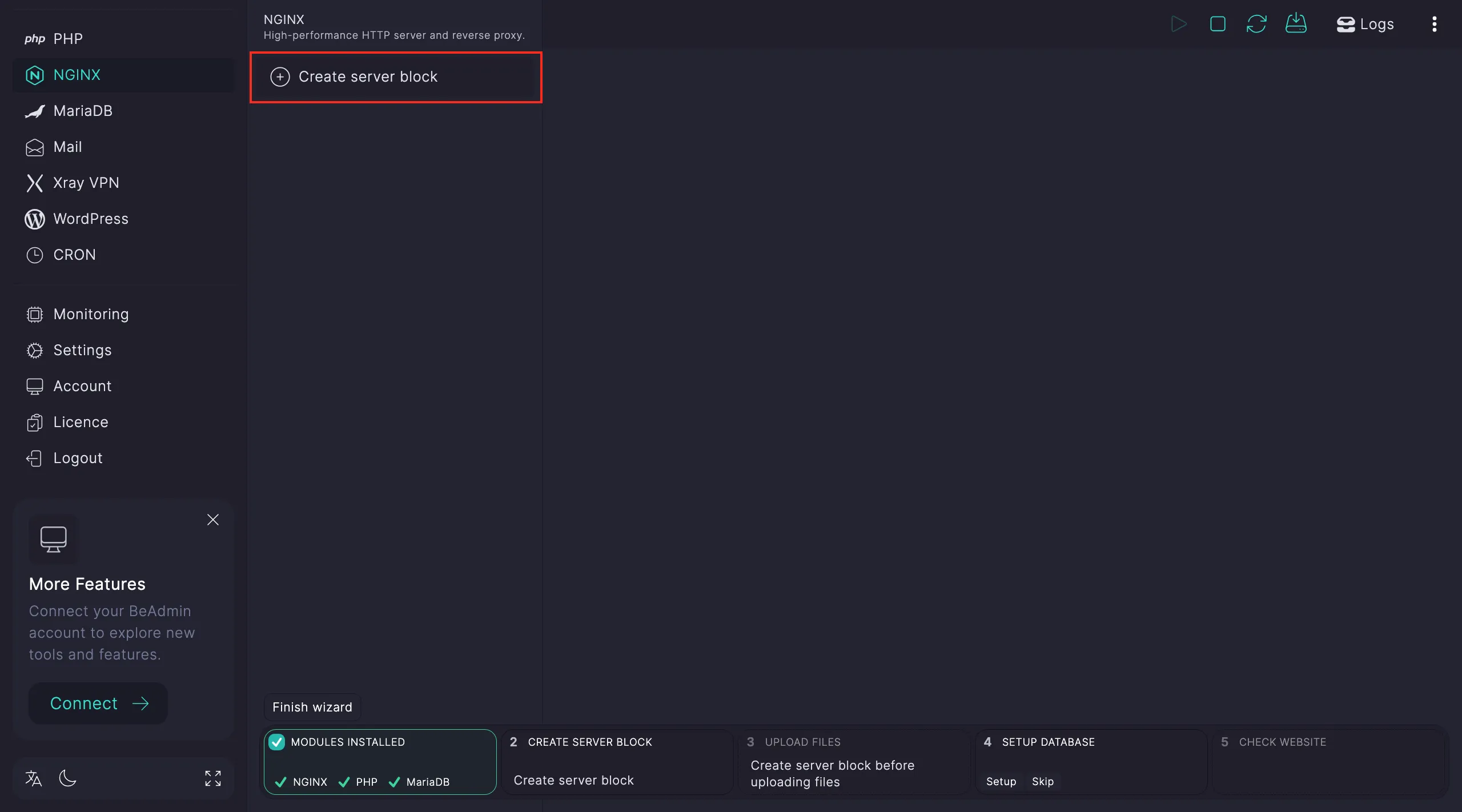 The host creation interface
In the configuration window, specify the following:
- Domain name — enter your website's domain.
- Connection — select HTTPS or manually specify a different port.
- Index files — add
index.phpto the beginning of the list. - Root directory — keep the default path or choose a custom folder.
- PHP version — select the required version (if not installed, the system will offer to install it).
Tip
If you enable HTTPS during host creation, the system will automatically generate an SSL certificate. Ensure your domain is already pointed to the server's IP address.
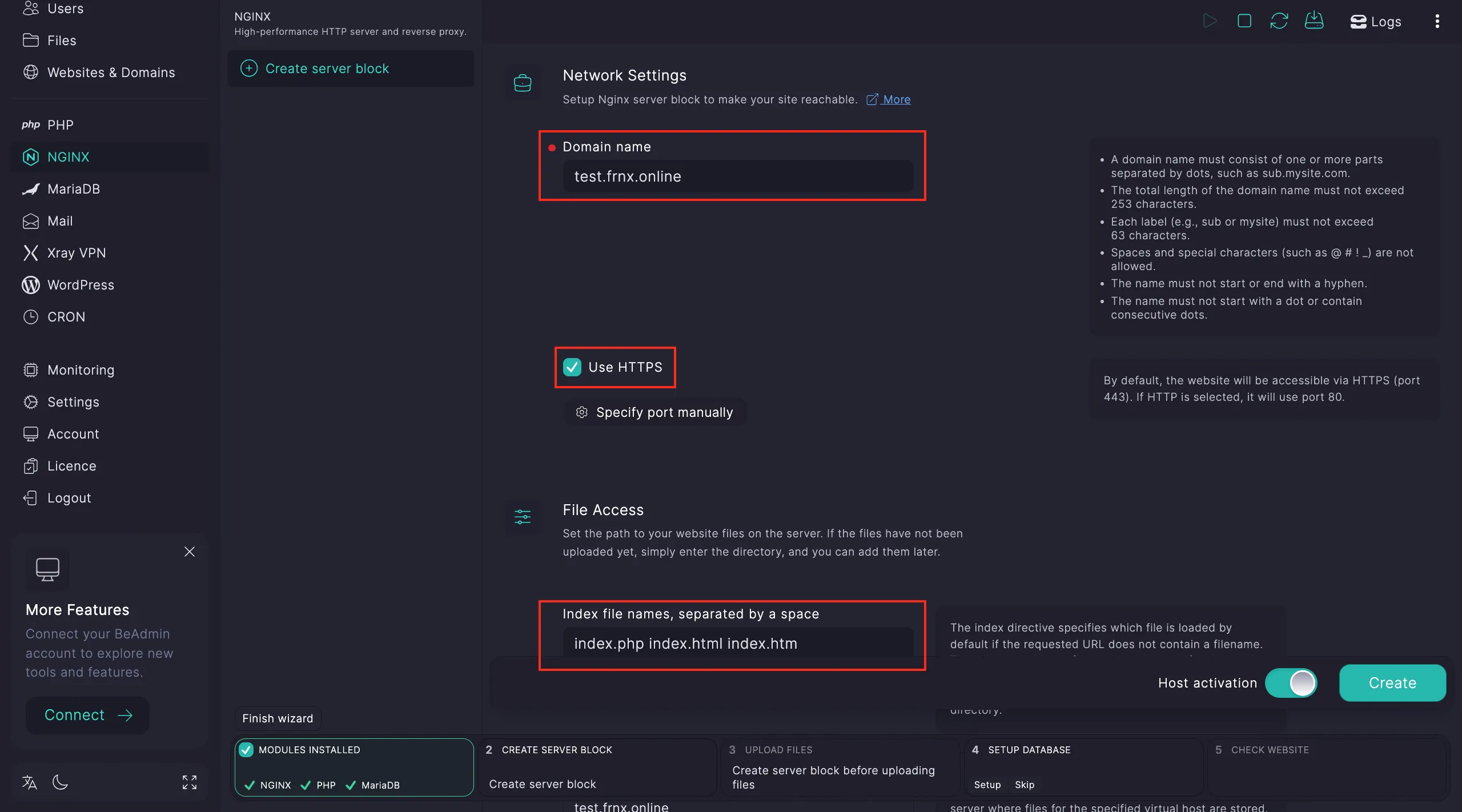 Setting up domain and PHP parameters
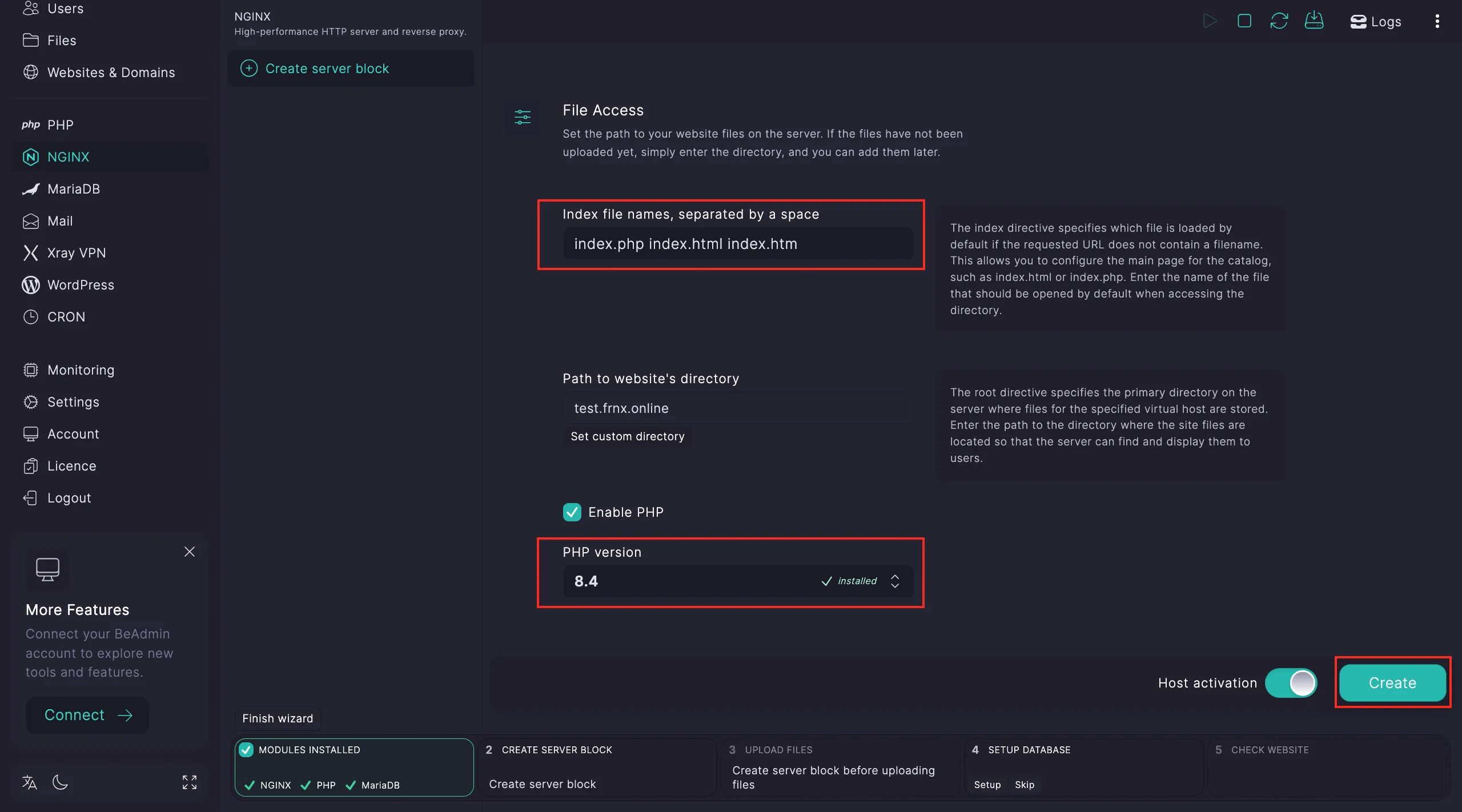 Finalizing host creation
Once the host is created, select it and click Select this host.
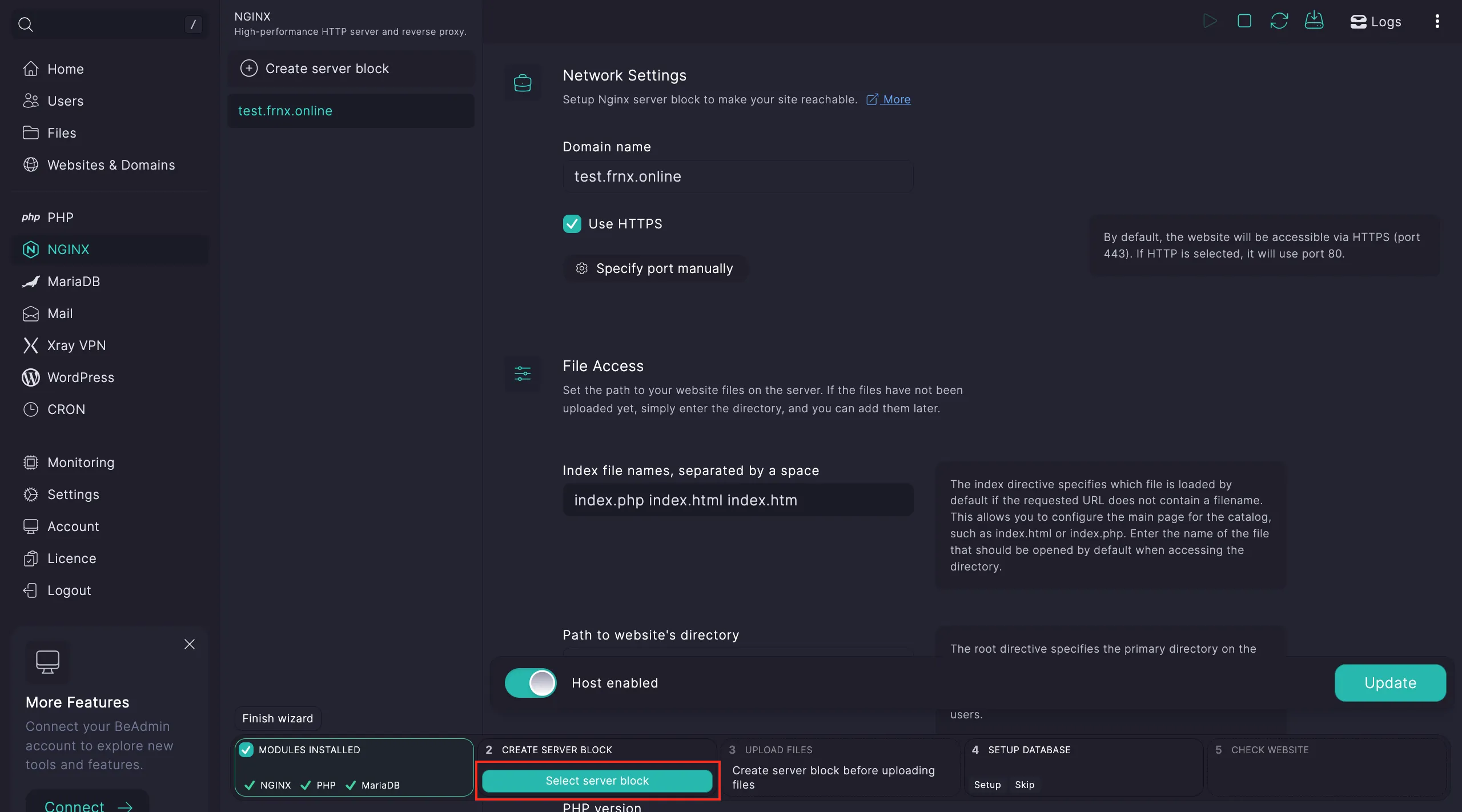 Linking the host to the deployment scenario
Step 3. Upload your website files. Click Go to files.
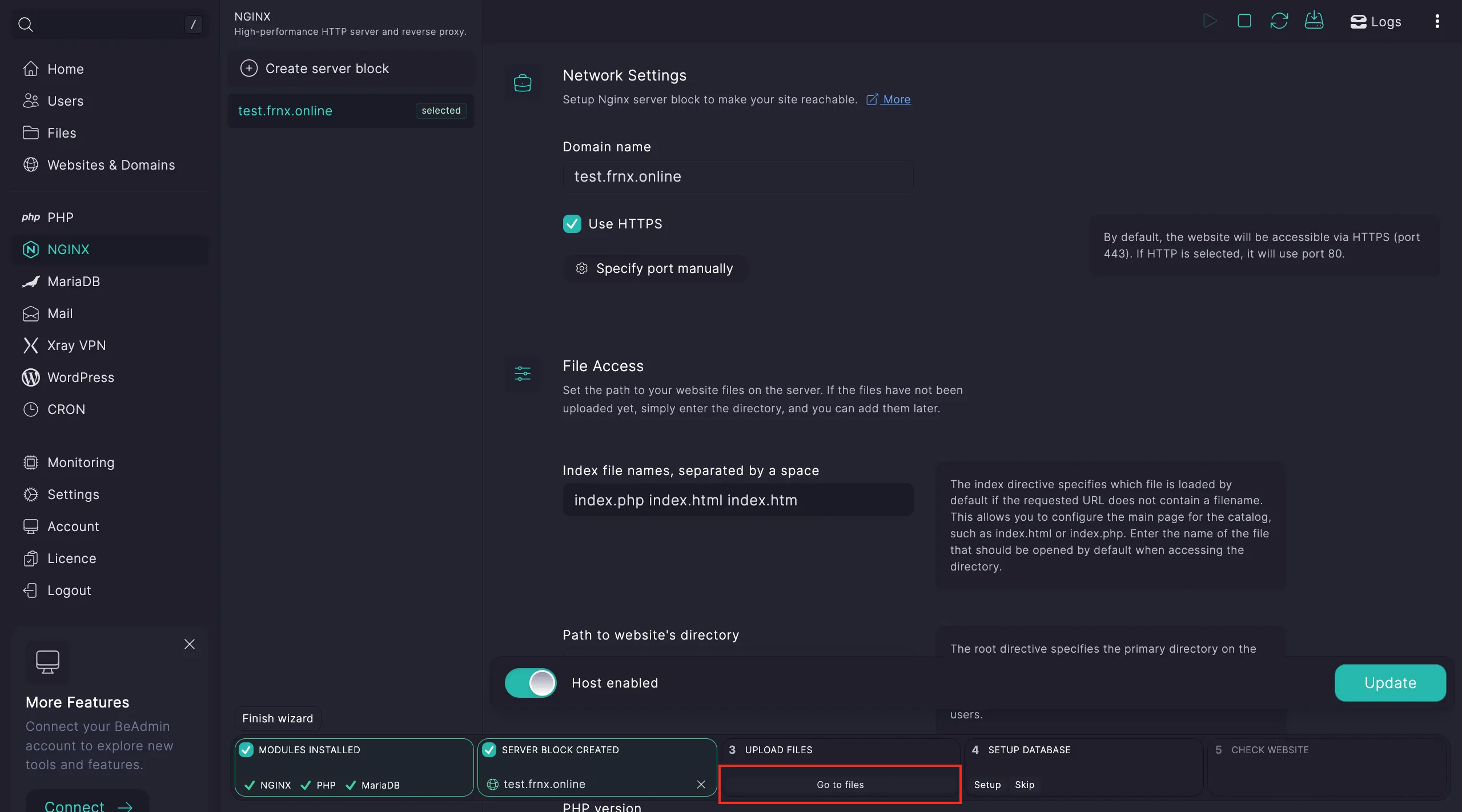 Navigating to the File Manager
Upload your files to the virtual host's directory by clicking the Upload button.
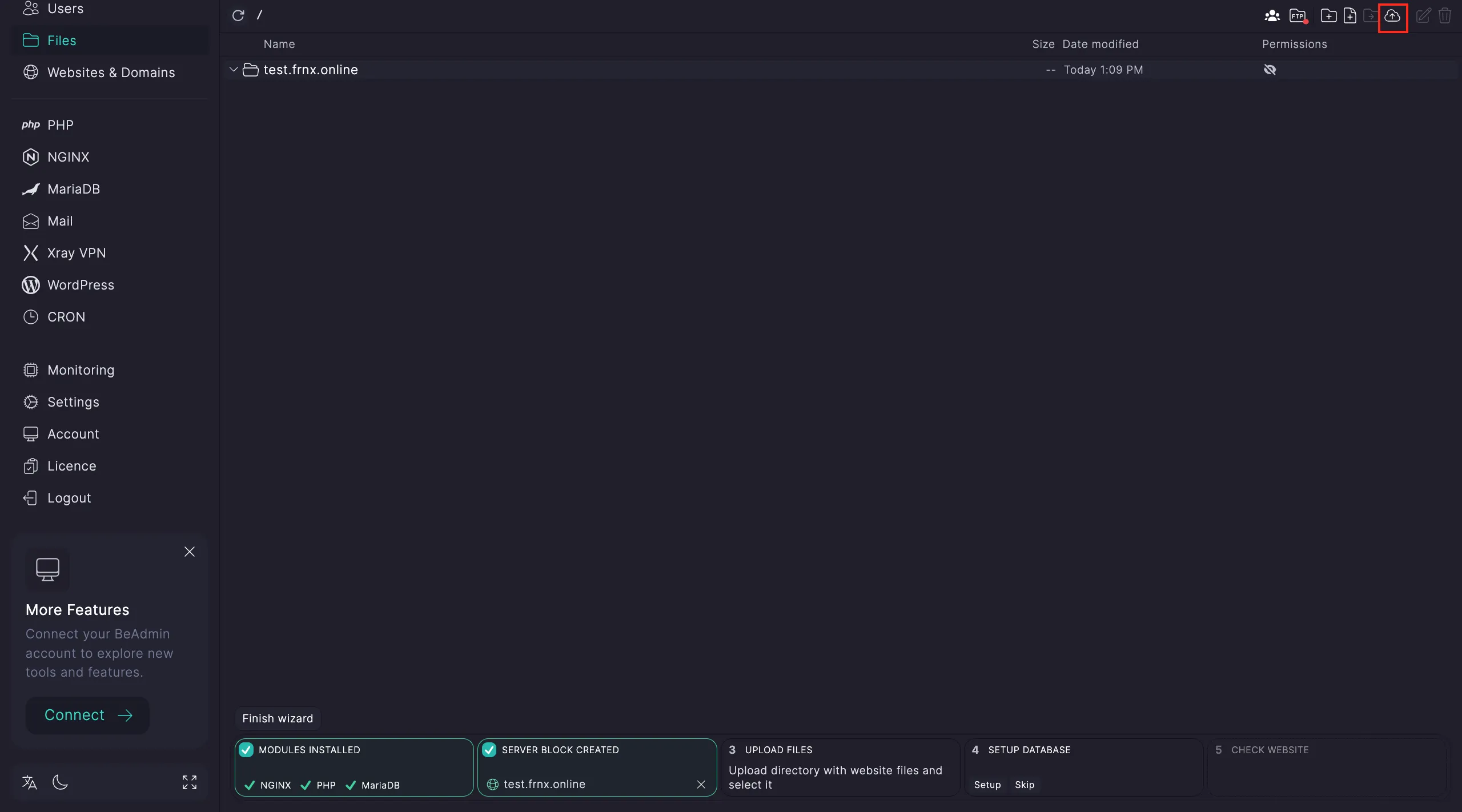 Uploading website content
If you uploaded an archive, extract it and specify the target directory for the configuration wizard.
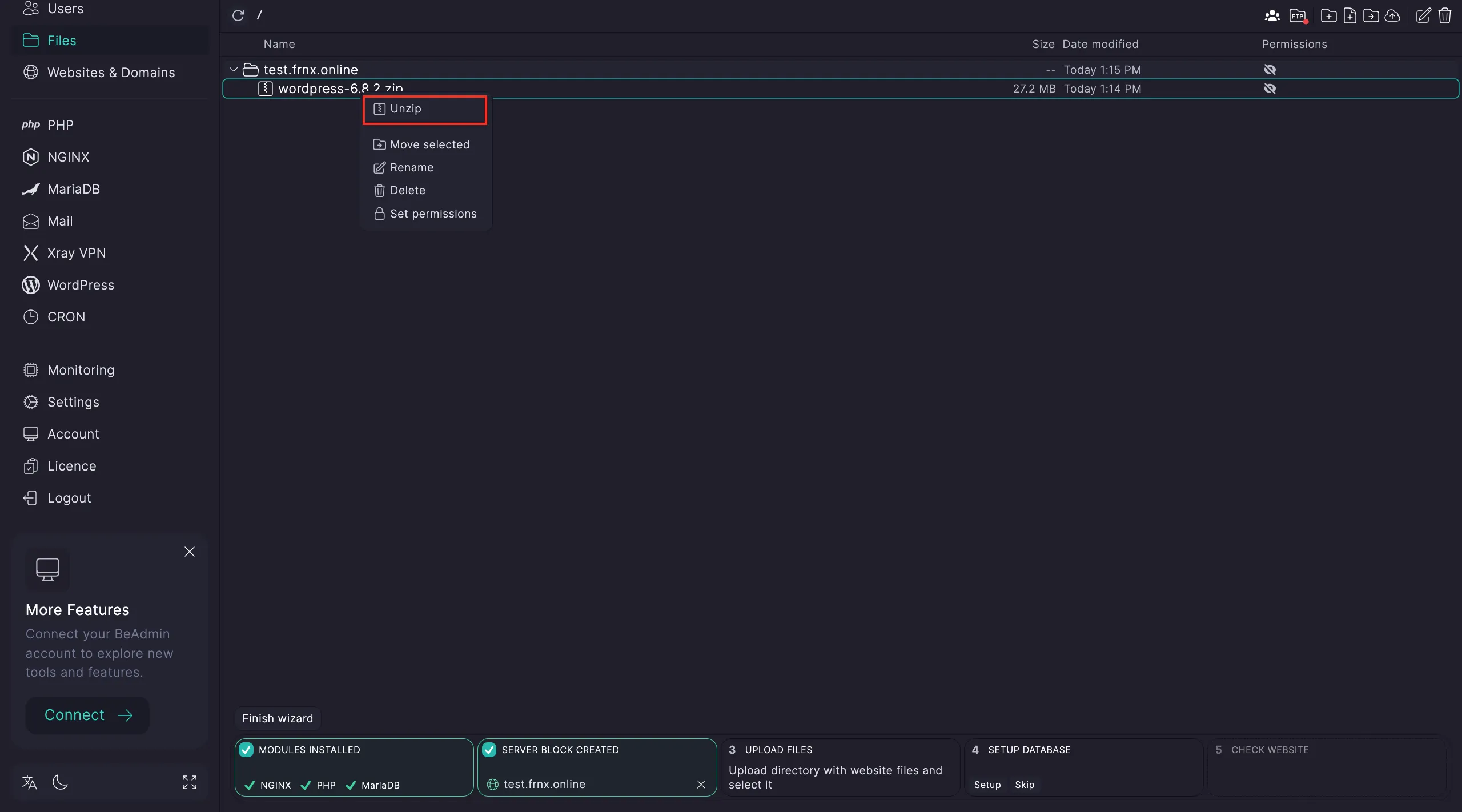 Extracting website data
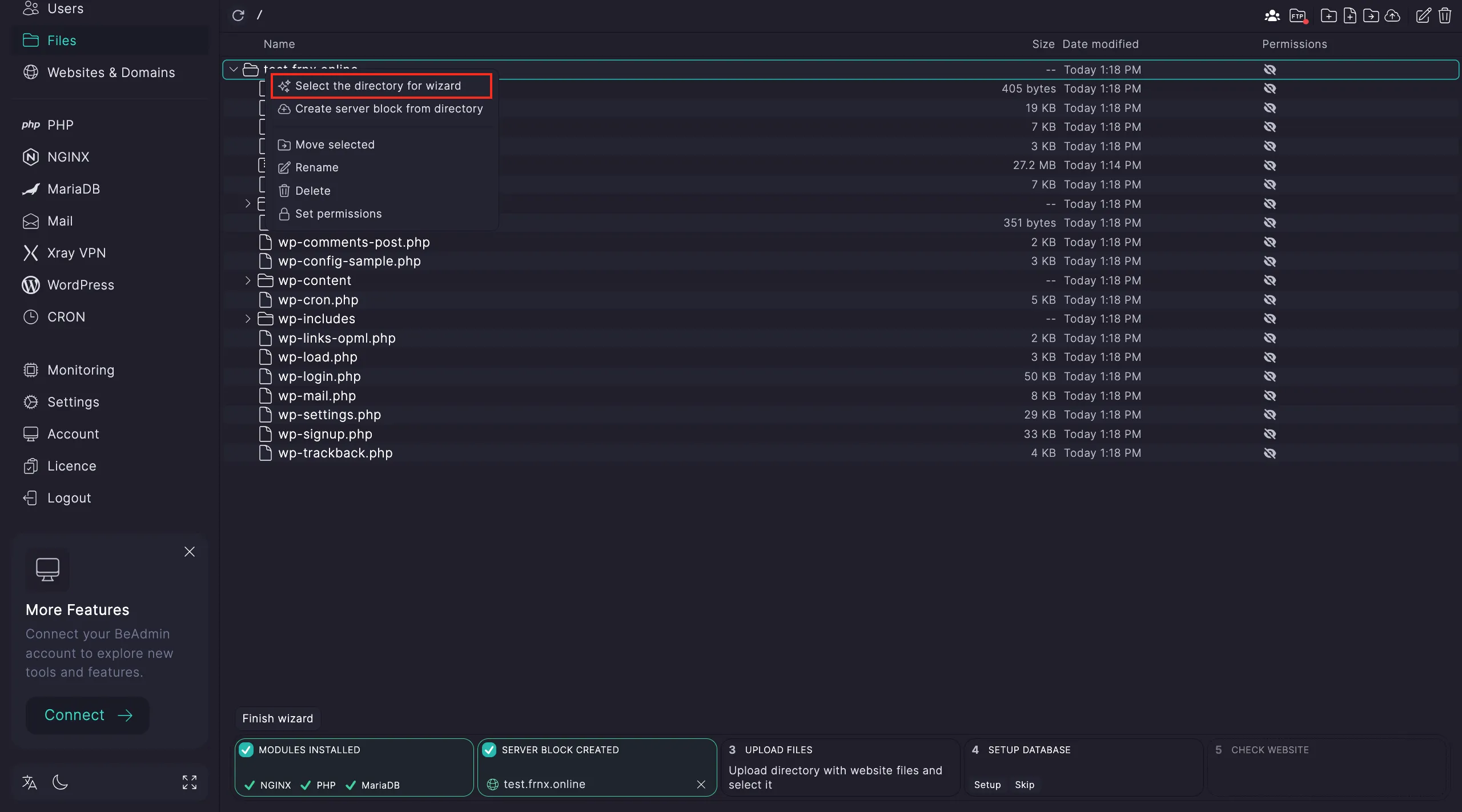 Confirming the root folder
Step 4. Database configuration. Click Configure and then Go to database.
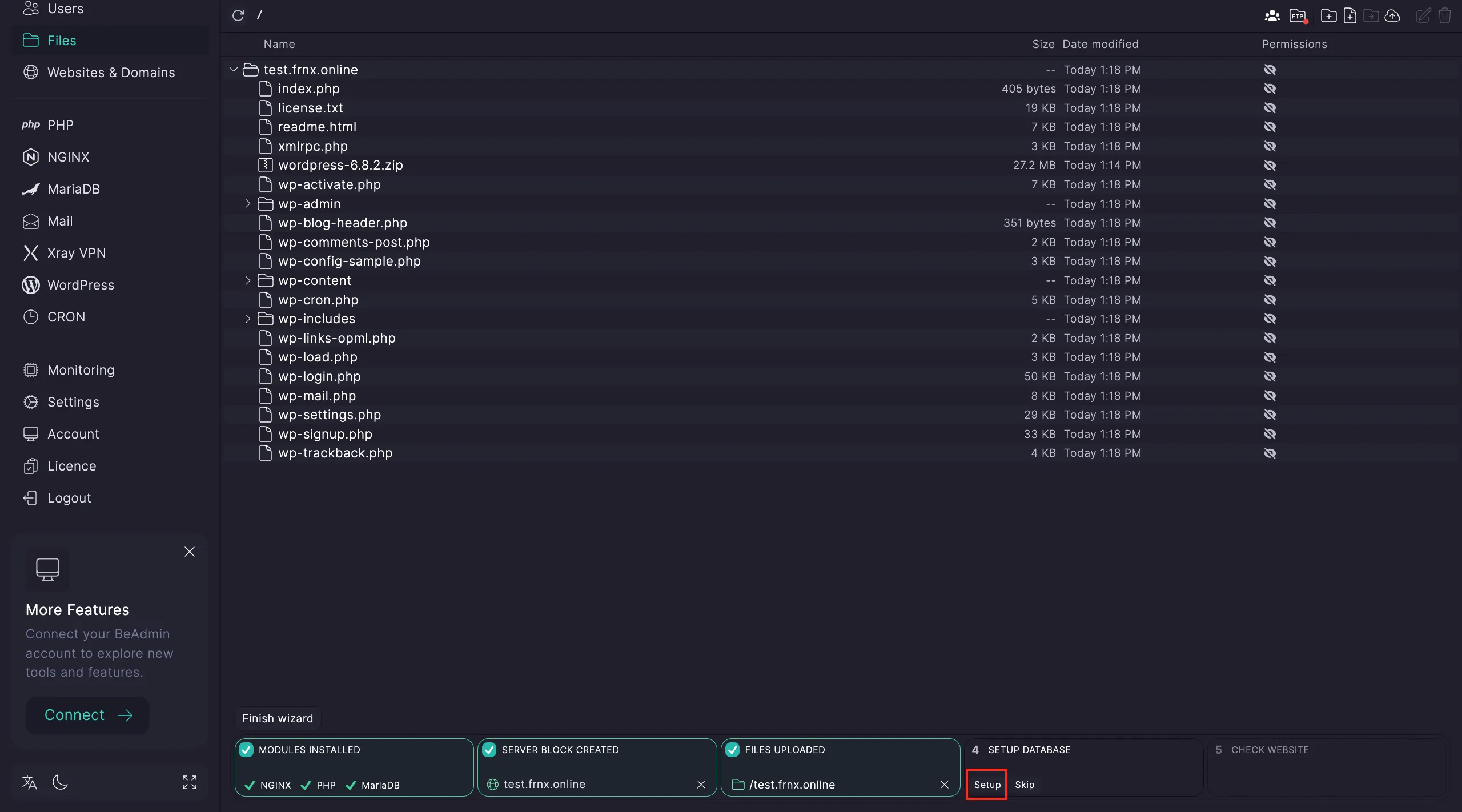 Starting database configuration
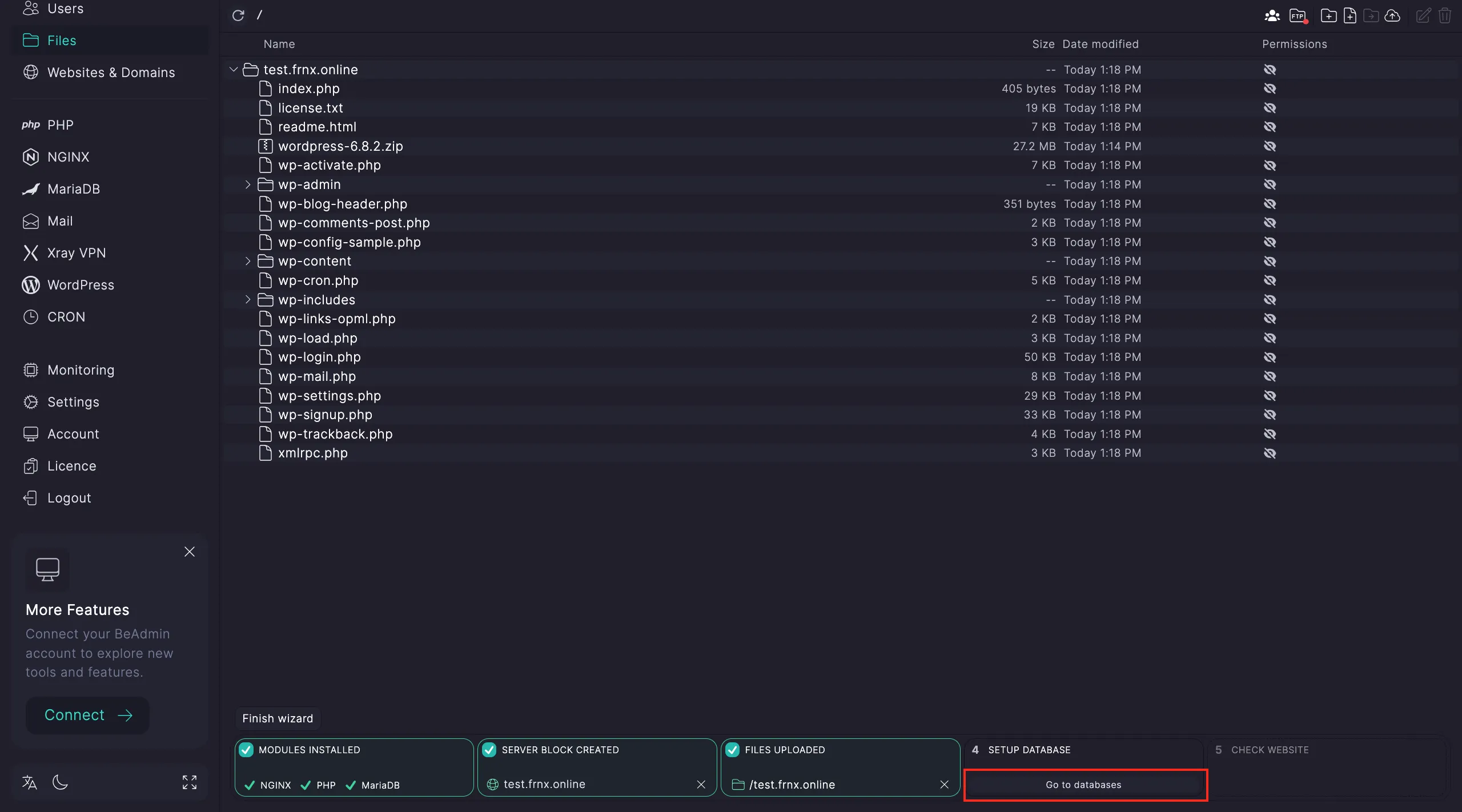 Accessing database management
Create a new database:
- Enter a name for the database.
- Click
Create.
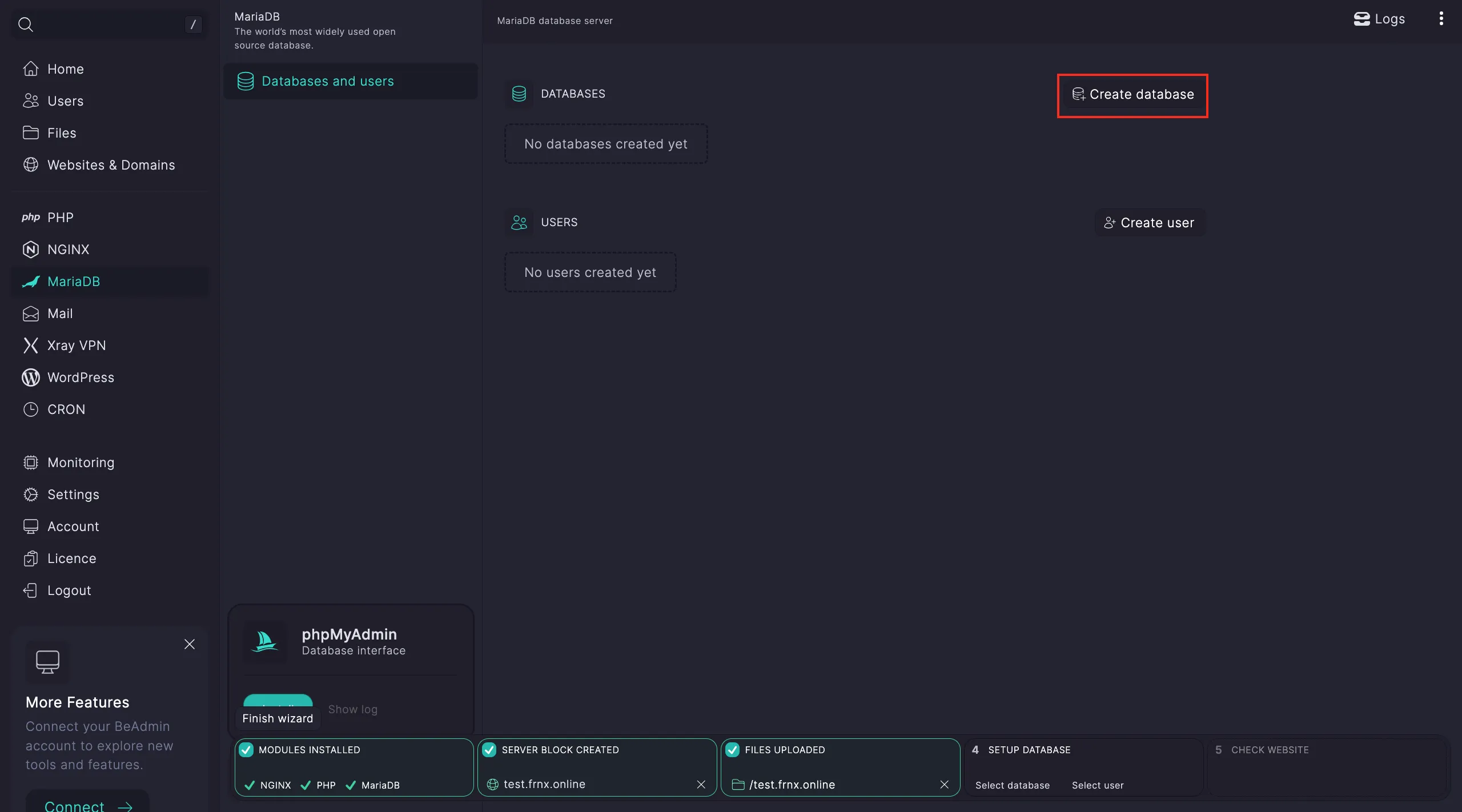 The database creation form
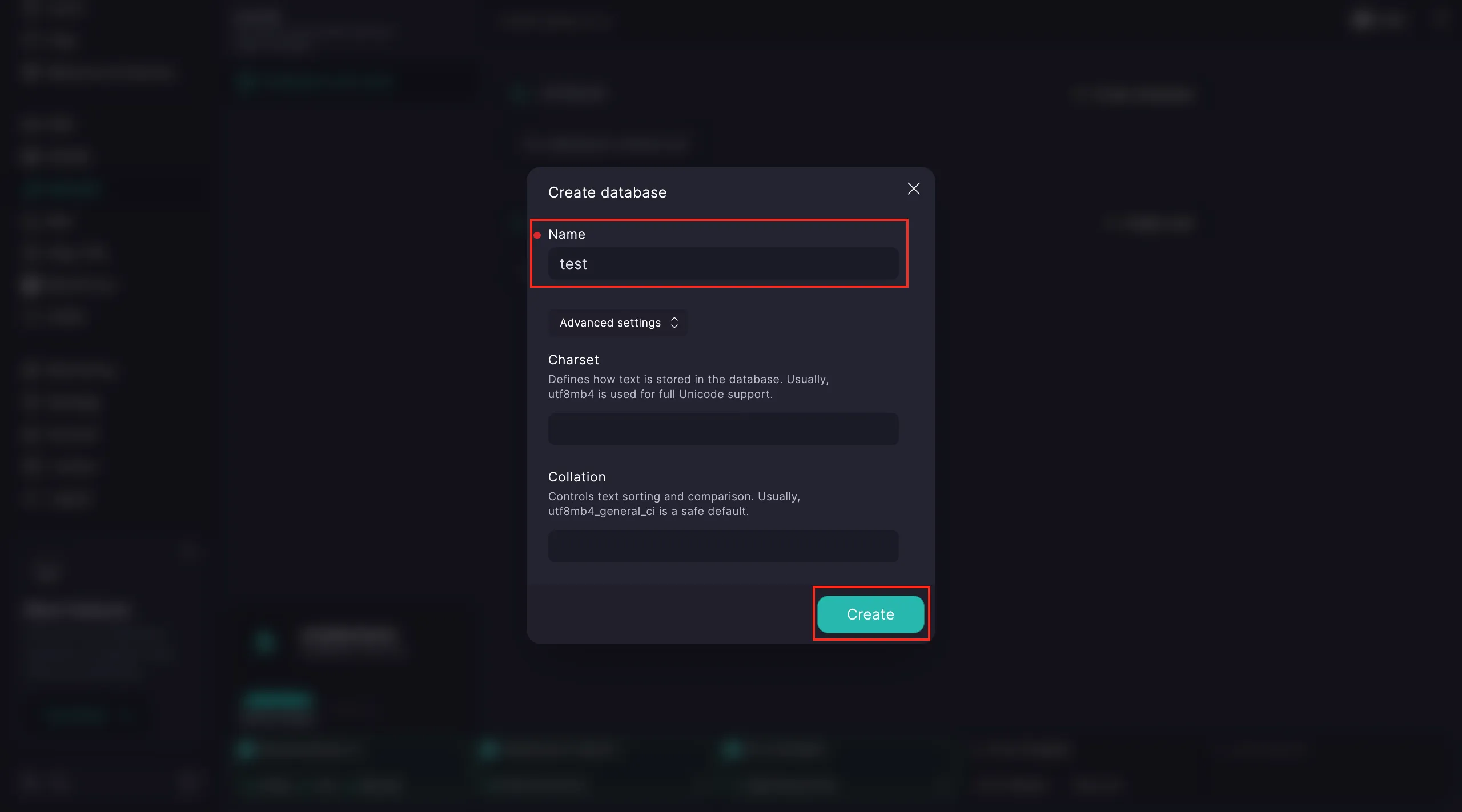 Confirmation of database creation
Note
During creation, you can specify advanced parameters such as Character Set and Collation.
Add a database user:
- Select the database, then enter a username and password.
- Click
Create.
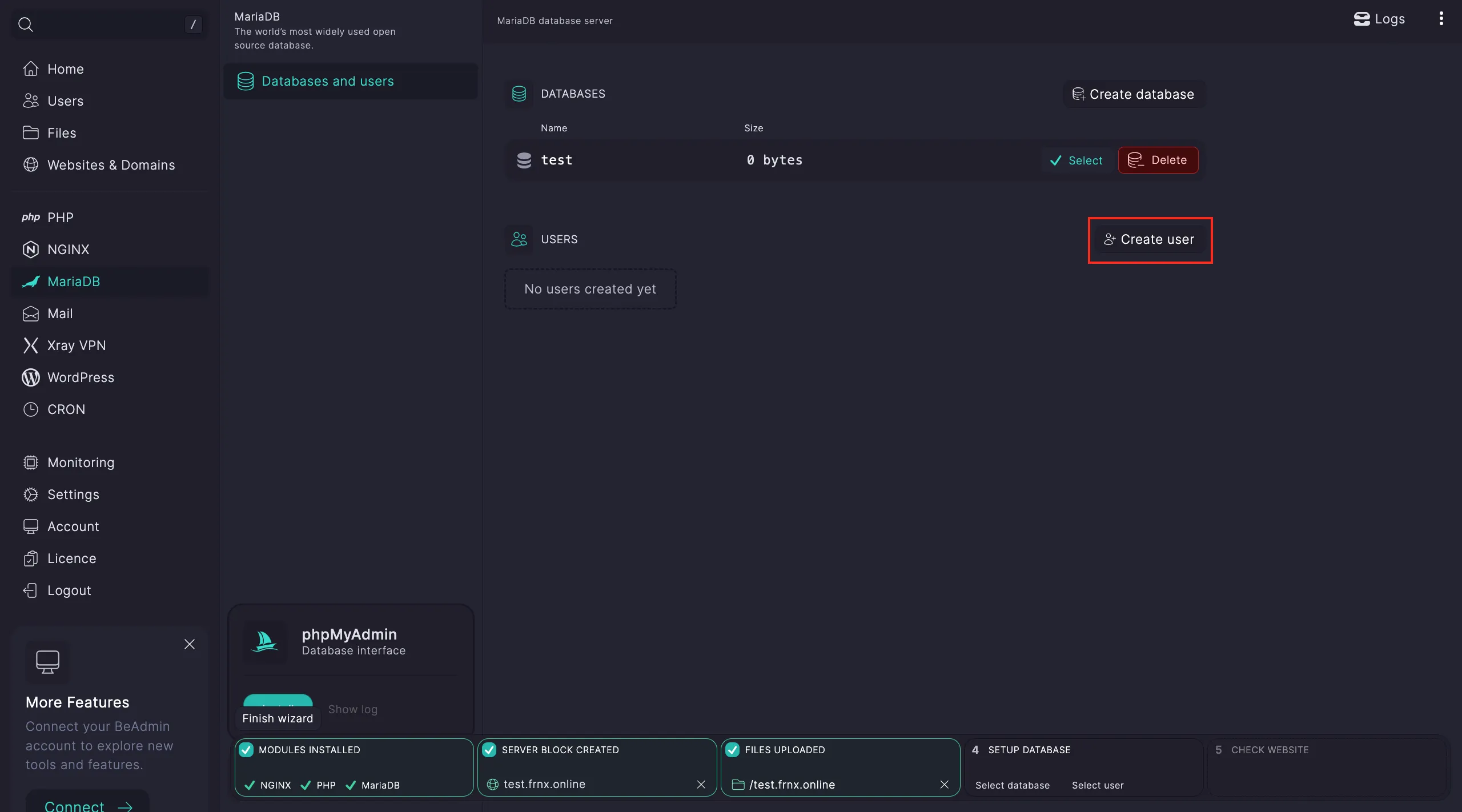 Adding a new user
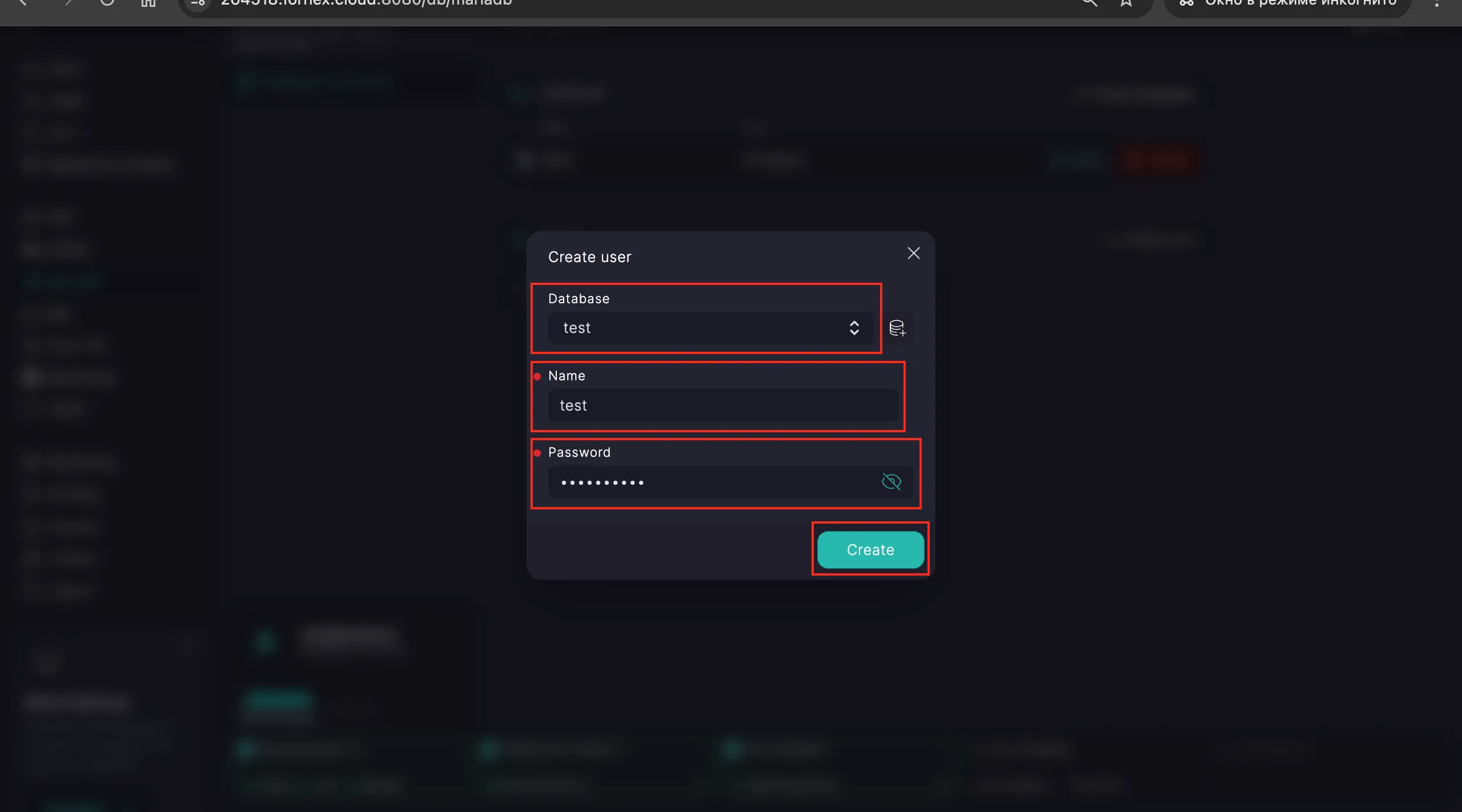 Assigning user credentials
Select the newly created database and user by clicking the Select button.
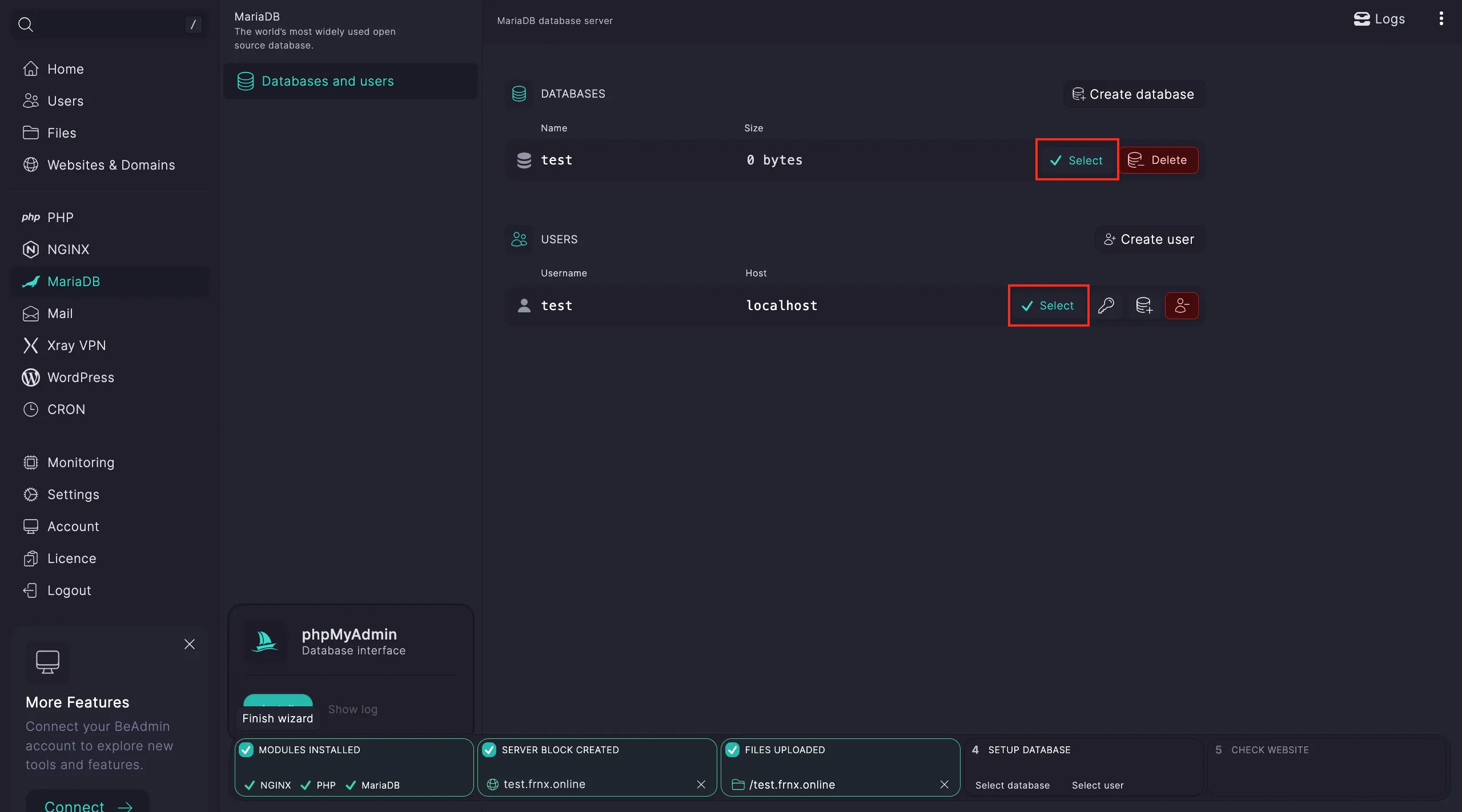 Linking the DB to the site
If you need to restore a database from a dump, go back to the Files section and upload the .sql file.
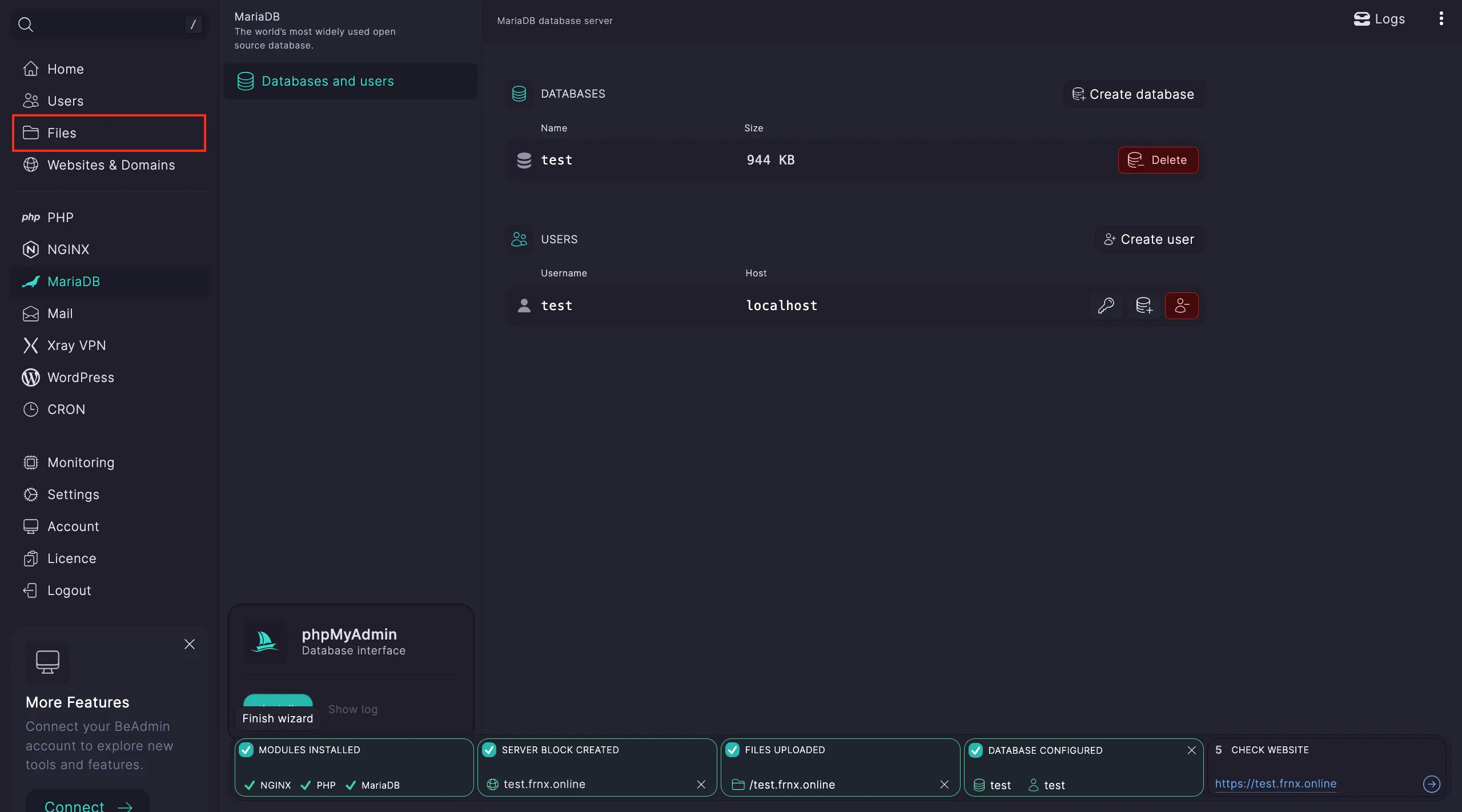 Uploading the SQL dump
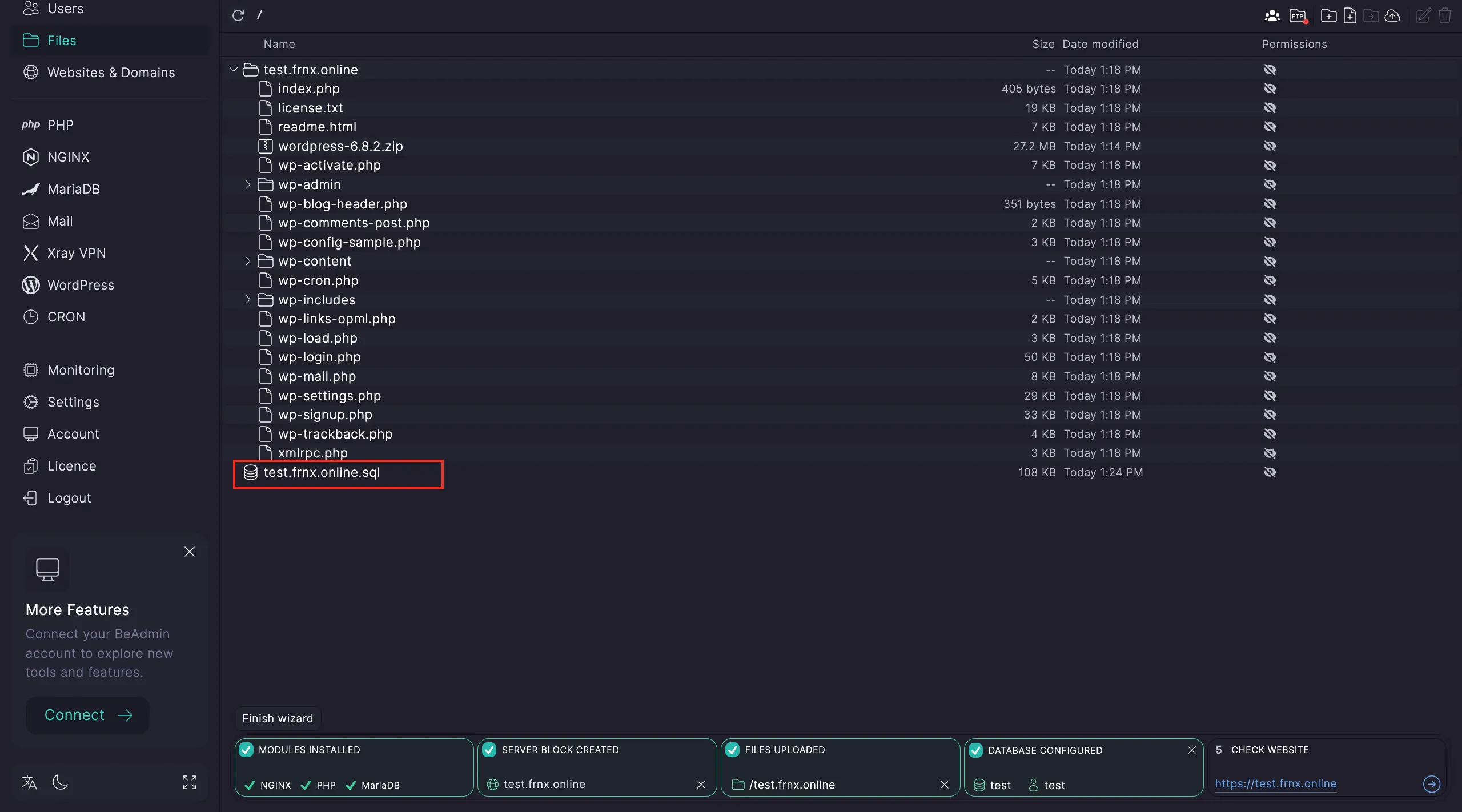 Locating the dump file
Right-click the dump file and select Restore. In the pop-up, specify the target database.
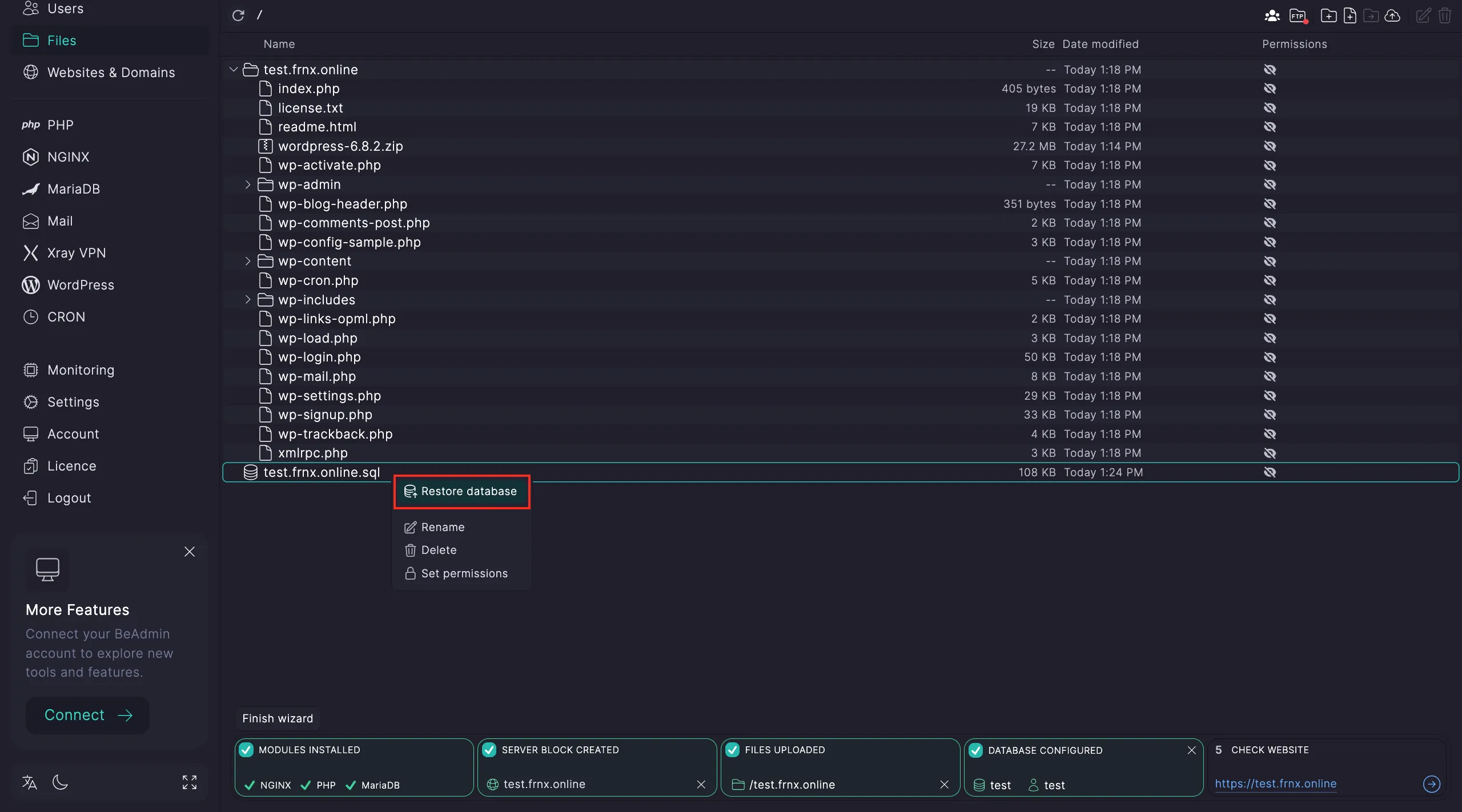 Executing the restore command
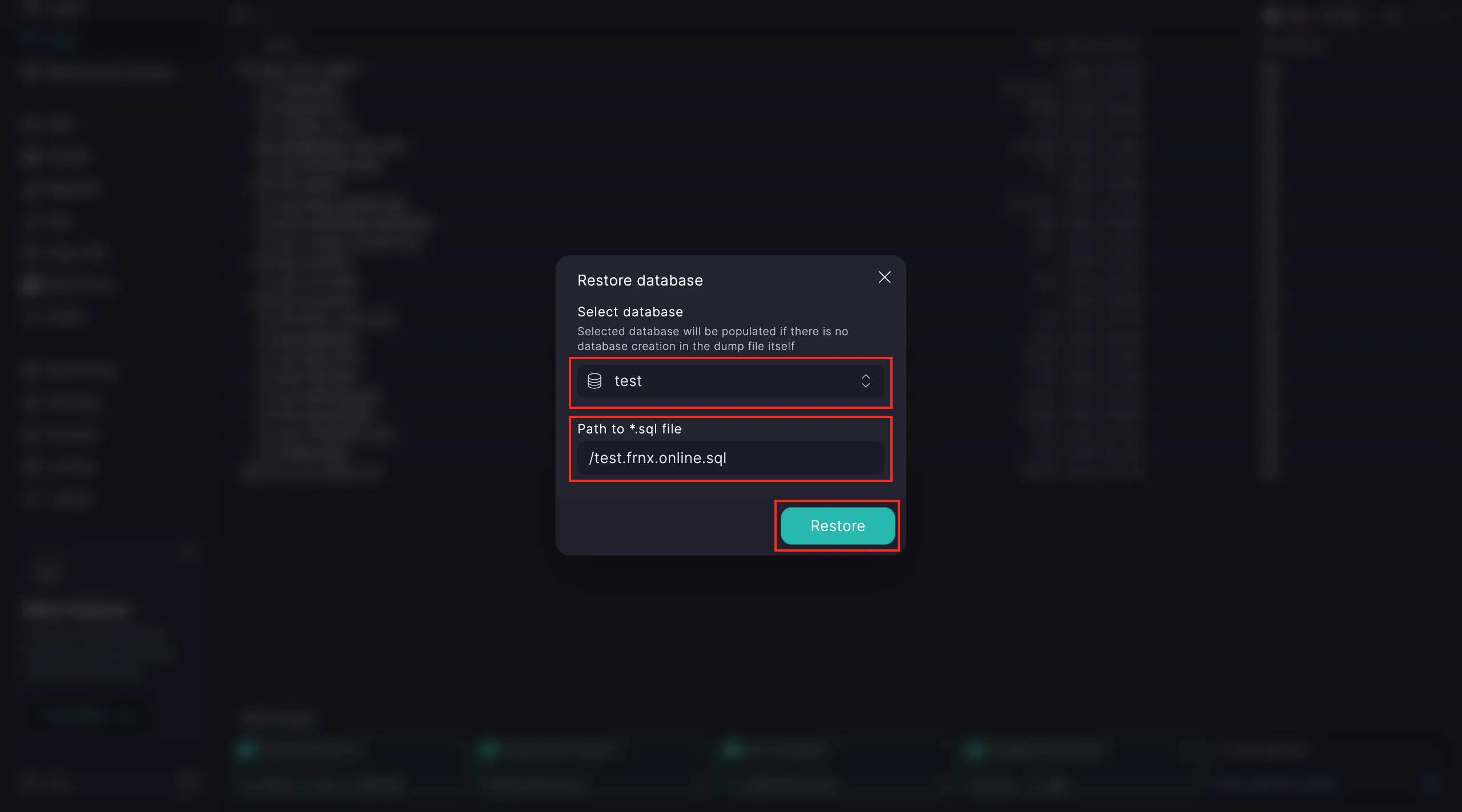 Confirming the target database
Configuration is complete. You can verify your website by following the link provided in Step 5.
Deploying a static website
Navigate to the main page and select the Static website scenario, then click Launch.
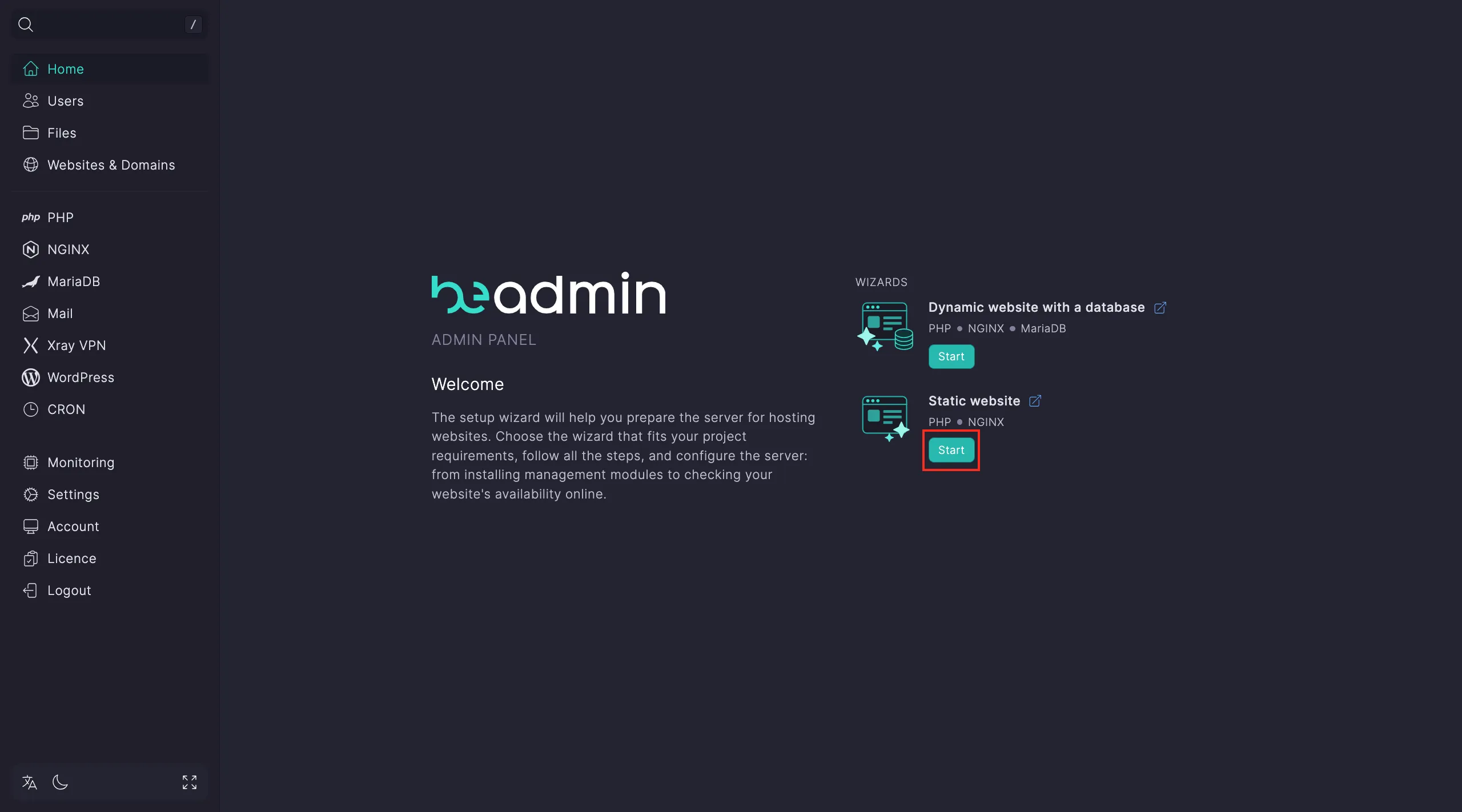 Selecting the static site scenario
Step 1. Install the required modules.
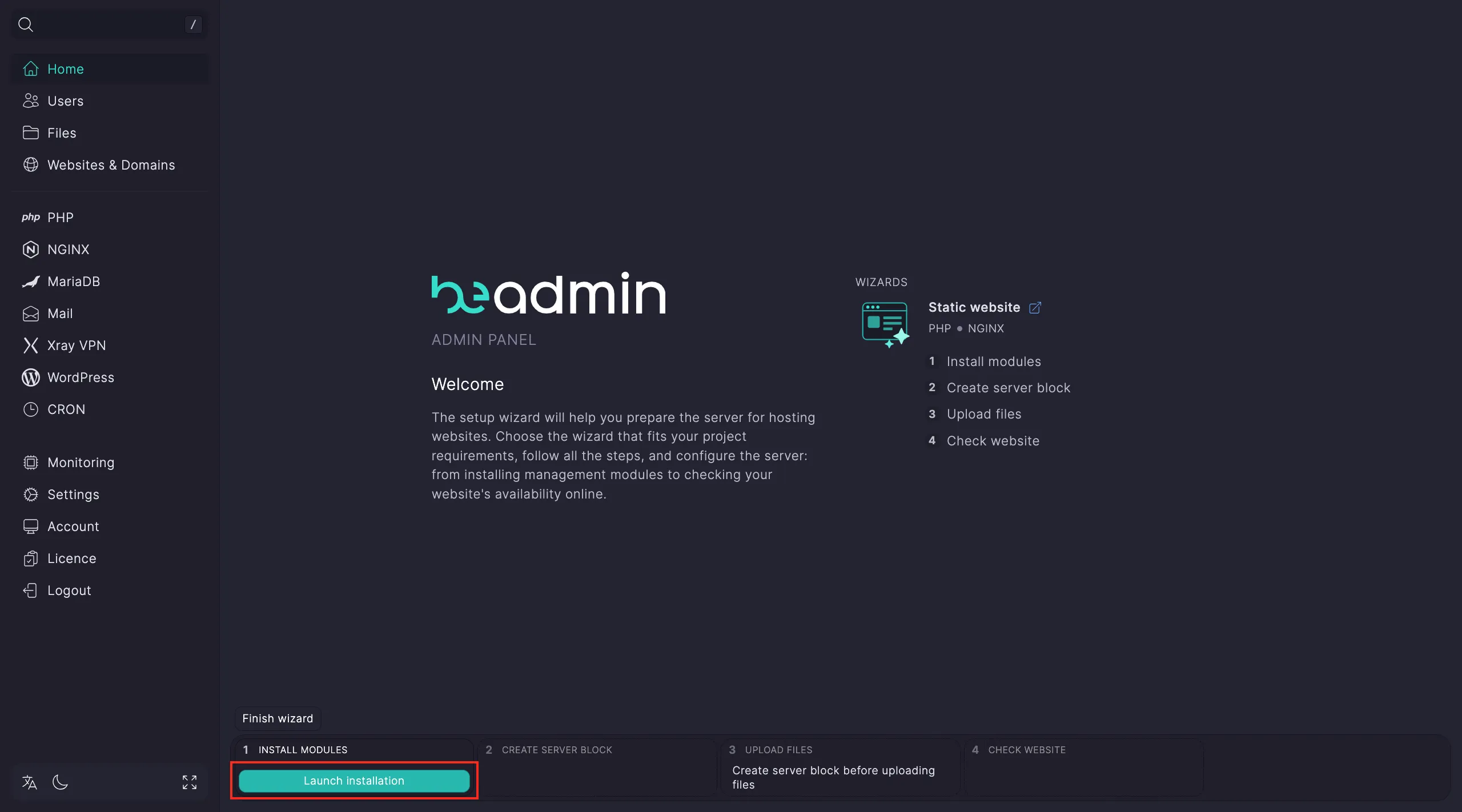 Installing web server modules
Note
Nginx installation takes about 15 seconds. You can proceed once it's done; other components will install automatically.
Step 2. Configure the virtual host. Click Go to hosts → Create virtual host.
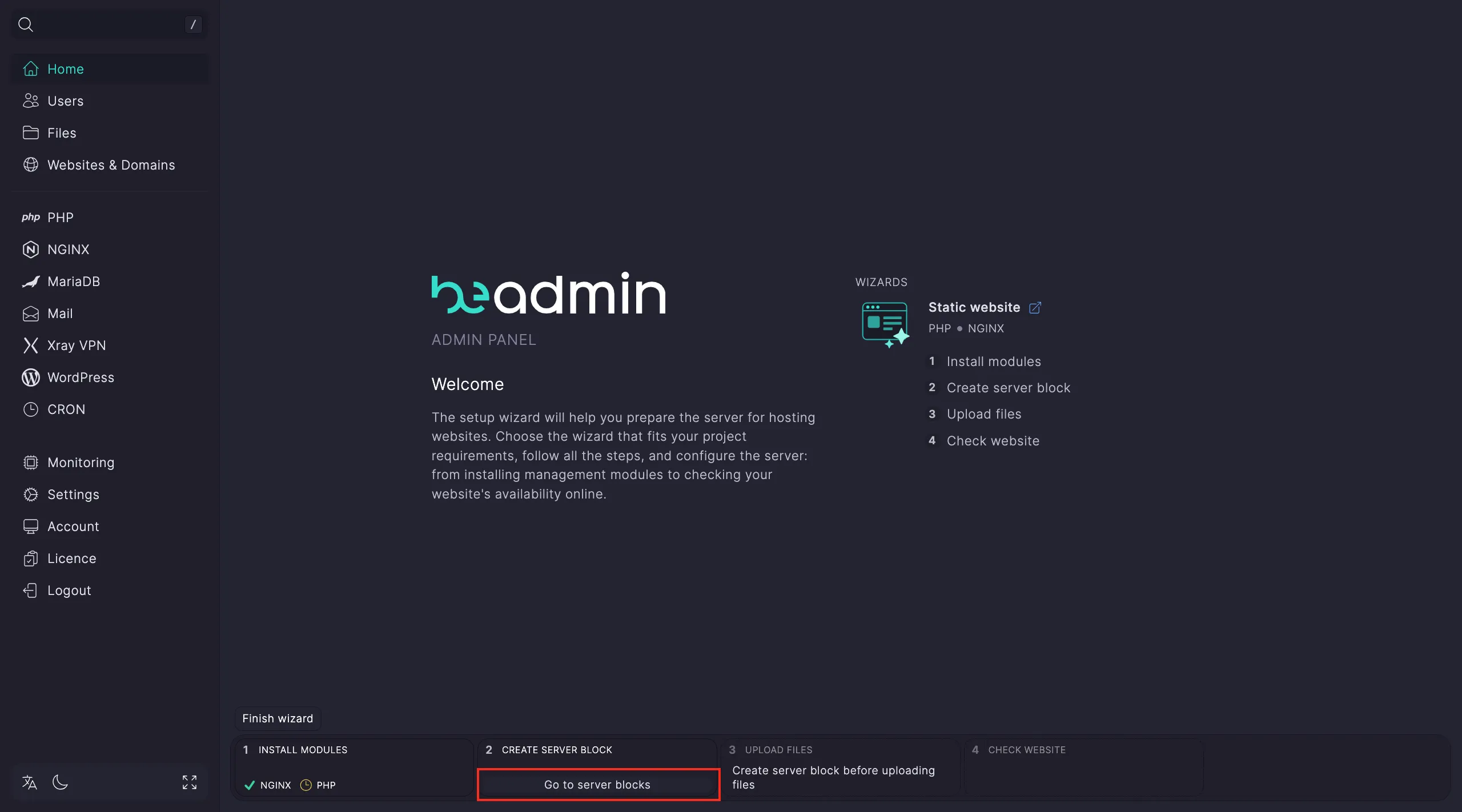 Creating a host for a static site
In the host creation window:
- Enter your Domain name.
- Select HTTPS or specify a custom port.
- If necessary, select a PHP version (some static sites might require specific scripts).
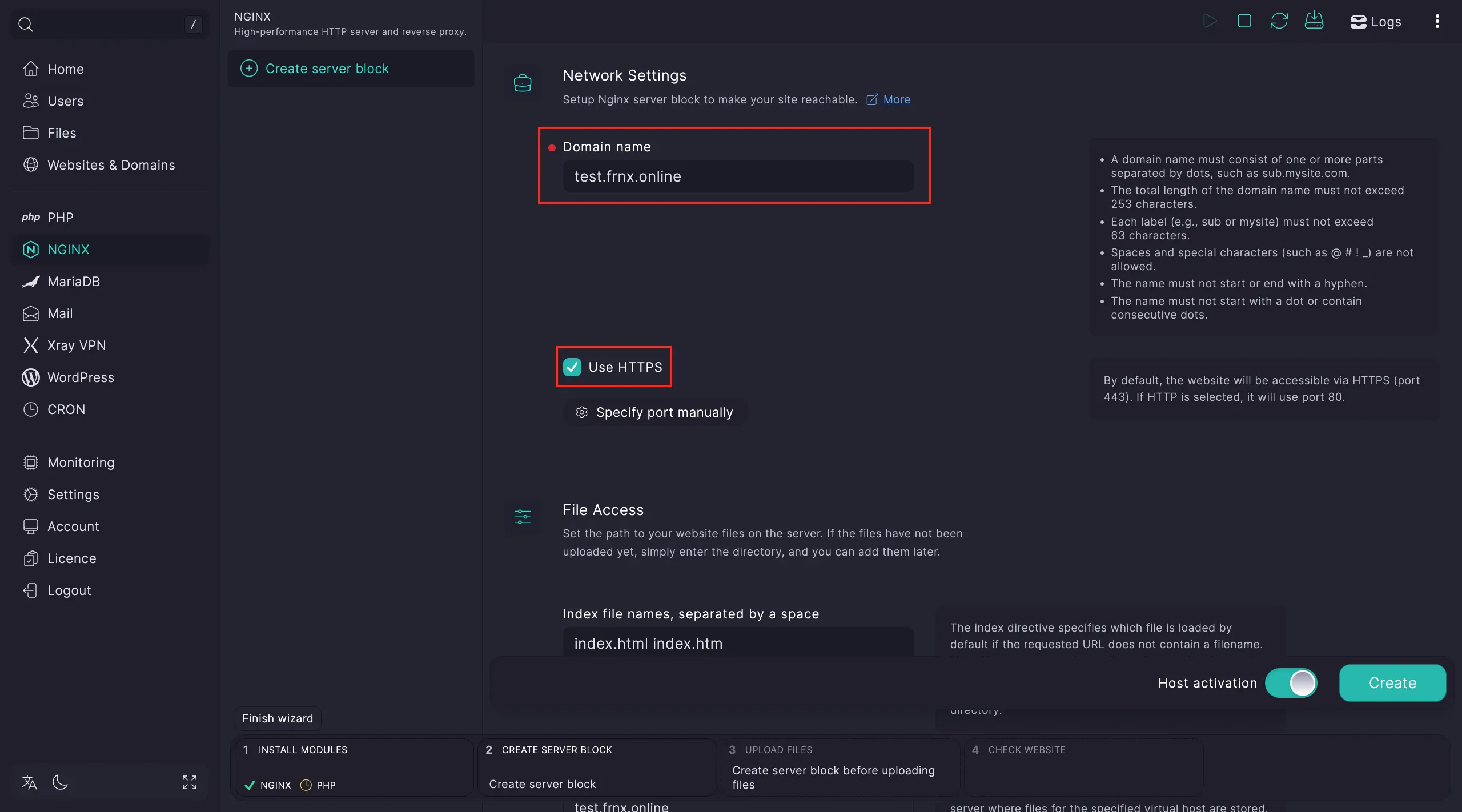 Enabling HTTPS for the static site
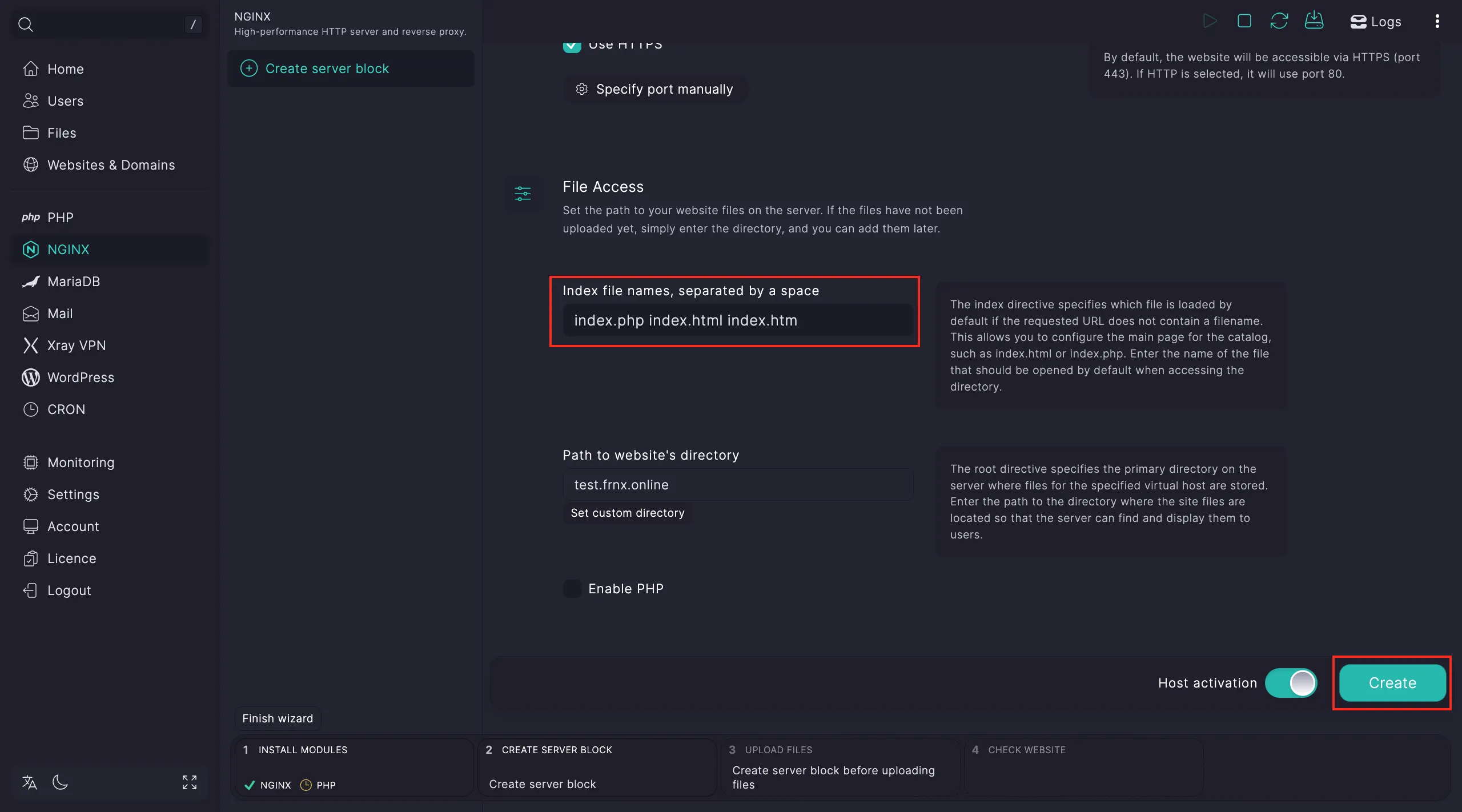 Reviewing host settings
Once created, click Select this host.
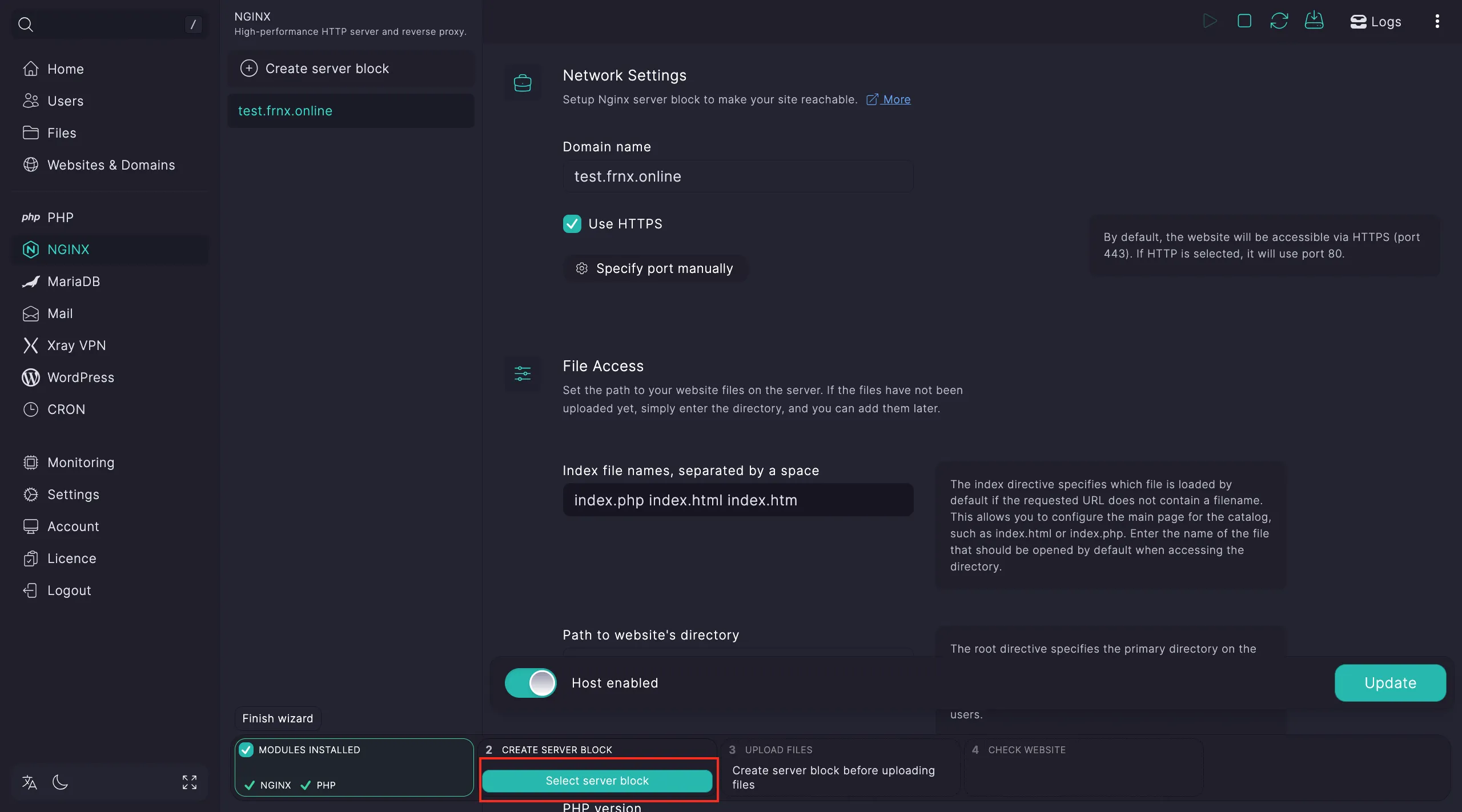 Finalizing host association
Step 3. Go to the File Manager (Go to files).
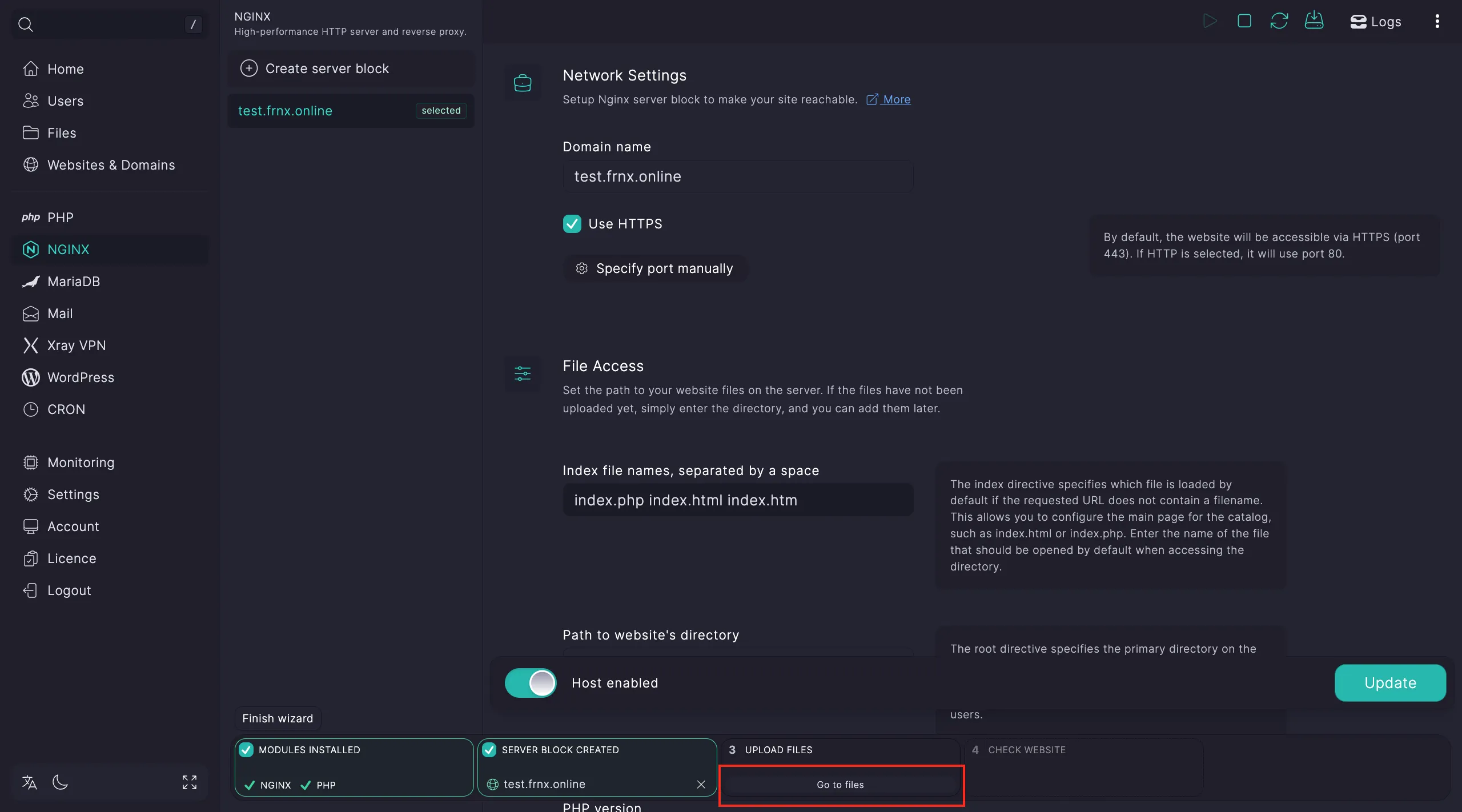 Opening the file management interface
Upload your website files by clicking the Upload button. If using an archive, extract it and set the root directory for the setup wizard.
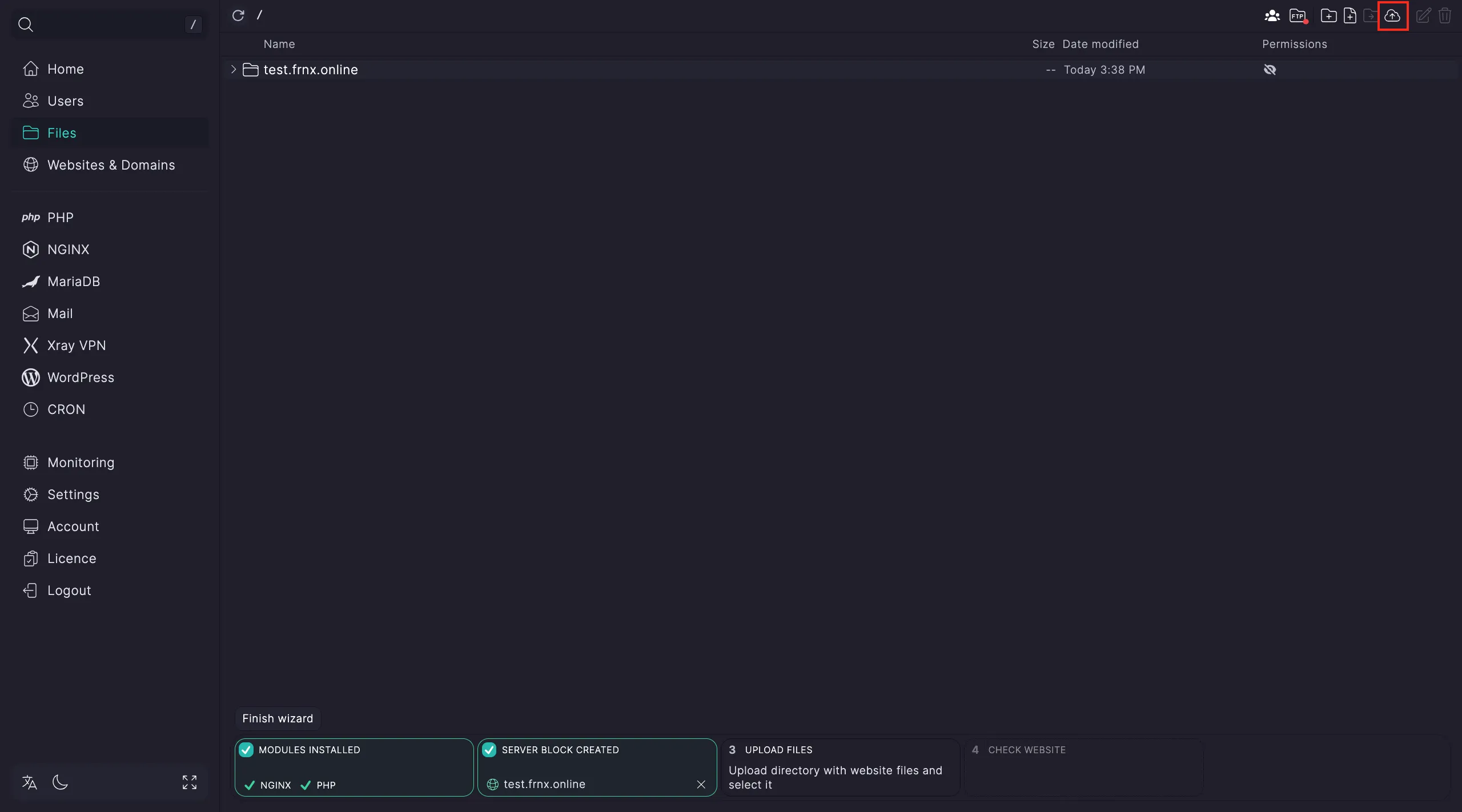 Uploading HTML/CSS/JS files
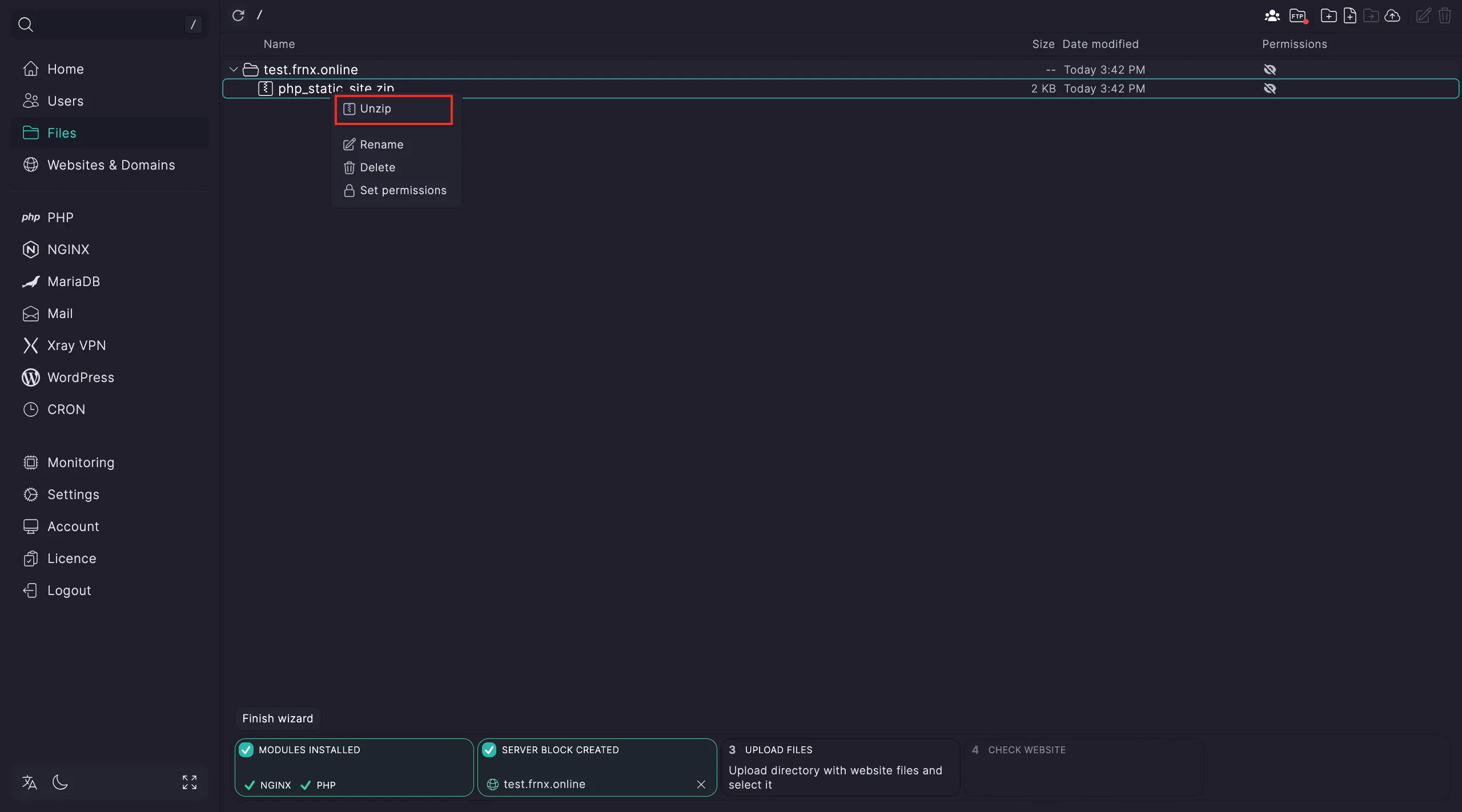 Unpacking the website archive
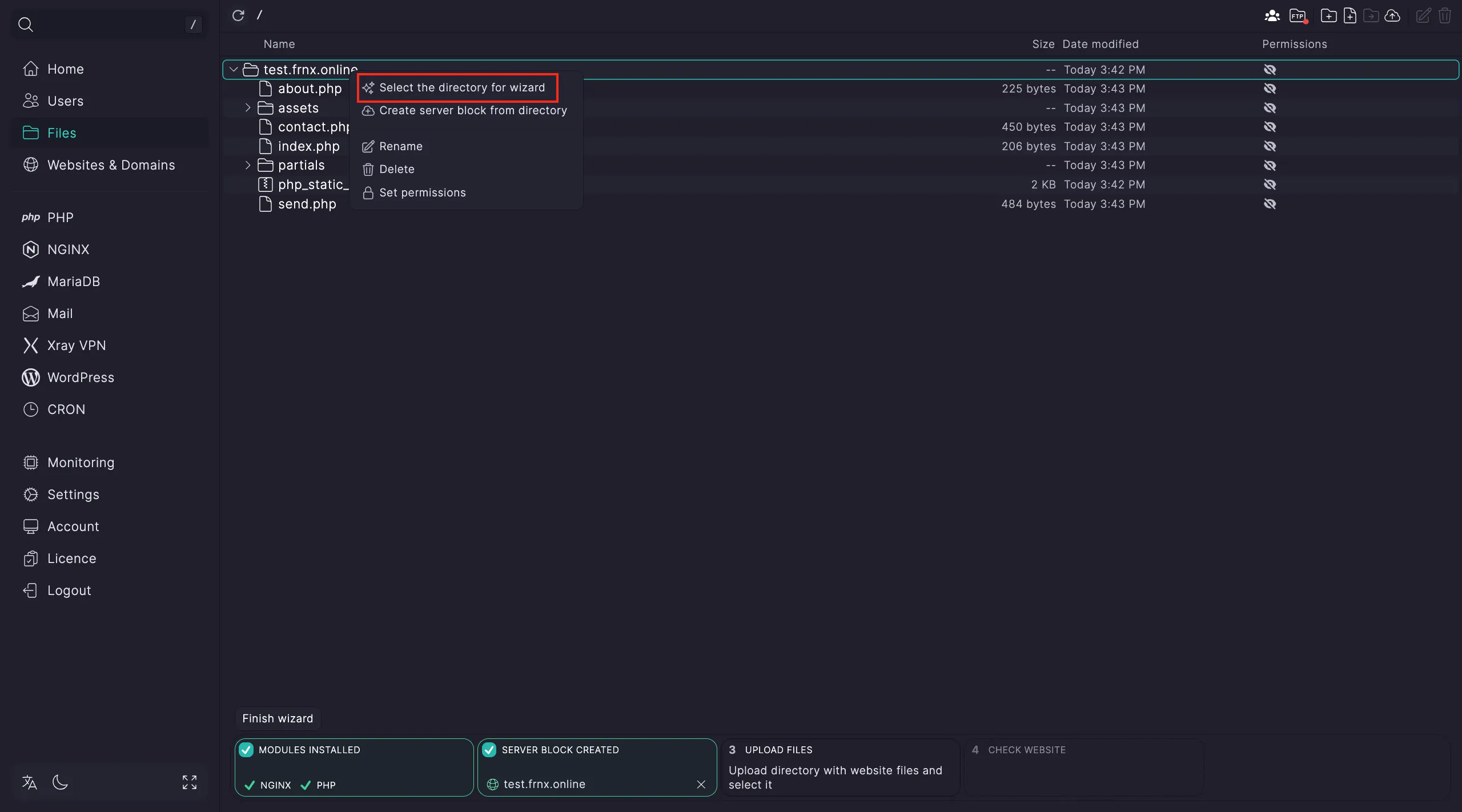 Verifying the deployment path
Deployment is complete. Check your website using the link in the final step.
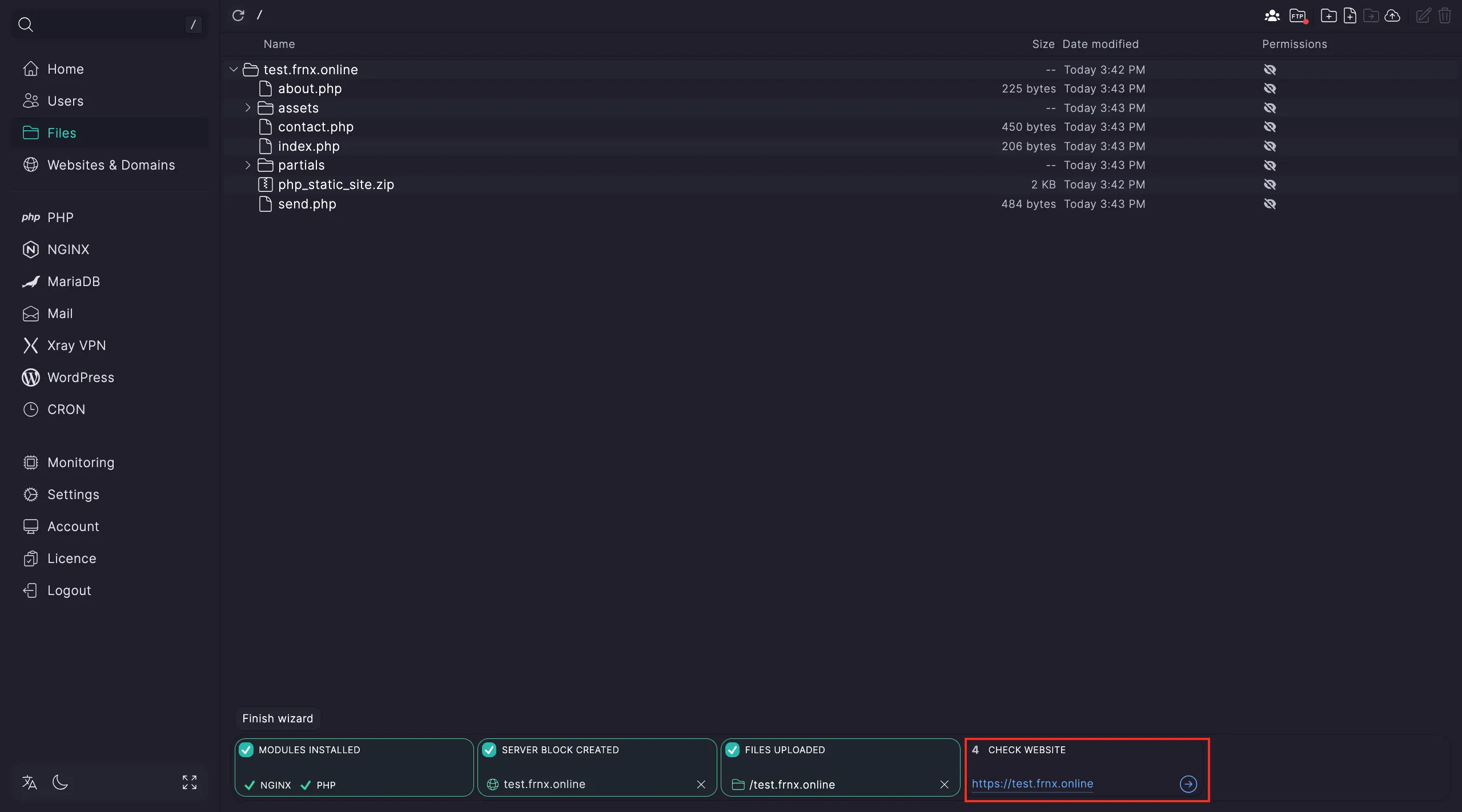 Final deployment status
Help
If you have any questions or need assistance, please contact us through the ticket system — we're always here to help!