Adding an extra IP to your dedicated server
How to order and configure an additional IPv4 address.
An extra IP address on your dedicated server gives you more flexibility:
- Run multiple sites or services on separate IPs (ideal for SSL certificates, different projects, or IP-based restrictions)
- Separate traffic for different applications (web, mail, VPN, etc.)
- Improve email deliverability by dedicating one IP to SMTP
- Bypass certain provider or service limits that require unique IPs
On Fornex dedicated servers, you can add up to 3 additional IPv4 addresses.
How to Order an Additional IP
- Log in to your personal account → go to Dedicated Servers.
- Select the server → open the IPv4 tab.
- Click
Add IP.
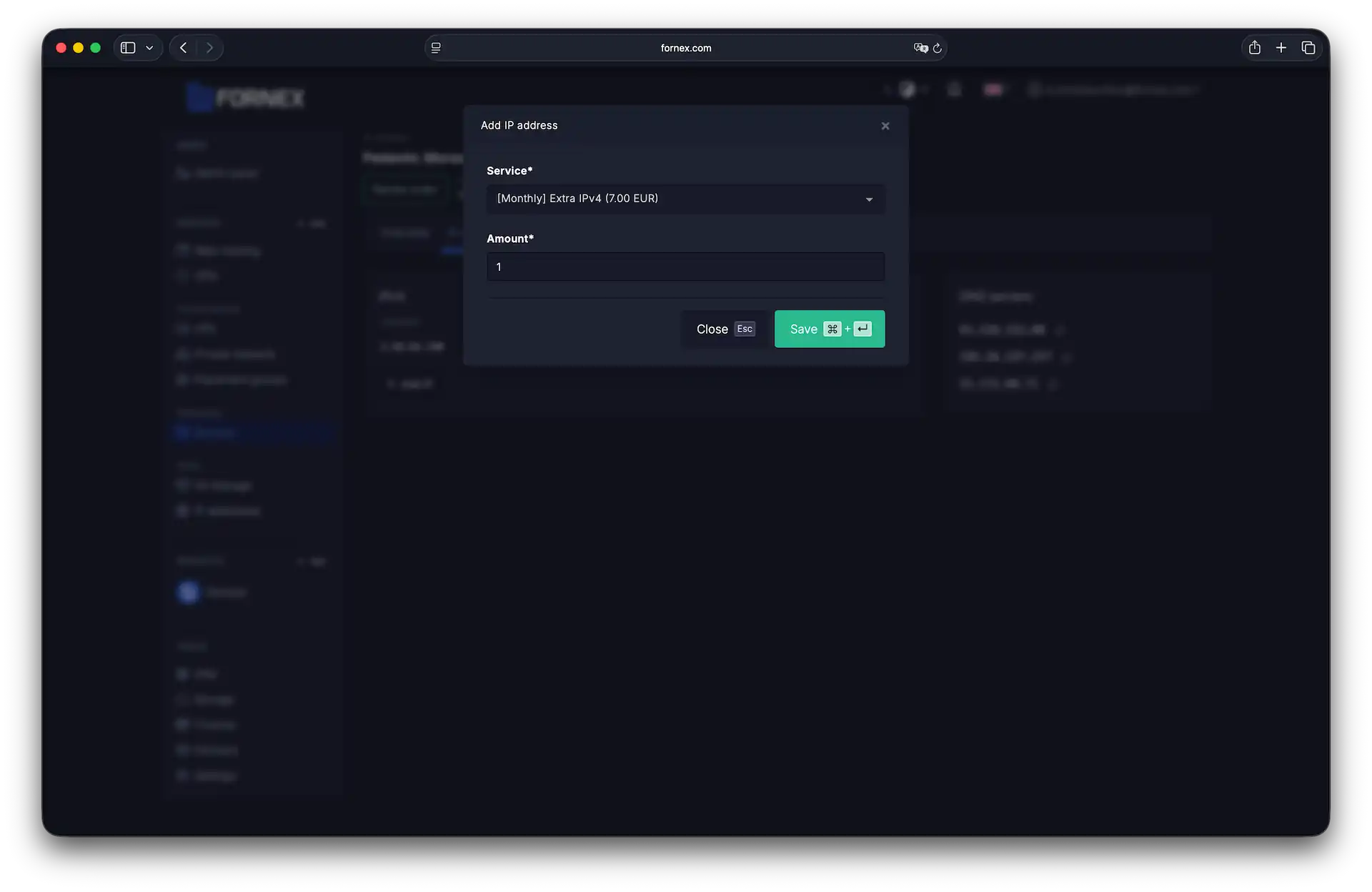 Click "Add IP" in the server settings
- Hit
Save.
The price is calculated proportionally for the remaining days of your current paid period.
Once paid, the IP appears immediately in your list and is ready for use.
Configuring the Additional IP on the Server
After ordering, you need to manually add the new IP to the operating system via SSH.
Example for Ubuntu/Debian (using netplan or /etc/network/interfaces)
- SSH into your server.
- Edit the network configuration (depending on your OS version):
- Ubuntu 18.04+ (netplan):
/etc/netplan/01-netcfg.yaml - Older Debian/Ubuntu:
/etc/network/interfaces
- Ubuntu 18.04+ (netplan):
Netplan example (add the new IP to the file):
network:
  version: 2
  renderer: networkd
  ethernets:
    eth0:
      dhcp4: no
      addresses:
        - YOUR_PRIMARY_IP/32
        - YOUR_ADDITIONAL_IP/32   # ← add this line
      gateway4: YOUR_GATEWAY
      nameservers:
addresses: [8.8.8.8, 8.8.4.4]- Apply changes:
sudo netplan apply- Verify the IP is active:
ip addr showExample for CentOS/AlmaLinux/Rocky (using /etc/sysconfig/network-scripts/)
- Create a file:
/etc/sysconfig/network-scripts/ifcfg-eth0:1(or replace eth0 with your interface). - Add the following content:
DEVICE=eth0:1
BOOTPROTO=static
IPADDR=YOUR_ADDITIONAL_IP
NETMASK=255.255.255.255
ONBOOT=yes- Restart networking:
sudo systemctl restart NetworkManager
# or
sudo service network restart- Check:
ip addr showUseful notes
- The new IP is billed proportionally for the remaining days of your current paid period.
- You can add up to 3 extra IPs per dedicated server.
- After configuration, update your DNS records (A/AAAA) or services to use the new IP where needed.
Help
If you have any questions or need assistance, please contact us through the ticket system — we're always here to help!