Understanding cPanel statistics
How to monitor resource usage and maintain peak performance for your hosting account.
The Statistics section in cPanel provides a real-time overview of your hosting account's health. By keeping an eye on these metrics, you can proactively identify performance bottlenecks, troubleshoot site slowdowns, and ensure you stay within your plan’s limits.
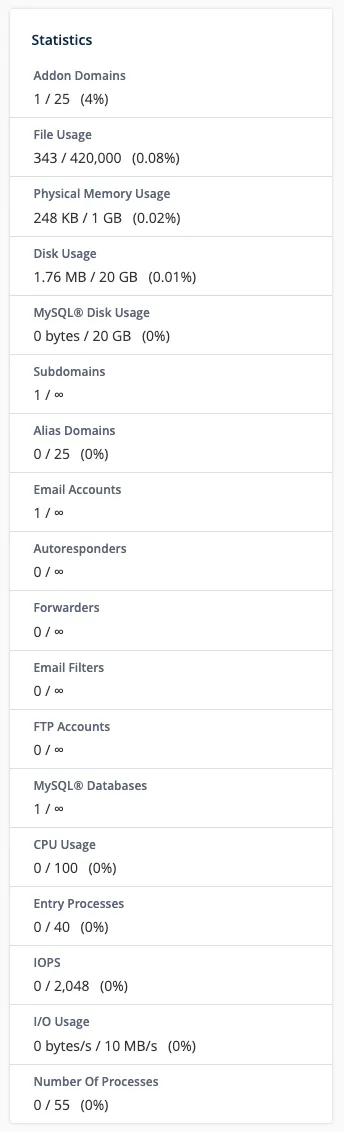 The Statistics sidebar in the cPanel interface
Key performance indicators
Number of processes
This metric represents the total count of active processes currently running under your account—including PHP scripts, email services, cron jobs, and shell commands. Under normal conditions, this number remains low as most non-PHP tasks complete almost instantaneously.
Inodes (file usage)
An "inode" refers to any individual file, folder, or email stored on your account. If you consistently hit your inode limit, you will lose the ability to create new files or receive emails, and your website may experience critical errors. In extreme cases, your account could be temporarily suspended until usage is reduced.
CPU usage
This shows the percentage of allocated processing power your account is consuming. As usage approaches 100%, your website will become noticeably sluggish. If the limit is exceeded, new requests will be queued or blocked. If this happens frequently, it’s time to optimize your scripts, disable resource-heavy plugins, or reduce the frequency of your cron jobs.
Entry processes (EP)
This tracks the number of concurrent connections (requests) your site is handling at any given second. This limit is closely tied to CPU load; when the EP limit is reached, visitors may encounter 508 Resource Limit Is Reached errors as new requests are forced to wait.
Physical memory usage
This represents the actual RAM consumed by all your account's processes. If your site runs out of memory, you will often see a Cannot allocate memory: couldn’t create child process error in your logs, leading to broken pages and failed scripts.
Deep dive: historical data
For a more granular look at your performance over days or weeks, navigate to:
Metrics → Resource Usage
This section provides detailed graphs for CPU, memory, and process limits, allowing you to pinpoint exactly when traffic spikes or background tasks are putting a strain on your server.
Pro Tips for resource management
- Stay vigilant: check your stats regularly, especially if you notice your site feels less responsive than usual.
- Scale appropriately: if you are frequently hitting your limits despite optimization, consider upgrading to a higher-tier plan to handle your growing traffic.
- Check your logs: enable PHP error logging; these files are often the "smoking gun" when looking for the cause of sudden resource spikes.
Help
If you have any questions or need assistance, please contact us through the ticket system — we're always here to help!