Using Softaculous in cPanel
Step-by-Step guide to using Softaculous in cPanel.
Softaculous is a convenient tool in cPanel that allows you to install, clone, edit, or delete popular content management systems (CMS) such as WordPress, Joomla, Laravel, MODX, PrestaShop, OpenCart, and Drupal with just one click.
Haven't tried Softaculous yet?
Fornex offers hosting on ultra-fast NVMe disks, and to manage websites, you can use cPanel in conjunction with Softaculous to automatically install popular CMS. Find out more about our rates on the Fornex hosting page.
Set up
- Log in to cPanel and go to the Fornex Manager section.
- Select the desired CMS, for example, WordPress.
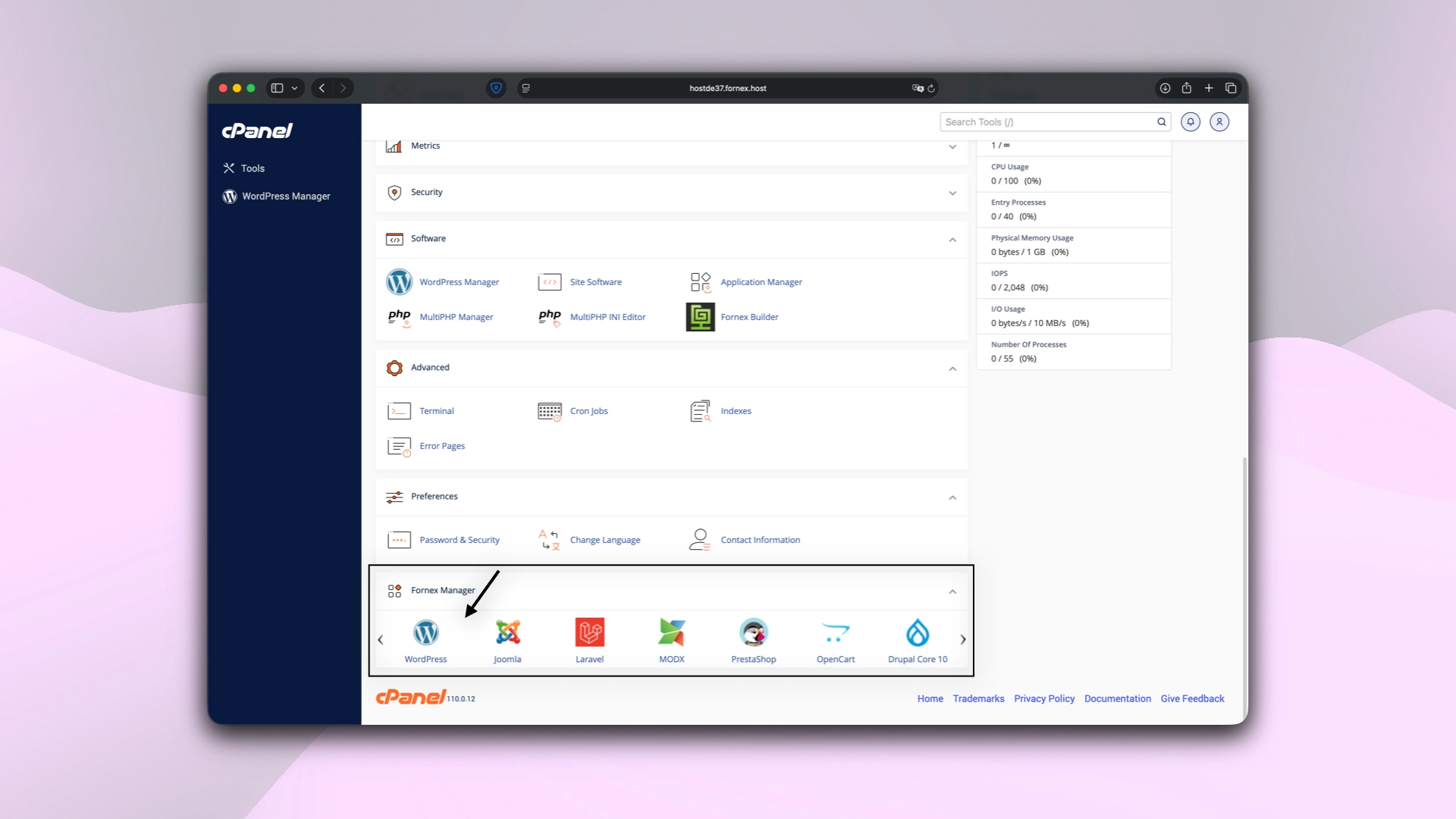 Fornex Manager in cPanel
- Go to Install.
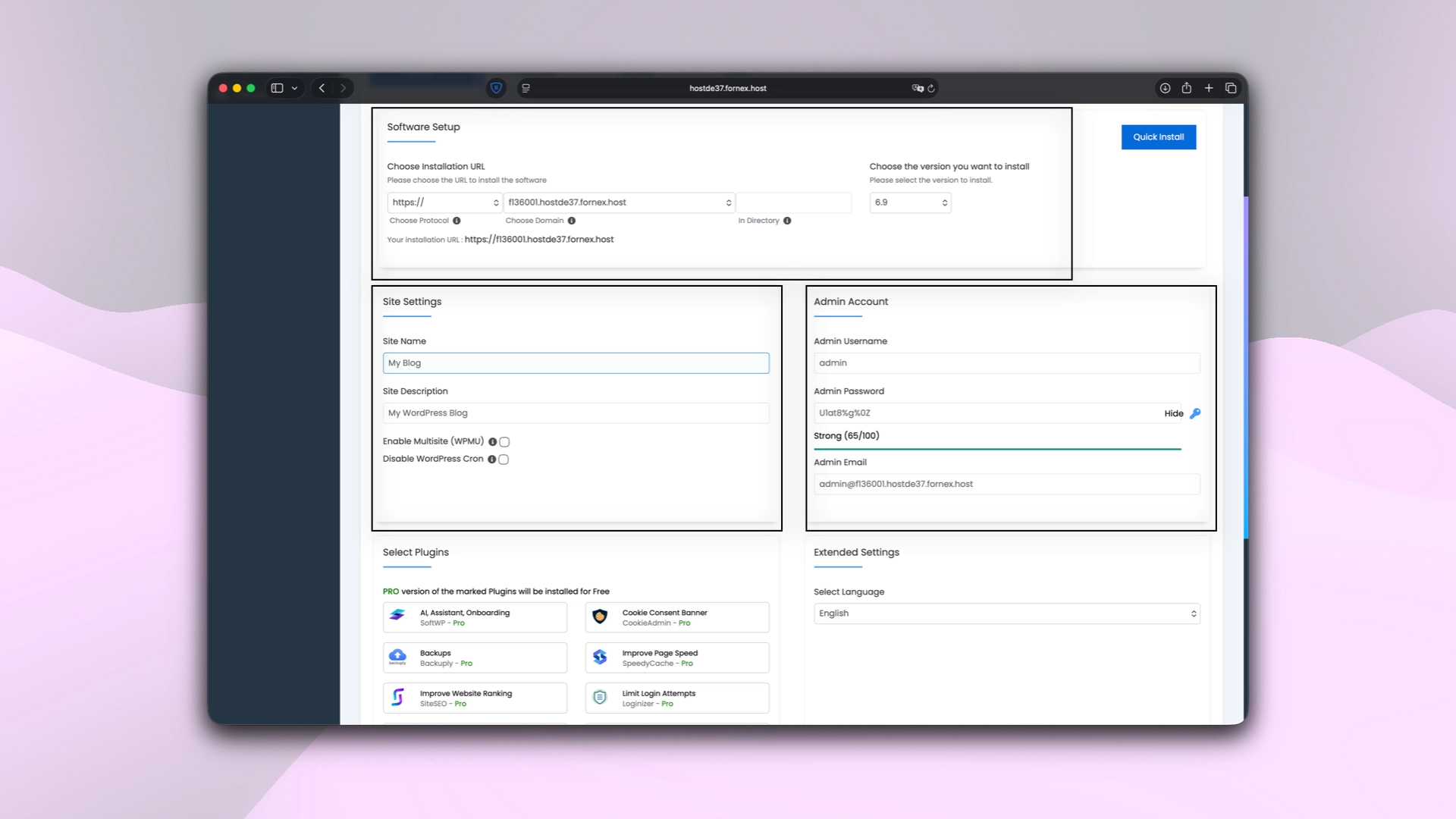 Installing WordPress with Softaculous
On the installation page, you can:
- Choose the domain where the CMS will be installed.
- Select the protocol.
- Set up the administrator account.
- Configure site settings (Name, description, multisite or cron).
- Choose the site language.
- Install additional plugins and themes.
Additionally:
- Set the database name.
- Enable auto-update for CMS, plugins, and themes.
Note
Be sure to save your administrator details in a secure location to avoid losing access to the site.
Clone
- Log in to cPanel and go to Software → WordPress Manager.
- Select All Installations.
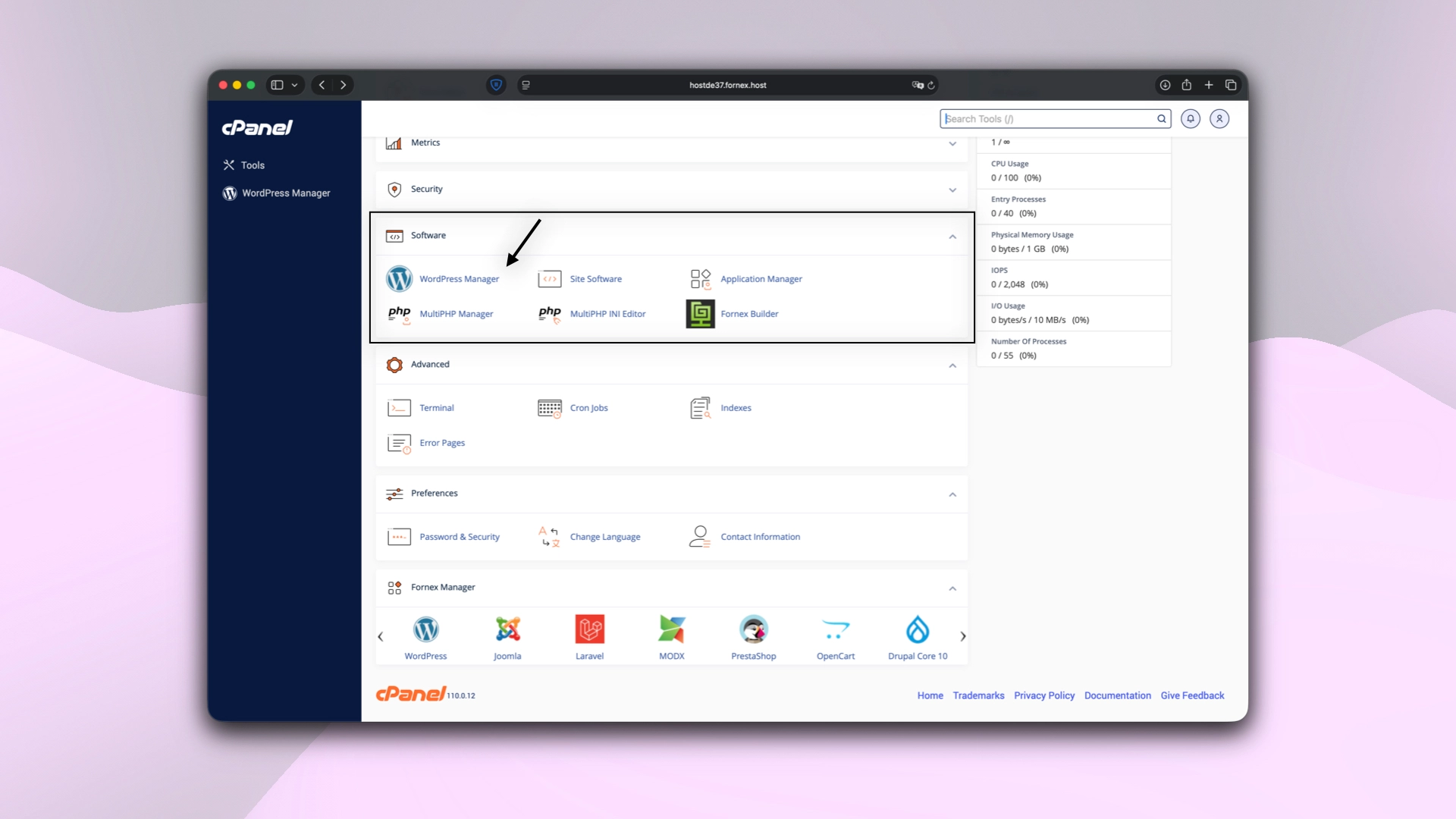 WordPress Manager in cPanel
- In the list, find the domain you want to clone and click Clone.
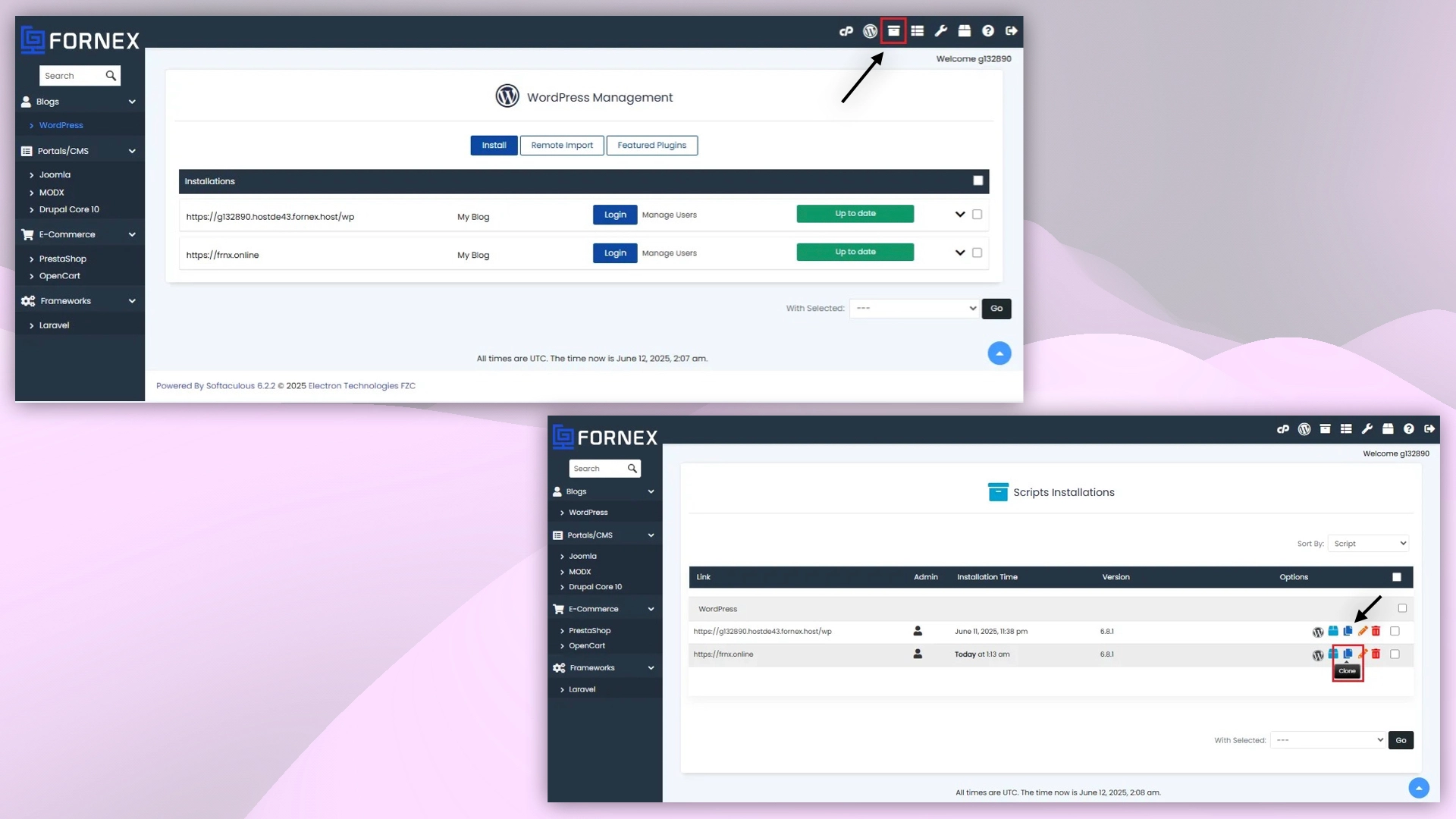 Cloning with WordPress in cPanel
On the cloning page:
- Provide the URL for the new site copy.
- Optionally, set the site name and disable search engine indexing.
If you are cloning to the root directory of the domain, leave the Directory field empty.
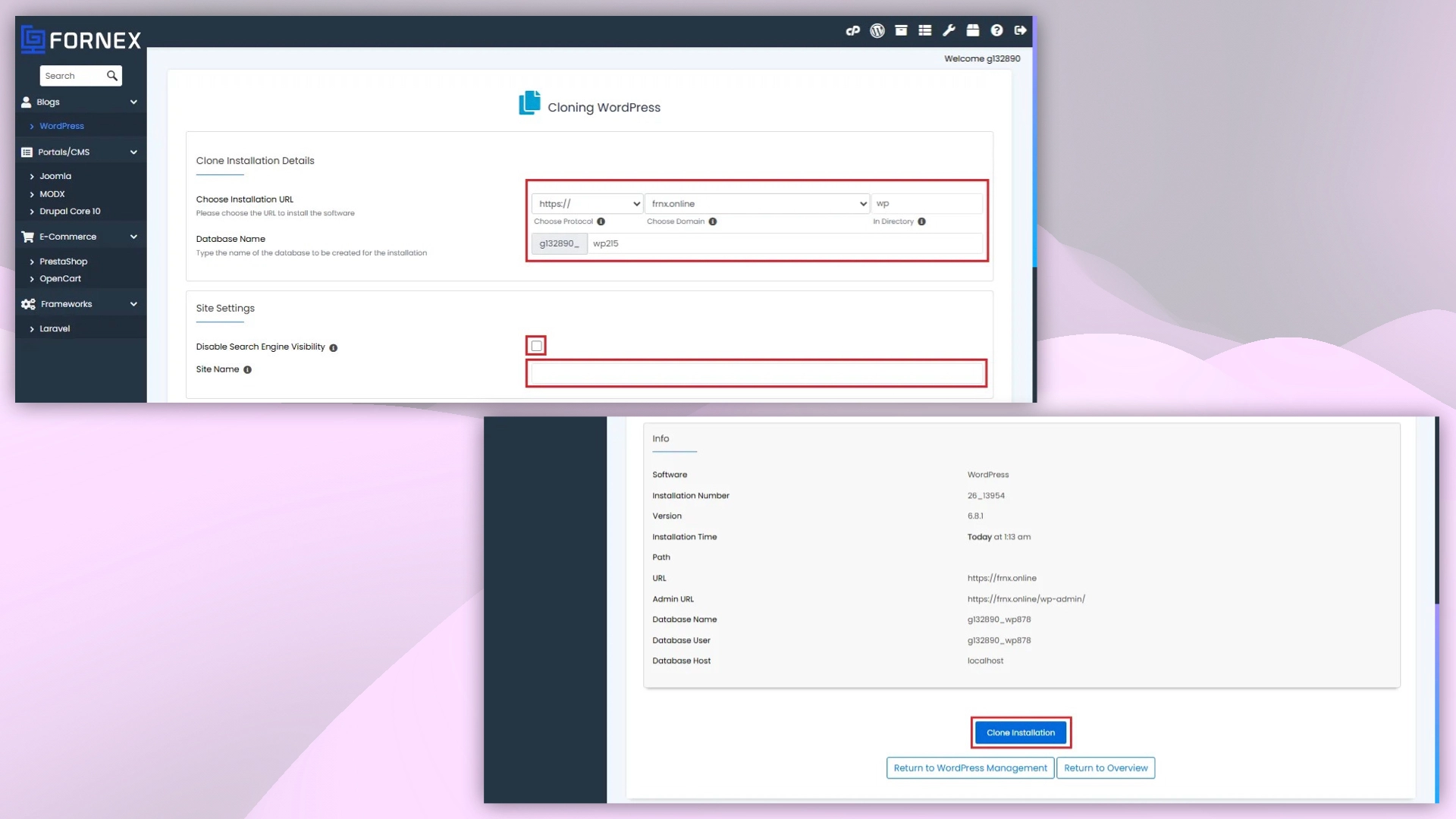 Cloning with WordPress in cPanel
Edit
- Log in to cPanel and go to Software → WordPress Manager.
- Select All Installations.
WordPress Manager in cPanel
- In the list, find the domain you want to edit and click Edit.
 Editing the site in cPanel
In the Edit Installation Details section, you can:
- Change the installation directory (e.g., move the site from
/blogto the root). - Update the site URL.
- Modify database settings.
- Enable or disable auto-updates for CMS, plugins, or themes.
- Change administrator details.
- Add or remove plugins and themes.
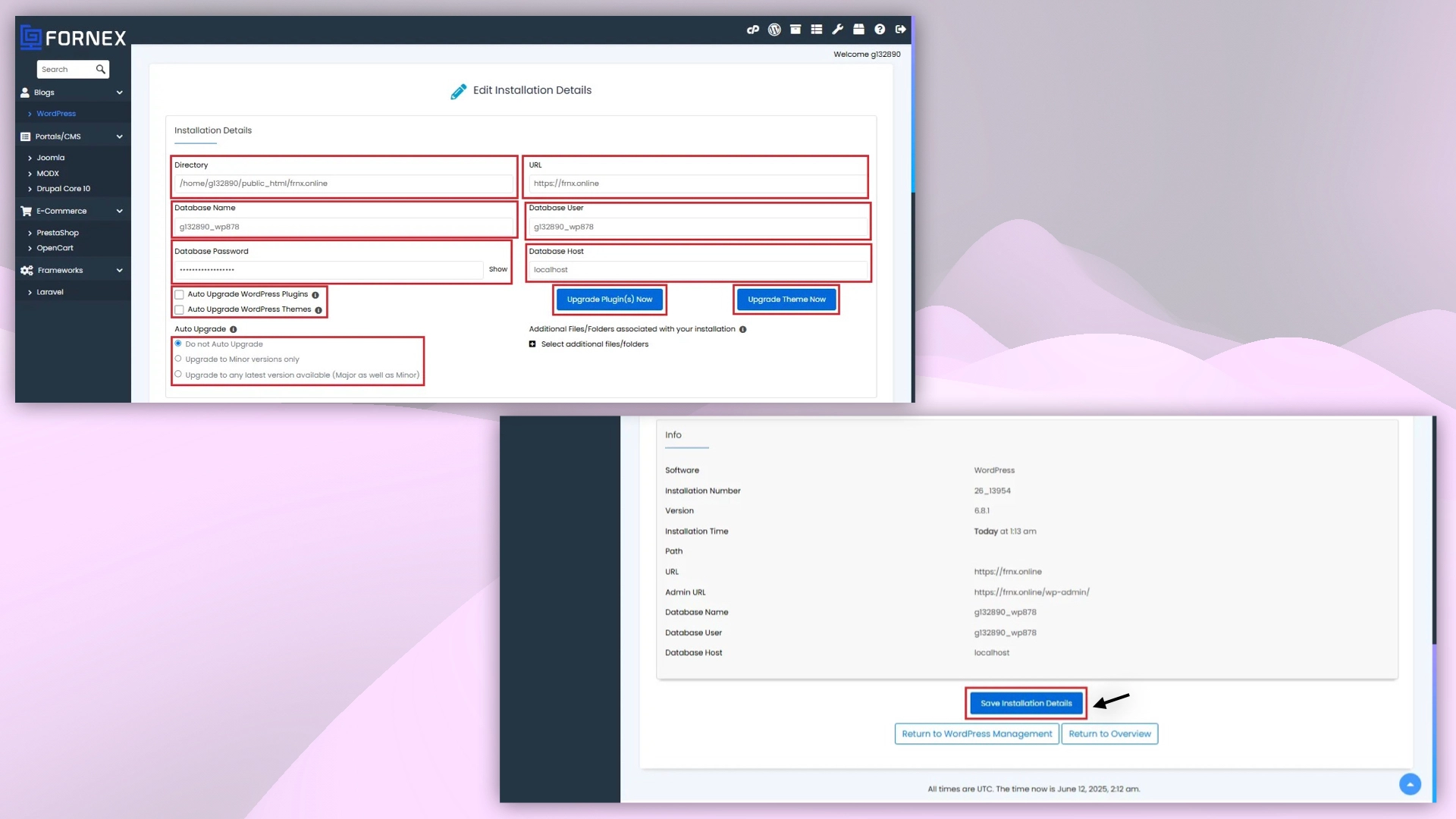 Editing the site in cPanel
Note
Before editing the database, create a backup to avoid data loss.
Delete
- Log in to cPanel and go to Software → WordPress Manager.
- Select All Installations.
WordPress Manager in cPanel
- In the list, find the domain you want to delete and click Delete.
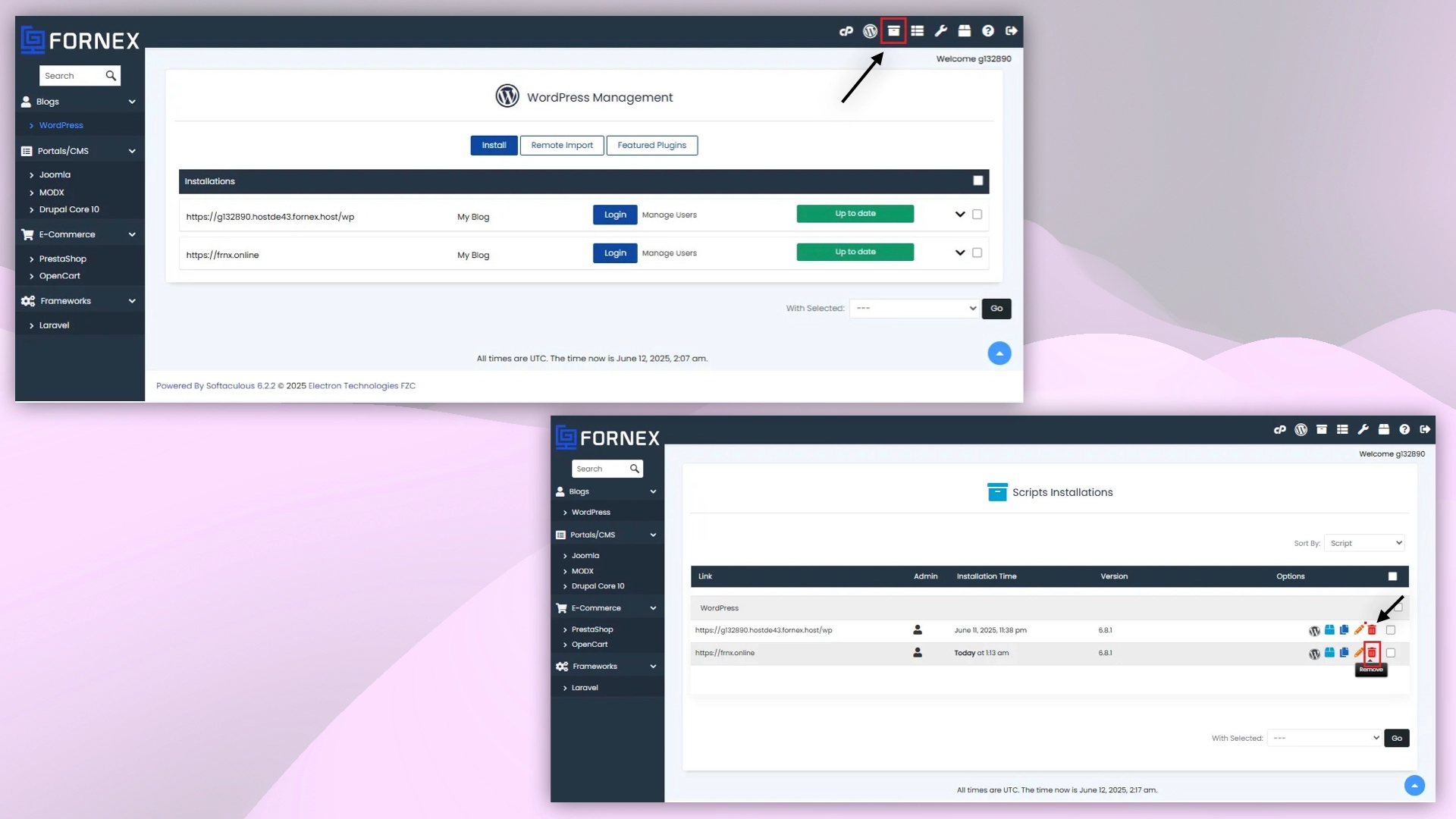 Deleting the site in cPanel
On the delete page, select which data to delete:
- Site files.
- Database.
- Database users.
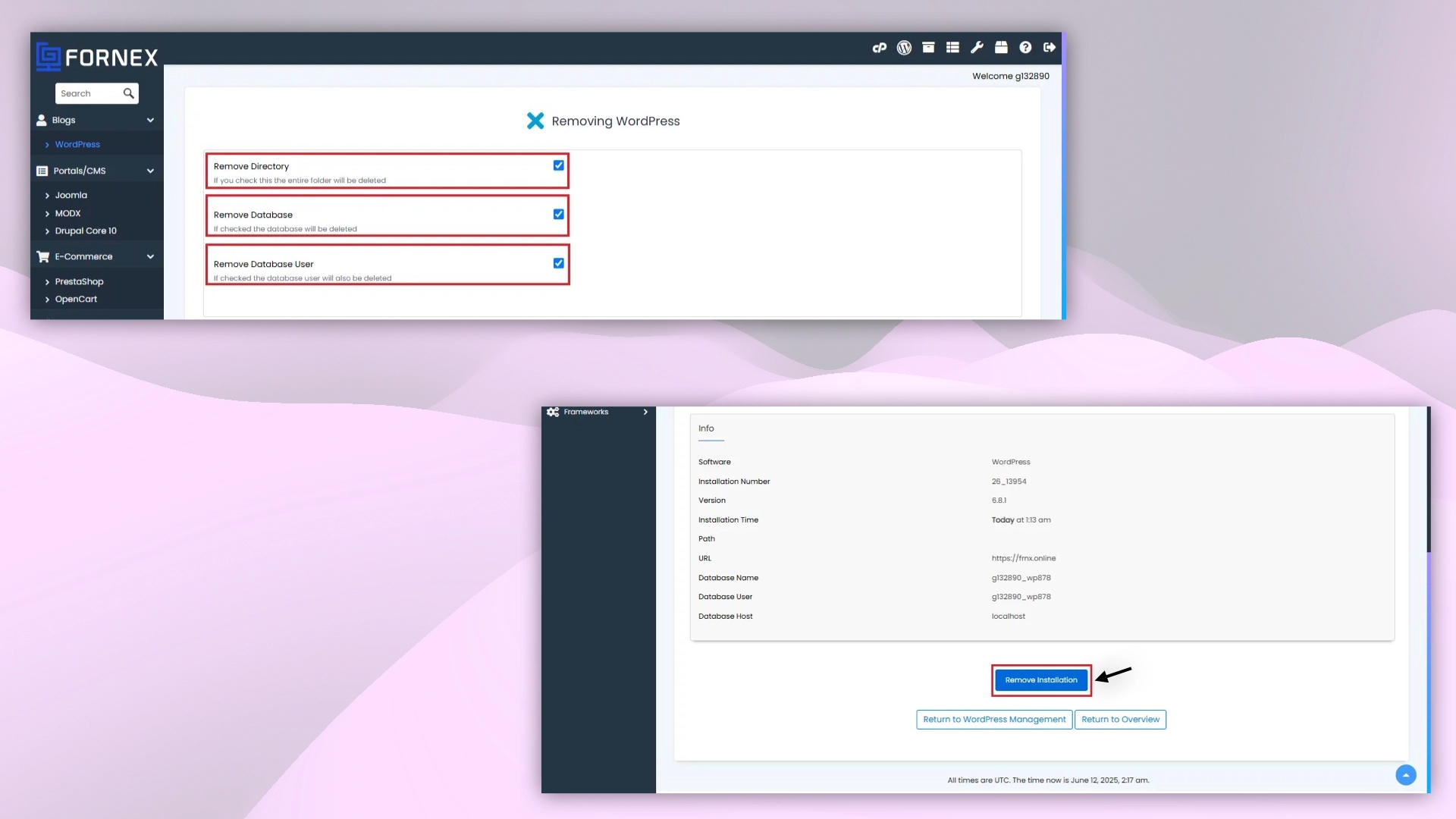 Deleting the site in cPanel
Danger
Deleting the installation permanently removes CMS and associated files. Be careful — the action is irreversible. Before deleting, create a backup of the site if you want to keep its data.
Import from remote server
- Log in to cPanel, go to Fornex Manager, and select the desired CMS, such as WordPress.
- Click Import.
Fornex Manager in cPanel
In the From Remote Server section, select the protocol and domain where you plan to import the site.
In the Source section, enter the domain name from which the data will be imported.
Define the following parameters:
- Transfer protocol.
- Port.
- Username.
- Password.
Available protocols: FTP, SFTP, FTPS.
 Importing the site in cPanel
Help
If you have any questions or need assistance, please contact us through the ticket system — we're always here to help!