Restarting the rdpclip service on Windows Server
Fixing clipboard issues in RDP sessions.
RDP (Remote Desktop Protocol) lets you connect to a VPS or dedicated server running Windows and use it just like a local machine.
Sometimes users experience clipboard problems in RDP sessions: copy/paste stops working — text or files copied on your local PC won't paste on the server (or vice versa). This is usually caused by a crash of the rdpclip.exe process, which handles clipboard synchronization in remote sessions.
The issue most often occurs with multiple concurrent RDP connections, but it can affect just one session.
Restarting rdpclip.exe
- In the RDP session, open Task Manager:
- Right-click the taskbar → Task Manager
or press Ctrl + Shift + Esc.
- Right-click the taskbar → Task Manager
- On the Processes tab, find rdpclip.exe (or "Remote Desktop Clipboard Monitor").
- Right-click it → End task (or select it and click "End task" at the bottom).
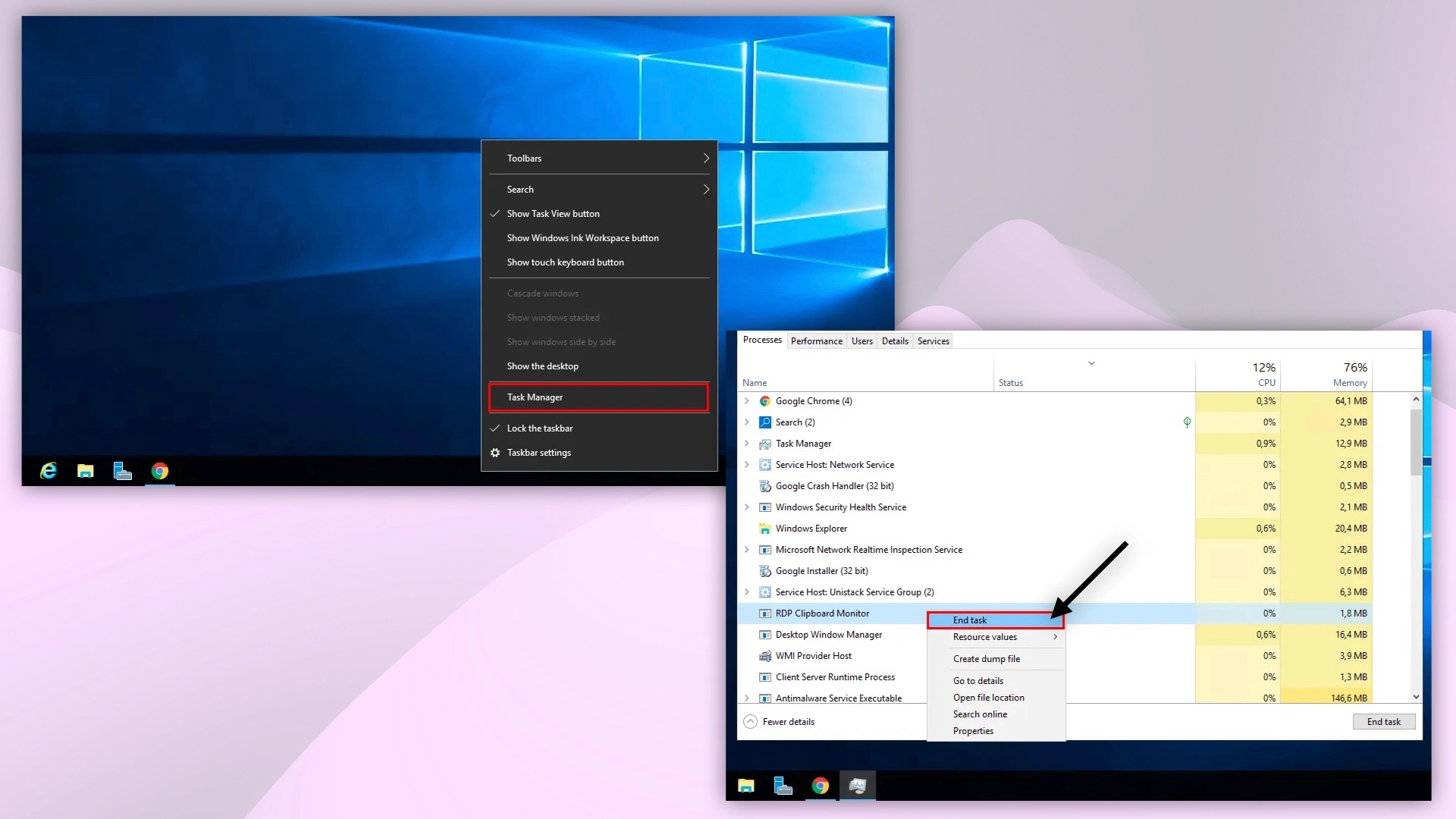 Launching Task Manager
- Restart the process:
- In Task Manager → File menu → Run new task.
- Type
rdpclip.exeand click OK.
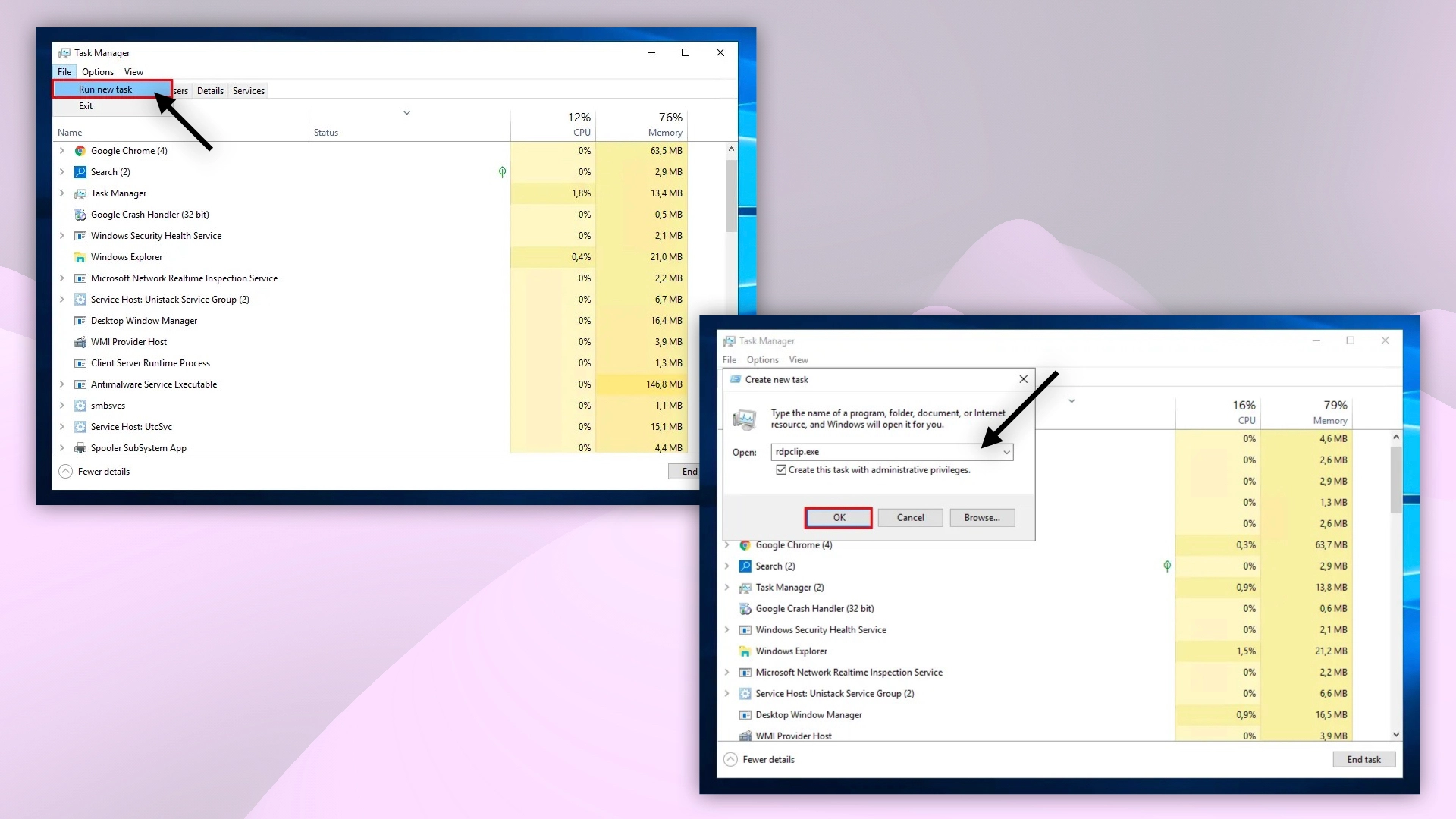 rdpclip.exe process
The clipboard should start working immediately.
Our products and services
Checking RDP clipboard settings
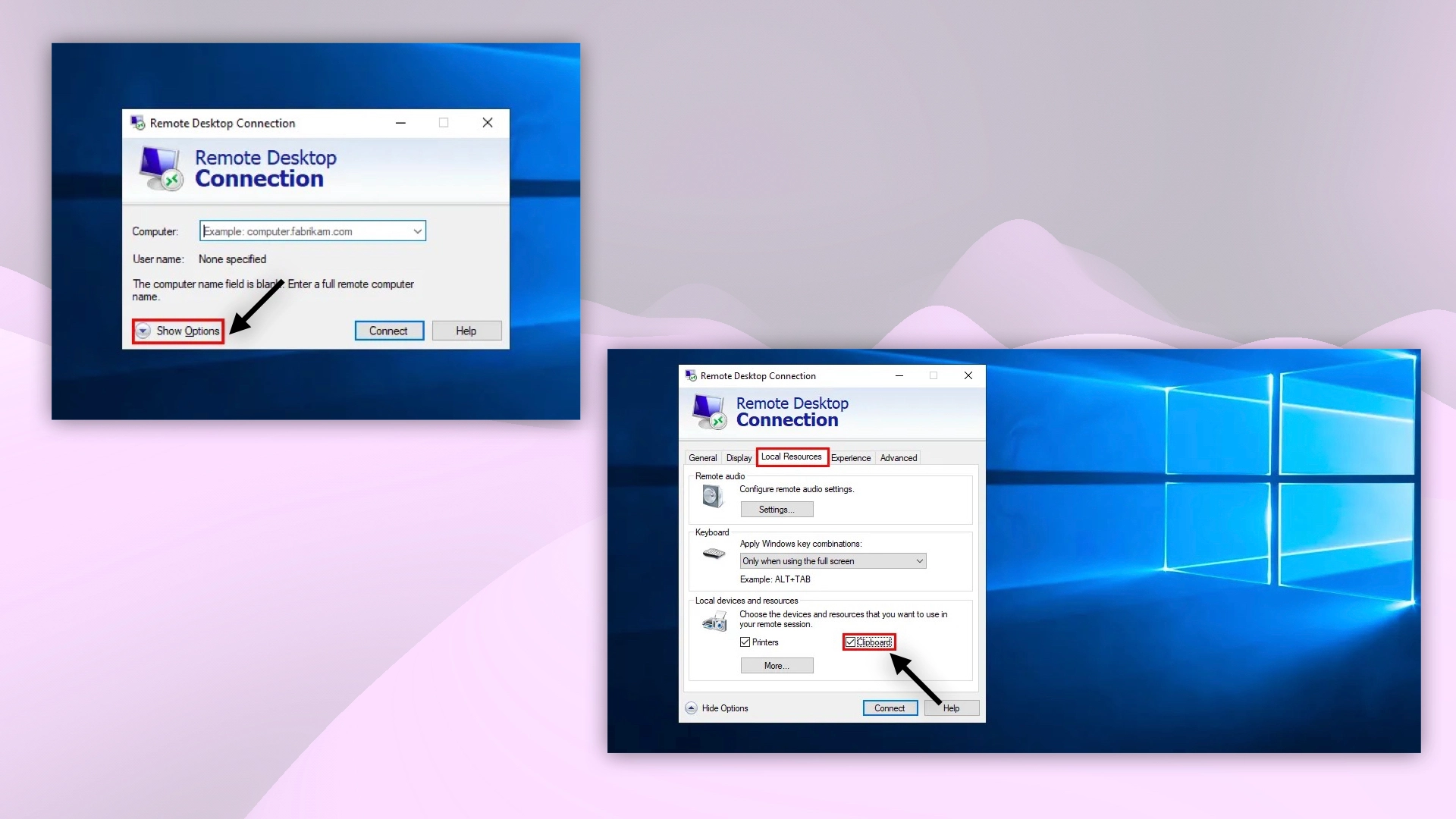
Make sure clipboard sharing is enabled in your RDP connection settings:
- In the Remote Desktop Connection window, click Show Options.
- Go to the Local Resources tab.
- Ensure the Clipboard checkbox is ticked.
 Starting rdpclip.exe
For more details on RDP configuration — see the guide.
Help
If you have any questions or need assistance, please contact us through the ticket system — we're always here to help!