Clipboard over RDP on Windows Server
How to configure file transfer between a local computer and a remote server over RDP.
Windows Server is available on all VPS and dedicated server orders.
The clipboard feature lets you transfer files between your local computer and a remote server over RDP. To enable it, the RDP client needs to be configured before connecting.
Launch the RDP client: Start → Run → type mstsc.exe and click OK, or press Win+R.
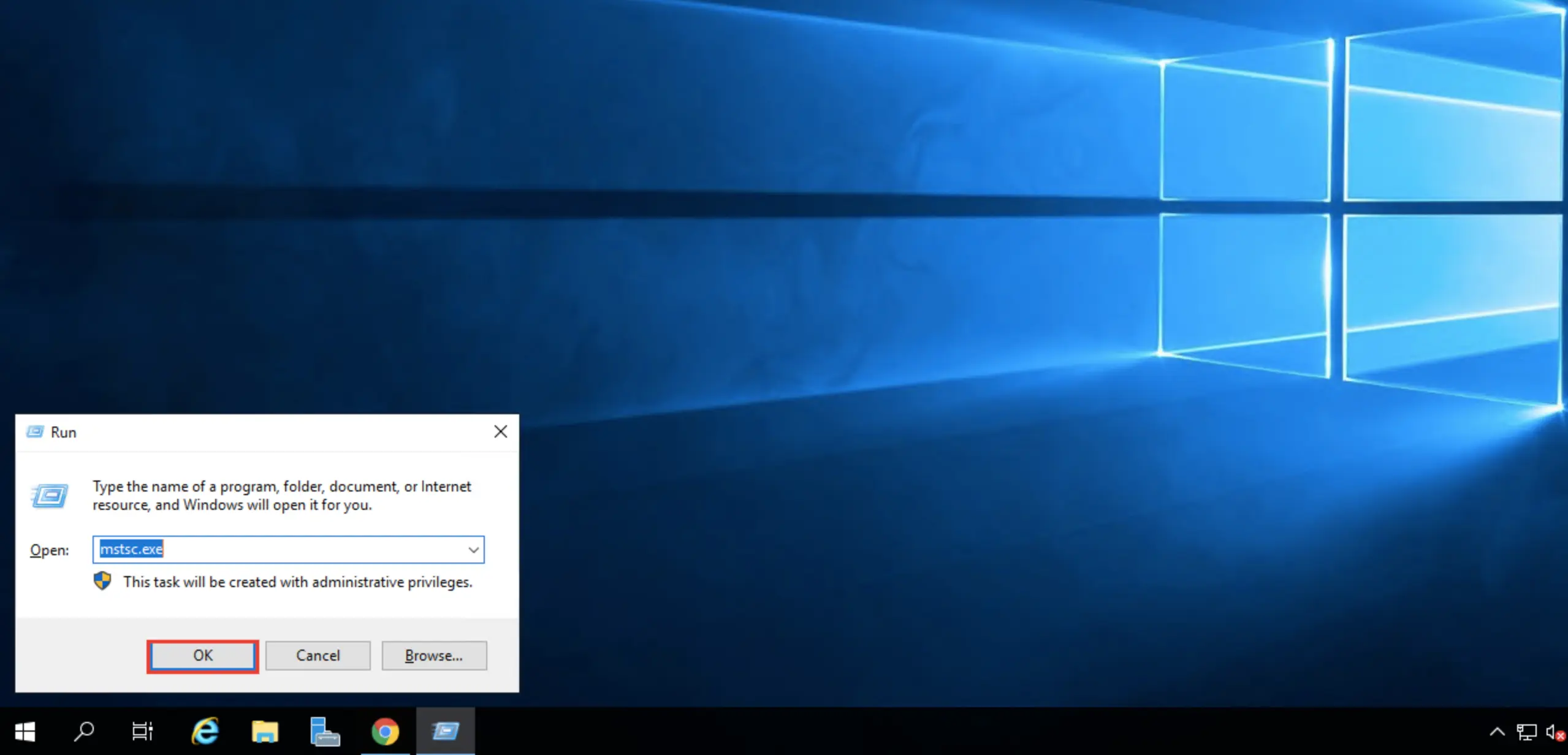 Launching the RDP client
Our products and services
In the window that opens, click Show options.
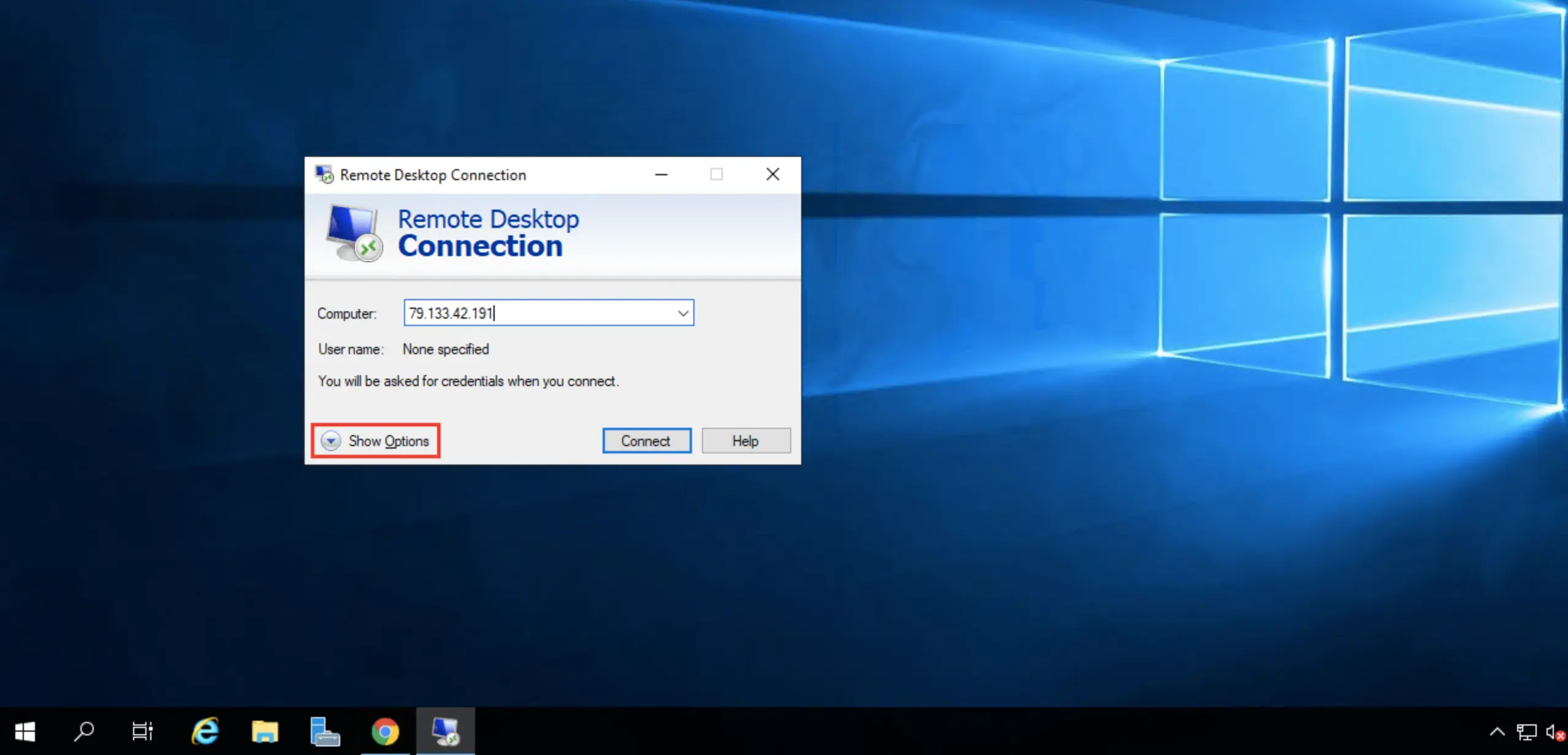 Connection options
Go to the Local resources tab, check Clipboard, then click More.
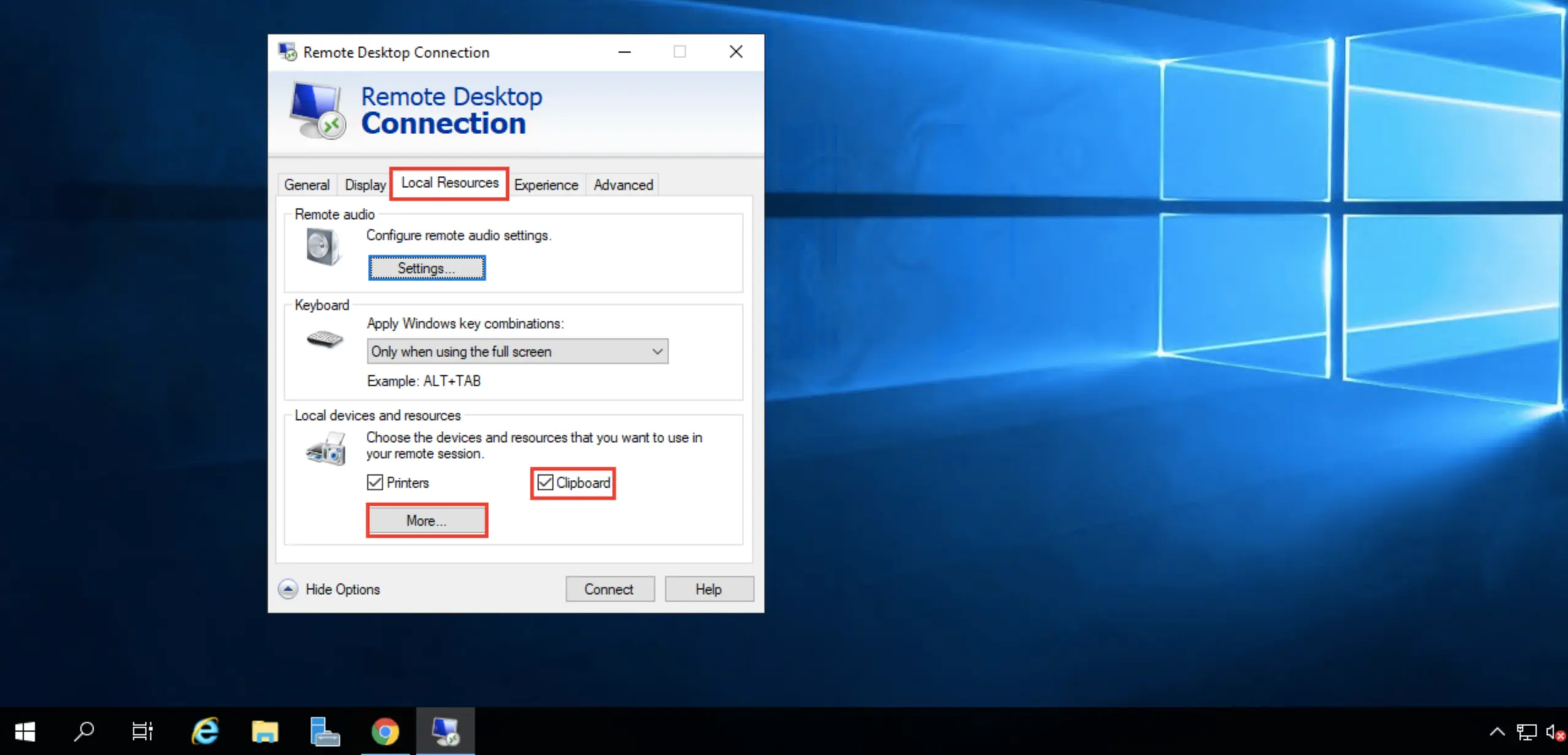 Local resources tab
Expand the Drives list and select the local drives you want to access from the remote server.
To include a USB drive, make sure it's connected to your computer before opening this dialog.
Click OK.
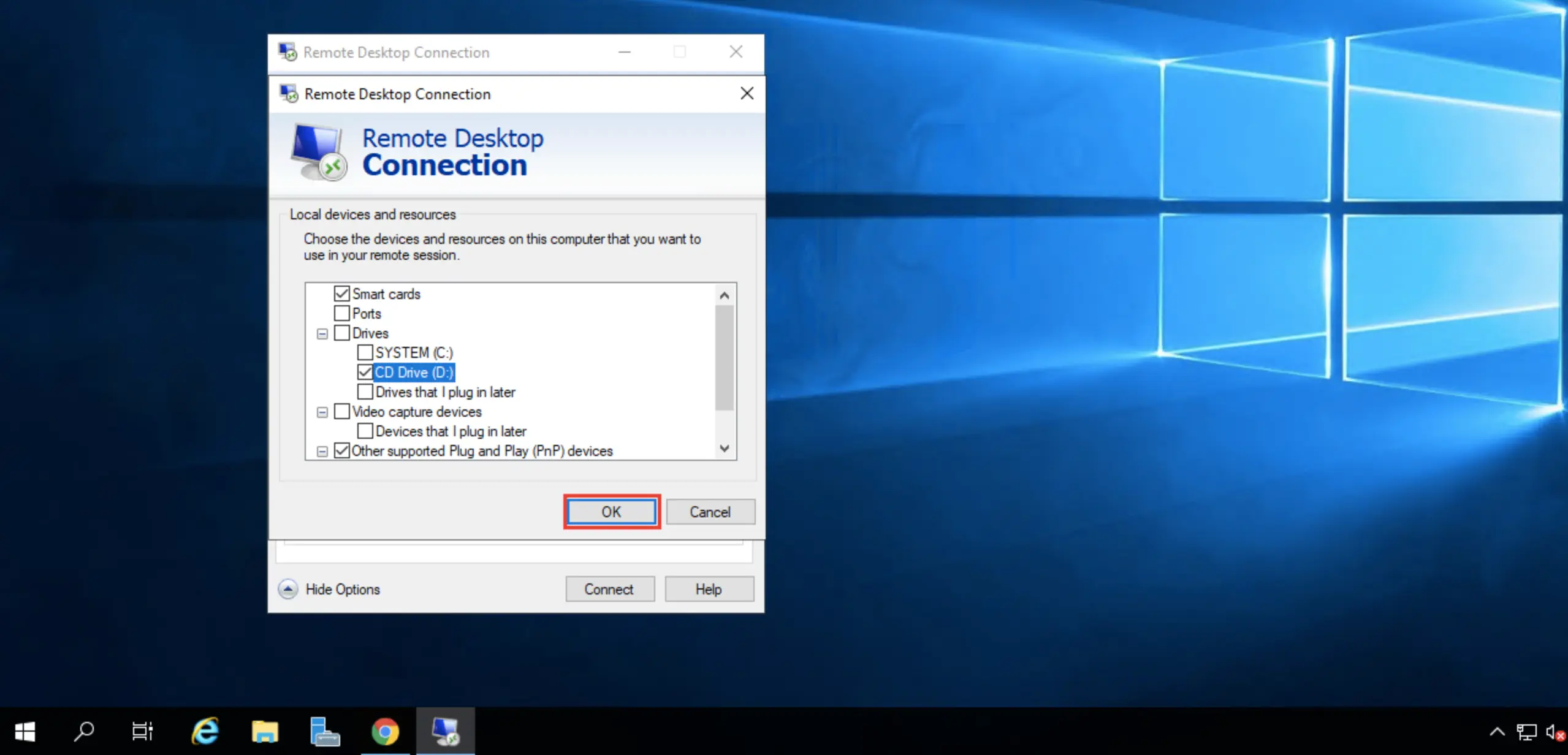 Selecting local drives
Click Connect to log in to the remote server.
Once connected, you can copy files between your local machine and the server using the clipboard. The selected drives and USB devices will appear under My Computer on the remote server.
Help
If you have any questions or need assistance, please contact us through the ticket system — we're always here to help!