Setting up OpenClaw AI on VPS
A step-by-step guide to connecting and configuring the OpenClaw AI agent.
OpenClaw is an open-source AI agent that runs on your VPS and handles tasks via text prompts: answering questions, generating code, analyzing server logs, monitoring resources, and more. All processing happens locally on your server — no data leaves your machine.
OpenClaw installation is available for VPS plans NVMe 2 and higher. Due to resource requirements, the NVMe 1 plan is not supported for this agent.
The project is free, open-source, and actively maintained.
Connecting to the server
- Log in to your dashboard → VPS → select your server.
- Copy the connection details (IP address and root password).
- Connect via SSH (replace with your actual IP from the server properties):
ssh root@YOUR_SERVER_IP
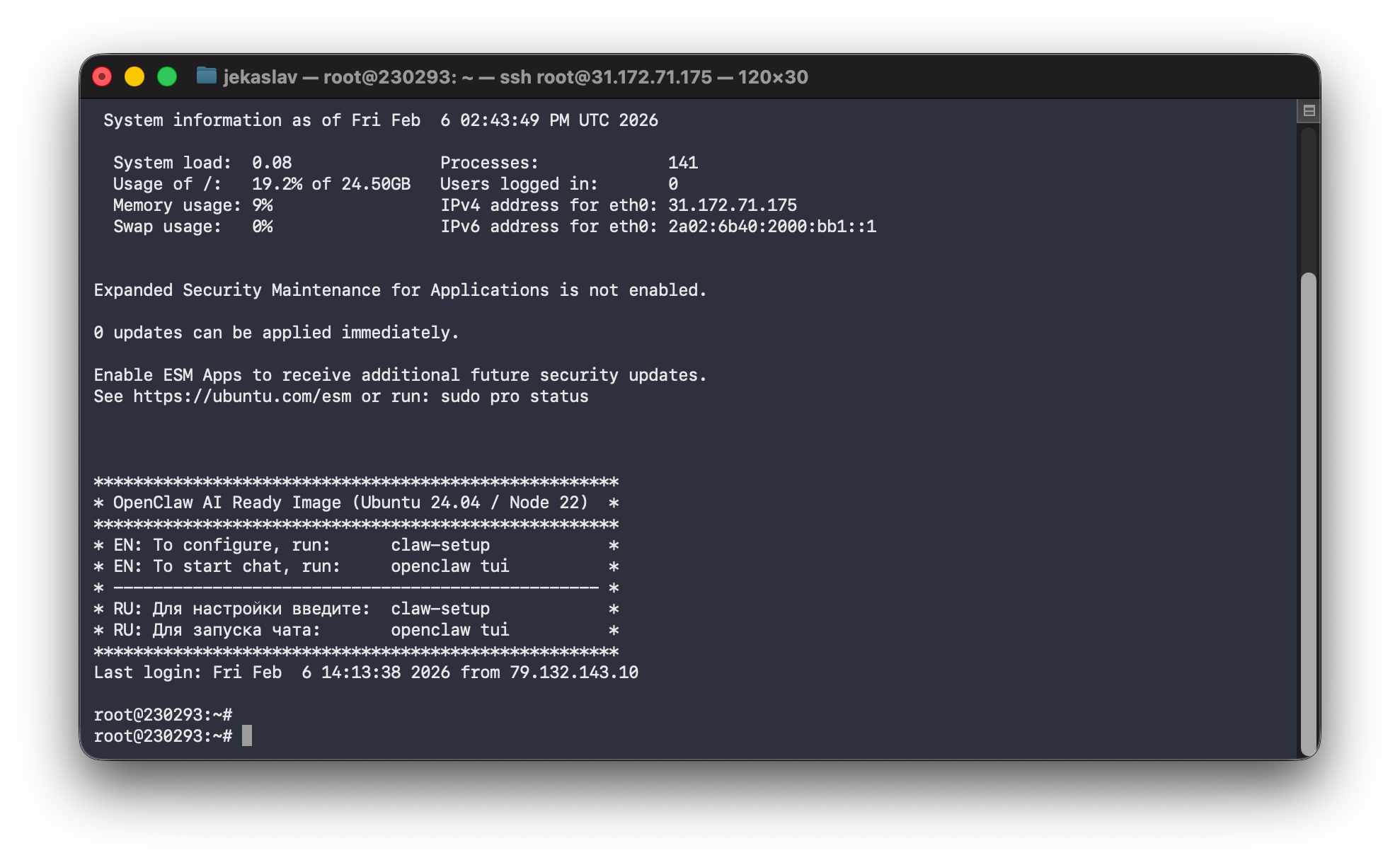 OpenClaw AI Ready image main menu
Don't have a VPS yet?
Fornex offers VPS hosting with full root access, 24/7 support, and DDoS protection. Get a stable server with NVMe disks for fast and reliable operation. Find more details on the Fornex VPS page.
Initial configuration
The very first time you log in to your server, the system will automatically launch the setup wizard. You don't need to run any extra commands—the welcome screen and setup menu will appear immediately.
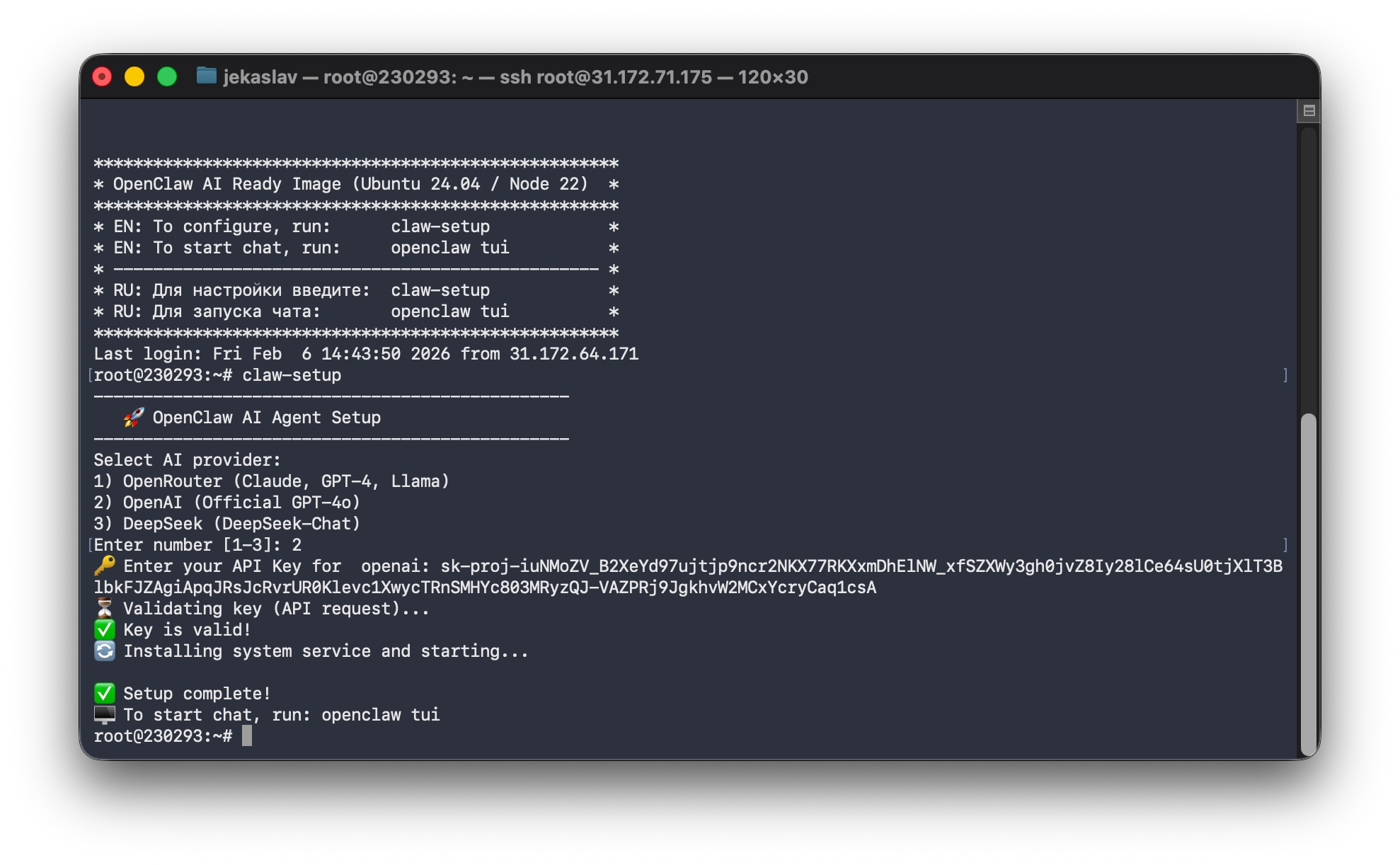 OpenClaw AI Ready image welcome screen after login
You’ll see the provider selection menu. Enter the number (1, 2, or 3) and paste your API key:
------------------------------------------------
   OpenClaw AI Agent Setup
------------------------------------------------
Select AI provider:
1) OpenRouter (Claude, GPT-4, Llama)
2) OpenAI (Official GPT-4o)
3) DeepSeek (DeepSeek-Chat)
Where to get your API key?
To power the agent, you’ll need a key from your chosen provider:
- OpenAI → https://platform.openai.com/api-keys
- OpenRouter → https://openrouter.ai/keys
- DeepSeek → https://platform.deepseek.com/api_keys
Once you enter the key, the system will validate it and finalize the setup:
⏳ Validating key (API request)...
✅ Key is valid!
🔄 Installing system service and starting...
...
✅ Setup complete!
🖥️  To start chat, run: openclaw tui
Pro tip
Want to switch providers or update your API key later? Just run the claw-setup command again.
Chatting with OpenClaw (TUI Mode)
To launch the chat interface directly in your terminal, run:
openclaw tui
This opens the Terminal User Interface (TUI), where you can:
- Request code snippets or debugging help.
- Analyze server logs on the fly.
- Monitor system resources (CPU, RAM, Disk).
- Generate reports, scripts, and configurations.
Simply type your requests—OpenClaw understands context and remembers previous messages in the session.
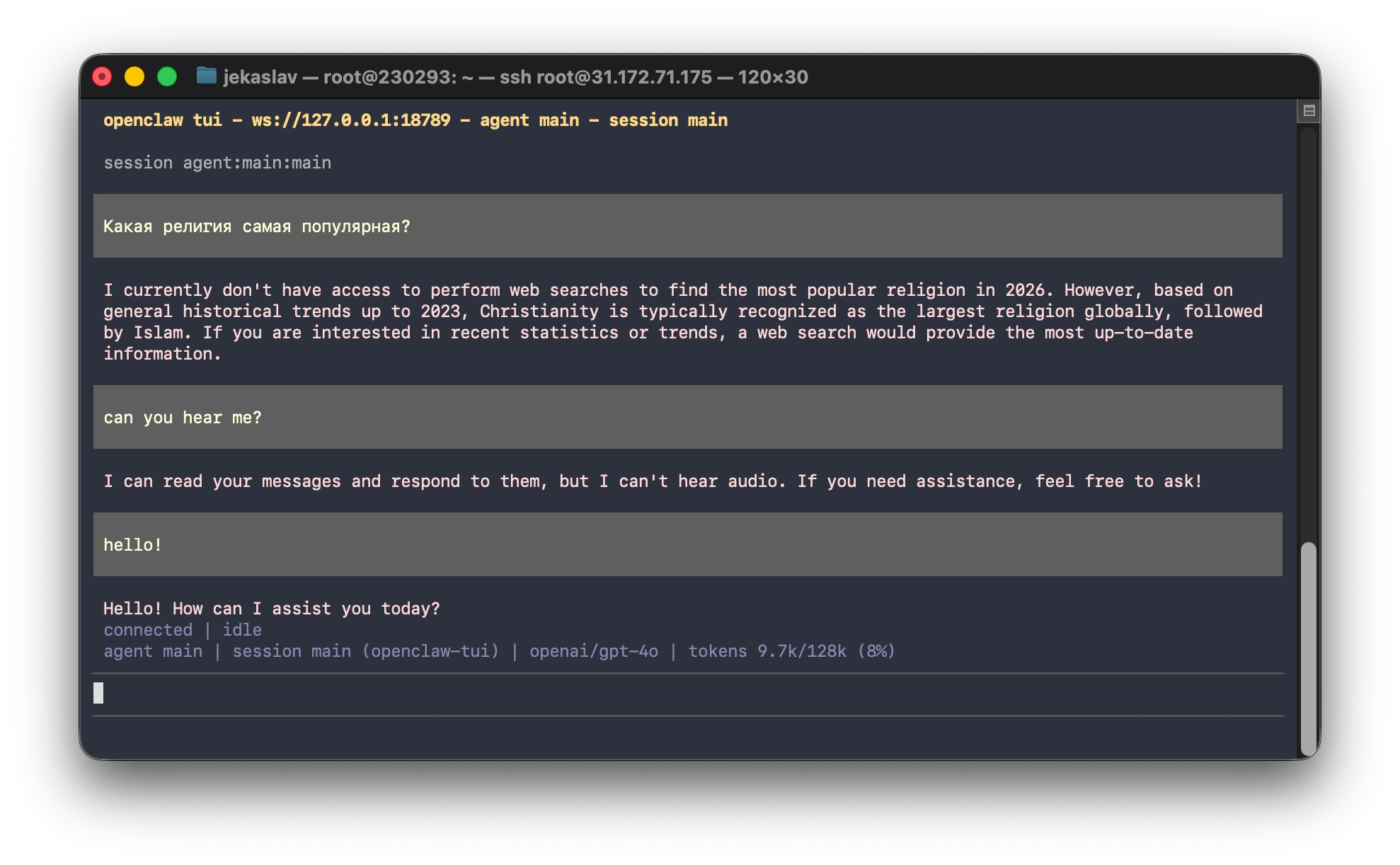 Chatting with OpenClaw via Terminal
Accessing the web dashboard
If you prefer a browser-based experience, start the dashboard:
openclaw dashboard
The output will include something like:
🦞 OpenClaw 2026.2.3-1 (d84eb46) — I can run local, remote, or purely on vibes—results may vary with DNS.

Dashboard URL: http://127.0.0.1:18789/
...
ssh -N -L 18789:127.0.0.1:18789 root@YOUR_SERVER_IP
Then open:
http://localhost:18789/
Docs:
https://docs.openclaw.ai/gateway/remote
https://docs.openclaw.ai/web/control-ui
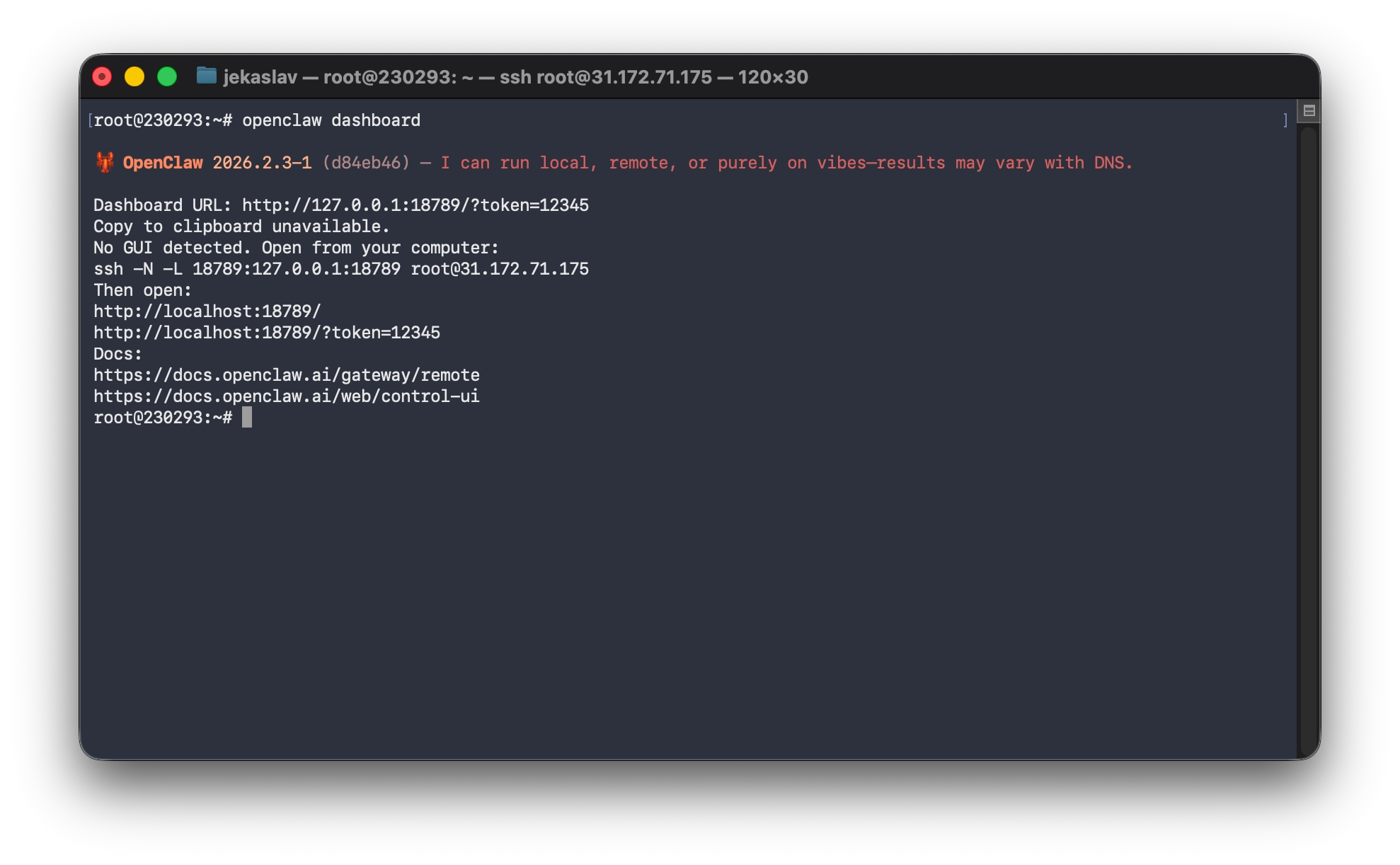 Getting the OpenClaw Token
The web interface is available only locally (127.0.0.1:18789) by default.
To access it from your computer:
- On your local machine, create an SSH tunnel:
ssh -N -L 18789:127.0.0.1:18789 root@YOUR_SERVER_IP
- Open in your browser:
http://localhost:18789/?token=YOUR_TOKEN_FROM_OUTPUT
(The token is a long string like c6aaee5ae1fd9a7925892f4738f37deb01d2bd13d0c11199 — it appears in the dashboard command output.)
Now you can interact with OpenClaw through a clean web interface from any device.
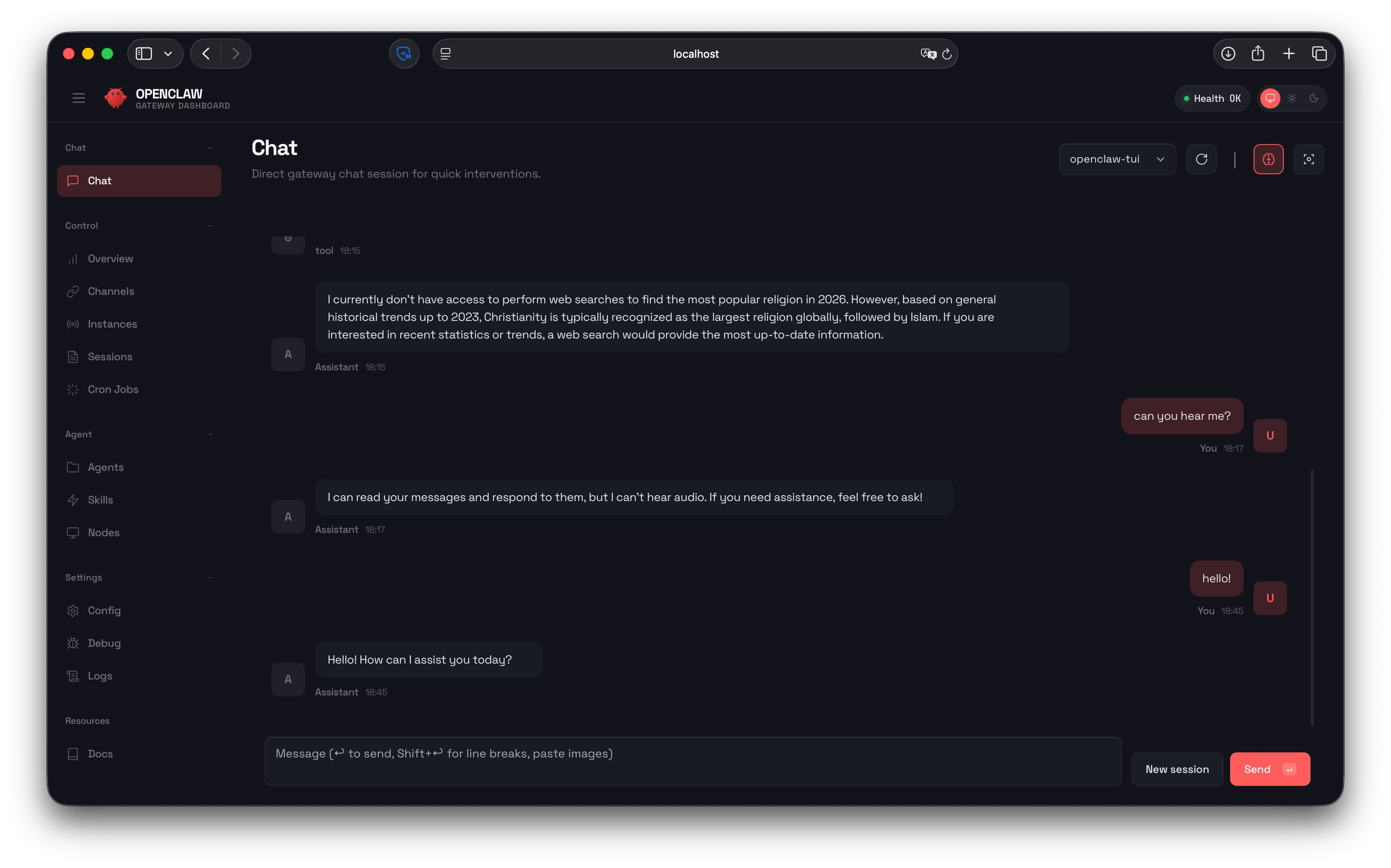 OpenClaw Web Dashboard in the browser
Useful notes
- OpenClaw runs as a systemd service and survives server reboots.
- Check for updates:
openclaw update check - For maximum privacy, use models that support local inference (e.g., Llama via OpenRouter).
- On low-RAM servers (1–2 GB), choose lightweight models (DeepSeek, Llama 7B/8B).
Help
If you have any questions or need assistance, please contact us through the ticket system — we're always here to help!