Restoring your website from a backup on Web Hosting
How to download and restore your Web Hosting backup.
Under the Backups section of your control panel, you can download copies of everything tied to your hosting order — website files, SSL certificates, mailboxes, and databases. You can also request a full restore using ticket system.
Info
We keep 1 daily backup and 2 monthly backups, taken on the 1st and 15th of each month.
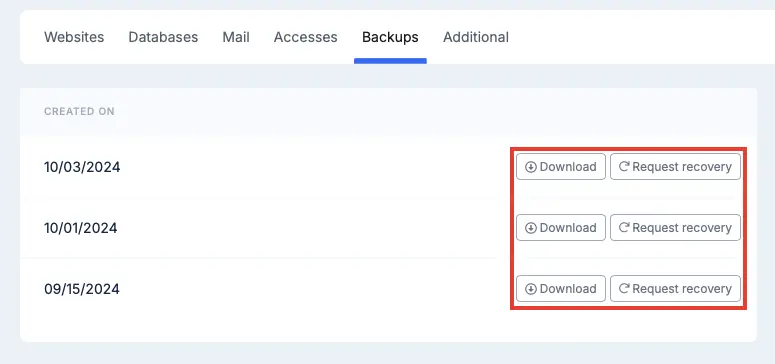 Backups section in the control panel
Restoring from a downloaded archive
Once you've downloaded the .tar.gz backup archive, extract it using any archiver that supports the format — 7-Zip works great on Windows.
Inside the archive you'll find:
- Website files — located in the homedir directory
- Database dumps — located in the mysql directory as
.sqlfiles, each named after the corresponding database
Restoring website files
- Connect to your hosting account using an FTP client.
- Upload the files you want to restore to their respective directories.
- When prompted, choose to overwrite existing files.
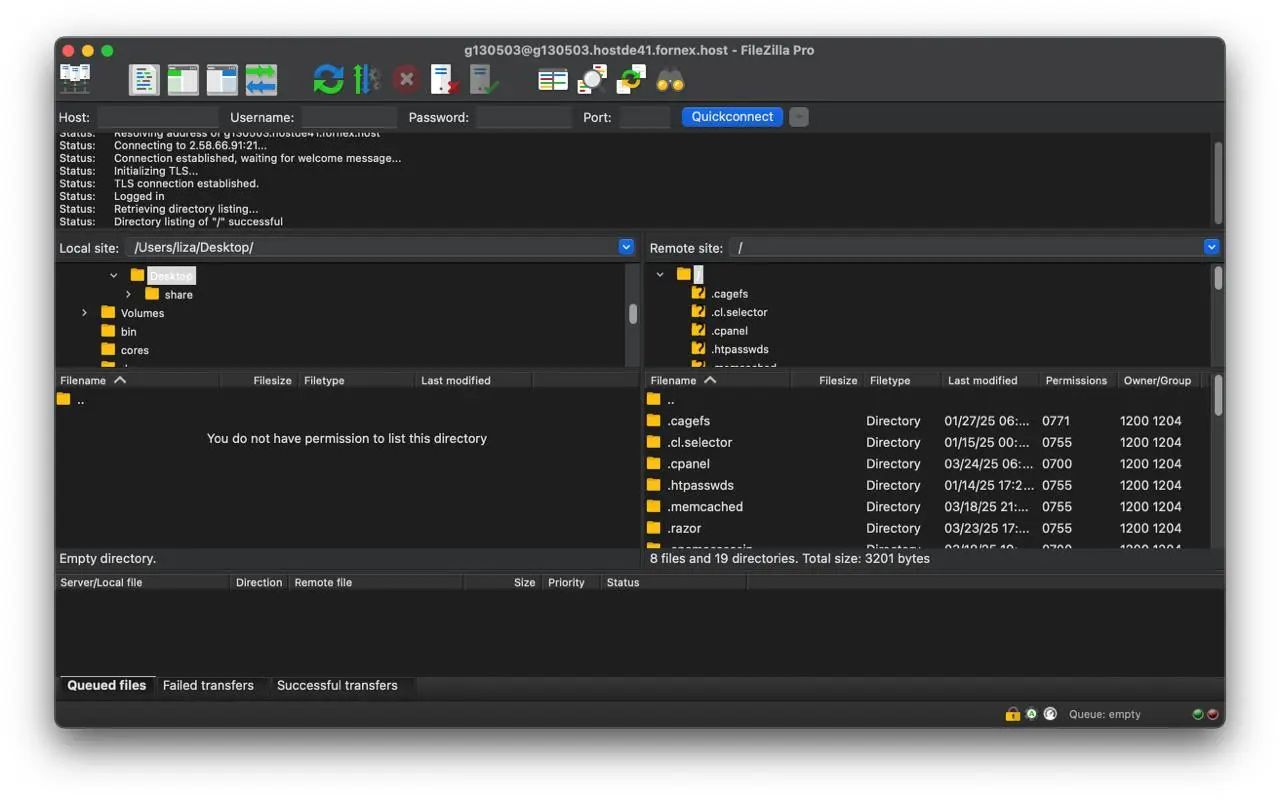 Uploading files via FTP client
Our products and services
Restoring databases
- In your cPanel control panel, go to Databases → phpMyAdmin.
 phpMyAdmin in cPanel
- In the left sidebar, select the database you want to restore data into.
- Click the Import tab at the top of the page.
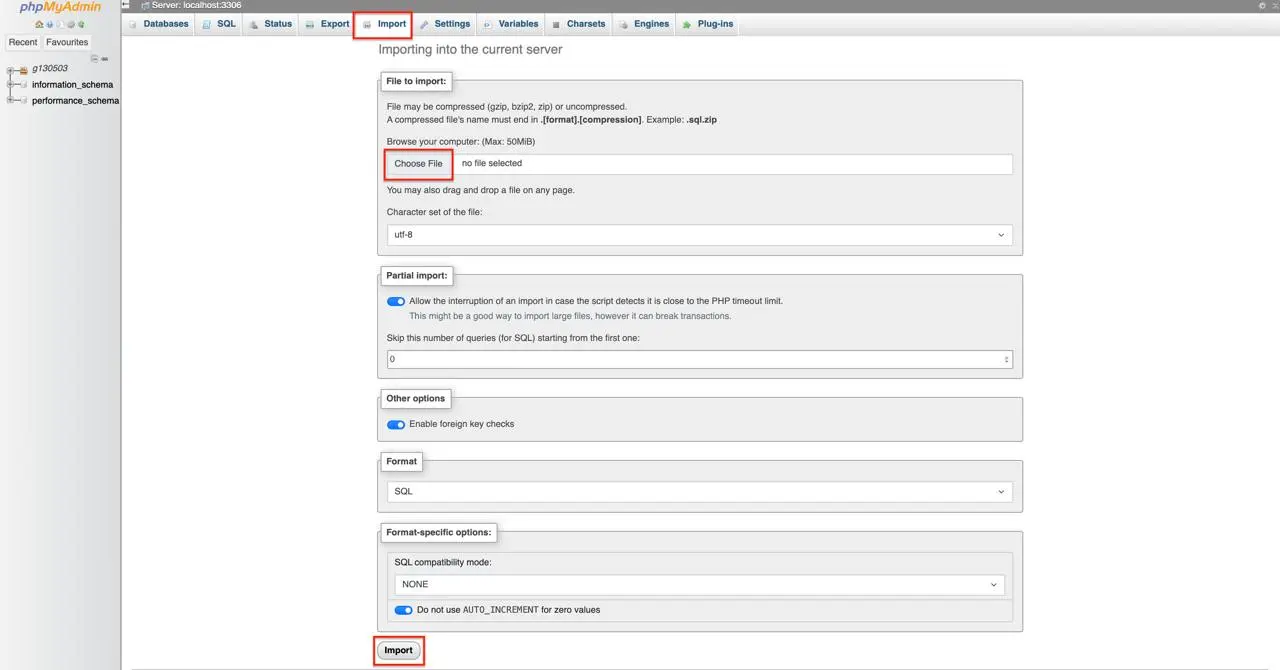 Import tab in phpMyAdmin
- Click Choose File and select your
.sqldump file.
A few settings to be aware of:
- File encoding — UTF-8 is the safe default for most setups, but you can switch to something like WIN-1251 if your database requires it.
- Database format — select the format that matches the database you're importing.
- SQL compatibility mode — leave this as-is unless you have a specific reason to change it. If you do need compatibility mode, choose based on the MySQL version the dump was originally exported from.
- Once you've selected the file and confirmed the encoding, click Go at the bottom of the page.
The import will run and your database will be restored. Once complete, it will appear in the database list alongside your other databases.
Help
If you have any questions or need assistance, please contact us through the ticket system — we're always here to help!