Setting up n8n on a VPS
A step-by-step guide to setting up n8n with SSL and Docker.
n8n is an open-source workflow automation powerhouse. It allows you to sync hundreds of services (like Telegram, Google Sheets, Bitrix24, or OpenAI) without writing a single line of code. Unlike cloud-based alternatives, n8n runs on your own VPS, ensuring total data privacy and removing those pesky limits on the number of execution steps.
n8n is available for installation on NVMe 2 plans and higher. Since the platform relies on Node.js and a dedicated database, it requires at least 2 GB of RAM to stay snappy and stable.
Domain preparation
Unlike basic setups, our Ready Image requires a domain to properly configure SSL (HTTPS).
- Purchase a domain or create a subdomain (e.g.,
n8n.your-site.com). - In your domain's DNS control panel, create an A-record pointing to your VPS IP address.
- Wait for the DNS to propagate (usually takes anywhere from 5 to 30 minutes).
Connecting to the server
- Go to your dashboard → VPS → select your server.
- Copy the connection details (IP address and root password).
- Connect via SSH (replace with your actual IP from the server properties):
ssh root@YOUR_SERVER_IP
Don't have a VPS yet?
Fornex offers VPS hosting with full root access, 24/7 support, and DDoS protection. Get a stable server with NVMe disks for fast and reliable operation. Find more details on the Fornex VPS page.
Running the n8n setup wizard
Upon login, you’ll be greeted by the n8n SSL Ready Image welcome screen. To spin up the service and lock down your security, run this single command:
n8n-setup
What happens next:
- Domain: The script will prompt you for your domain (e.g.,
n8n.example.com). - Email: Provide an email address for Let's Encrypt notifications (you'll get an alert if your certificate is ever close to expiring).
- SSL: The script automatically configures Nginx and fetches a free SSL certificate for you.
- Docker: The system pulls the latest n8n image and launches the container.
Once you see the ✅ Setup complete! message, you're good to go.
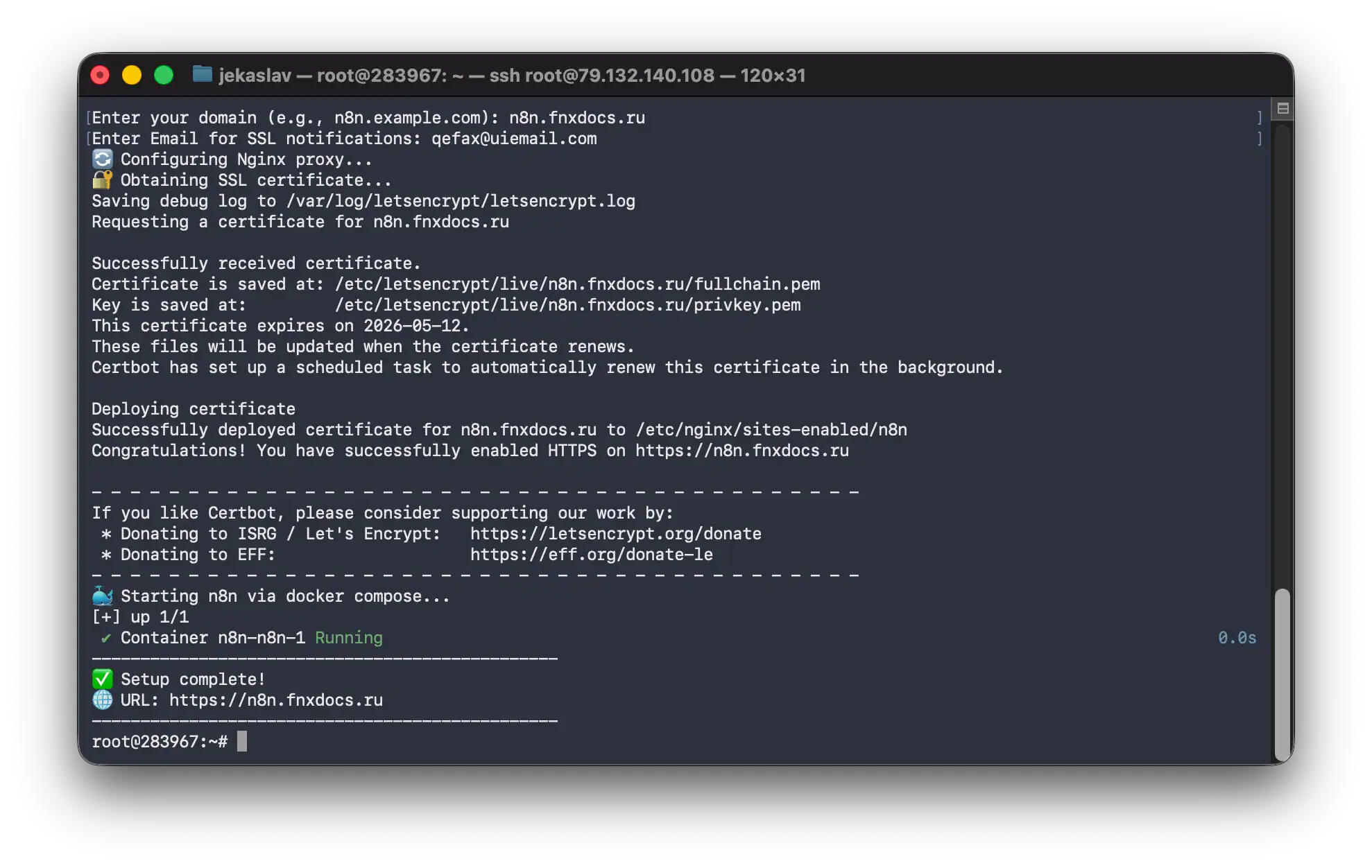 n8n initial setup
Accessing the web interface
Forget about juggling IP addresses and port numbers. Simply open your browser and navigate to:
https://your-domain.com
On your first visit, you'll need to set up an Owner account. Enter your name, email, and password. This data is stored locally on your server and is never shared with the n8n cloud.
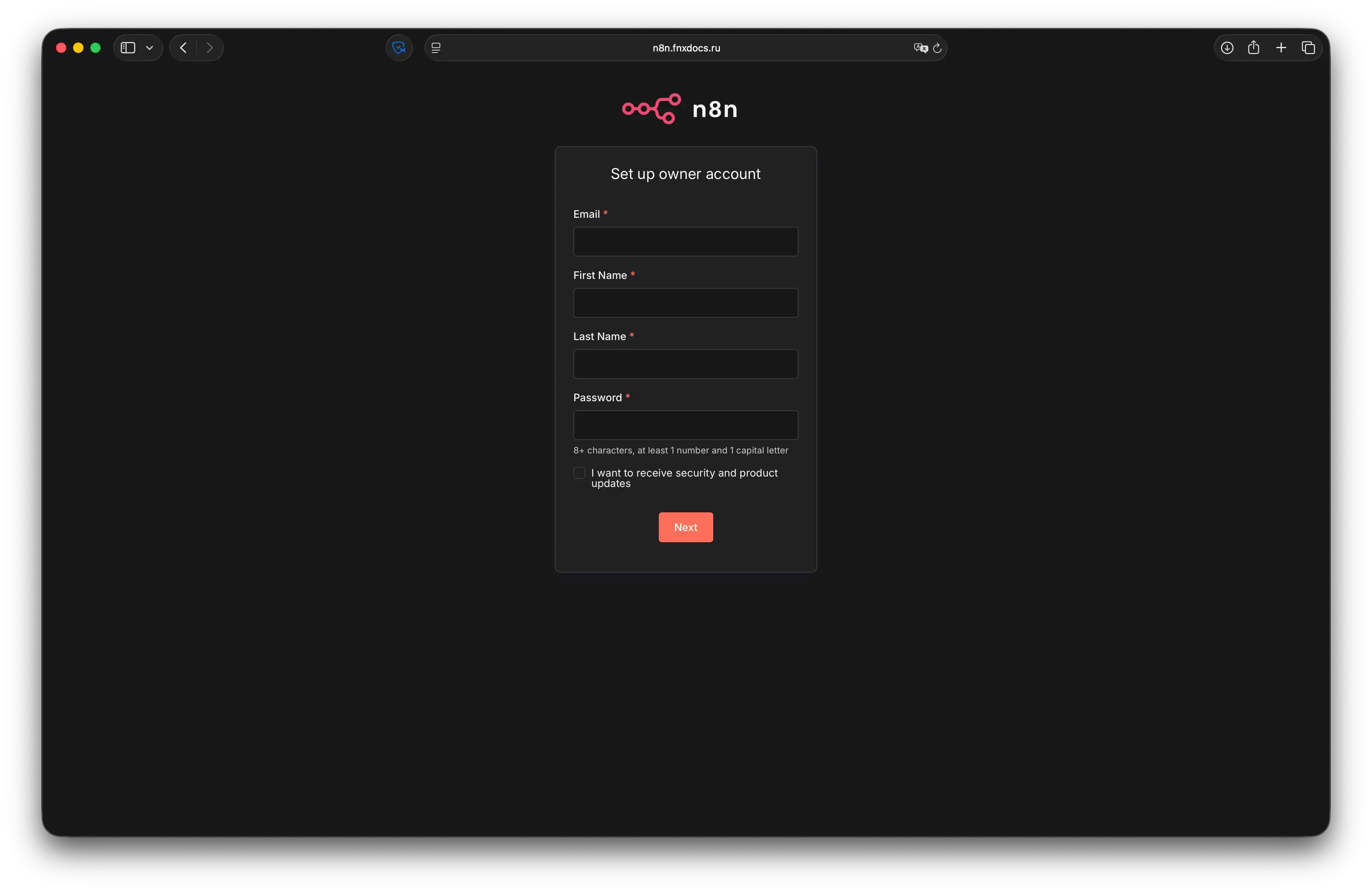 n8n web interface sign up
Managing the service (Docker)
Since n8n runs inside a Docker container, you can manage it using standard docker compose commands. Navigate to the project directory (usually /root/n8n—check your setup script output to confirm):
- Restart:
docker compose restart - Update Image:
docker compose pull && docker compose up -d - View Live Logs:
docker compose logs -f
Pro tips
- Secure Webhooks: Thanks to the SSL setup, your webhooks now use
https://. This is a non-negotiable requirement for integrating with Telegram, WhatsApp, or most payment gateways. - Auto-healing: The service is configured to start automatically. If your VPS ever reboots, n8n will be back online without you lifting a finger.
- Keep an eye on RAM: If you plan on processing massive JSON files or long arrays, monitor your server's load in the "Monitoring" section of your dashboard.
Help
If you have any questions or need assistance, please contact us through the ticket system — we're always here to help!