How to add a public SSH key to your server
Step-by-step guide to adding a public SSH key for secure server access.
SH key authentication is the most secure way to connect to your VPS or dedicated server. The public key is placed on the server, while the private key stays safely on your computer — this completely eliminates password interception and significantly improves security.
Method 1: Adding the key via Fornex dashboard (recommended)
- Log in to your Fornex personal dashboard and select the desired order.
- Go to the SSH Access section.
- Click Manage SSH Keys → Add SSH Key.
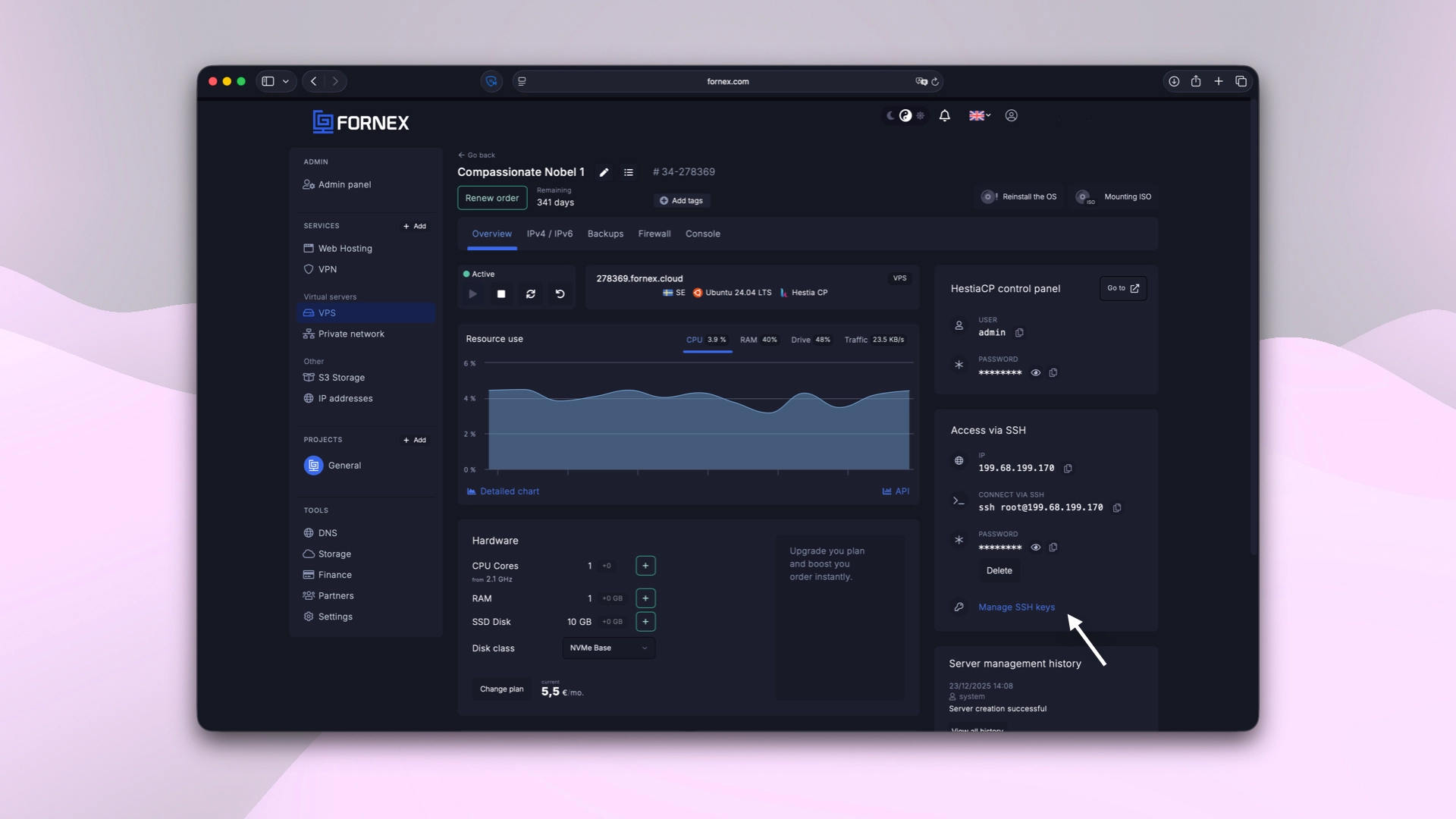 Manage VPS order
- Paste your copied public key and give it a name.
 VPS SSH-key management
- Click Save.
 SSH-key automatically adding
SSH key settings will be applied only after OS reinstallation.
Method 2: Manually copying the public key to the server
- Connect to the server via SSH (using password for now):
ssh root@your_server_ip
- Create the
.sshfolder if it doesn’t exist:
mkdir -p ~/.ssh
chmod 700 ~/.ssh
- Add the public key to
authorized_keys:
echo "ssh-ed25519 AAAAC3NzaC1lZDI1NTE5AAAAI... your_email@example.com" >> ~/.ssh/authorized_keys
Recommended one-command method from your local machine:
ssh-copy-id -i ~/.ssh/id_ed25519.pub root@your_server_ip
Configure the OpenSSH Server
- Open the SSH server configuration file:
nano /etc/ssh/sshd_config
- Make sure the following settings are present (uncomment or add them):
PubkeyAuthentication yes
AuthorizedKeysFile %h/.ssh/authorized_keys
PasswordAuthentication no          # Recommended: disable password login
- Save the file (Ctrl+O → Enter → Ctrl+X).
- Set correct permissions on the files:
chmod 600 ~/.ssh/authorized_keys
chmod 700 ~/.ssh
chown root:root ~/.ssh/authorized_keys
- Restart the SSH service:
systemctl restart sshd
Help
If you have any questions or need assistance, please contact us through the ticket system — we're always here to help!