Get started with HestiaCP
A step-by-step guide to setting up and using the Hestia control panel.
HestiaCP is a modern, actively maintained fork of VestaCP. It brings a refreshed interface, built-in file manager, mobile-friendly design, two-factor authentication (2FA), and many quality-of-life improvements.
Best of all: you no longer need a separate FTP client like FileZilla. Edit files, view logs, upload content — everything can be done directly in your browser.
Quick start
- Log in to the Hestia control panel on your VPS using the credentials provided in your Fornex dashboard.
- Take a moment to explore the main dashboard — it gives you a clear overview of all key sections: users, web domains, mail, databases, DNS, backups, and more.
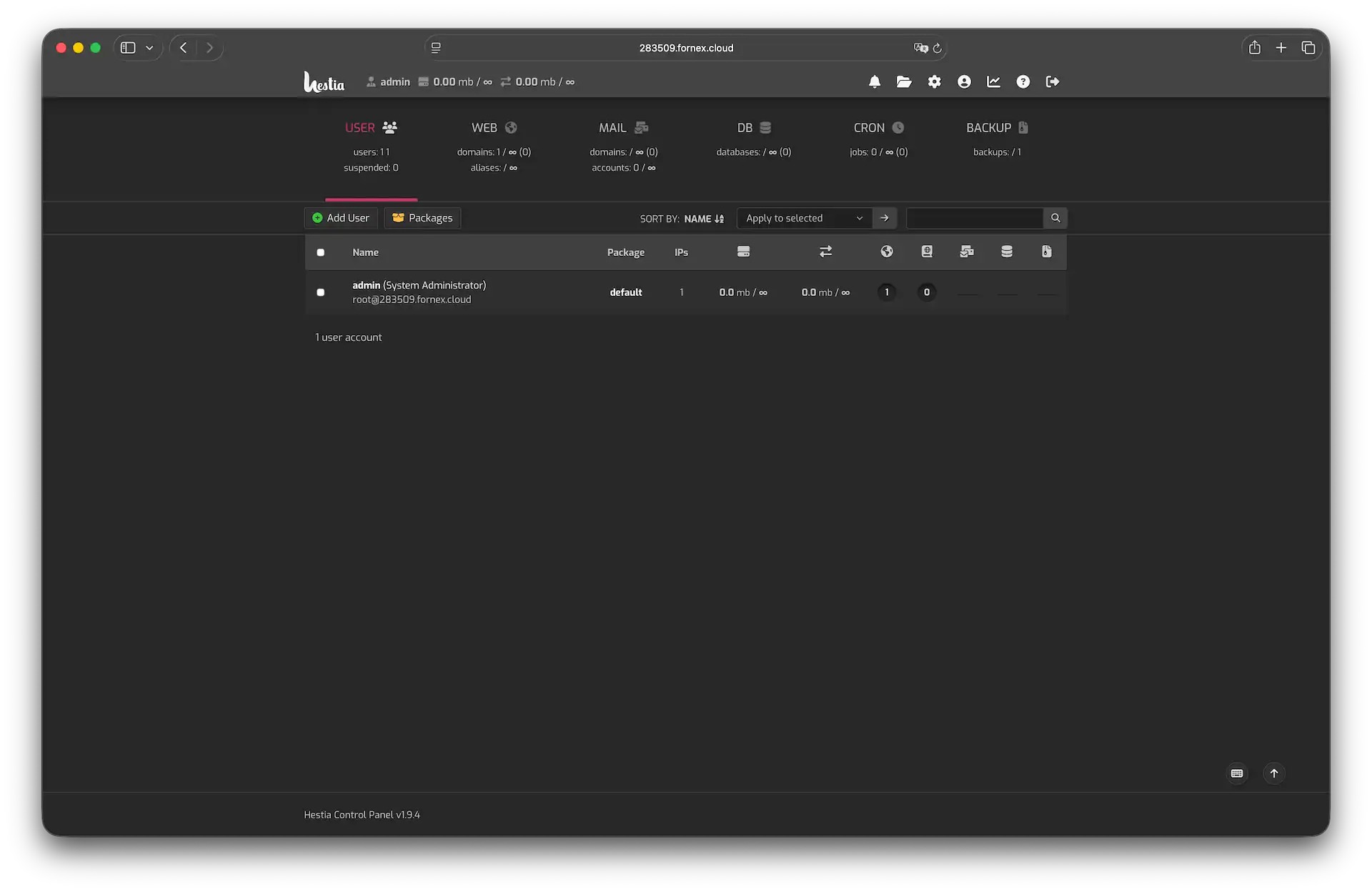 HestiaCP main dashboard
1. Creating additional users
By default, only the admin account (with full administrative privileges) exists. To add a new user (great for clients, team members, or separating projects):
- Click + Add User button.
- Fill in:
- Username
- Password
- Contact email (login credentials will be sent here)
- Preferred interface language
- Role
- Hit Save.
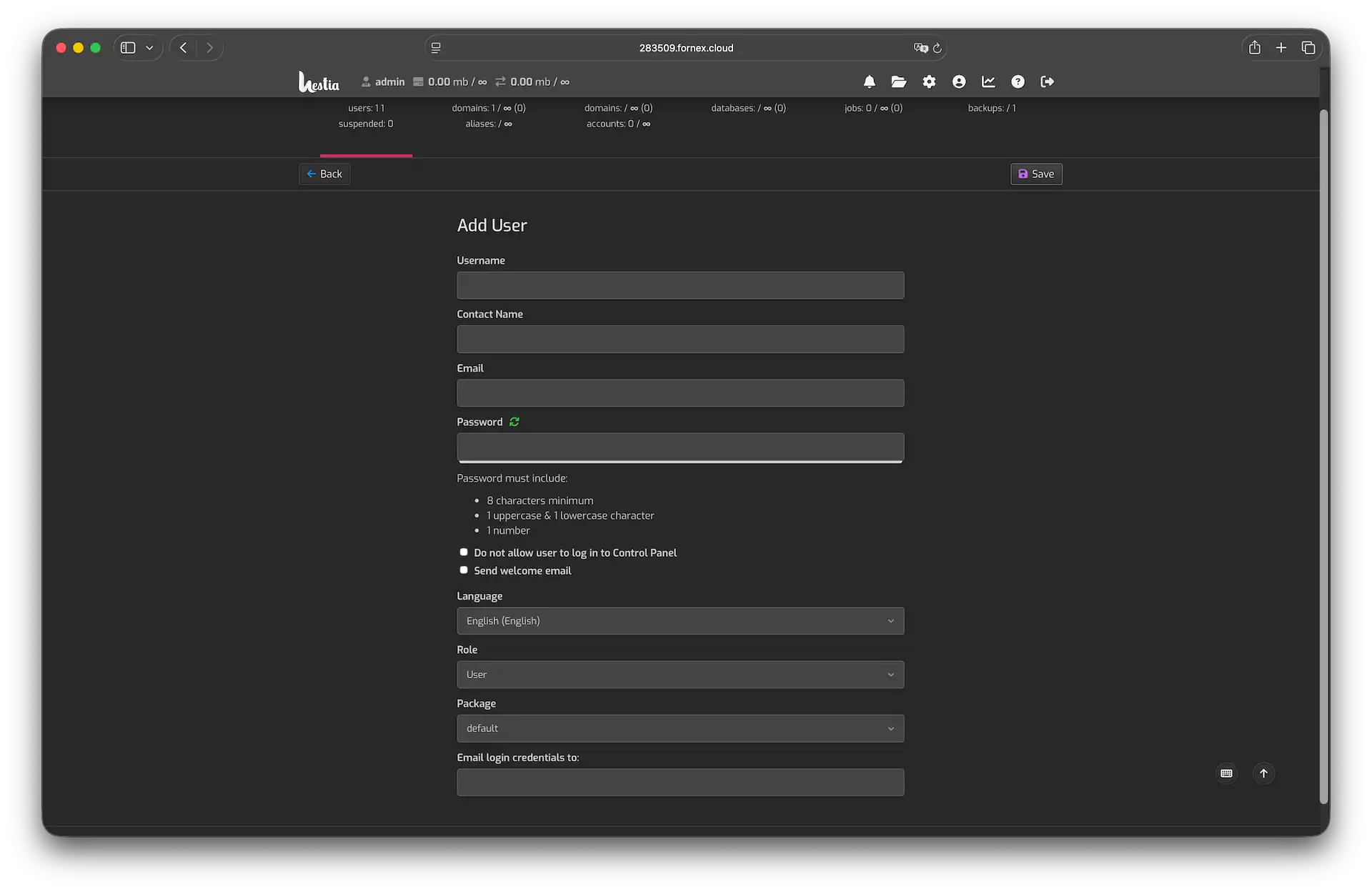 User management in Hestia
After creation, you can log in as the new user to verify everything works as expected and to confirm the permission boundaries.
2. Adding a website (web domain)
- Go to the WEB section.
- Click + Add Web Domain button.
- Enter the domain name (e.g. example.com).
- Enable mail support for this domain - optional.
- Click Save.
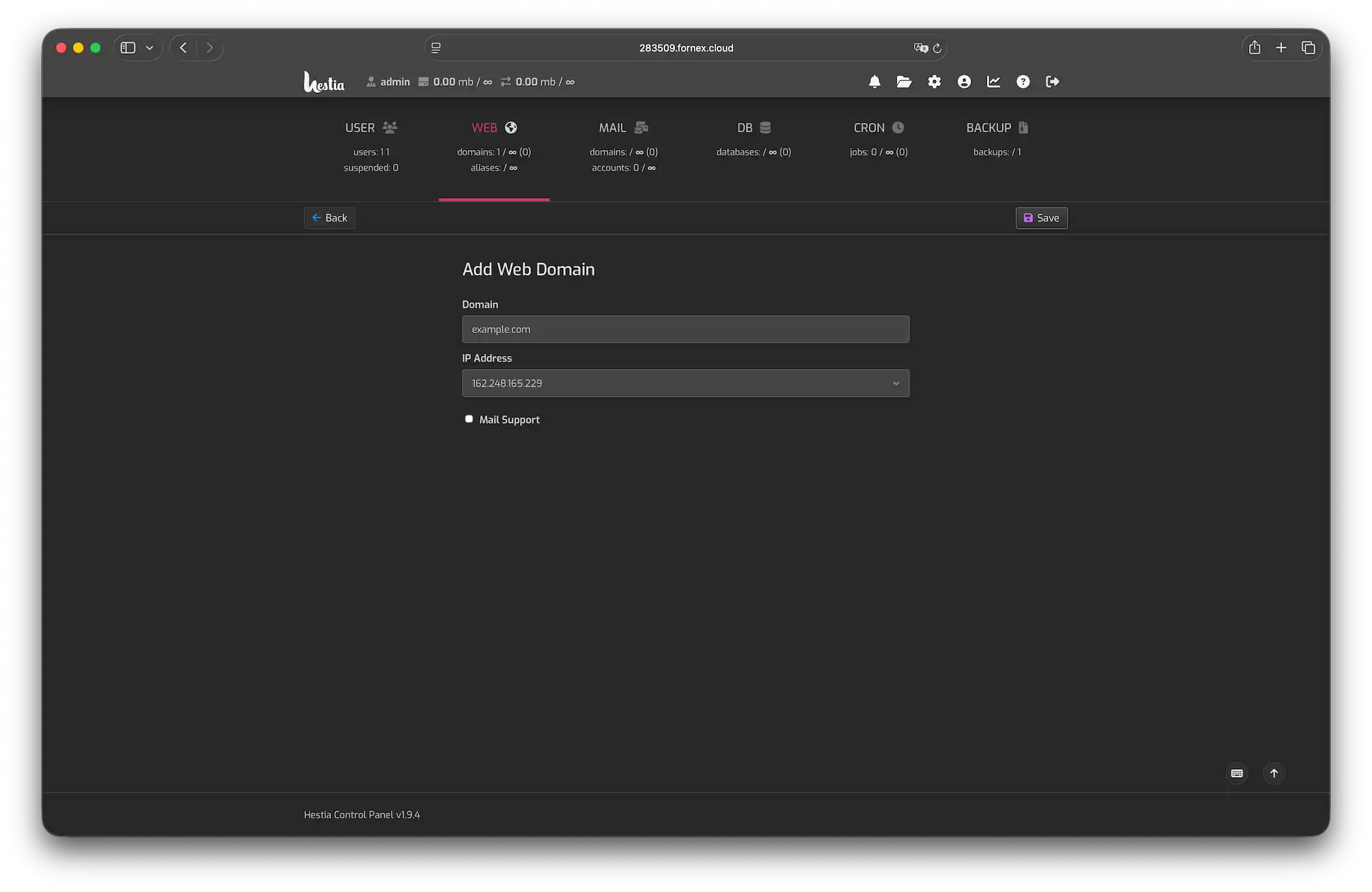 Domain adding in Hestia
3. Creating a database
- Navigate to the DB section.
- Click + Add Database.
- Specify:
- Database name (automatically prefixed with your username, e.g.
admin_mysite) - Database user
- Password
- Notification email (credentials will be sent here)
- Database name (automatically prefixed with your username, e.g.
- Click Save.
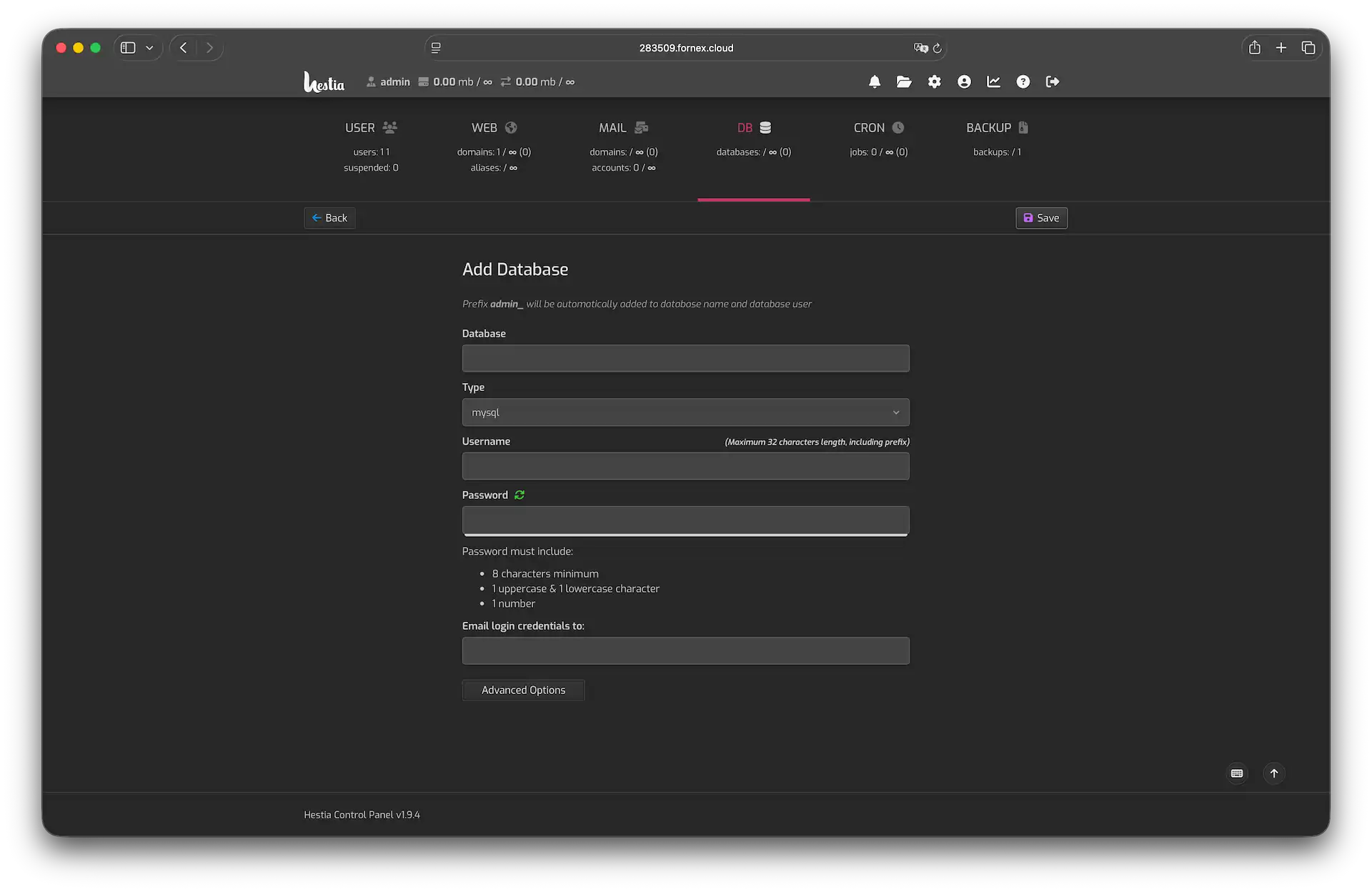 Database creating in Hestia
4. Setting up email
When adding a web domain, you can enable mail support right away. To add mail domains and accounts manually:
- Go to the MAIL section.
- Click + Add Mail Domain.
- Enter:
- Domain name
- Desired mail client hostname
- Enable DKIM (highly recommended for deliverability)
- Optional: SMTP relay settings if you're using external delivery
- Save.
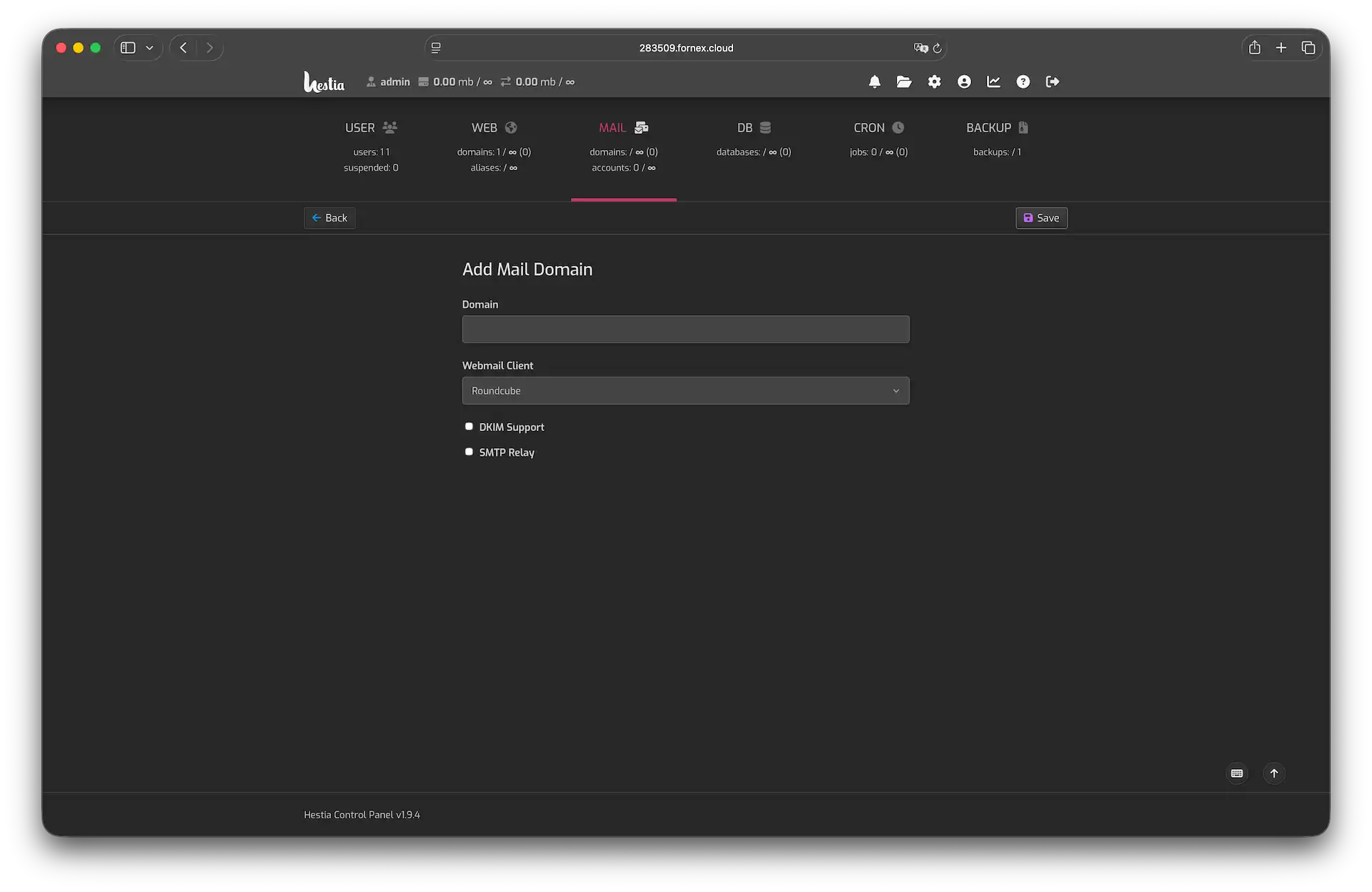 Mail creating in Hestia
Extra features worth exploring
- File Manager — powerful browser-based editor and uploader; supports file permissions, compression, search, and direct code editing.
- SSL / Let's Encrypt — one-click free SSL certificates for all domains.
- Backups — configure automatic remote or local backups with retention policies.
Hestia strikes an excellent balance between simplicity for beginners and power for experienced admins — everything is just a few clicks away, yet advanced configuration files remain easily accessible.
Help
If you have any questions or need assistance, please contact us through the ticket system — we're always here to help!