Blocking access to your site with .htaccess
How to control who can access your site and individual files using .htaccess.
.htaccess is an Apache web server configuration file that lets you define access rules and other settings at the directory level — without touching the main server config. You can use it to restrict access by IP, protect specific files, set redirects, define character encoding, and much more.
cPanel is the control panel used on all Web Hosting orders.
If a visitor tries to access a page that's been blocked via .htaccess, they'll see a 404 error page.
How to edit .htaccess
- Go to Files → File Manager.
 File Manager in cPanel
- Open the public_html folder.
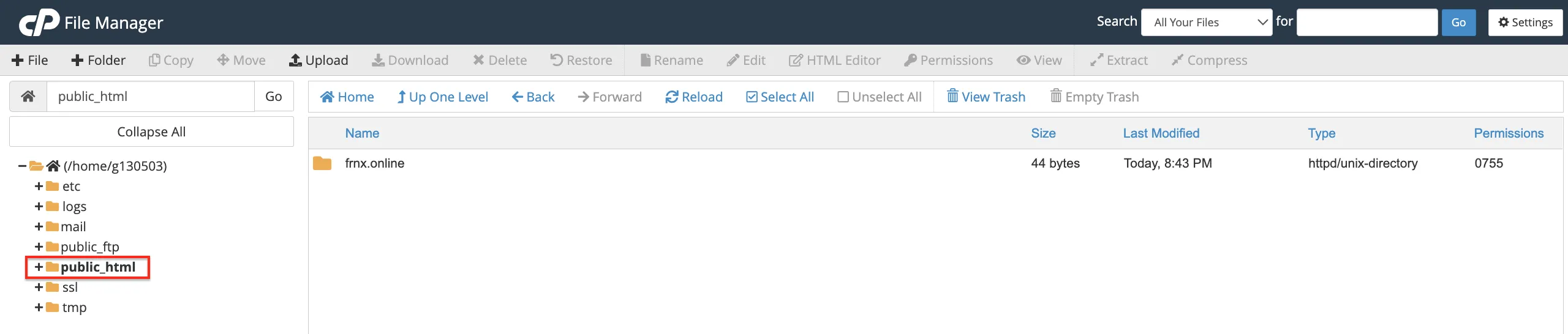 public_html folder
- The
.htaccessfile is hidden by default. ClickSettingsand check Show Hidden Files (dotfiles) to make it visible.
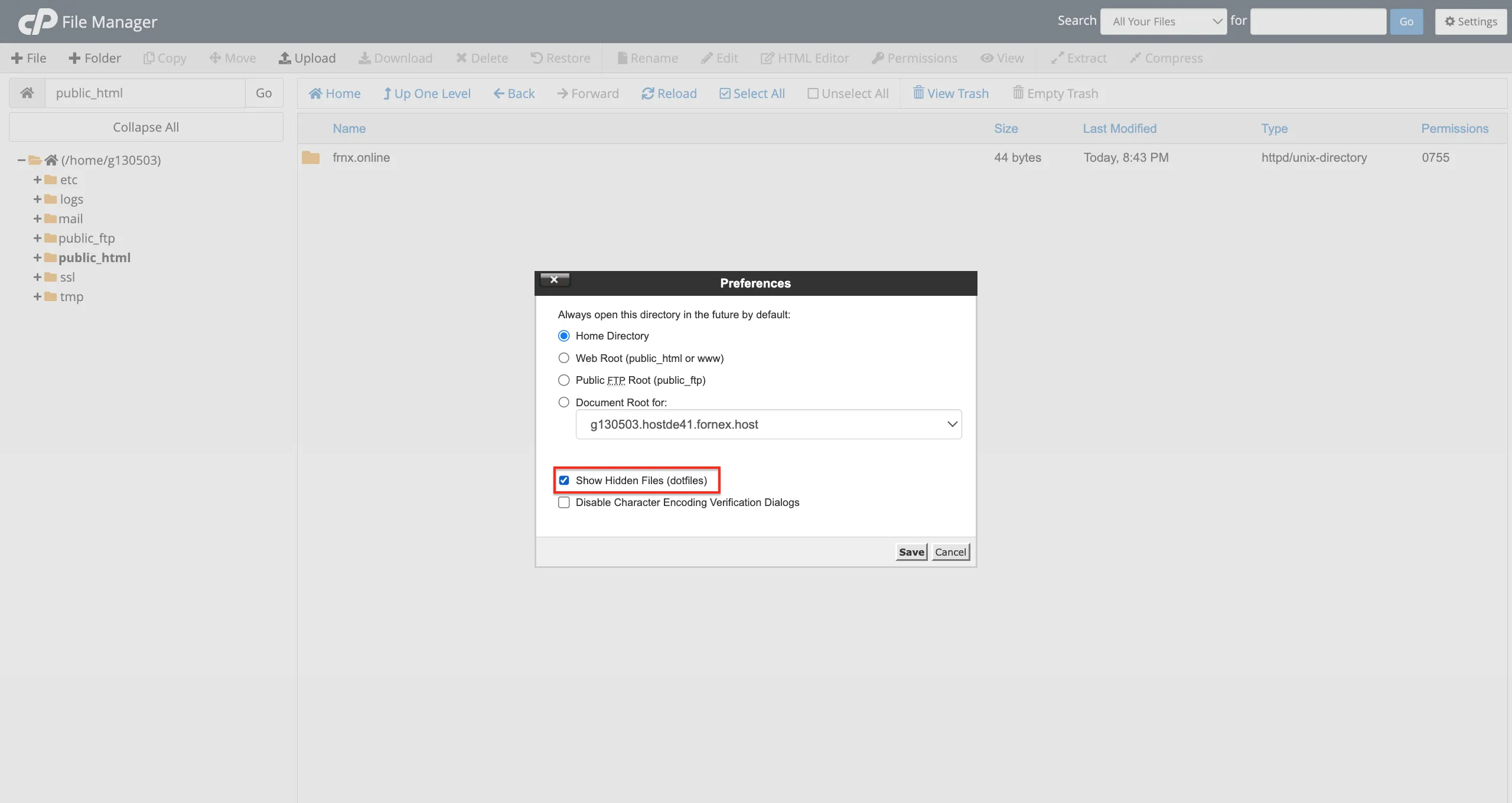 Showing hidden files
- Select the
.htaccessfile and clickEdit.
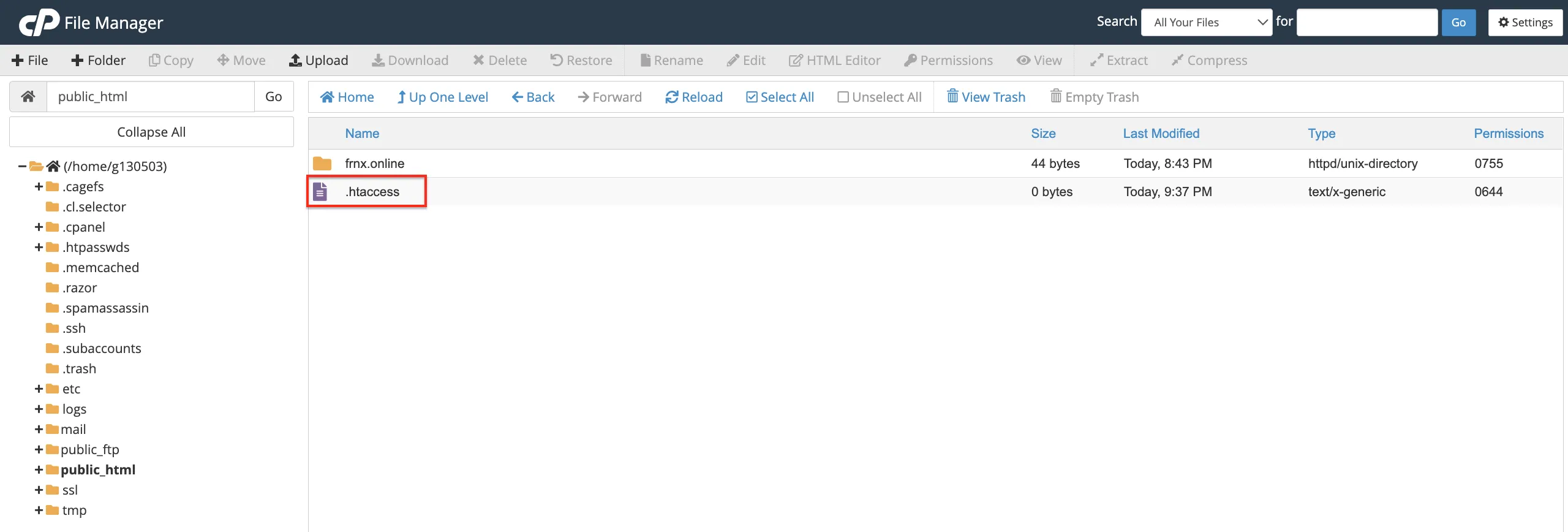 Editing .htaccess
- In the dialog that appears, click
Disable encoding check, then clickEdit.
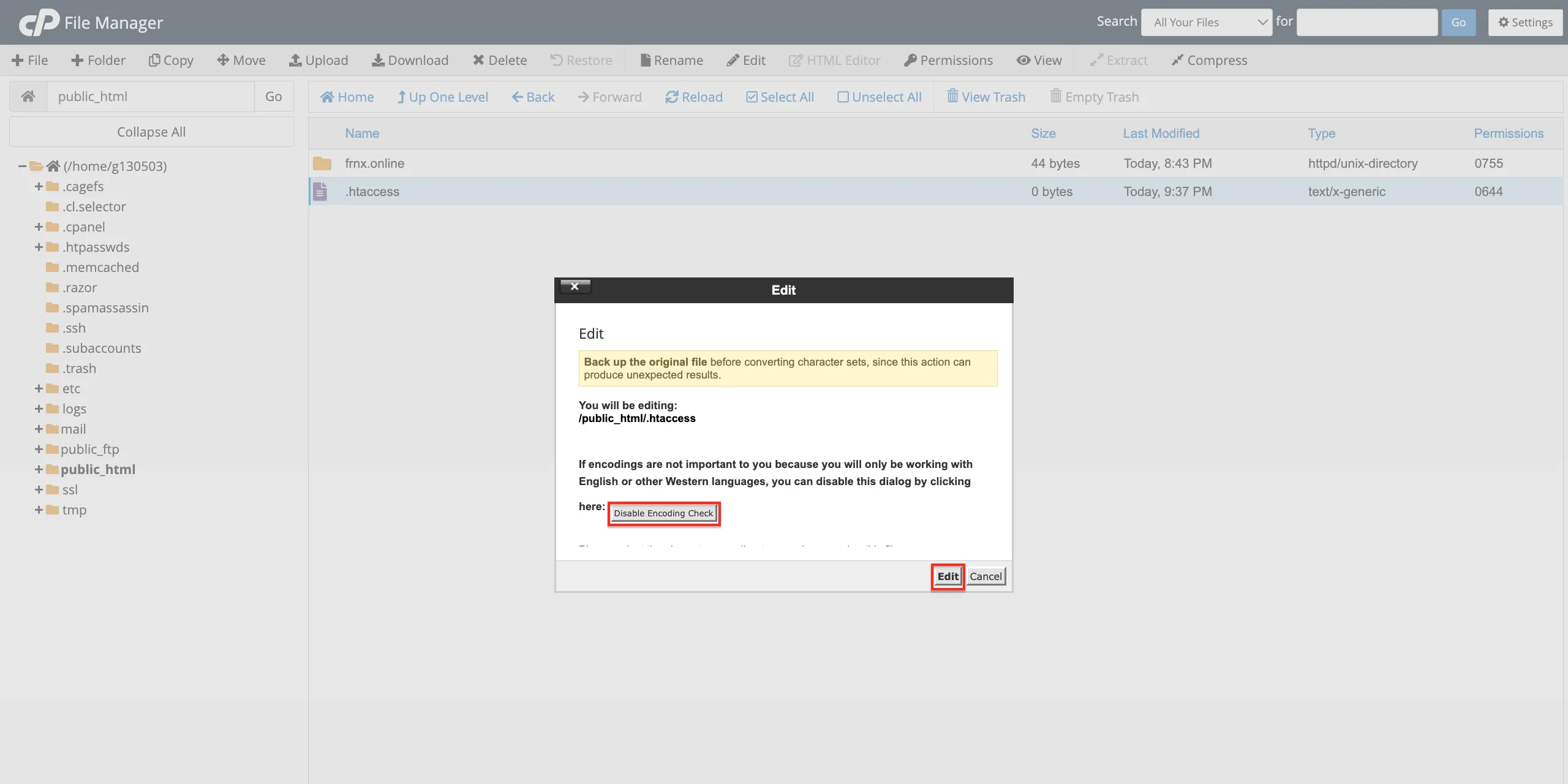 Editor settings
- Make your changes and click
Save Changeswhen you're done.
 Saving changes
Key directives
Order— defines the order in which Allow and Deny rules are evaluatedAllow— grants accessDeny— blocks access
Block everyone
To take your site completely offline or restrict all external access:
deny from allAllow only a specific IP
Useful for maintenance mode or staging environments — everyone gets blocked except you:
order deny,allow
deny from all
allow from XXX.XXX.XXX.XXX
You can whitelist multiple IPs by separating them with spaces.
Block a specific IP
To ban a single visitor or a known bad actor while keeping the site accessible to everyone else:
deny from XXX.XXX.XXX.XXXMultiple addresses can be listed on the same line, separated by spaces.
Protect a specific file
You can apply different rules to individual files. For example, to lock down wp-config.php so only your IP can access it:
<Files wp-config.php>
order deny,allow
deny from all
allow from XXX.XXX.XXX.XXX
</Files>
The same approach works for protecting the .htaccess file itself:
<Files .htaccess>
order deny,allow
deny from all
allow from XXX.XXX.XXX.XXX
</Files>
Help
If you have any questions or need assistance, please contact us through the ticket system — we're always here to help!