Setting up Xray VPN on Windows
Step-by-step guide for setting up Xray VPN using the InvisibleMan-XRayClient app on Windows.
To connect to the VPN service on Windows devices using the Xray protocol, you can use the InvisibleMan-XRayClient app.
Looking for a high-quality VPN?
Fornex offers a fast, unlimited VPN that provides full encryption on all devices and unrestricted access to any website. More details on the VPN page.
Quick setup
- In your dashboard, select the country for VPN connection.
- Click the Copy — the configuration will be copied to the clipboard, which should then be pasted into the app.
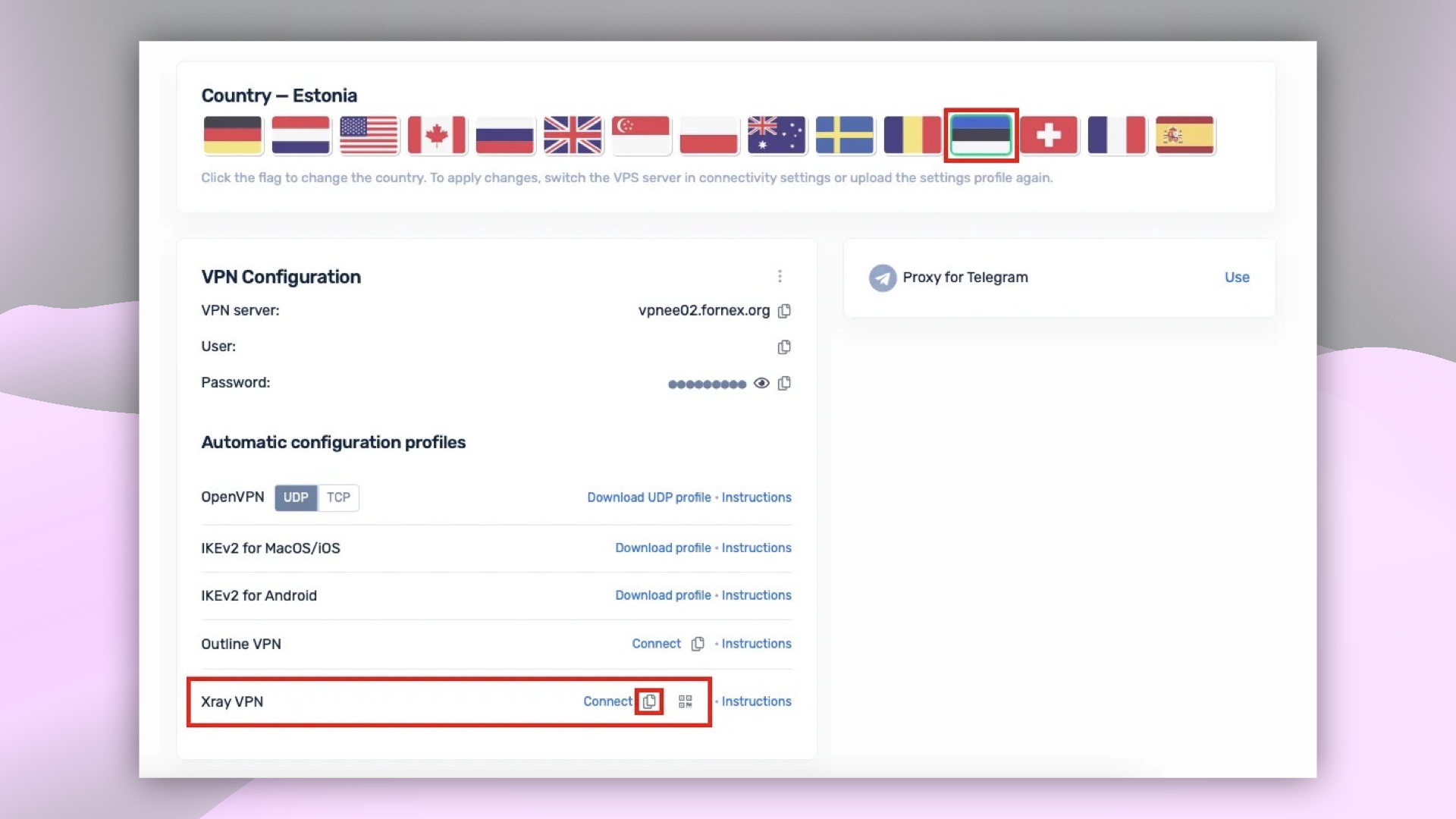 Choosing the connection country and VPN configuration option
- Open the InvisibleMan-XRayClient app, click the insert configuration button.
- Choose Import from link option.
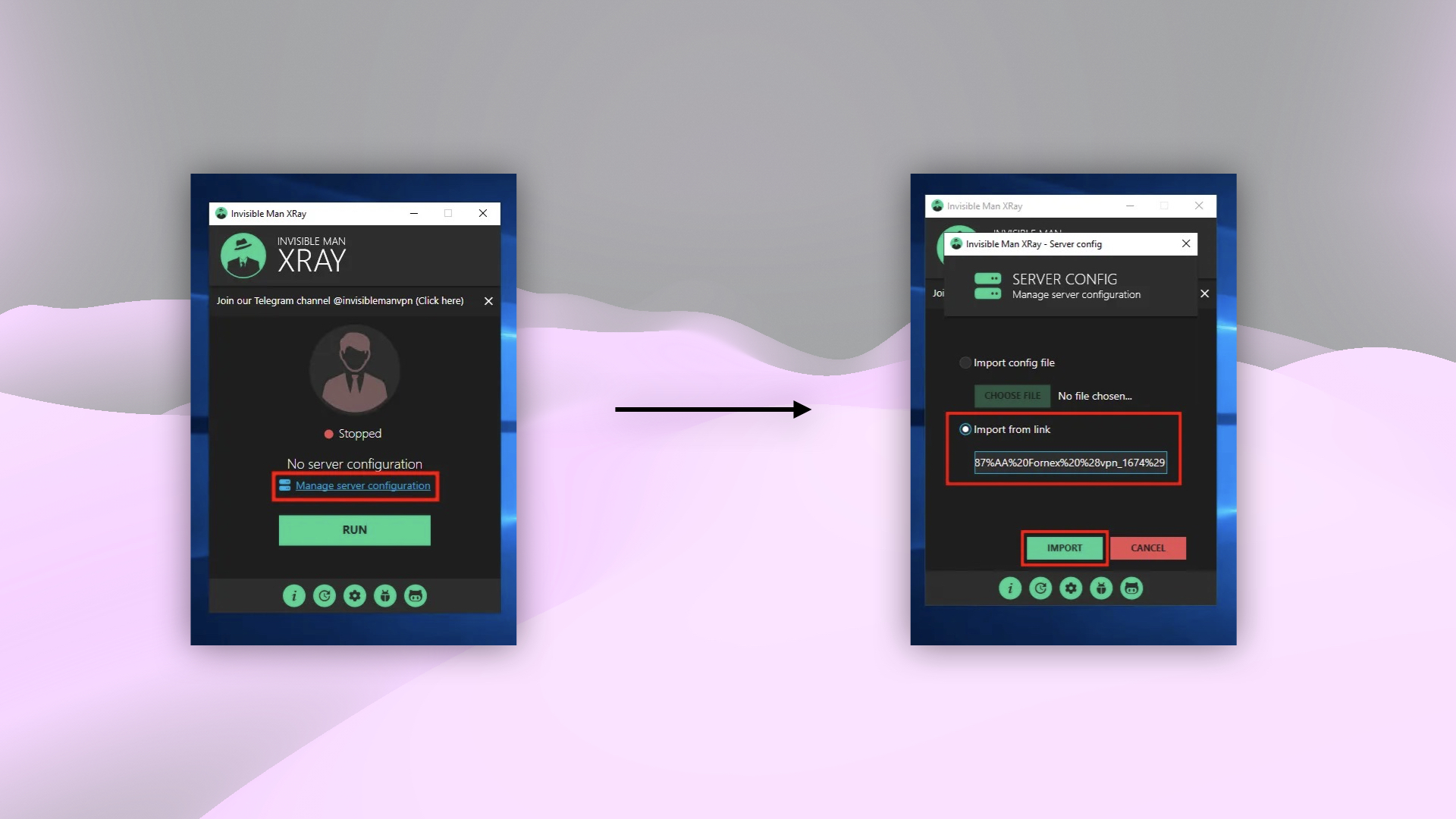 Pasting the VPN configuration from the clipboard into InvisibleMan-XRayClient
- To connect, click the power button and allow the VPN configuration to be added in the settings.
Attention
When using the Xray connection protocol, only one active connection is allowed. This limitation affects users who try to connect from different devices or apps.
After connecting to the VPN, you can check your IP address on the 2IP service.
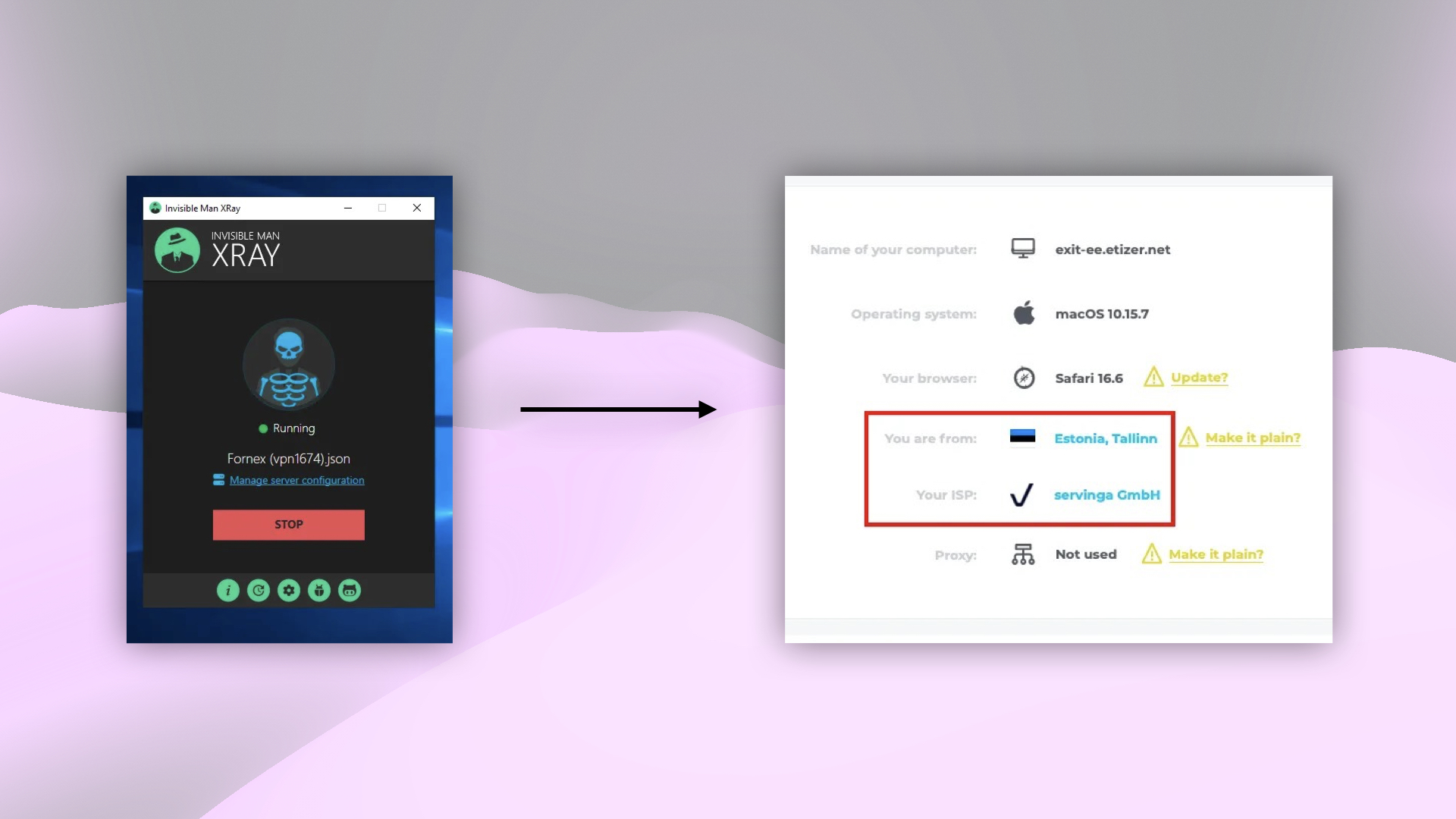 Checking the IP address after connecting to VPN
Help
If you have any questions or need assistance, please contact us through the ticket system — we're always here to help!