How to install Russian language in Windows Server 2016
Step-by-step instructions for adding and configuring the Russian-language interface in Windows Server 2016.
Note
Windows Server OS is available for installation on all VPS and dedicated server orders.
By default, Windows Server 2016 OS interface is set to English. To add Russian language, first connect to the server via RDP.
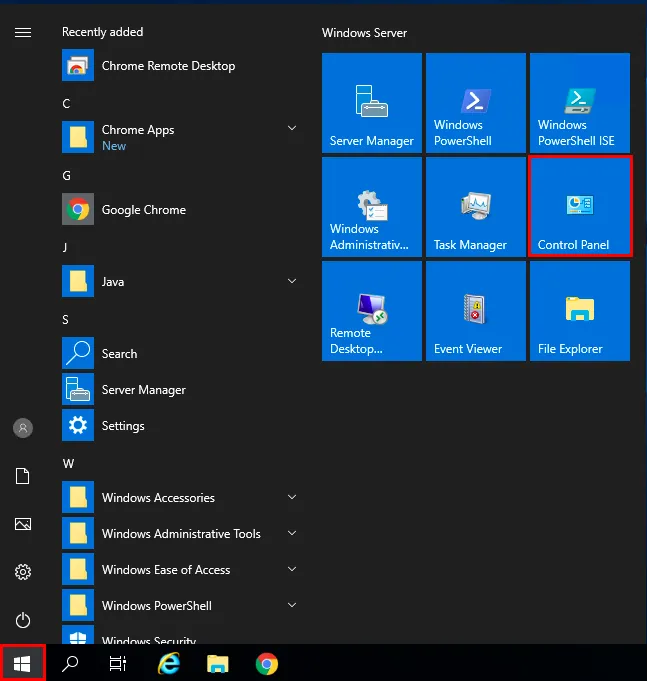
After the system loads, go to the control panel "Start" → "Control Panel".
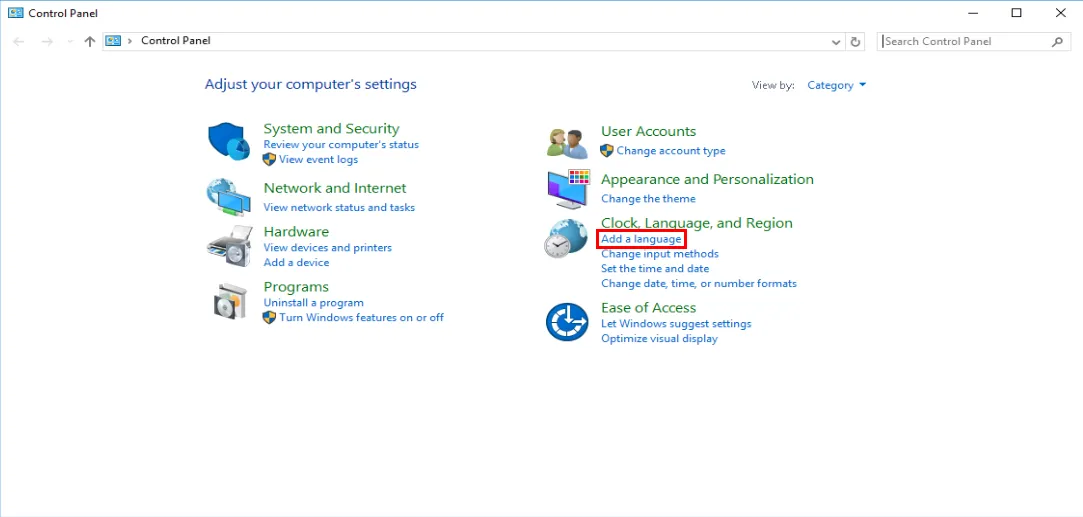
Next, go to language settings. To do this, open the "Clock, Language and Region" section and click "Add language".
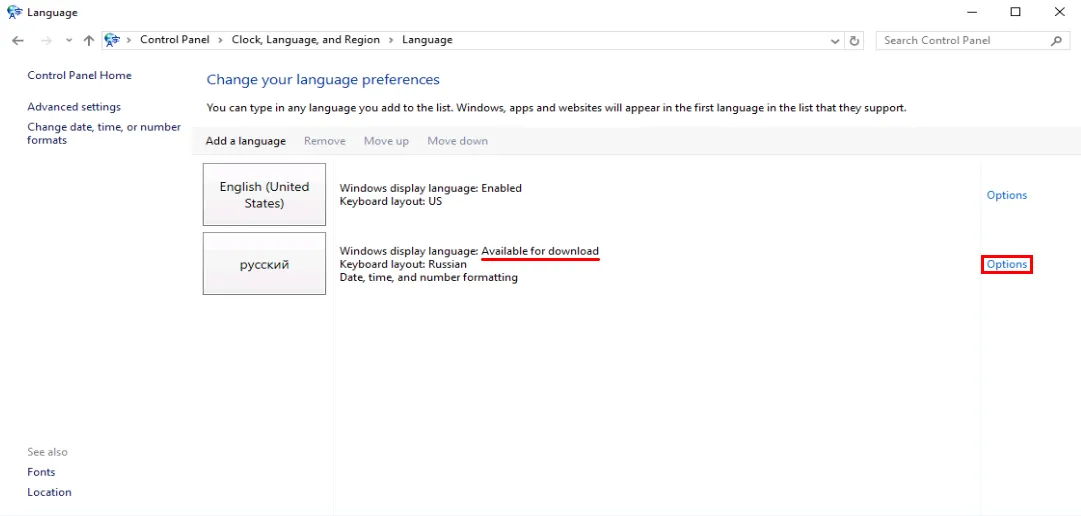
Russian language will appear in the settings with the status "Available for download". This means it has been added but not yet downloaded. Click the "Options" button.
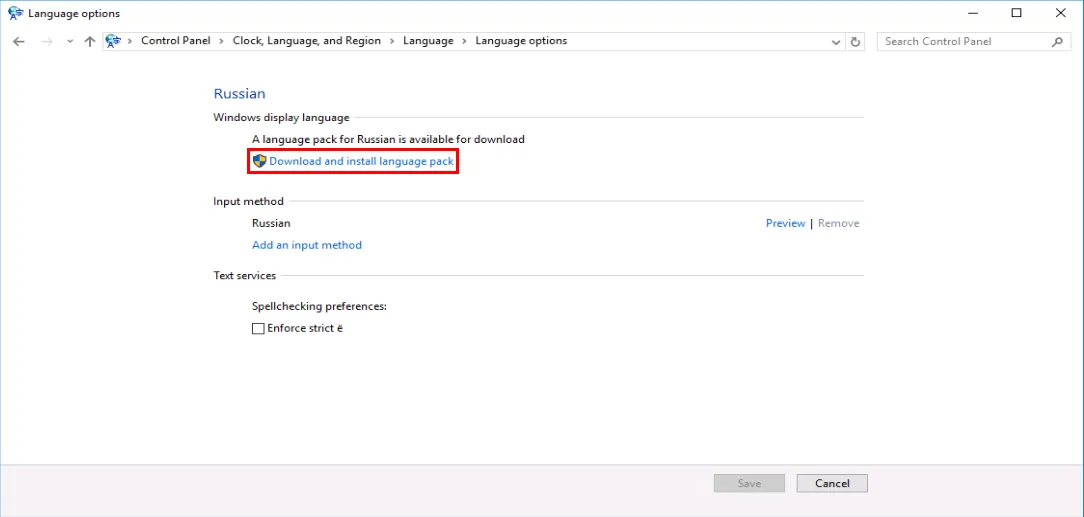
In the new window, click "Download and install language pack".
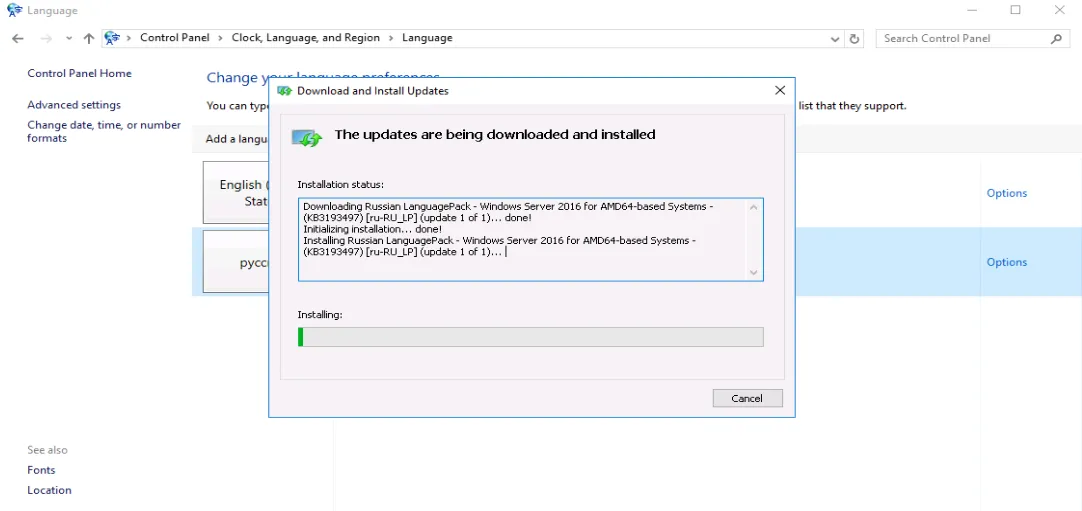
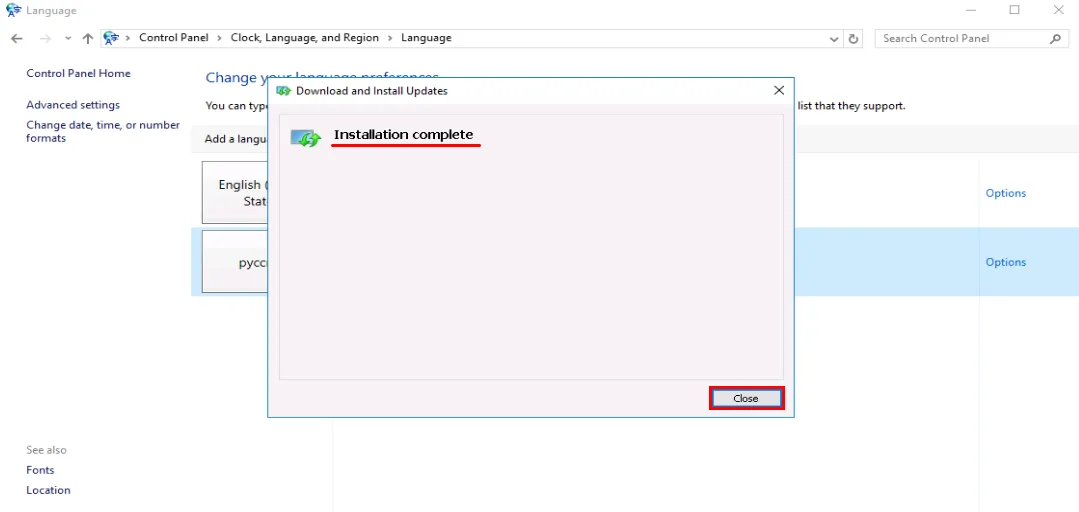
Wait for the language pack to finish downloading and installing.
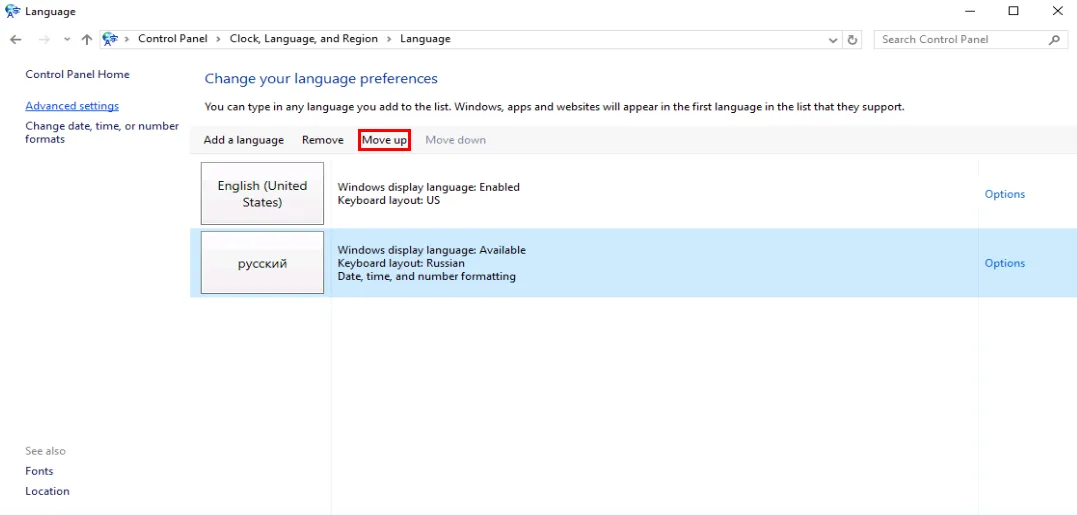
Next, set the language as default — click "Move up" and restart the system.
Important
The connection to the server will be disconnected, and all open programs will be closed.
After reboot, you will see the Russian-language Windows OS interface.
Help
If you have any questions or need assistance, please contact us through the ticket system — we're always here to help!