MTR for Windows and Linux
How to use MTR to diagnose network connections.
MTR is a network diagnostic tool that combines ping and traceroute. It traces the route to a remote host, measures response times, and shows packet loss at each hop. It's useful for diagnosing connectivity issues with Web Hosting, VPS, or dedicated servers.
WinMTR
WinMTR is a graphical MTR client for Windows.
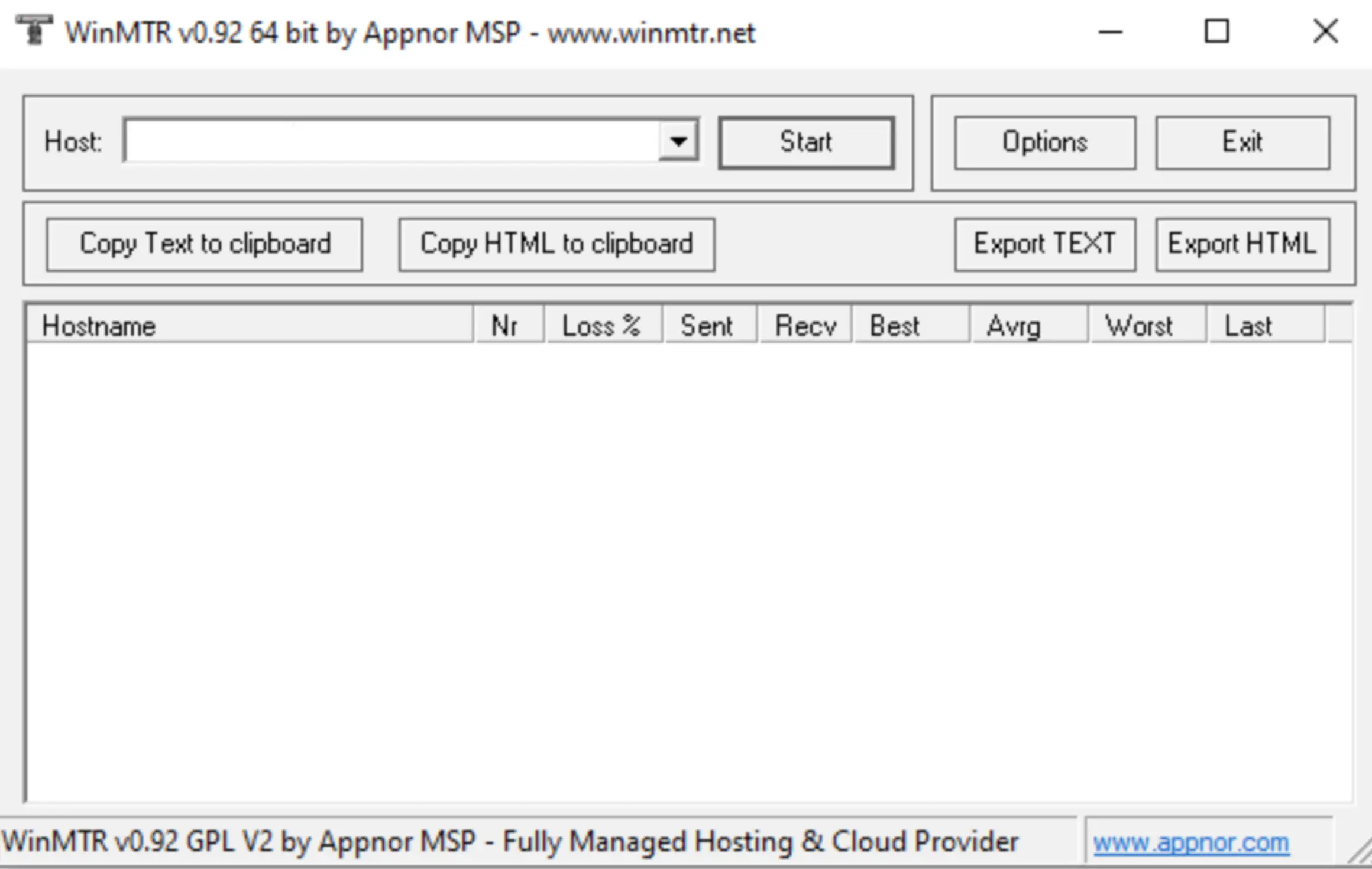 WinMTR
Download WinMTR from an open source and launch WinMTR.exe. Enter the hostname or IP address of the target server in the Host field and click Start.
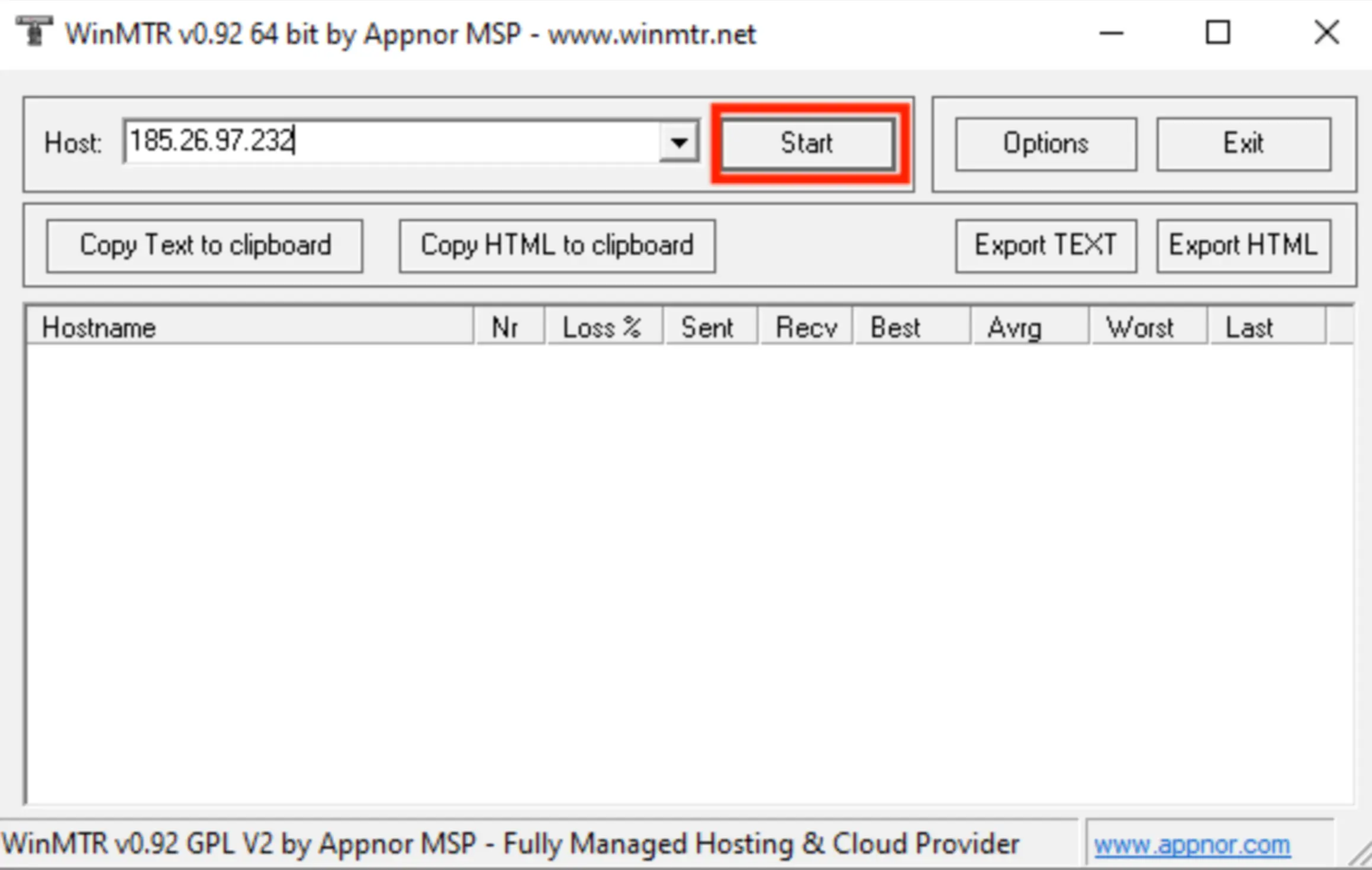 Starting a trace
Column descriptions:
Hostname— the hostname or IP address of the hop.Nr— the hop number in the route.Loss%— percentage of lost packets.Sent— number of packets sent.Recv— number of replies received.Best— minimum round-trip time.Avrg— average round-trip time.Worst— maximum round-trip time.Last— round-trip time of the last packet.
Wait until Sent reaches at least 60 (one request per second by default). You can stop the test at any time with Stop — the more packets sent, the more accurate the results.
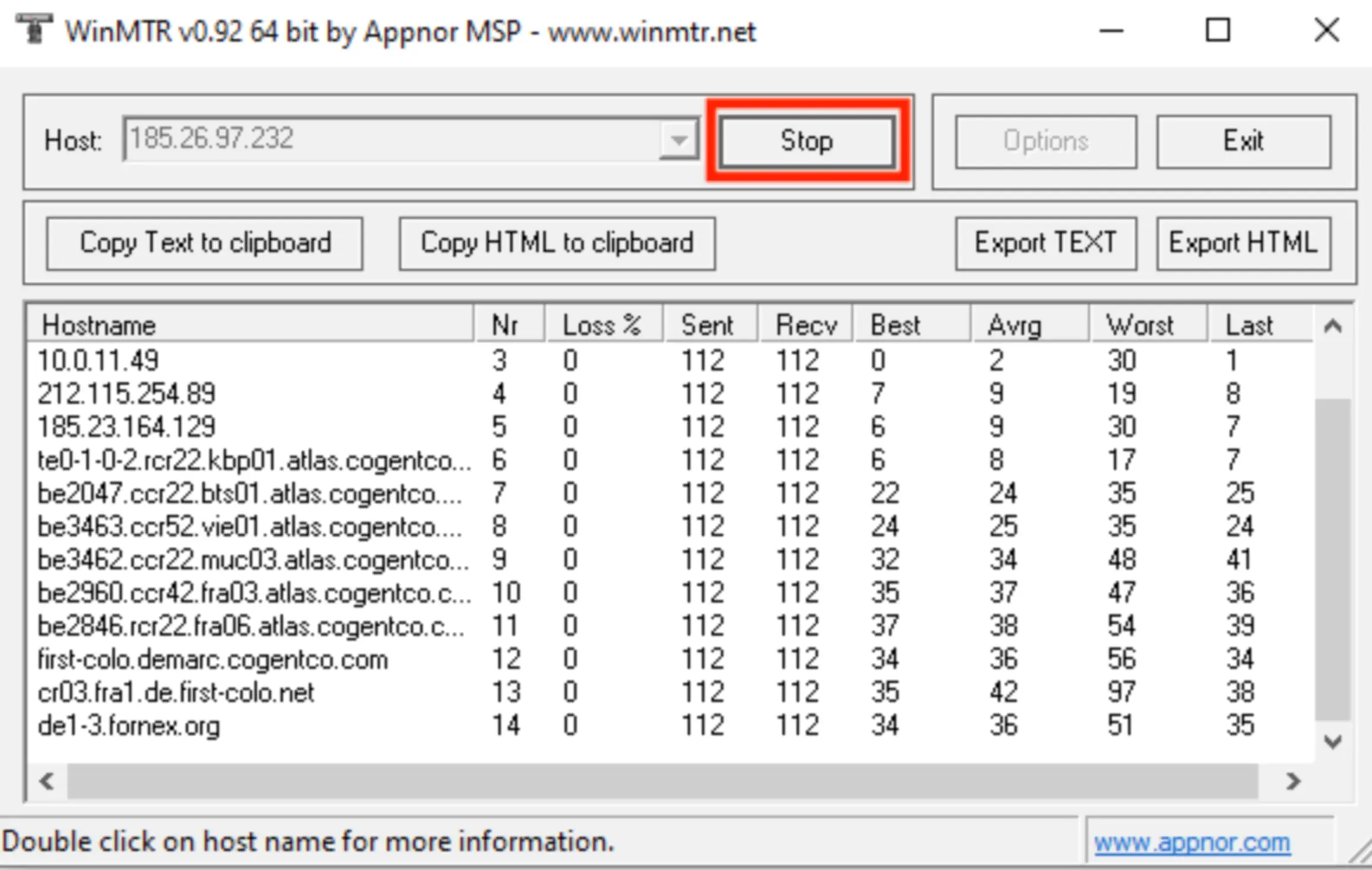 Trace results
Results worth investigating: packet loss of Loss% ≥ 5% or high latency of Avrg ≥ 350 ms appearing across multiple consecutive hops.
To save the results, click Export TEXT.
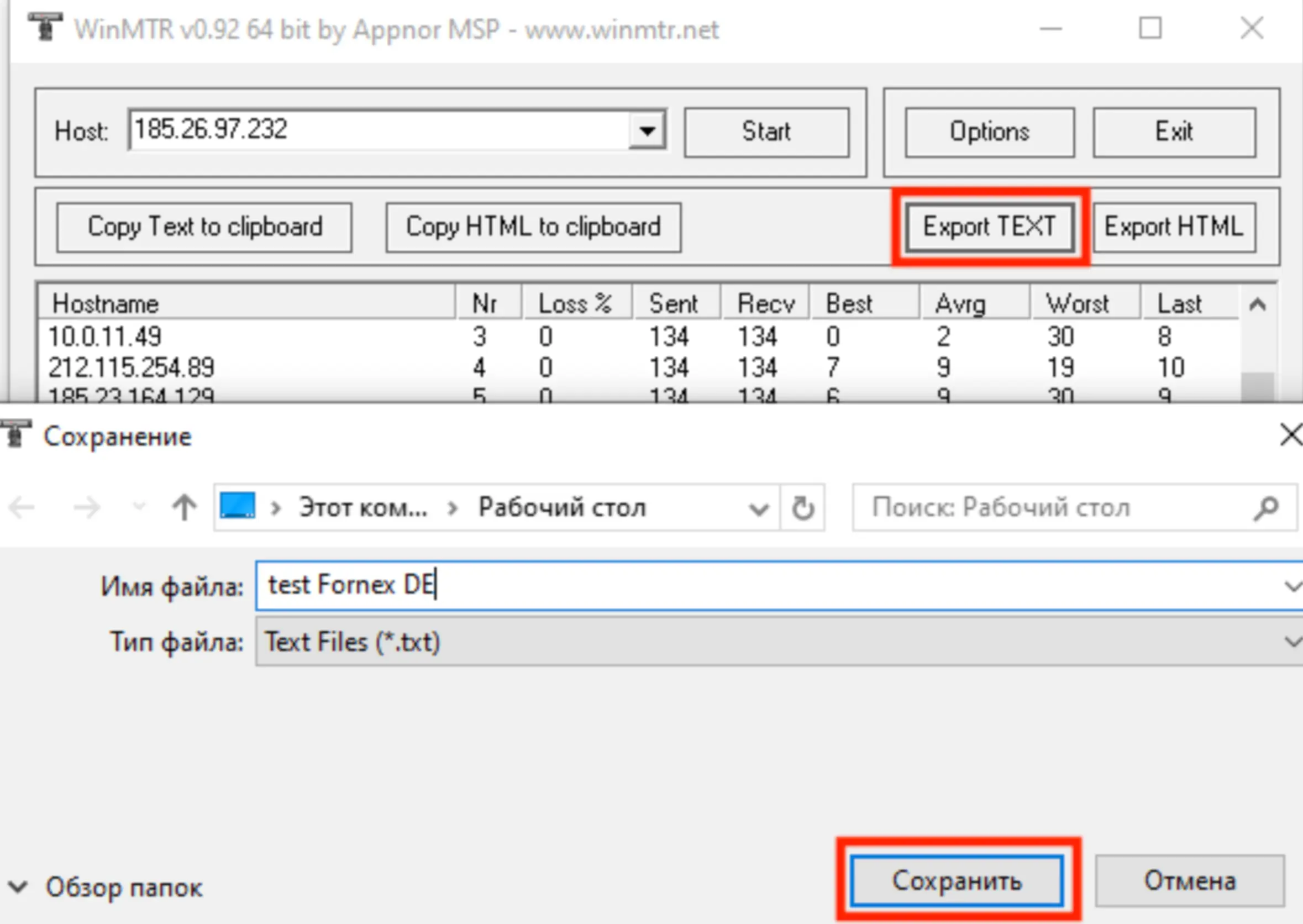 Exporting results
MTR on Linux
Install MTR:
Ubuntu / Debian:
apt-get install mtrCentOS:
yum install mtrRun a trace (replace #.#.#.# with the target hostname or IP address):
mtr -r -n -c 100 #.#.#.#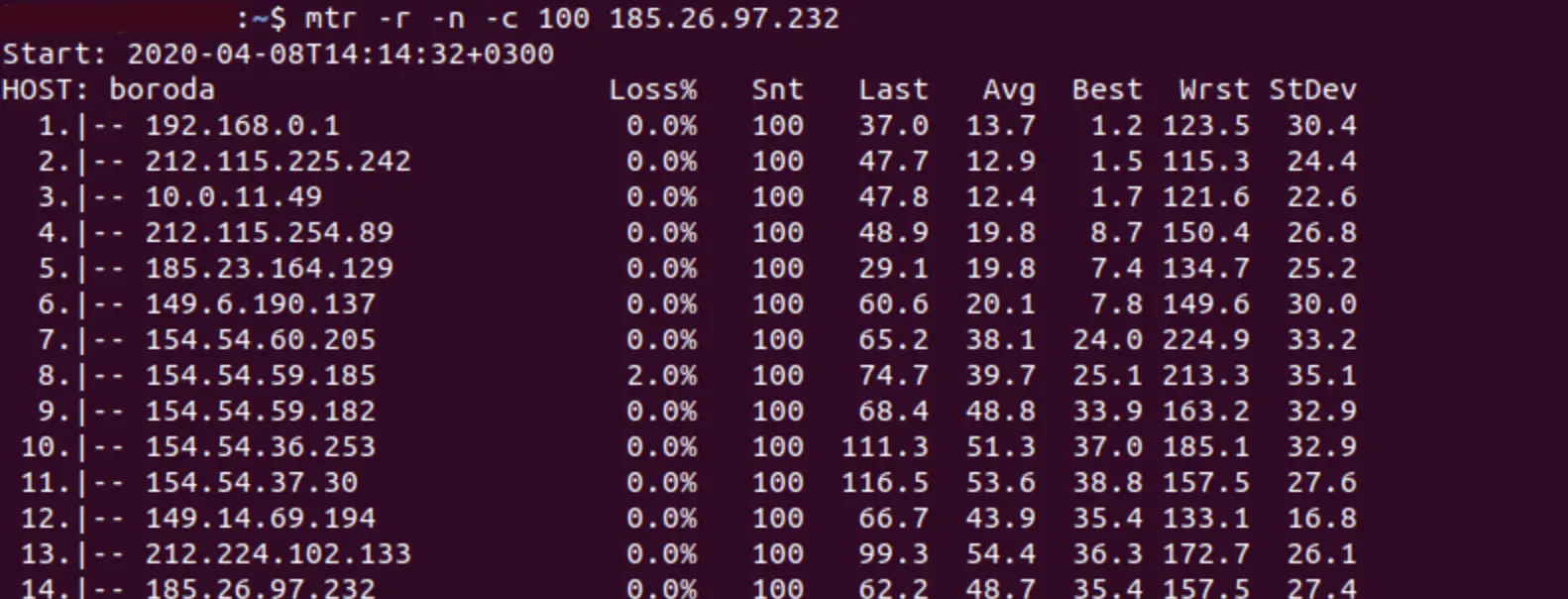 MTR on Linux
Help
If you have any questions or need assistance, please contact us through the ticket system — we're always here to help!