Configuring VPN on Keenetic routers
A step-by-step guide to setting up a VPN connection on your Keenetic router.
Getting your VPN settings
Before you begin, go to your dashboard to retrieve your connection details or download the necessary configuration files:
- VPN server address.
- Username and password.
- Configuration file (for WireGuard or OpenVPN).
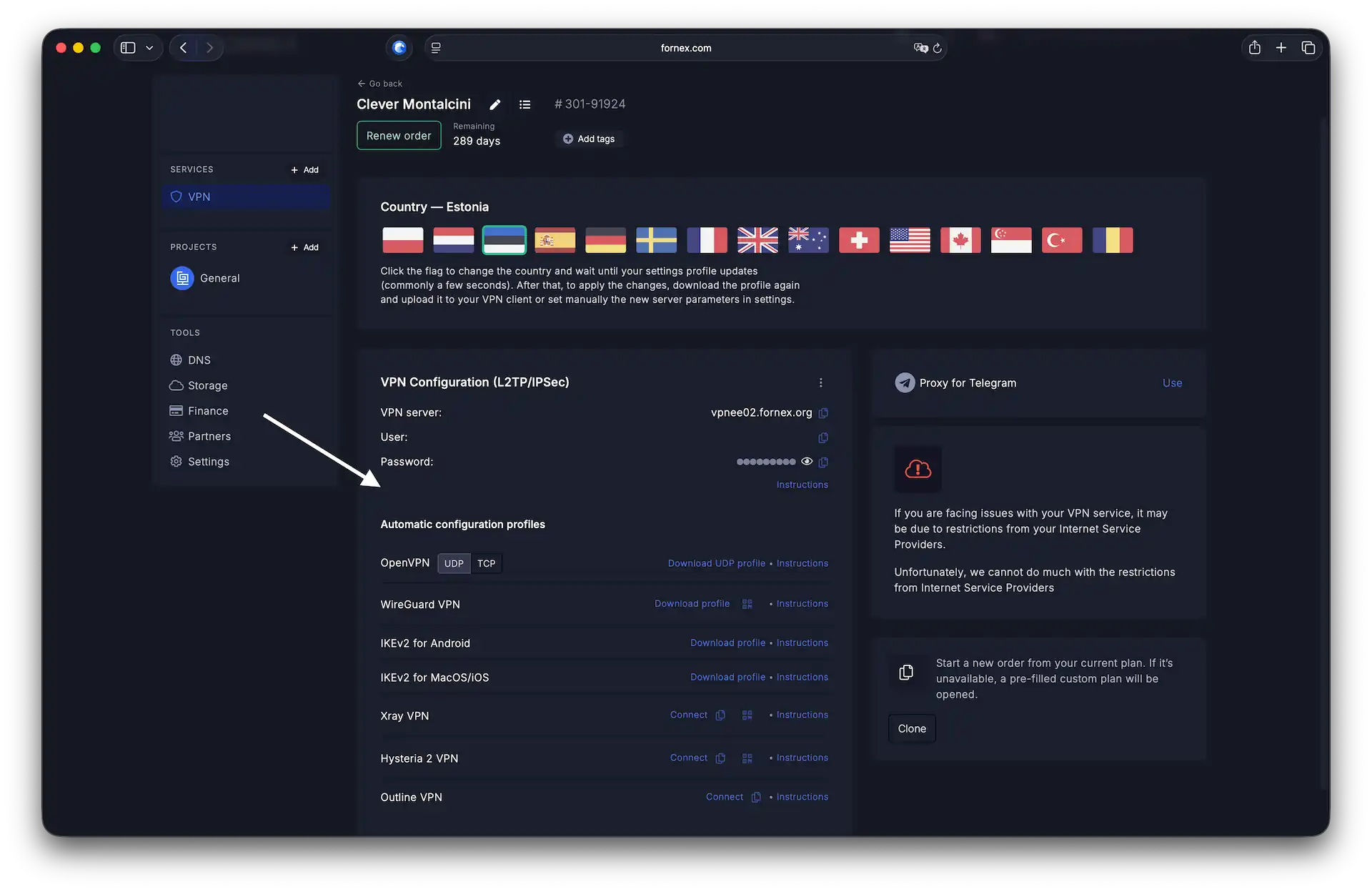 VPN connection parameters in the dashboard
Looking for a high-quality VPN?
Fornex offers a fast, unlimited VPN that provides full encryption on all devices and unrestricted access to any website. More details on the VPN page.
Router configuration
To access the web interface, navigate to http://192.168.1.1/ in your browser and enter your administrator credentials. Once logged in, you will see the System Dashboard.
In the side menu, go to the Internet → Other Connections section.
Option A: Setting up WireGuard
If you are using the WireGuard protocol:
- Click the
Import from filebutton. - Select the
.conffile you previously downloaded from the Fornex dashboard. - Ensure the connection toggle is set to On.
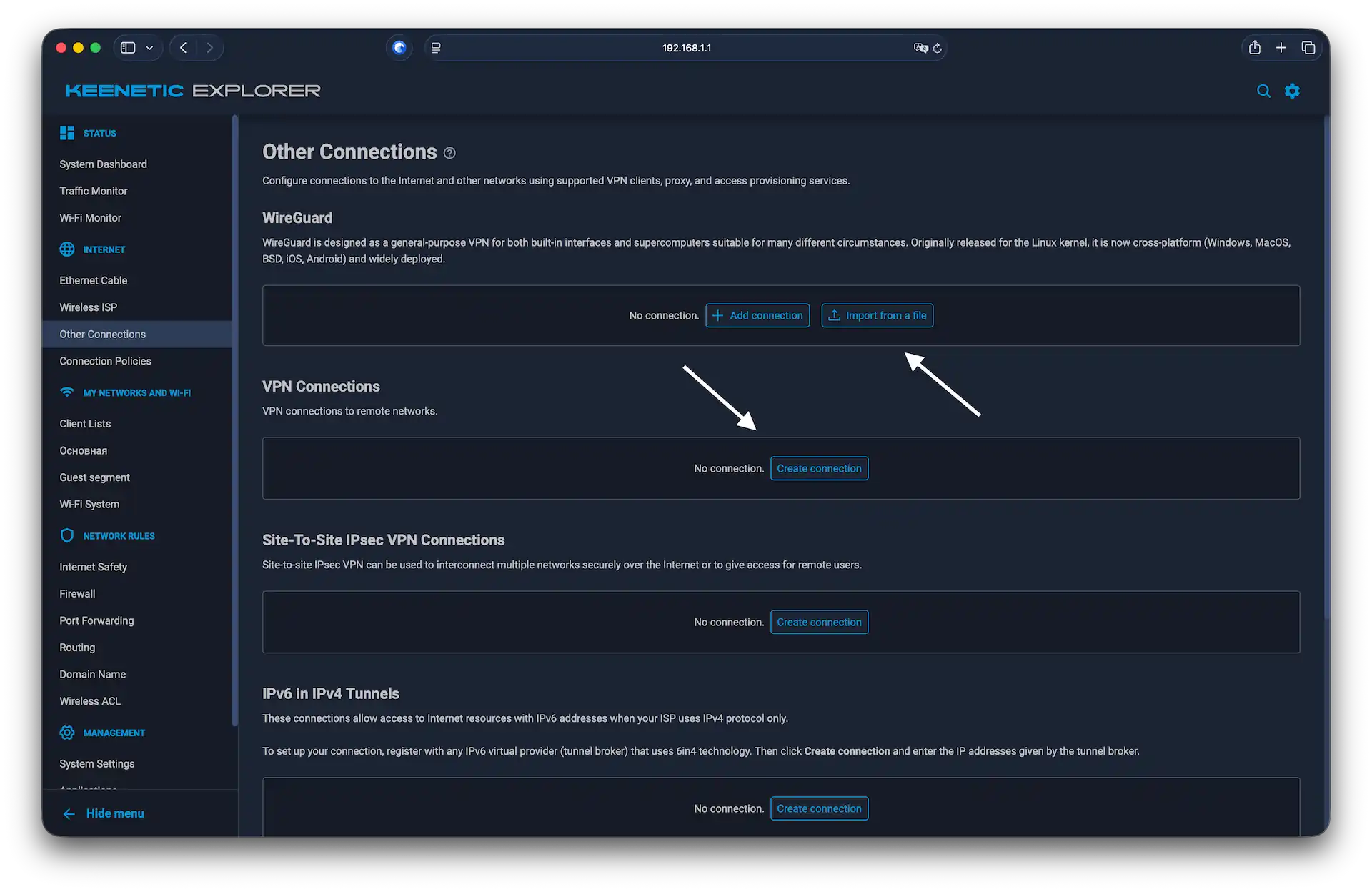 Adding a new VPN connection
Option B: Other protocols (PPTP, L2TP, OpenVPN)
For other connection types:
- Click
Add connection. - In the configuration window, enter the following details:
- Connection name — any descriptive name (e.g., Fornex VPN).
- Type (protocol) — select the required protocol (PPTP, L2TP, L2TP/IPsec, or OpenVPN).
- Server address — the IP or hostname from your Client Area.
- Username and Password — your VPN credentials.
- Check the
Use for accessing the Internetbox. - Hit
Save.
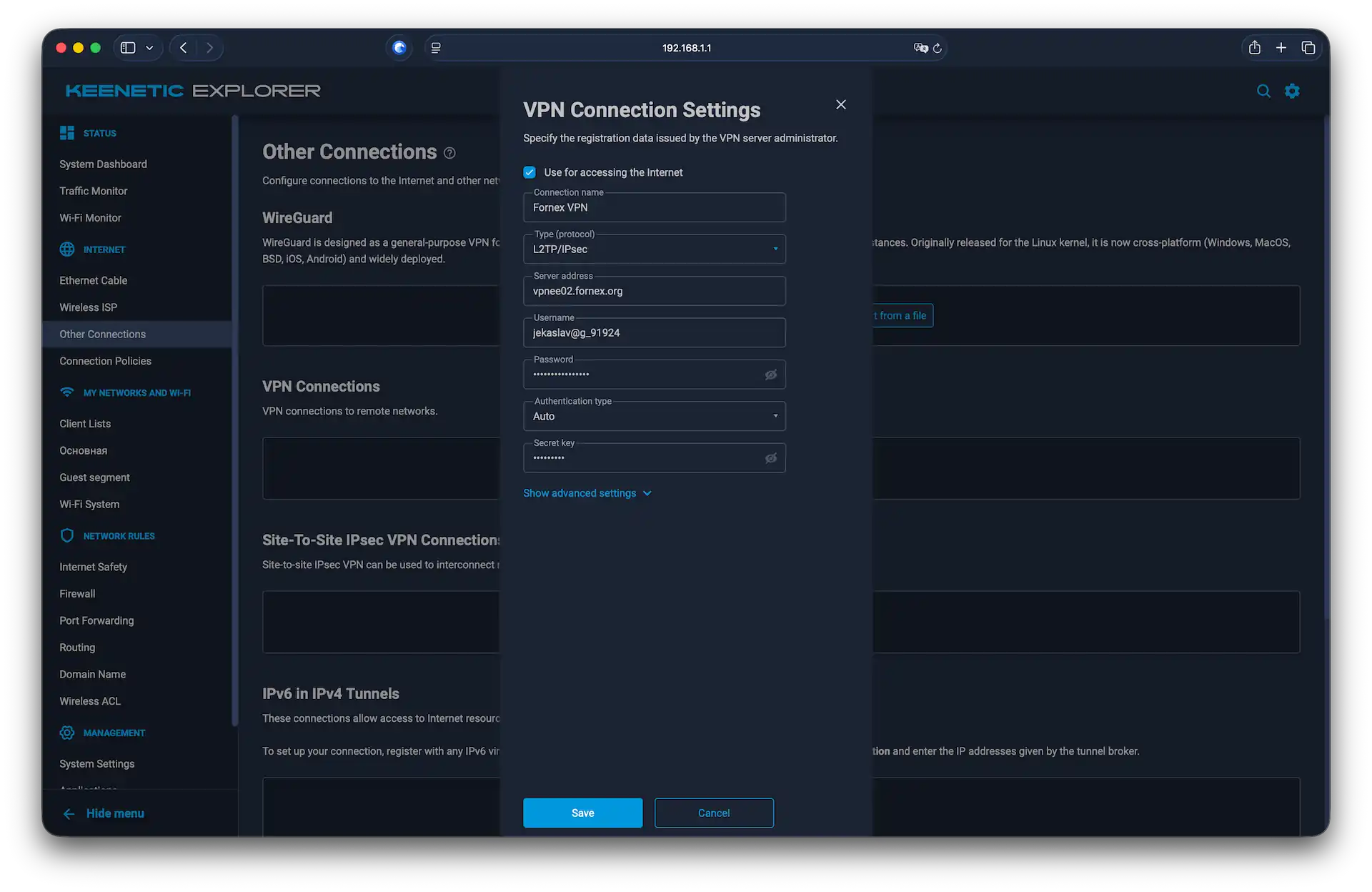 Configuring an L2TP/IPsec connection
Our products and services
Configuring connection priorities
To ensure the router routes your traffic through the VPN, you must set the correct priorities regardless of which protocol you chose.
- Go to Internet → Connection Policies.
- Drag your new VPN connection to the top of the list (above your Ethernet or ISP connection).
- Click
Save.
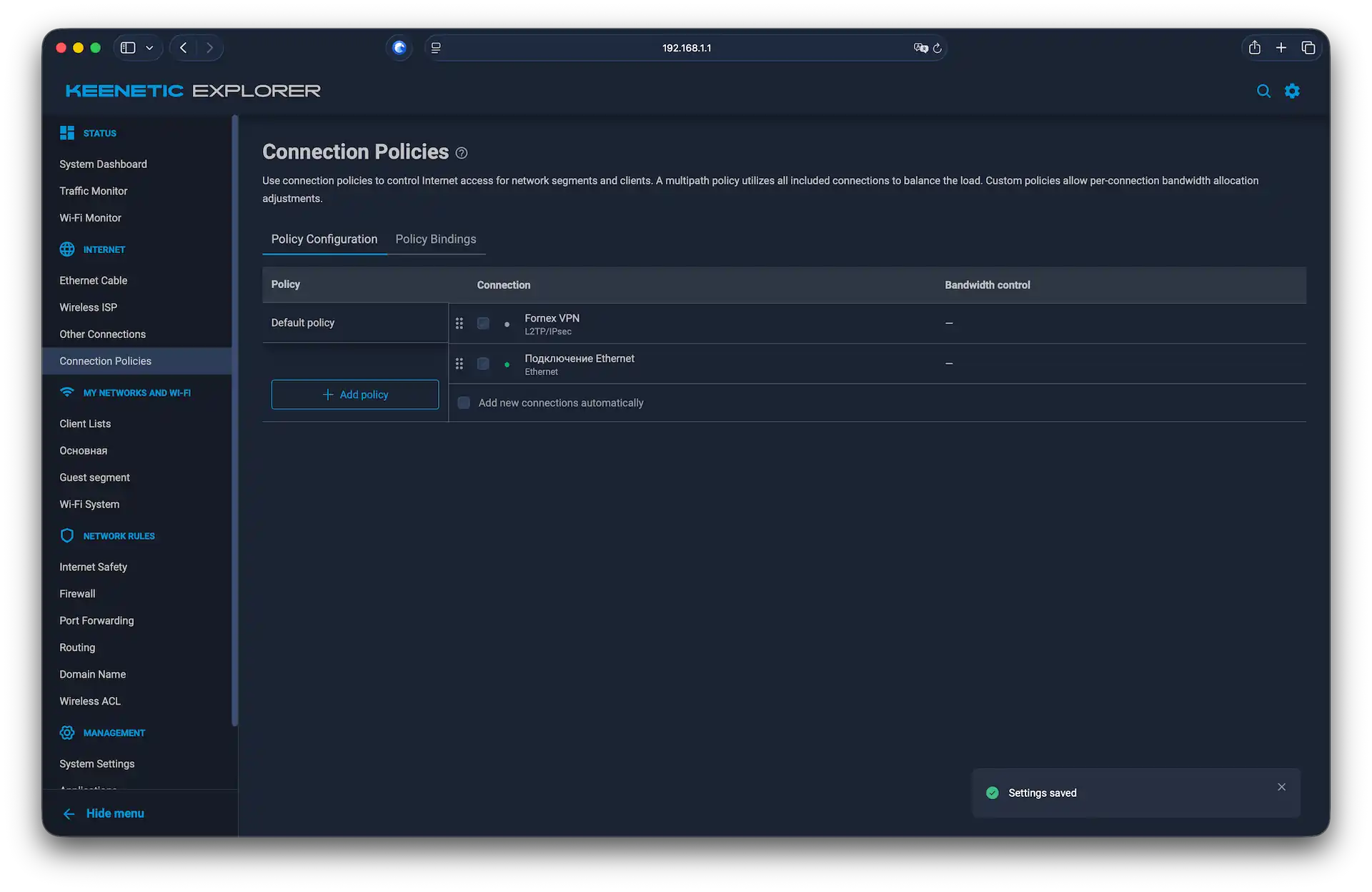 Setting the VPN as the primary connection
Once configured, the router will establish the connection. You can verify your new IP address using the 2IP service.
Notes
- You can toggle the VPN connection on or off at any time in the Other connections tab.
- You can change your server location in the dashboard. If you switch to a different country, remember to update the server address in your router settings or upload a new configuration file.
Help
If you have any questions or need assistance, please contact us through the ticket system — we're always here to help!