Set up VPN on Asus Wi-Fi router
Step-by-step guide to connecting a VPN on an Asus Wi-Fi router
Asus Wi-Fi routers support VPN configuration, which allows you to use VPN functionality at the entire network level without configuring each device separately.
Obtaining VPN settings
To configure a VPN on the router, log in to the personal account , where the following parameters are provided:
- VPN server;
- Username;
- Password.

Looking for a high-quality VPN?
Fornex offers a fast, unlimited VPN that provides full encryption on all devices and unrestricted access to any website. More details on the VPN page.
Router configuration
To configure the router, go to http://www.asusrouter.com/Main_Login.asp or use the IP address: 192.168.50.1.
In the router interface, you need to:
- Go to VPN – VPN Client;
- Select Add profile to add a new connection;
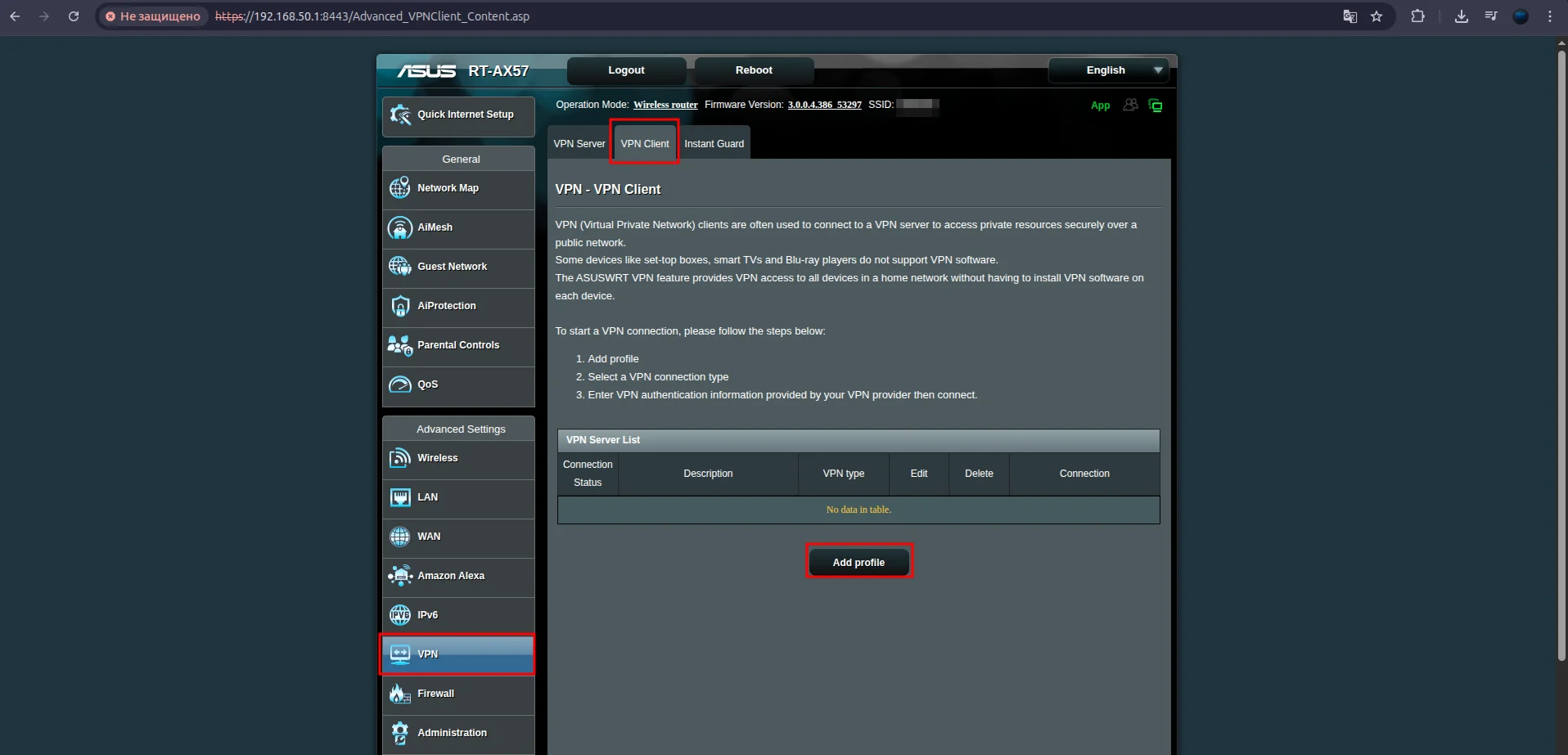
Selecting the connection type
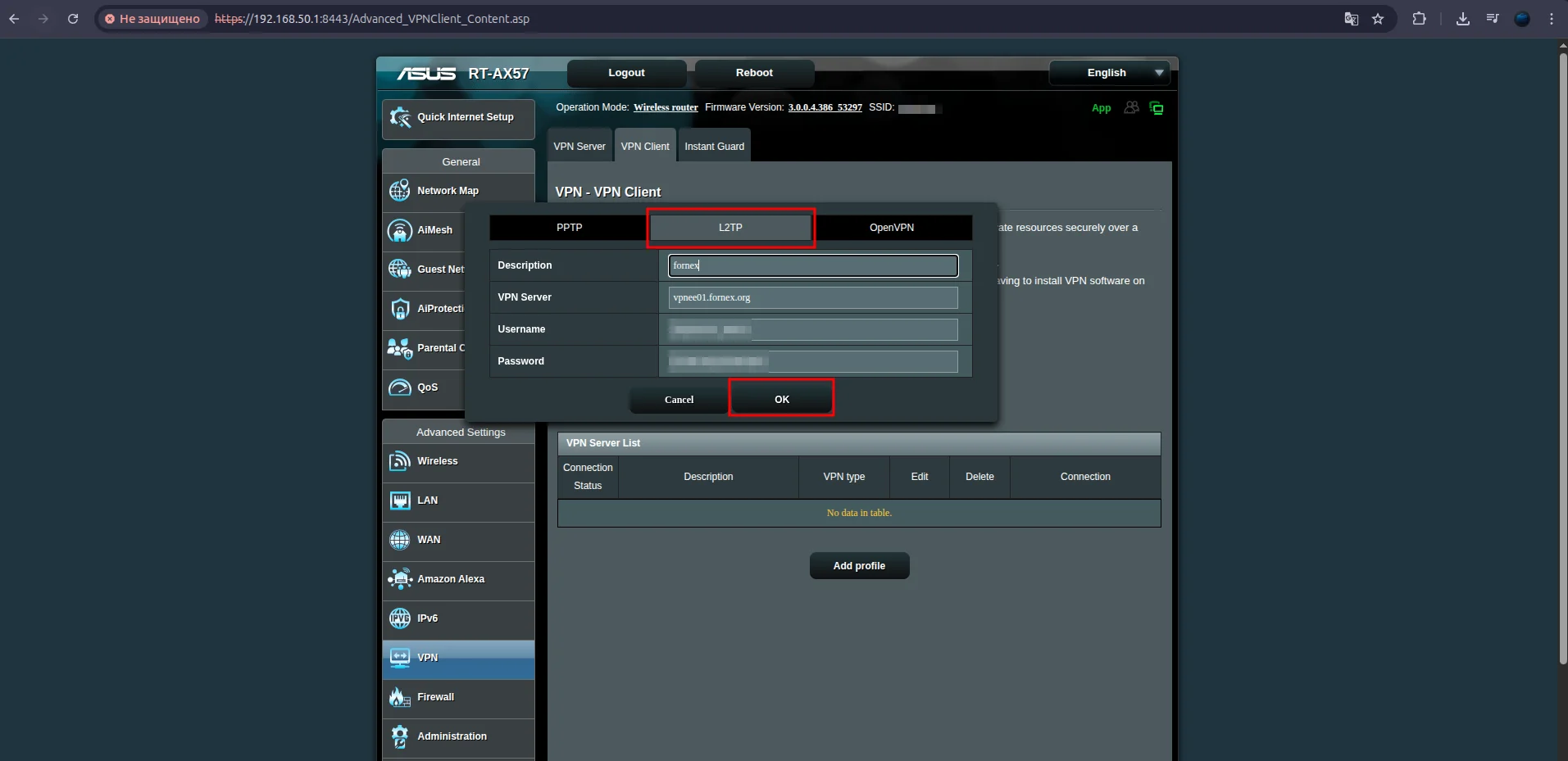
On most Asus router models, three connection types are available: PPTP, L2TP, and OpenVPN.
To configure PPTP and L2TP, it is enough to fill in the following fields:
- Connection name;
- Server;
- Username;
- Password.
Then save the connection by clicking OK.
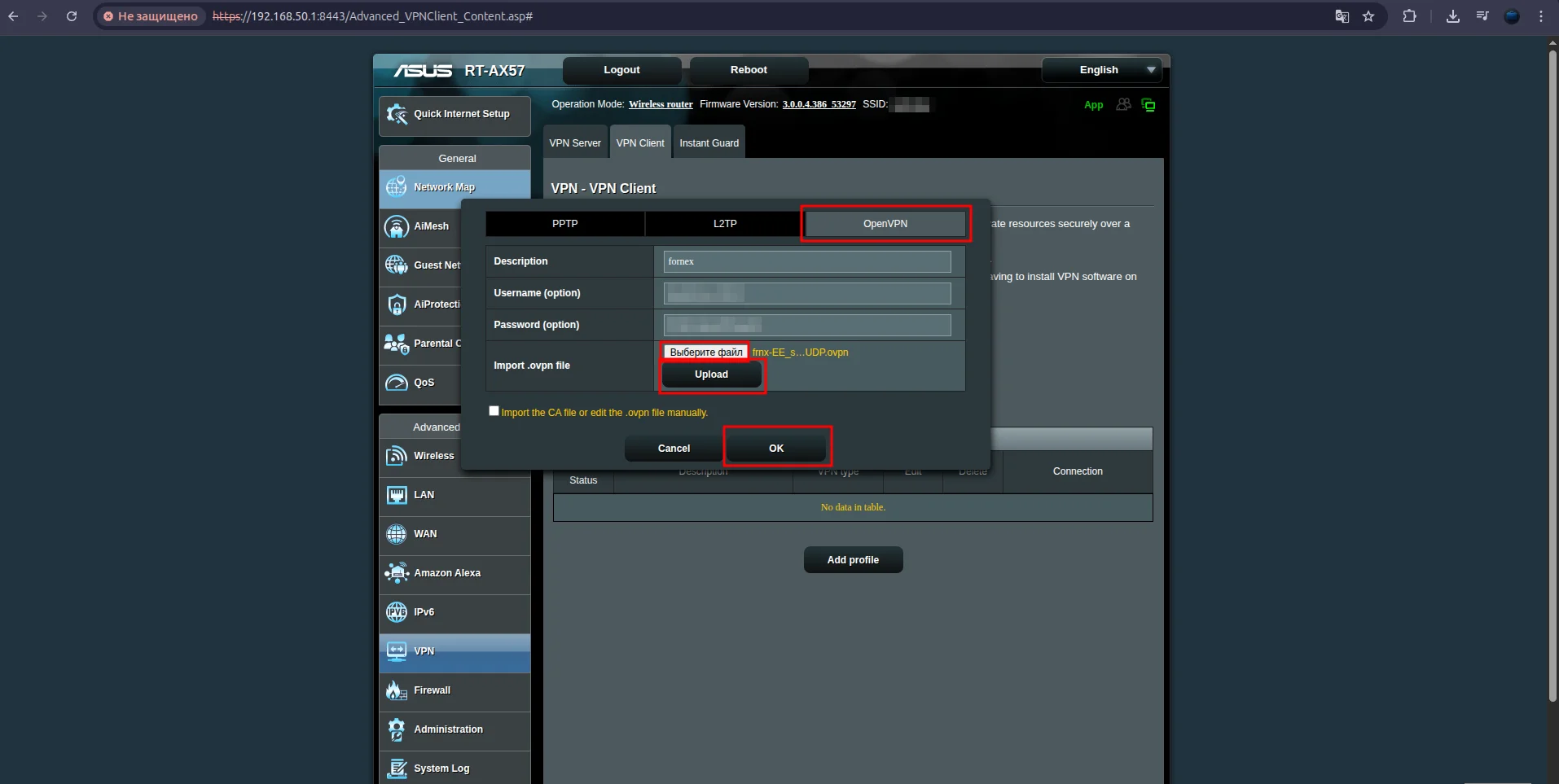
To configure OpenVPN, you need to download the configuration file (profile) for automatic setup.

Next, upload the downloaded profile as shown in the screenshot.
Connecting to the VPN
To connect, click the Activate button.
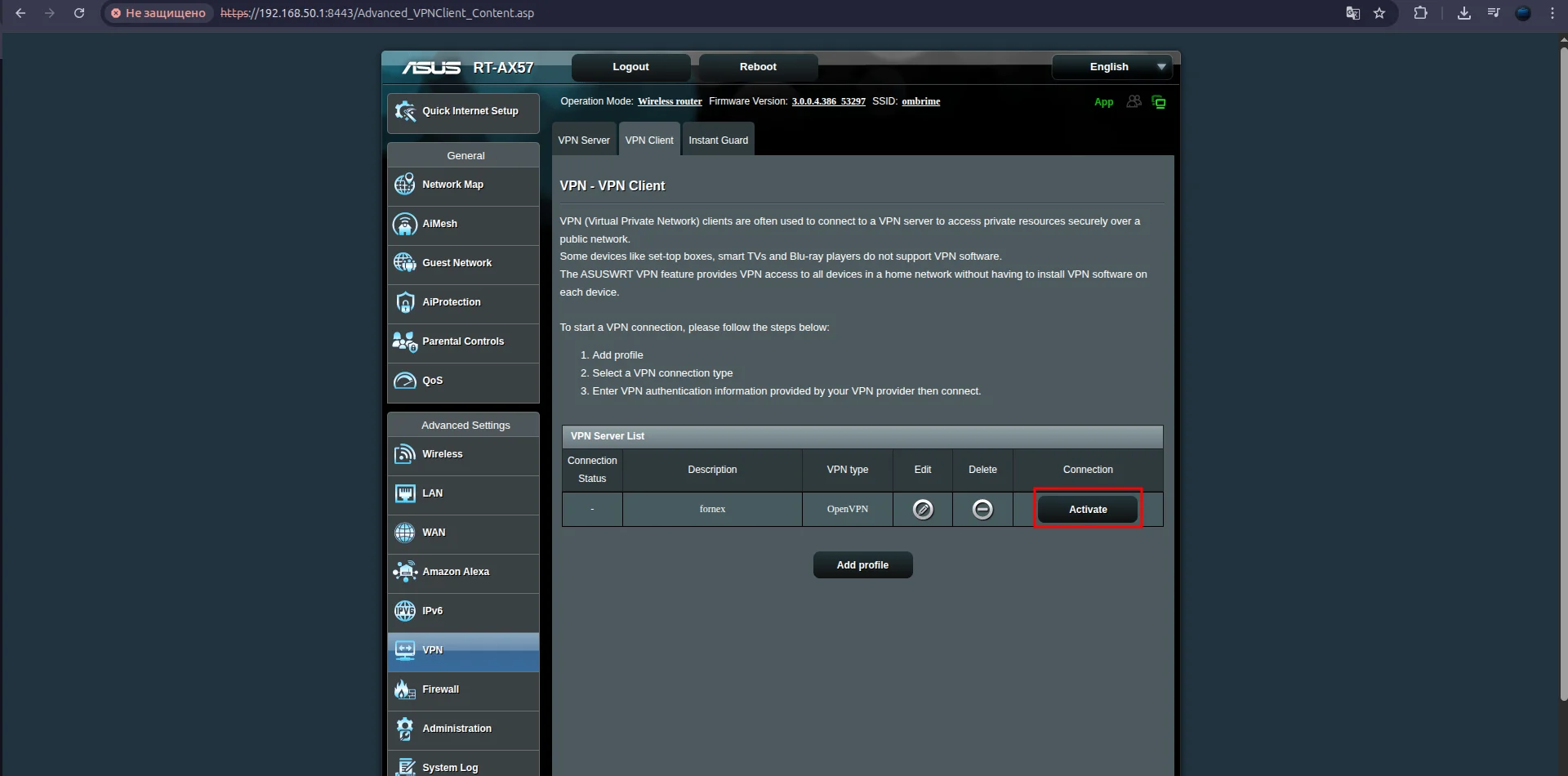
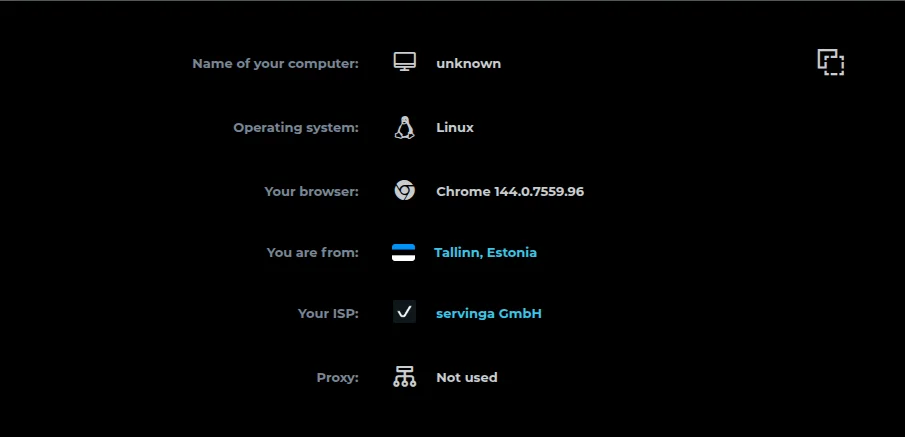
After a successful connection, the router will establish a VPN connection. You can check the current IP address using the 2ip service.
Notes
- VPN can be enabled and disabled from the Asus Wi-Fi interface.
- You can change the connection country in the personal account
- When changing the location in the order menu, you need to update the VPN Server parameter in the router settings by specifying the server that corresponds to the selected location.
Our products and services
Help
If you have any questions or need assistance, please contact us through the ticket system — we're always here to help!