Vi text editor
How to work with the Vi console text editor.
Vi is a console text editor for Unix-like operating systems. It's available on VPS and dedicated servers.
Several versions exist: vi, elvis, vile, and vim. At least one of them is available on virtually every Unix and Linux system. Vi supports syntax highlighting, code formatting, powerful search and replace, macros, and more.
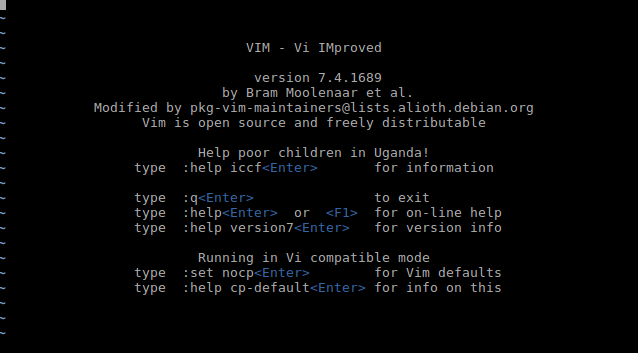 Vi text editor
Modes
Unlike most conventional editors, Vi has a modal interface — the same keys perform different actions depending on the active mode.
Vi has two main modes:
- Command mode — active by default. Keyboard keys execute navigation and editing commands.
- Insert mode — the keyboard is used for typing text. Press
iorato enter insert mode, andEscorCtrl+Cto return to command mode.
In command mode, simple commands can be combined for more complex operations. For example, 2dw deletes two words.
Common commands
Navigation:
h,j,k,l— move the cursor left, down, up, right:33— jump to line 33
Editing:
i— enter insert mode before the current charactera— enter insert mode after the current characterx— delete the character under the cursordd— cut the current lineyy— copy the current linep— pasteJ— join the current line with the nextu— undo the last action.— repeat the last action
Search and replace:
/str— search forward forstr(regular expressions supported)?str— search backward forstrn— repeat the search in the same directionN— repeat the search in the opposite direction:[range]s/old/new/[g]— replaceoldwithnewin the specified line range. Thegflag replaces all occurrences in a line, not just the first. Example::32,64s/old/new/g
File and exit:
:w— save the file:wq— save and exit:q— exit:q!— exit without saving:e!— reload the current file (discard all unsaved changes):r— insert the contents of another file into the document
To open the built-in manual, run:
man viPress q to exit the manual.
Help
If you have any questions or need assistance, please contact us through the ticket system — we're always here to help!