Configuring The Bat mail client on Web Hosting
How to set up a hosting mailbox in The Bat email client.
Creating a mailbox
Go to Mailbox → New mailbox.
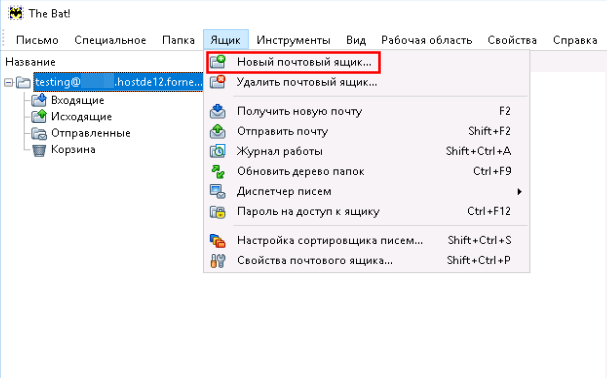 Creating a new mailbox
Fill in the form in the dialog that appears:
Your name— the mailbox owner's name.Email address— the email address created on your hosting account.Password— the mailbox password.Protocol— the protocol for receiving mail (POP3 or IMAP).
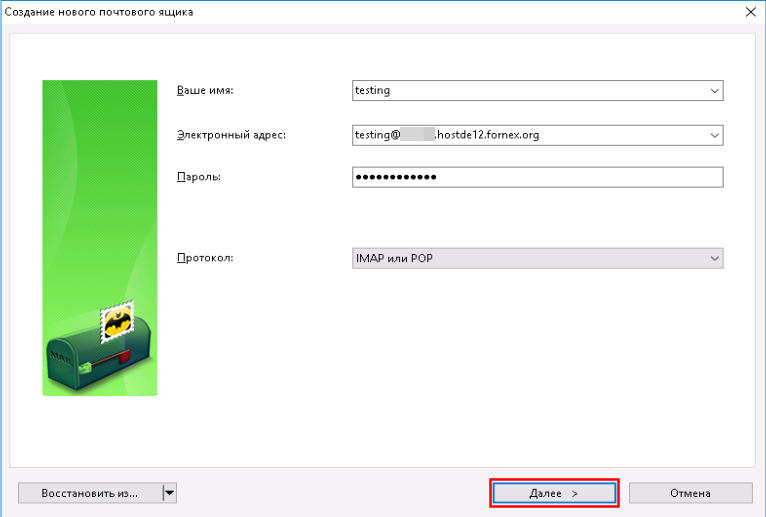 Filling in mailbox details
Connection settings
Unencrypted connection:
- Email address and login:
name@yourdomain.com, e.g.info@mysite.com - Password: your mailbox password
- Incoming mail server:
mail.yourdomain.com, e.g.mail.mysite.com- POP3 — port
110 - IMAP — port
143
- POP3 — port
- Outgoing mail server:
mail.yourdomain.com- SMTP — port
25or587
- SMTP — port
Encrypted SSL/TLS connection:
- Email address and login:
name@yourdomain.com, e.g.info@mysite.com - Password: your mailbox password
- Incoming mail server: your hosting server name
- POP3 — port
995 - IMAP — port
993
- POP3 — port
- Outgoing mail server: your hosting server name
- SMTP — port
465
- SMTP — port
Finishing the setup
Fill in the incoming mail settings and click Next.
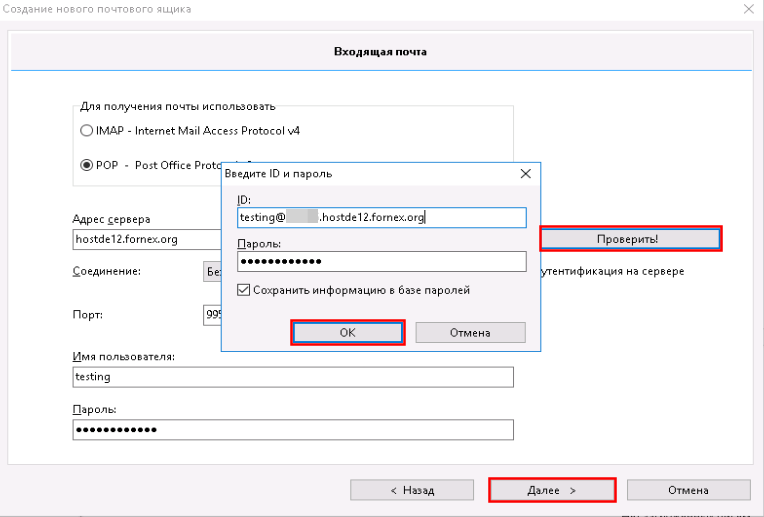 Incoming mail settings
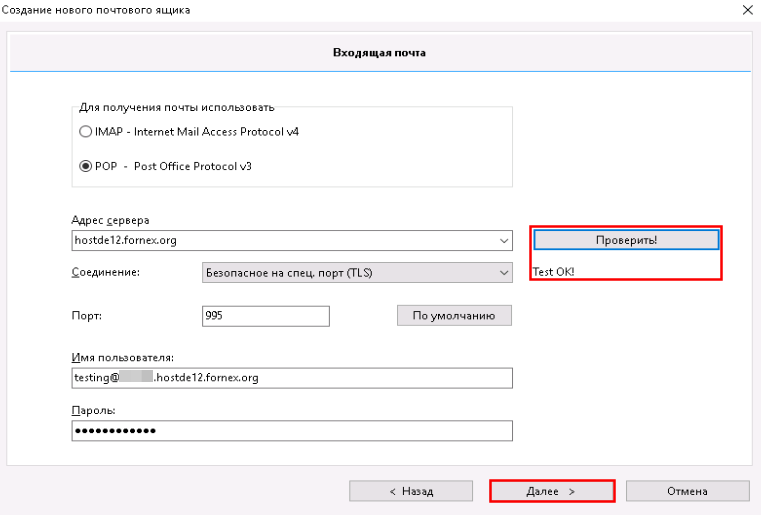 Additional incoming mail settings
Fill in the outgoing mail settings and click Next.
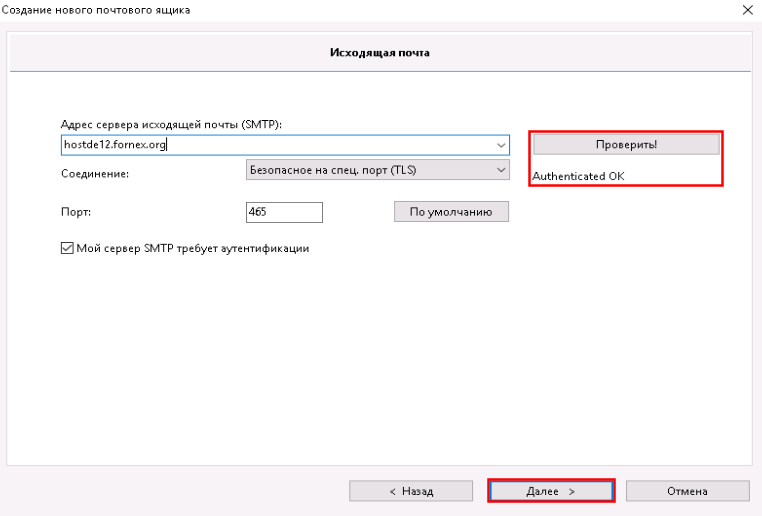 Outgoing mail settings
Click Finish to save the settings.
Help
If you have any questions or need assistance, please contact us through the ticket system — we're always here to help!