Server load analysis
How to monitor CPU, memory, disk, and network usage on a Linux server.
Server load refers to the percentage of key resources in use — CPU, RAM, and disk space. Monitoring these metrics helps identify the root cause of performance issues quickly.
A server's hardware breaks down into four main components: CPU, memory, disk, and network interface. Load analysis means collecting and interpreting statistics for each one.
CPU
The top utility provides a basic real-time view of CPU usage:
topExample output:
top - 13:29:39 up 7 days,  1:10,  1 user,  load average: 0.03, 0.03, 0.00
Tasks: 104 total,   2 running, 102 sleeping,   0 stopped,   0 zombie
%Cpu(s):  0.3 us,  1.0 sy,  0.0 ni, 97.0 id,  0.0 wa,  0.0 hi,  1.3 si,  0.3 st
MiB Mem :    969.5 total,     68.8 free,    635.9 used,    264.8 buff/cache
MiB Swap:      0.0 total,      0.0 free,      0.0 used.    106.7 avail Mem

    PID USER      PR  NI    VIRT    RES    SHR S  %CPU  %MEM     TIME+ COMMAND
    823 mysql     20   0 1852008 401812      0 S   1.0  40.5  81:24.20 mysqld
     13 root      20   0       0      0      0 R   0.3   0.0  26:11.00 rcu_sched
    695 redis     20   0   66776   4216   2100 S   0.3   0.4  19:55.21 redis-server
Key metrics to watch:
us— CPU time spent on user processes. A high value means your application is putting pressure on the CPU.id— idle CPU time. Should stay between 80 and 100% under normal conditions.wa— time spent waiting for I/O. A high value points to disk subsystem overload.
If us consistently exceeds 20%, consider optimizing your application or scaling up.
For per-core statistics, install mpstat from the sysstat package:
apt-get install sysstat
mpstat -P ALL
Example output:
Linux 5.15.0-46-generic (dsde1139-22869.fornex.org)    09/06/2022  _x86_64_   (1 CPU)

02:37:21 PM  CPU    %usr   %nice    %sys %iowait    %irq   %soft  %steal  %guest  %gnice   %idle
02:37:21 PM  all    0.90    0.00    0.74    0.13    0.00    0.96    0.32    0.00    0.00   96.95
02:37:21 PM    0    0.90    0.00    0.74    0.13    0.00    0.96    0.32    0.00    0.00   96.95
For a more visual overview, htop displays CPU load in an easy-to-read format:
apt-get install htop
htop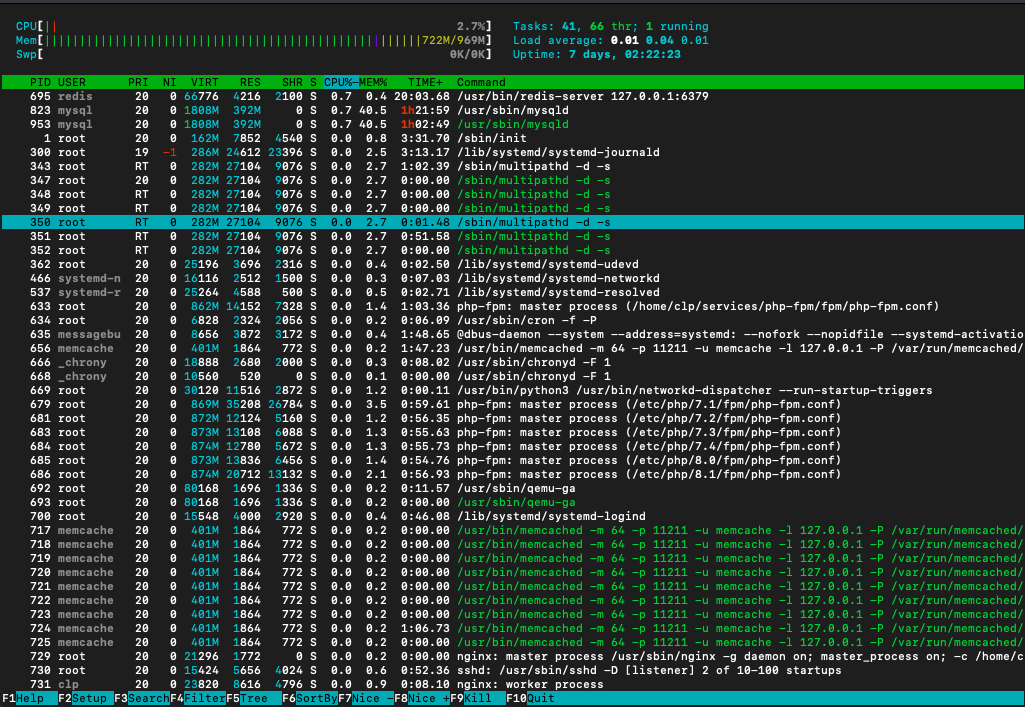 CPU monitoring in htop
Memory
Use the free command to check RAM usage:
freeExample output:
               total        used        free      shared  buff/cache   available
Mem:          992724      655200       73968       86748      263556      104972
Swap:              0           0           0
Pay close attention to Swap — it shows how much disk space is being used as overflow memory when RAM runs out. Low free RAM on its own isn't critical, but growing Swap requires immediate action: add more memory or distribute the load across multiple servers.
For a detailed breakdown of memory usage:
cat /proc/meminfoExample output:
MemTotal:         992724 kB
MemFree:           73192 kB
MemAvailable:     104864 kB
Buffers:           10856 kB
Cached:           226868 kB
SwapCached:            0 kB
...
Disk
Start with checking available disk space:
df -hExample output:
Filesystem      Size  Used Avail Use% Mounted on
tmpfs            97M  732K   97M   1% /run
/dev/vda1       9.8G  8.5G  846M  92% /
tmpfs           485M     0  485M   0% /dev/shm
tmpfs           5.0M     0  5.0M   0% /run/lock
tmpfs            97M     0   97M   0% /run/user/0
The Use% column shows how much space is occupied on each partition.
To monitor read/write activity broken down by process, use iotop:
apt-get install iotop
iotop
Example output:
Total DISK READ:         0.00 B/s | Total DISK WRITE:         0.00 B/s
Current DISK READ:       0.00 B/s | Current DISK WRITE:       0.00 B/s
    TID  PRIO  USER     DISK READ  DISK WRITE  SWAPIN     IO>    COMMAND
      1 be/4 root        0.00 B/s    0.00 B/s  ?unavailable?  init
      2 be/4 root        0.00 B/s    0.00 B/s  ?unavailable?  [kthreadd]
    ...
Key metrics:
Actual DISK READ— actual data read from disk (accounting for cache).Actual DISK WRITE— actual data written to disk.
Recommendations for high disk load:
- High read load from the application — enable APC caching.
- High read load from the database — review your database configuration.
- High read load from the web server — consider implementing HTTP caching.
- High write load — make sure access and debug logging is disabled; the database or file uploads are the most likely culprits.
Network
The cbm utility shows live network traffic per interface:
apt-get install cbm
cbm
Example output:
Interface      Receive          Transmit         Total
lo             0.00 B/s         0.00 B/s         0.00 B/s
eth0           35.90 kB/s       758.75 B/s       36.65 kB/s
High network traffic isn't a problem in itself, but sustained near-peak figures are a signal to start planning for scale.
Combined stats
The dstat utility displays a live summary across all subsystems, updated every second:
apt-get install dstat
dstat
Example output:
--total-cpu-usage-- -dsk/total- -net/total- ---paging-- ---system--
usr sys idl wai stl| read  writ| recv  send|  in   out | int   csw
  2   1  97   0   0|  35k   29k|   0     0 |   0     0 | 683   702
  1   0  99   0   0| 124k    0 |  39k 1162B|   0     0 |1003   822
  3   4  86   6   1|3580k 8776k|  37k  522B|   0     0 |1161  1018
Key columns:
total-cpu-usage— CPU load.dsk/total— disk activity.net/total— network activity.
Help
If you have any questions or need assistance, please contact us through the ticket system — we're always here to help!