MySQL root password in Hestia CP
How to find and change the MySQL root password on your Hestia-managed server.
Hestia CP is one of the most popular and user-friendly server control panels available. It covers everything from managing websites, email, and databases to SSL certificates, cron jobs, and file management.
How to install?
You can install Hestia yourself in the dashboard or have it pre-installed on one of our VPS or dedicated servers.
Where to find the MySQL root password
Hestia stores the MySQL root credentials in its own config file:
/usr/local/hestia/conf/mysql.confConnect to your server via SSH and open the file in a text editor — Nano works fine:
nano /usr/local/hestia/conf/mysql.conf Opening mysql.conf
The file contents will look something like this:
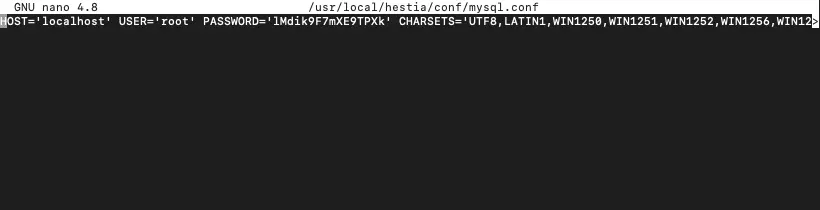 Contents of mysql.conf
Changing the MySQL root password
To set a new root password, run the following command with your current and new passwords substituted in:
mysqladmin -u root -pOLDPASSWORD password 'NEWPASSWORD'OLDPASSWORD— the current password frommysql.confNEWPASSWORD— the new password you want to set
 Changing the password with mysqladmin
Verify the new password works by logging into MySQL as root:
mysql -u root -pNEWPASSWORD Testing the new MySQL login
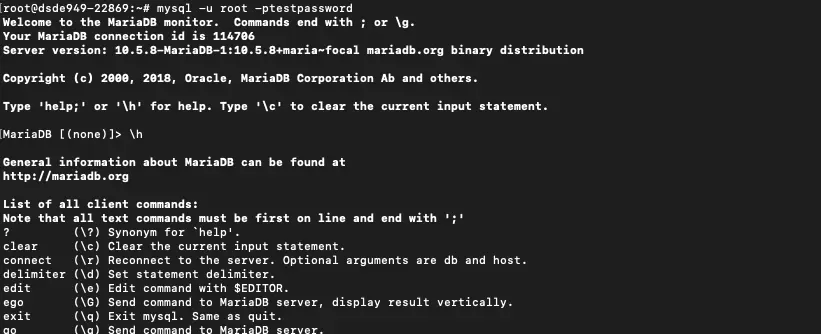 Successful MySQL login
Now update the password in mysql.conf to keep Hestia in sync:
nano /usr/local/hestia/conf/mysql.conf Updating the password in mysql.conf
Save and close: Ctrl + O → Enter → Ctrl + X.
Then do the same for my.cnf:
nano /root/.my.cnf Updating the password in my.cnf
Save and close: Ctrl + O → Enter → Ctrl + X.
You can now log into phpMyAdmin using the new password.
Help
If you have any questions or need assistance, please contact us through the ticket system — we're always here to help!