Setting up additional RDP licenses on Windows Server
How to install the Remote Desktop Licensing role and activate your RDP licenses.
By default, Windows Server allows only two simultaneous administrator connections over RDP. To lift this restriction, you need to install the Remote Desktop Services role and activate your purchased licenses through a licensing server.
Installing the role
Open Server Manager and click Add roles and features.
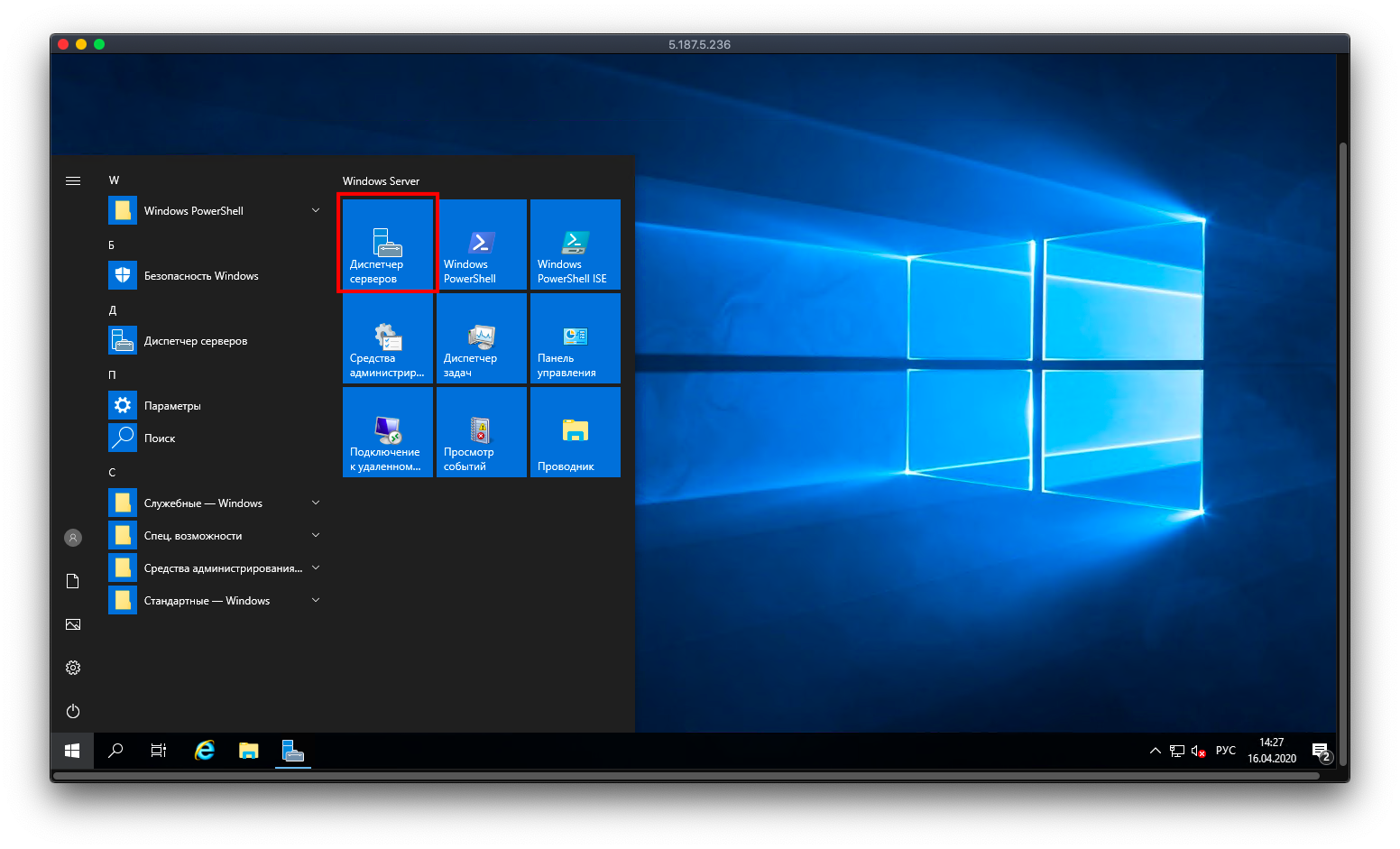 Server Manager
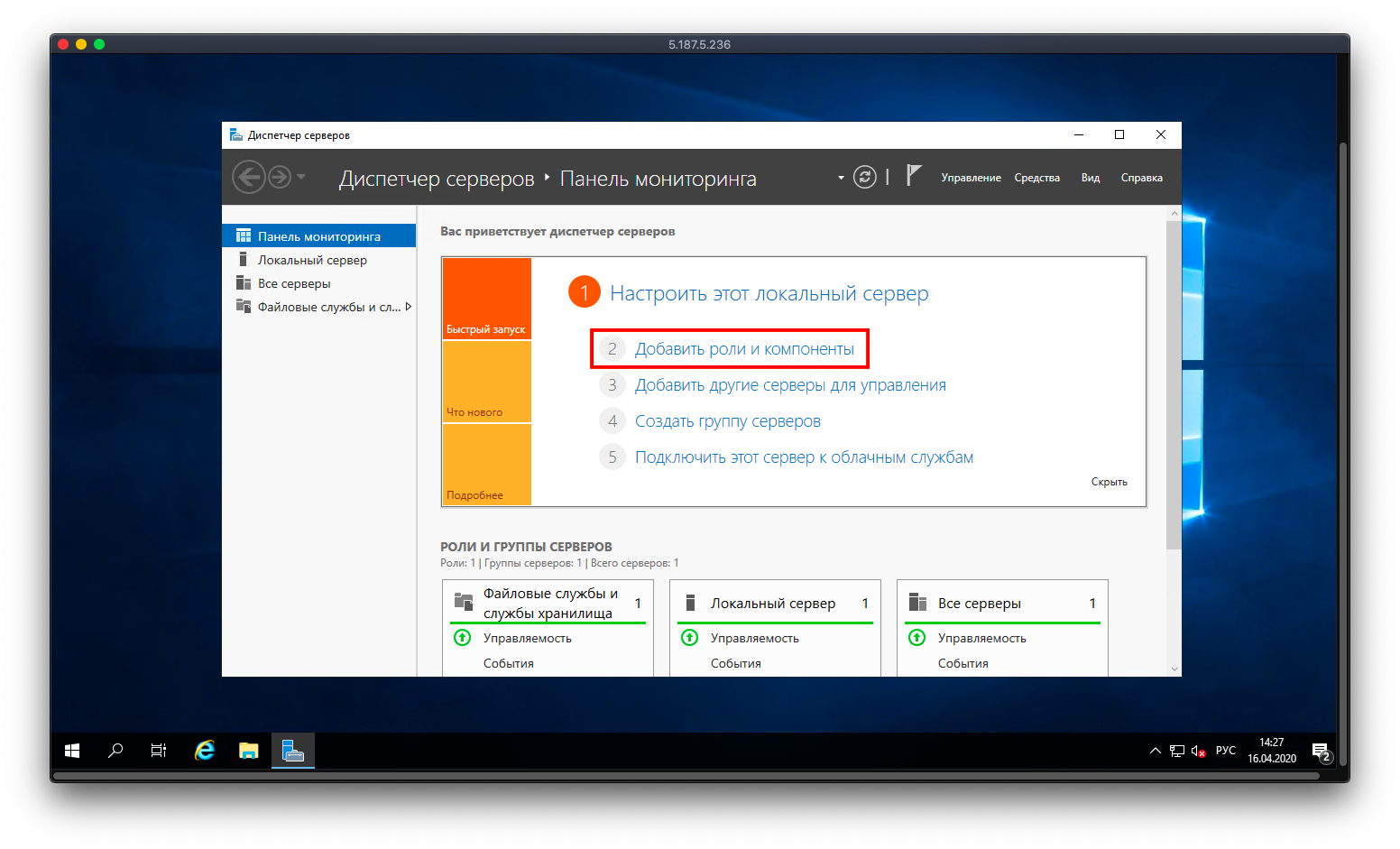 Add roles and features wizard
Step through the wizard until you reach Server roles, select Remote Desktop Services, and click Next.
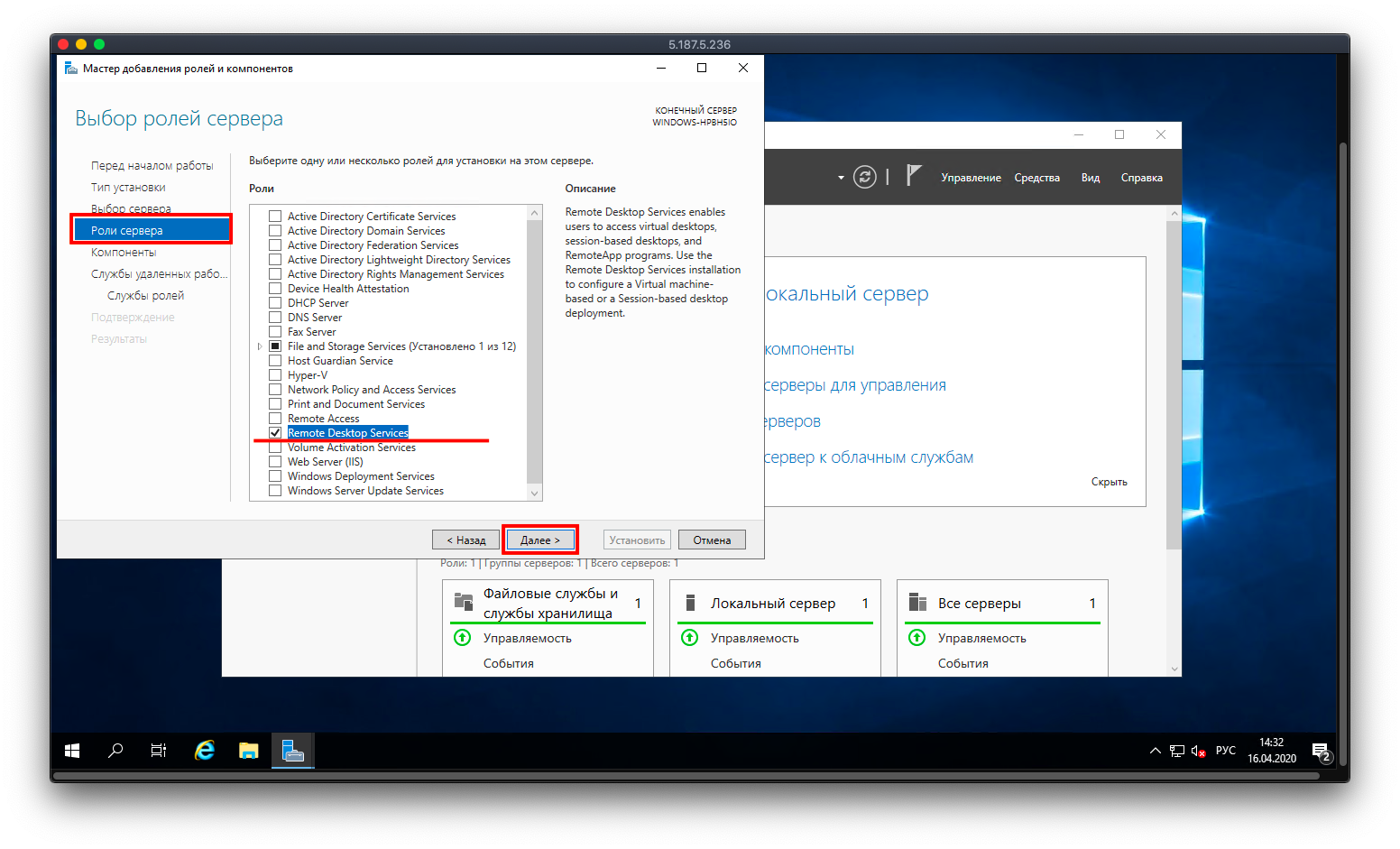 Selecting a server role
Under Role services, check both of the following and click Next:
- Remote Desktop Licensing
- Remote Desktop Session Host
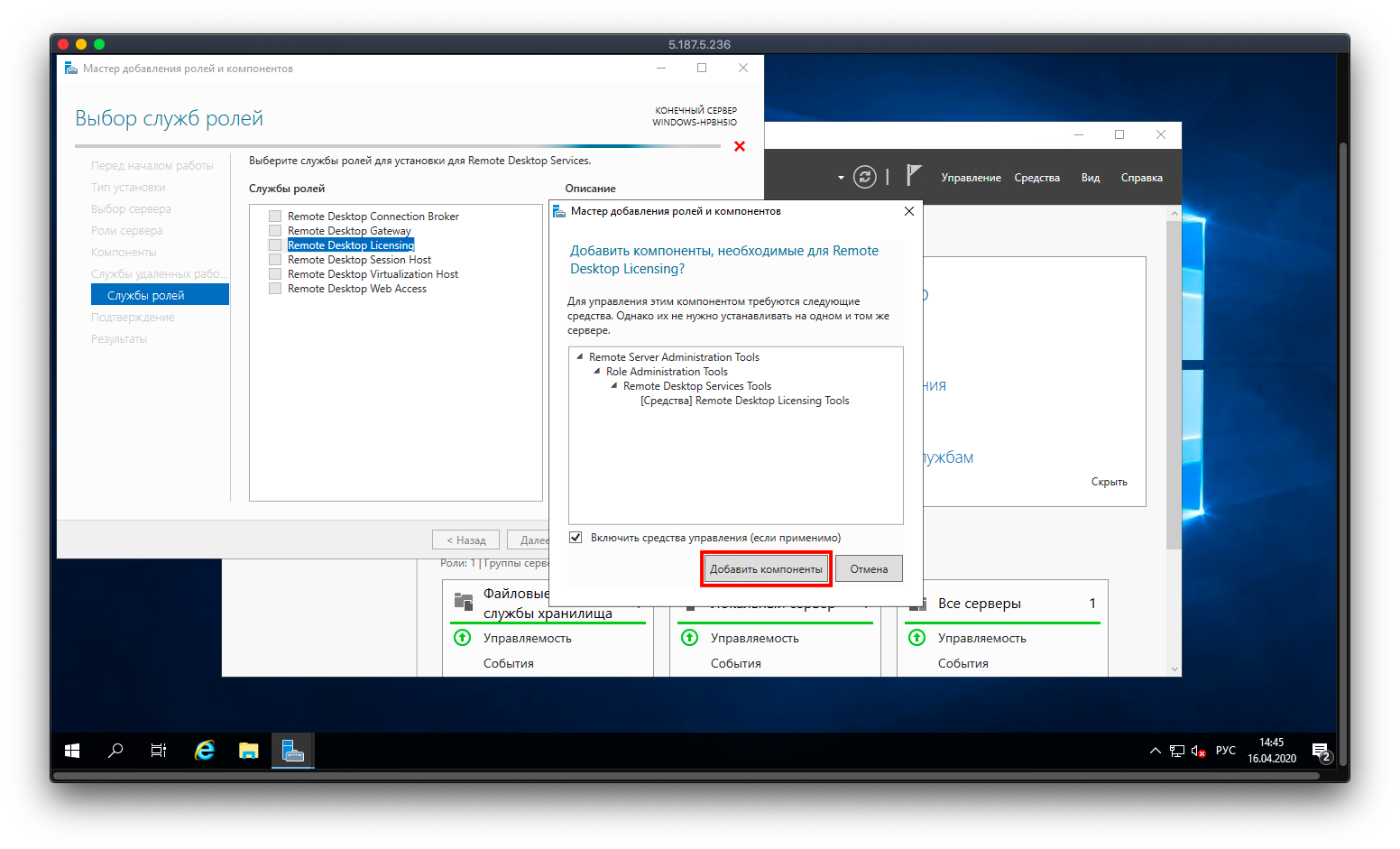 Selecting role services
If prompted, allow the server to restart automatically, then click Install.
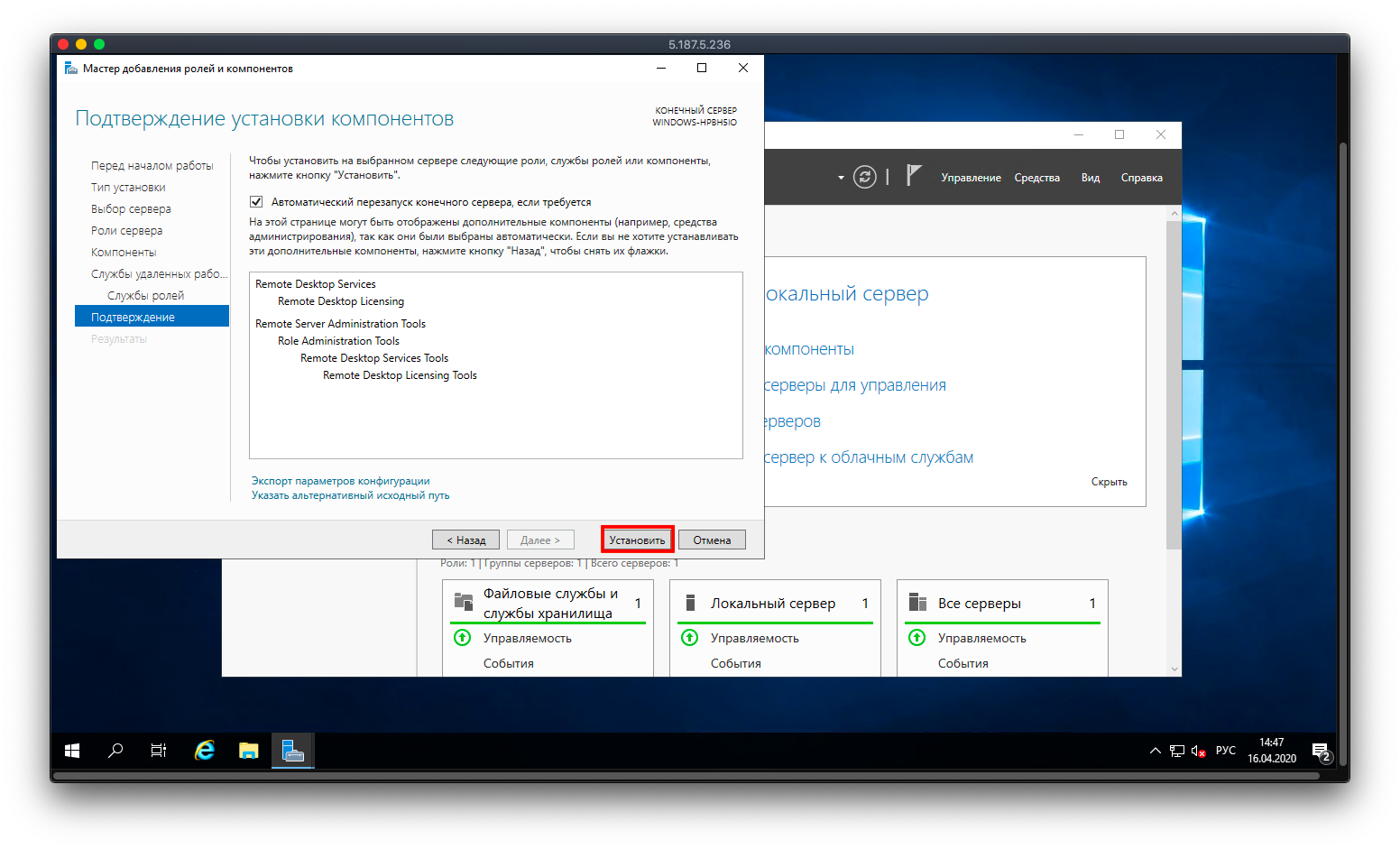 Confirming the installation
Our products and services
Activating the licensing server
Once installation is complete, go to Server Manager → Tools → Remote Desktop Services → Remote Desktop Licensing Manager.
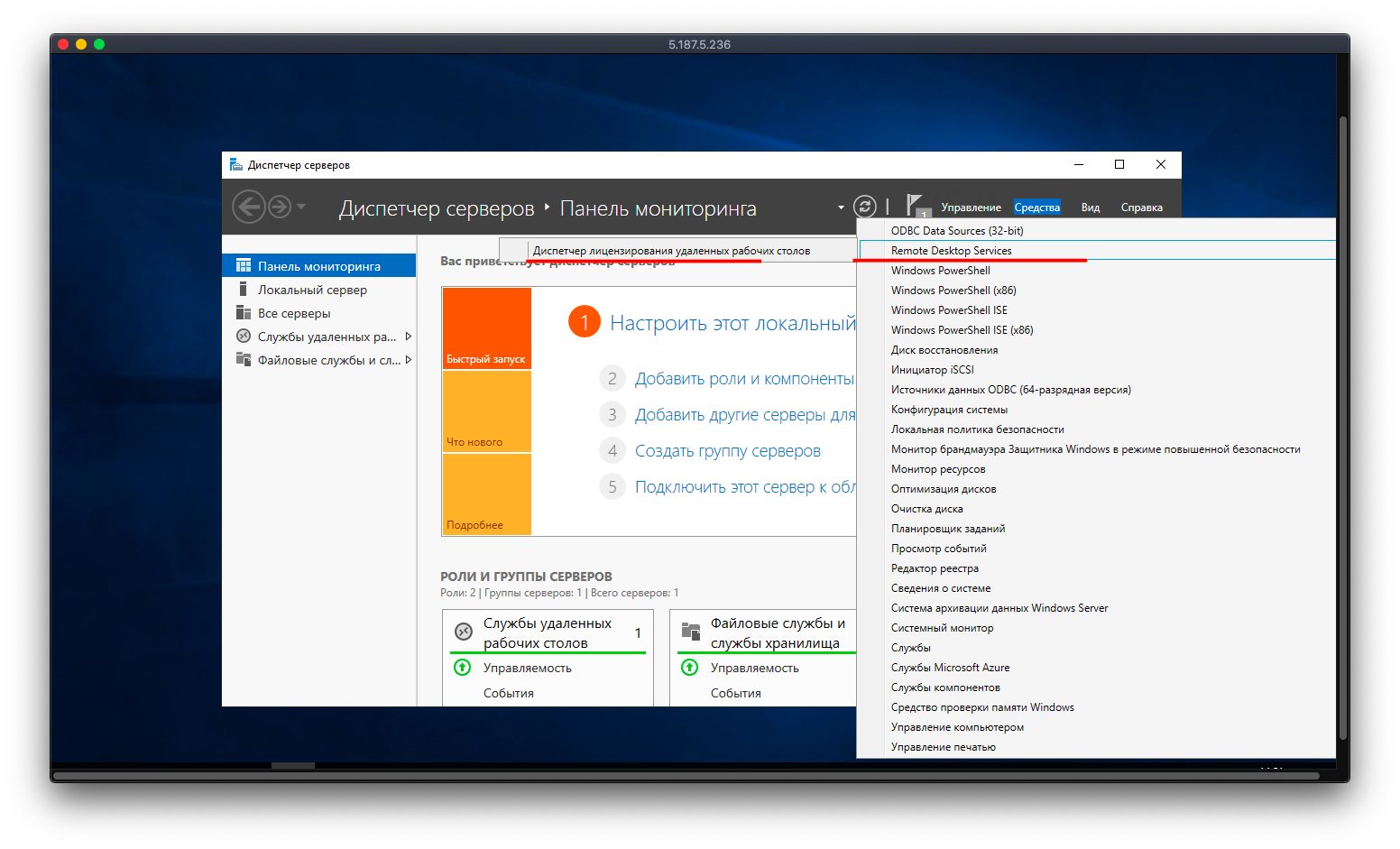 Remote Desktop Licensing Manager
The server will appear in the list with a status of Not activated. Right-click it and select Activate server. In the activation wizard, keep the default connection method (automatic) and click Next.
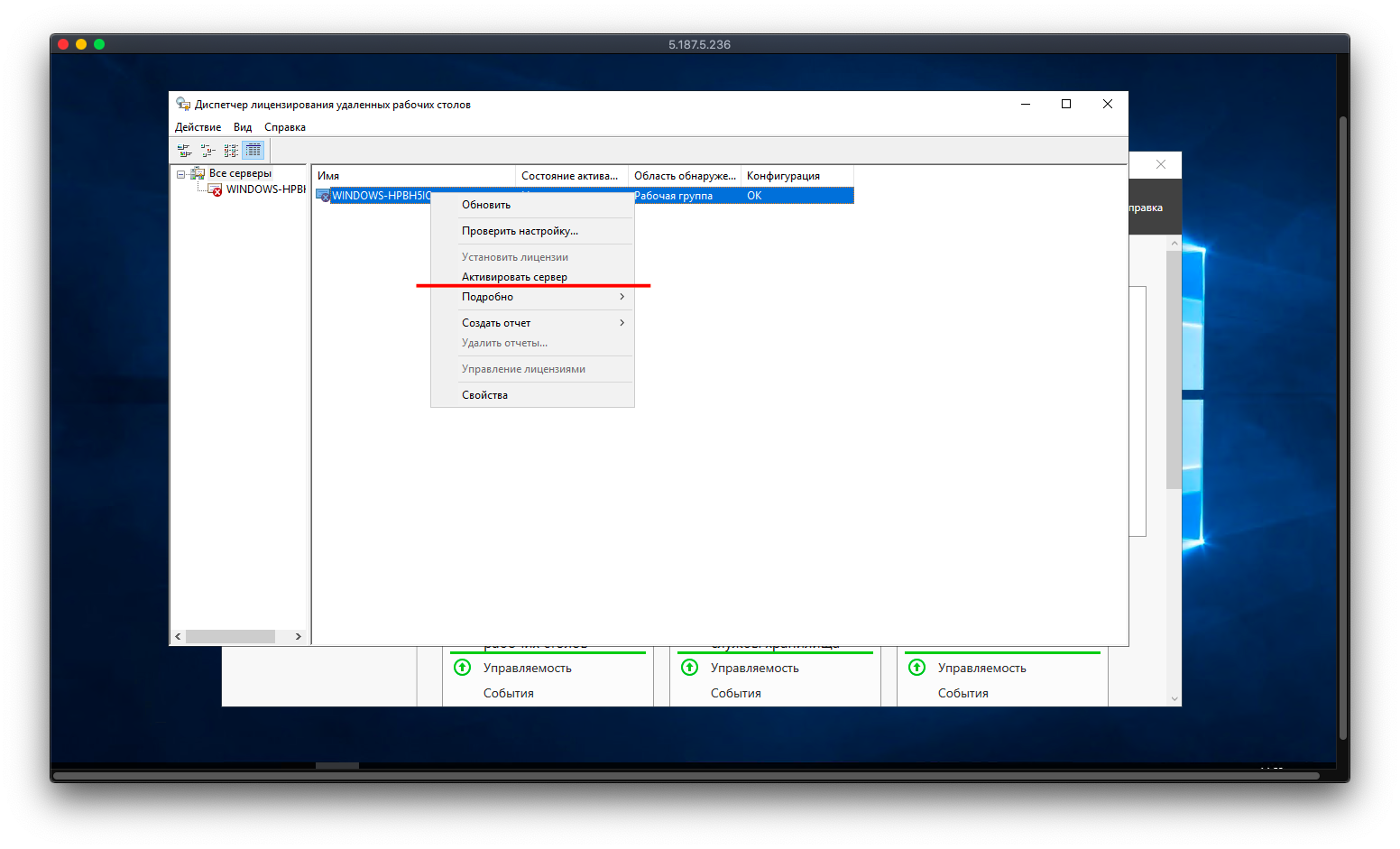 Licensing server activation wizard
Fill in the required fields — first name, last name, country, and company name — then click Next. Enter any additional company information if asked.
Installing the licenses
After the server is activated, the wizard will offer to install your licenses straight away. Under License program, select the type of license you purchased from the dropdown and click Next.
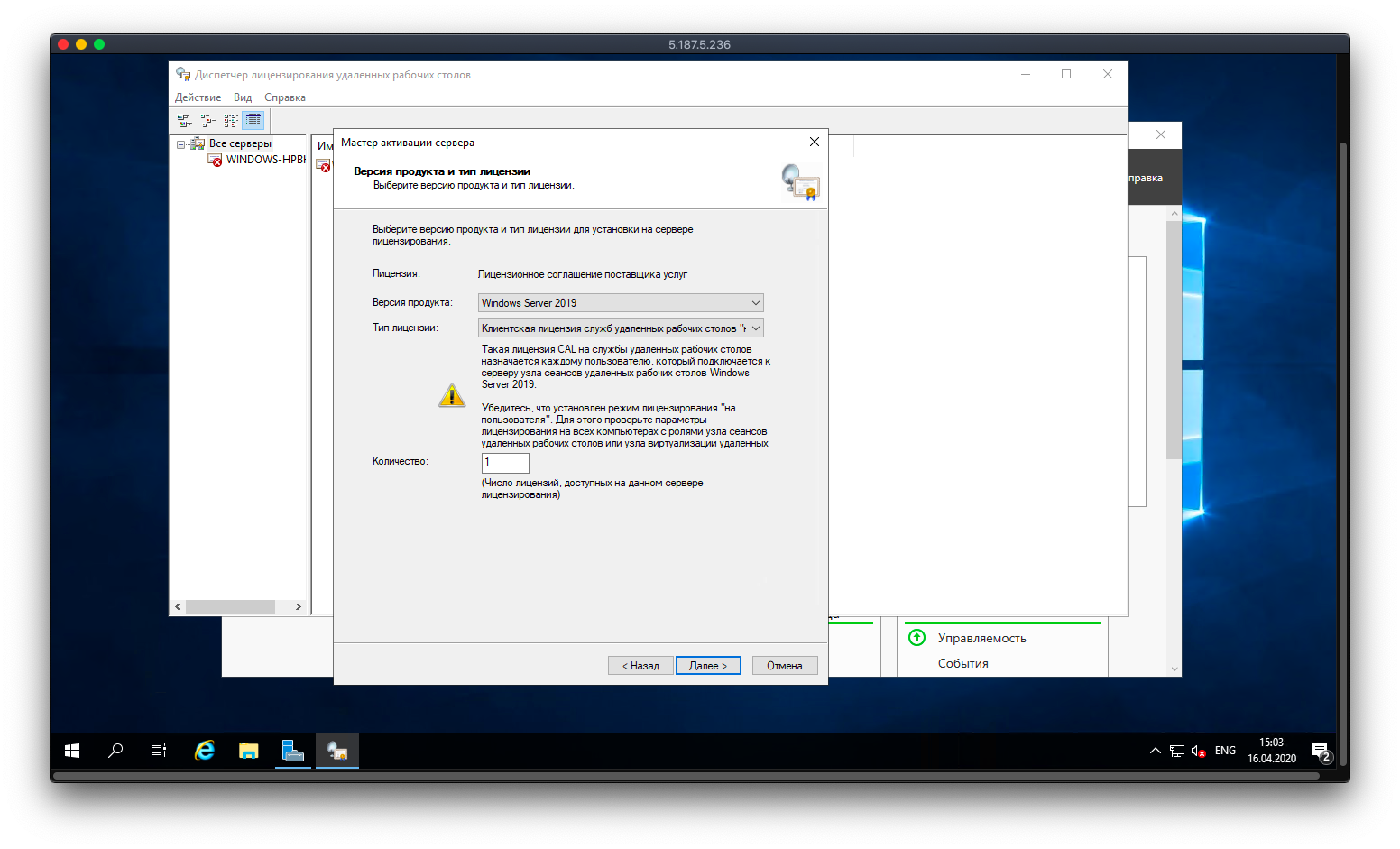 Selecting the license program
Enter your agreement number and the number of licenses, then click Finish — your licenses are now active.
Help
If you have any questions or need assistance, please contact us through the ticket system — we're always here to help!