How to Connect to Windows Server via RDP from macOS
Step-by-step guide for setting up Remote Desktop using Microsoft Remote Desktop.
RDP (Remote Desktop Protocol) is a remote desktop protocol developed by Microsoft that allows you to connect to a VPS or dedicated server running Windows and manage it as if you were working directly at its keyboard and monitor. For macOS users, Microsoft has released an official Microsoft Remote Desktop application that works seamlessly with all versions of Windows Server. The application is available for free download from the AppStore.
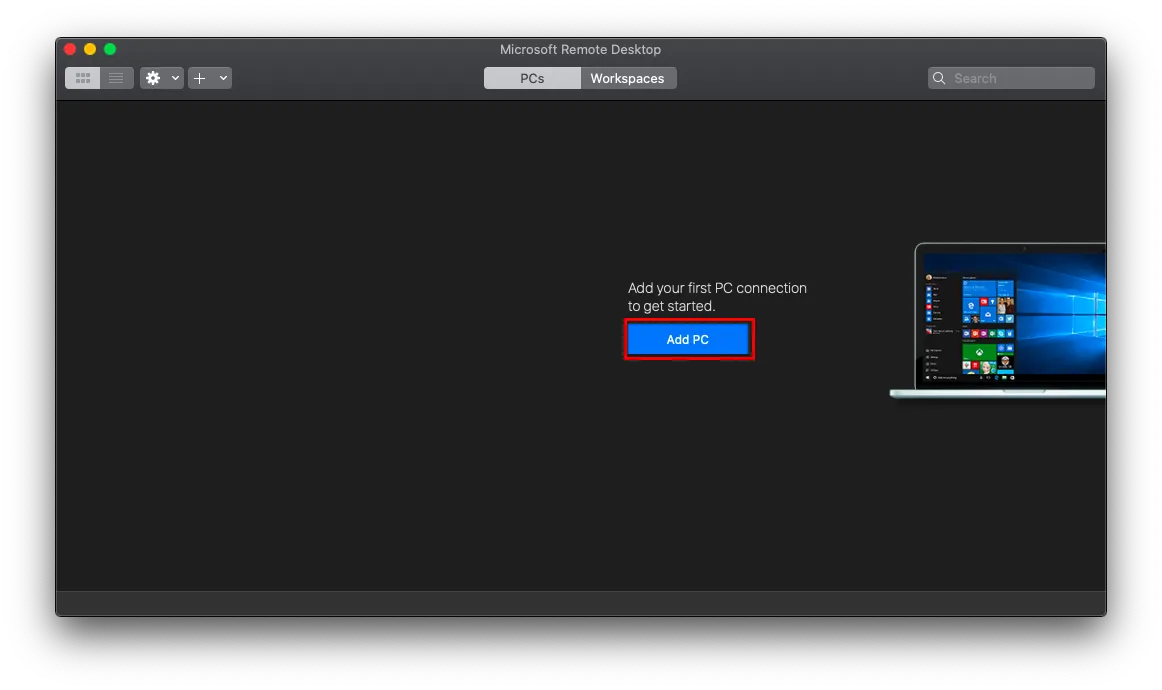
Before you start, you need to configure the connection settings. To do this, create a new connection:
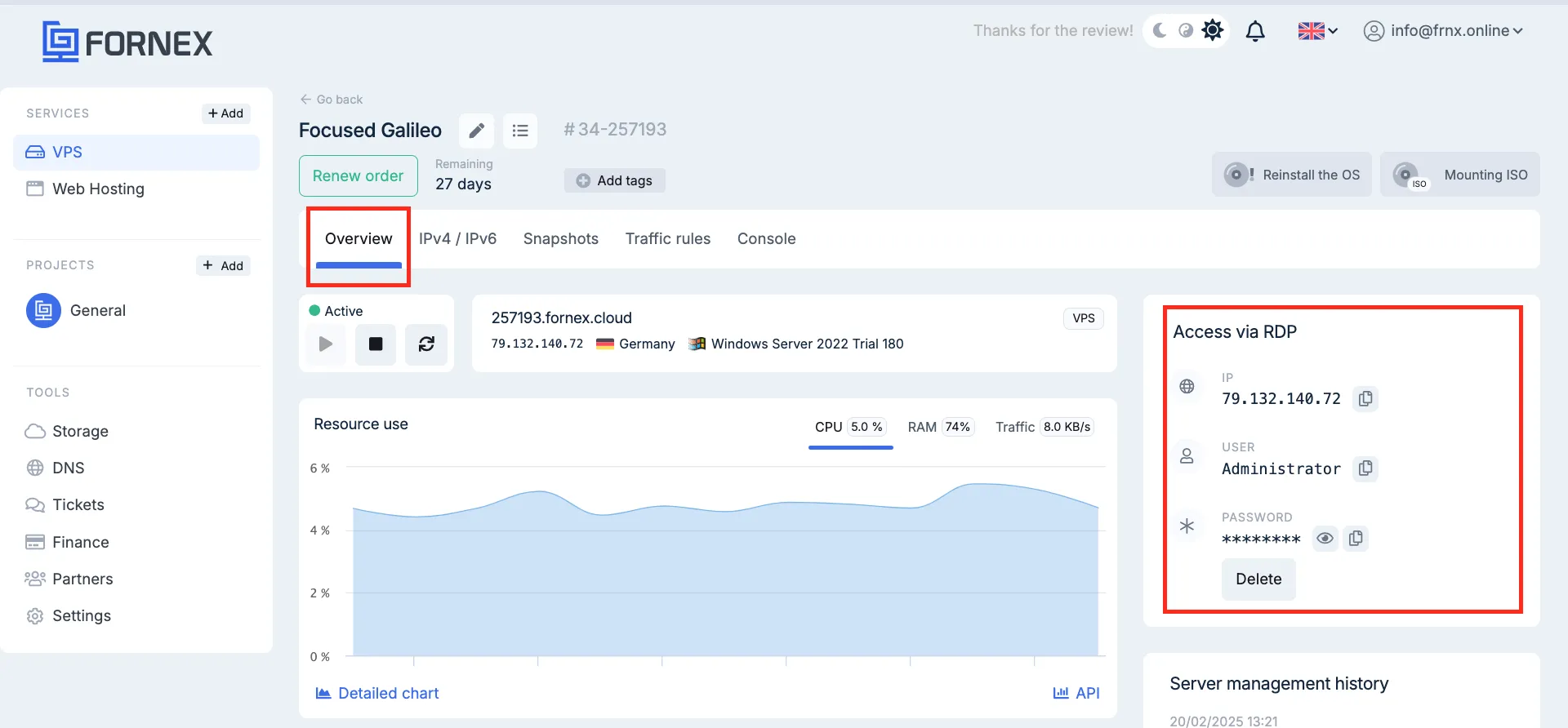
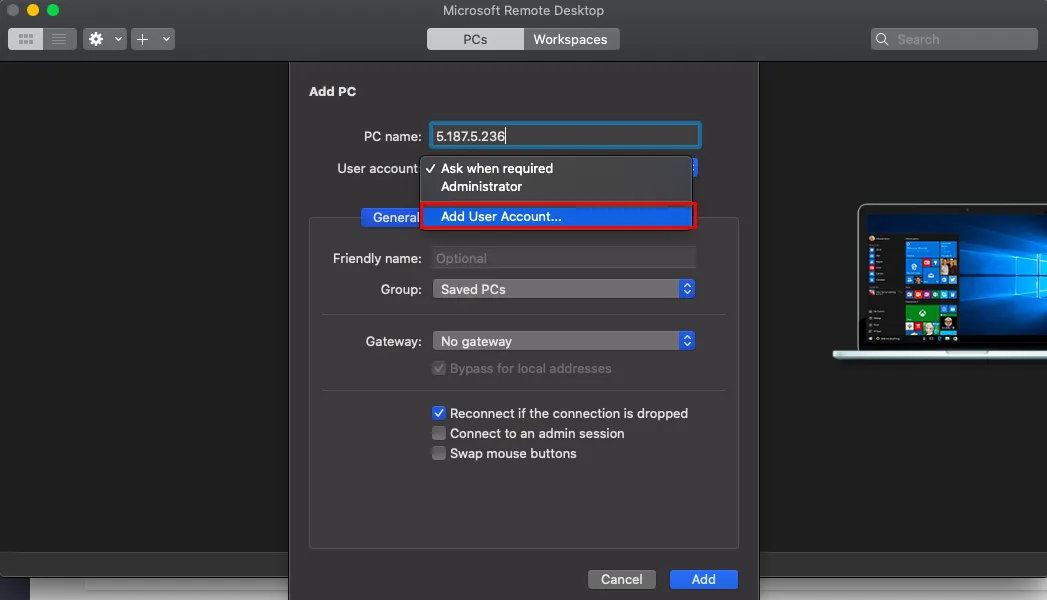
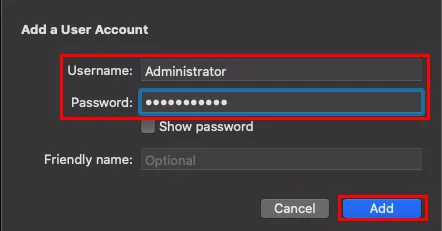
In the connection settings window, enter your server's IP address and login credentials (username Administrator and the automatically assigned password). These credentials are displayed in your Billing panel.
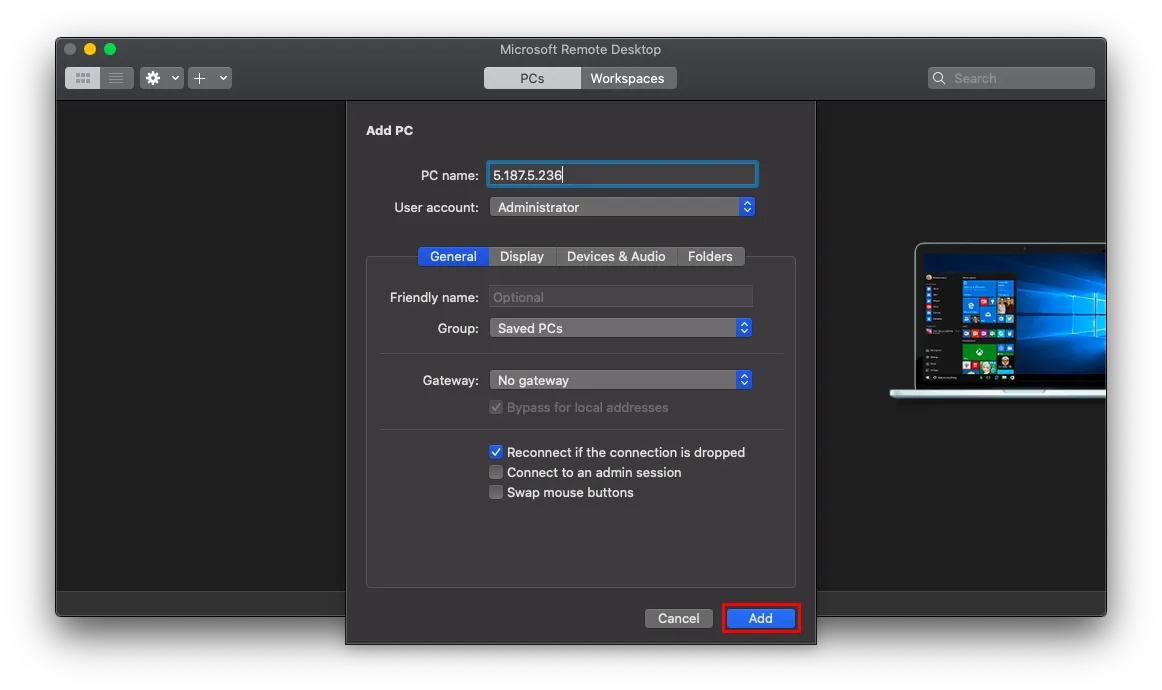
Once you close the settings window, your changes will be saved automatically, and the new connection will appear in your connection list:
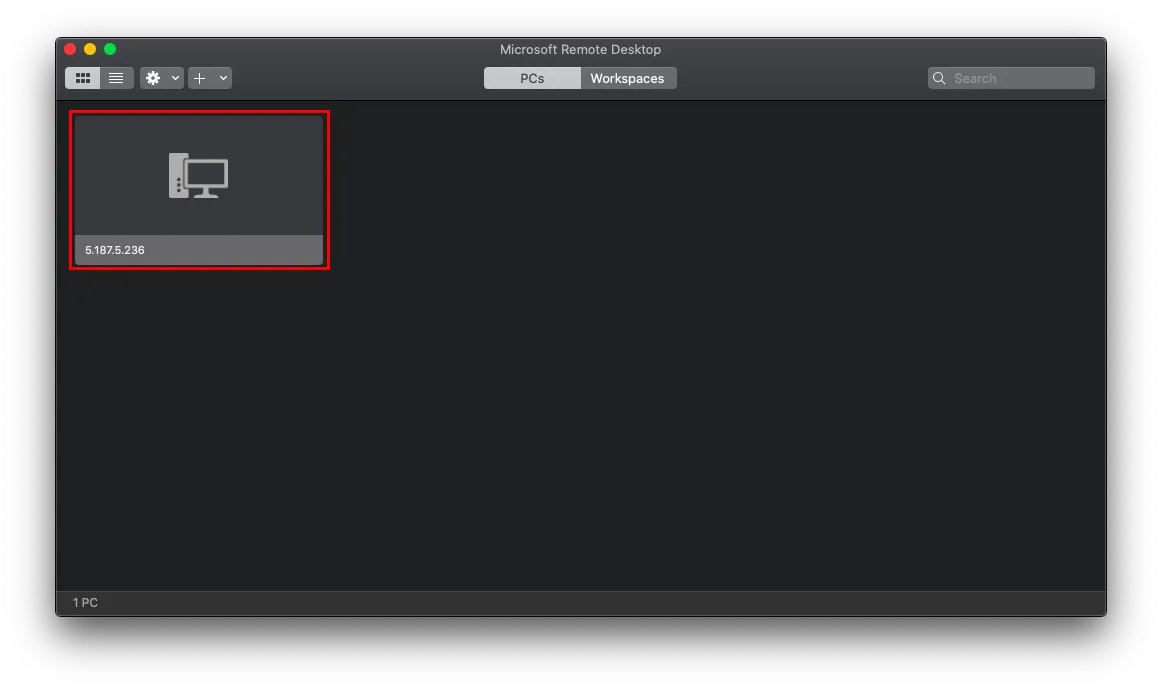
Double-click it to connect to your server.
When connecting, you may see a security certificate warning:
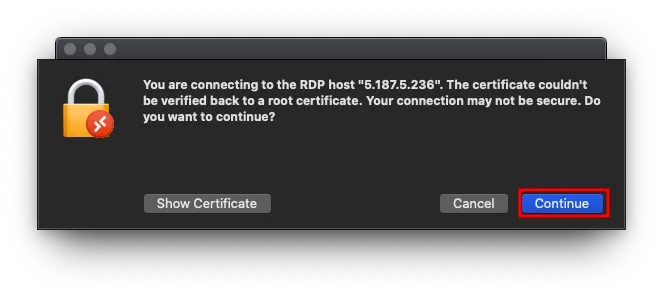
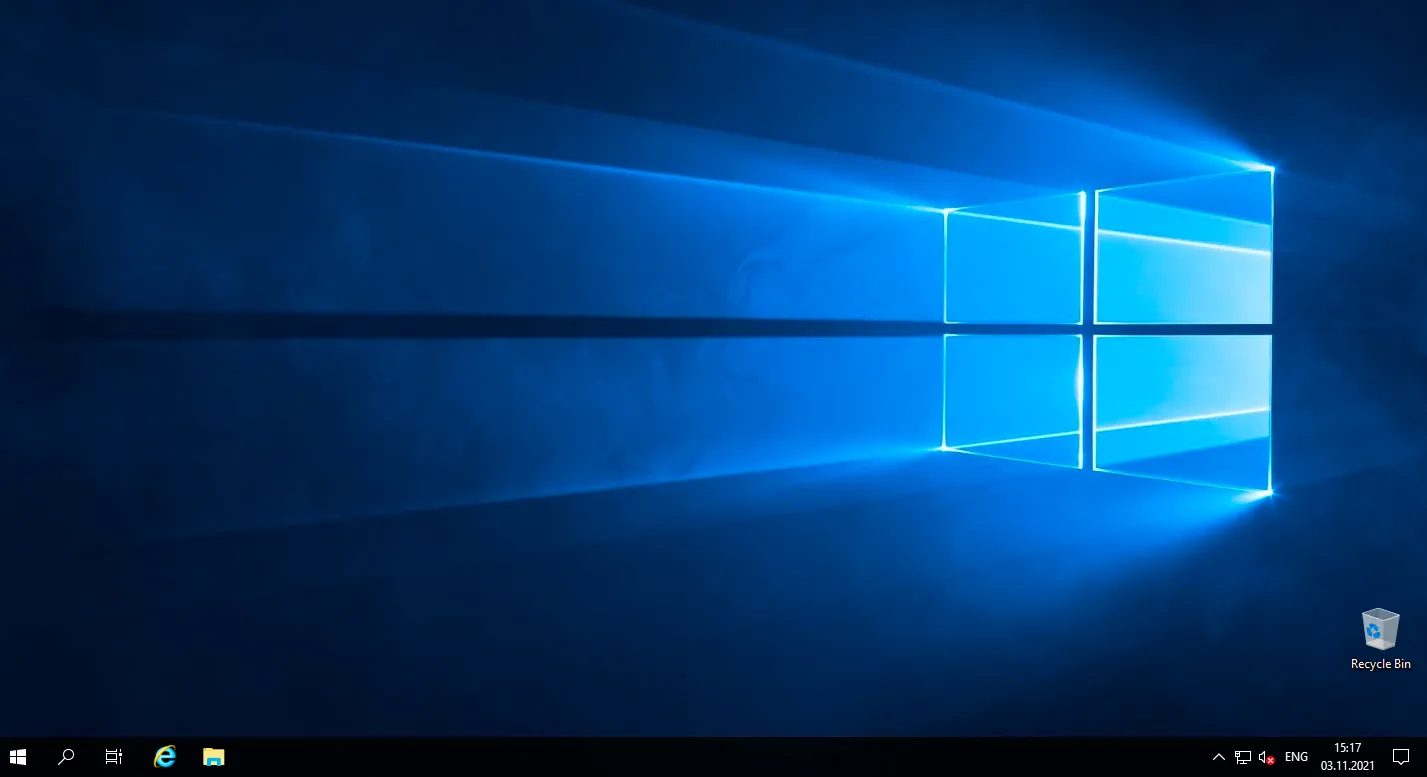
Click Continue to proceed and connect to the Windows remote desktop:
Help
If you have any questions or need assistance, please contact us through the ticket system — we're always here to help!