Setting up an L2TP/IPsec VPN connection on Windows Mobile
How to set up a L2TP/IPsec VPN connection on Windows Mobile.
This step-by-step guide will help you set up a L2TP/IPsec VPN connection on Windows Mobile. It's accessible to users of all skill levels.
Looking for a high-quality VPN?
Fornex offers a fast, unlimited VPN that provides full encryption on all devices and unrestricted access to any website. More details on the VPN page.
Go to All Settings and enter VPN in the search field
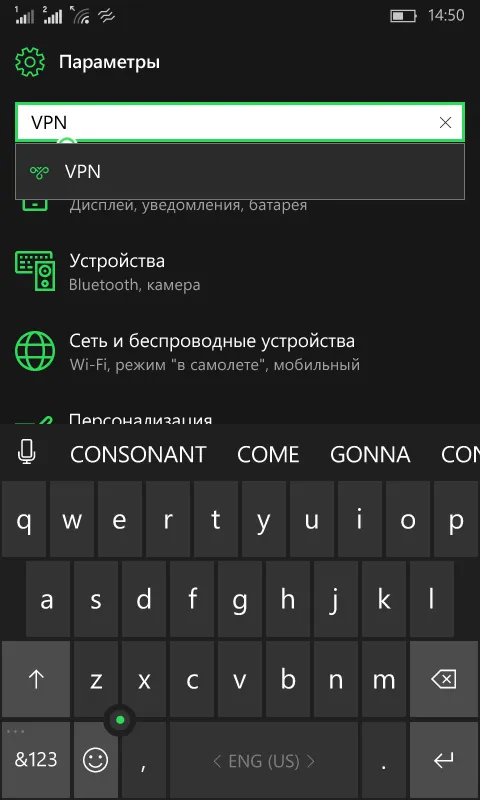
Then click Add VPN connection and fill in all necessary fields.
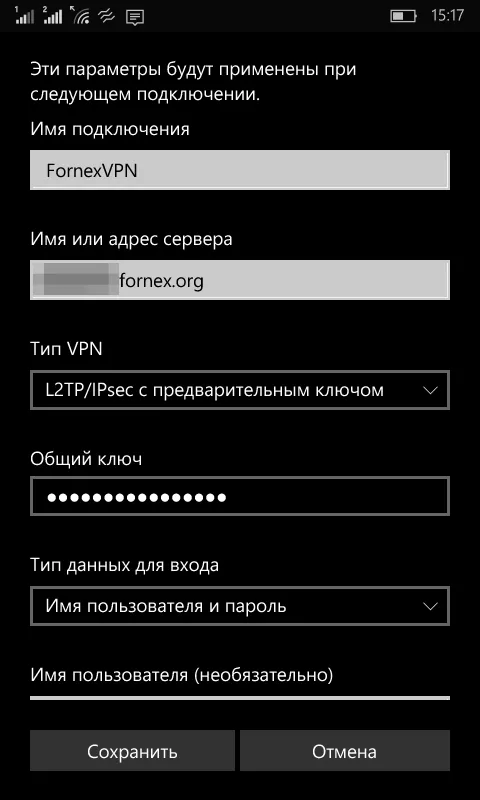
Connection name can be any convenient for you, for example FornexVPN. Next, select the type of VPN - L2TP/IPsec with pre-shared key
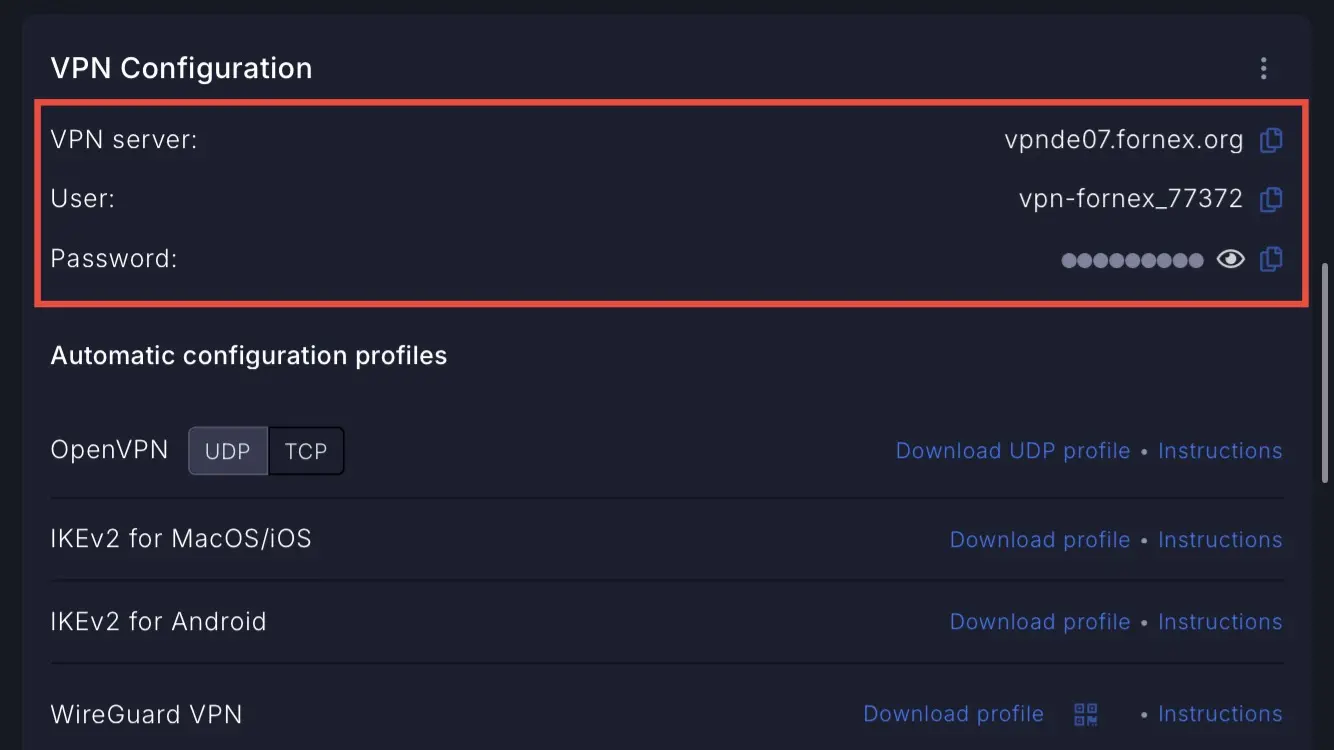
Server name or address - specify the address from your personal account, like vrnXXXXX.fornex.org
In the Shared key field, specify - EtizerVPN.
Note
For servers on fornex.org domains, use the key FornexVPN.
Login data type - Username and password.
User name and password are specified in the billing, after you fill it in, check Remember data if you don't want to enter it every time you connect.
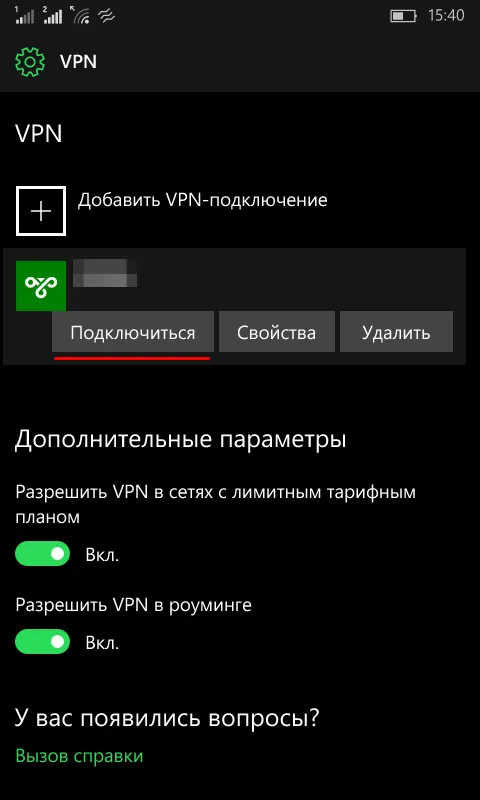
After saving your settings, your connection will appear in the VPN menu. Then you can select your connection and click Connect.
Warning
When using the L2TP/IPSEC protocol, only one active connection is allowed.
Help
If you have any questions or need assistance, please contact us through the ticket system — we're always here to help!