Private networks for VPS on CentOS
Step-by-step guide to setting up a closed private network between VPS servers on CentOS, AlmaLinux и Rocky Linux.
Private networks allow you to connect multiple VPS servers into a single closed network within the data center. All traffic between them passes through an internal channel without accessing the internet.
This provides enhanced security and significantly higher data exchange speeds compared to the public network.
Important
Private networks are available only for VPS located in the same location (one data center).
You need at least two active VPS to activate a private network.
Activate the private network
- Log in to your Fornex Dashboard.
- Go to the section Virtual servers → Private network.
- Create a new private network or select an existing one.
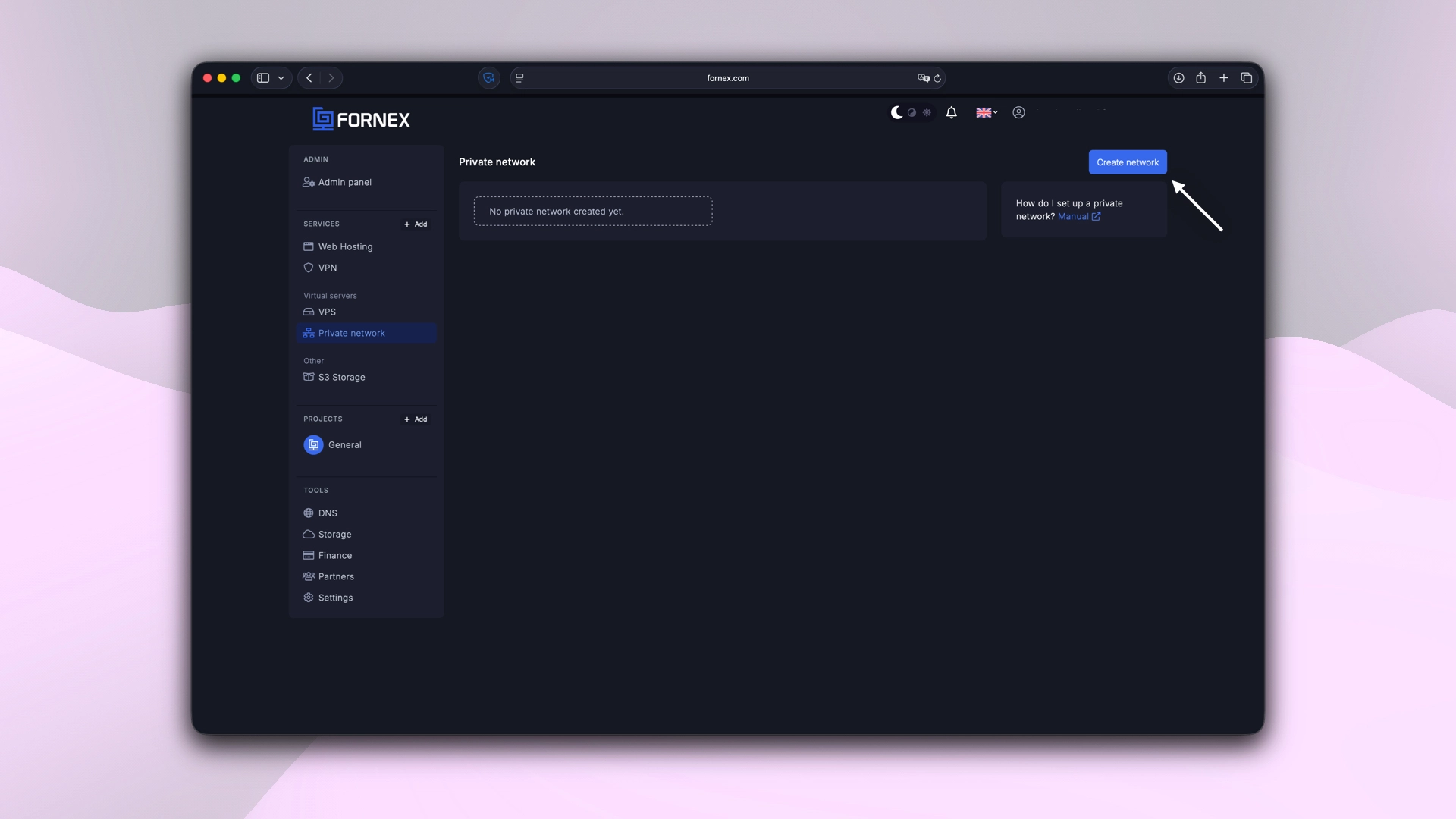 Private network VPS section on Fornex
- Add the required VPS servers to the network (they must be in the same location).
 Setting up private network for VPS in Fornex
Don't have a VPS yet?
Fornex offers VPS hosting with full root access, 24/7 support, and DDoS protection. Get a stable server with NVMe disks for fast and reliable operation. Find more details on the Fornex VPS page.
Configure the network interface on VPS
To make the private network work, you need to manually configure the second network interface on each server. The address range is 192.168.1.0/24.
You can use any free IP from this range, except .1 and .255.
Example Configuration on CentOS 8/9, AlmaLinux, Rocky Linux (using NetworkManager)
- Connect to the VPS via SSH and check for the second interface:
ip a
You will see the eth1 interface (or ens7) in DOWN state.
- Add a new connection for the second interface using
nmcli:
nmcli con add type ethernet con-name eth1 ifname eth1 ipv4.method manual ipv4.addresses 192.168.1.10/24
On the second server, specify a different IP, for example 192.168.1.10/24:
nmcli con add type ethernet con-name eth1 ifname eth1 ipv4.method manual ipv4.addresses 192.168.1.15/24```
- Activate the connection:
nmcli con up eth1
- And check the result:
ip a | grep eth1
For example:
3: eth1: <BROADCAST,MULTICAST,UP,LOWER_UP> mtu 1500 qdisc fq_codel state UP group default qlen 1000
    inet 192.168.1.10/24 brd 192.168.1.255 scope global noprefixroute eth1
The eth1 interface should be in UP state with the assigned private IP.
Note
The configuration is saved automatically and will be applied after a server reboot.
Check the private network operation
From one server, ping the private IP of the second server, specifying the interface:
ping -c 5 -I eth1 192.168.1.15
You should see successful responses with low response time (usually < 1 ms).
Now your VPS servers can securely and quickly exchange data within the closed network.
Help
If you have any questions or need assistance, please contact us through the ticket system — we're always here to help!