Setup DKIM and SPF in BrainyCP
Step-by-step guide to setting up DKIM and SPF for a domain using BrainyCP control panel.

BrainyCP control panel allows you to create mailboxes for your domain, manage their settings, configure quotas, and add DKIM and SPF records. Email accounts are used for sending and receiving mail from addresses in the format name@yourdomain.com.
About DKIM and SPF
DKIM (DomainKeys Identified Mail) is an email authentication method developed to detect email message forgery.
The DKIM technology combines several existing anti-phishing and anti-spam methods to improve the classification and identification of legitimate emails.
Instead of the traditional IP address, DKIM adds a digital signature linked to the organization’s domain name in the message.
SPF (Sender Policy Framework) is an extension for the email sending protocol via SMTP.
SPF allows the domain owner to specify in a TXT record corresponding to the domain name a list of servers allowed to send email messages from that domain. Mail transfer agents can query SPF information via DNS to verify the sender's server.
The SPF system allows you to specify which servers and IP addresses are permitted to send mail from your domains. This function is designed to block outgoing unwanted messages.
Quick start
- Log in to BrainyCP control panel on your VPS.
- Go to Mail → Mailboxes.
Don't have a VPS yet?
Fornex offers VPS hosting with full root access, 24/7 support, and DDoS protection. Get a stable server with NVMe disks for fast and reliable operation. Find more details on the Fornex VPS page.
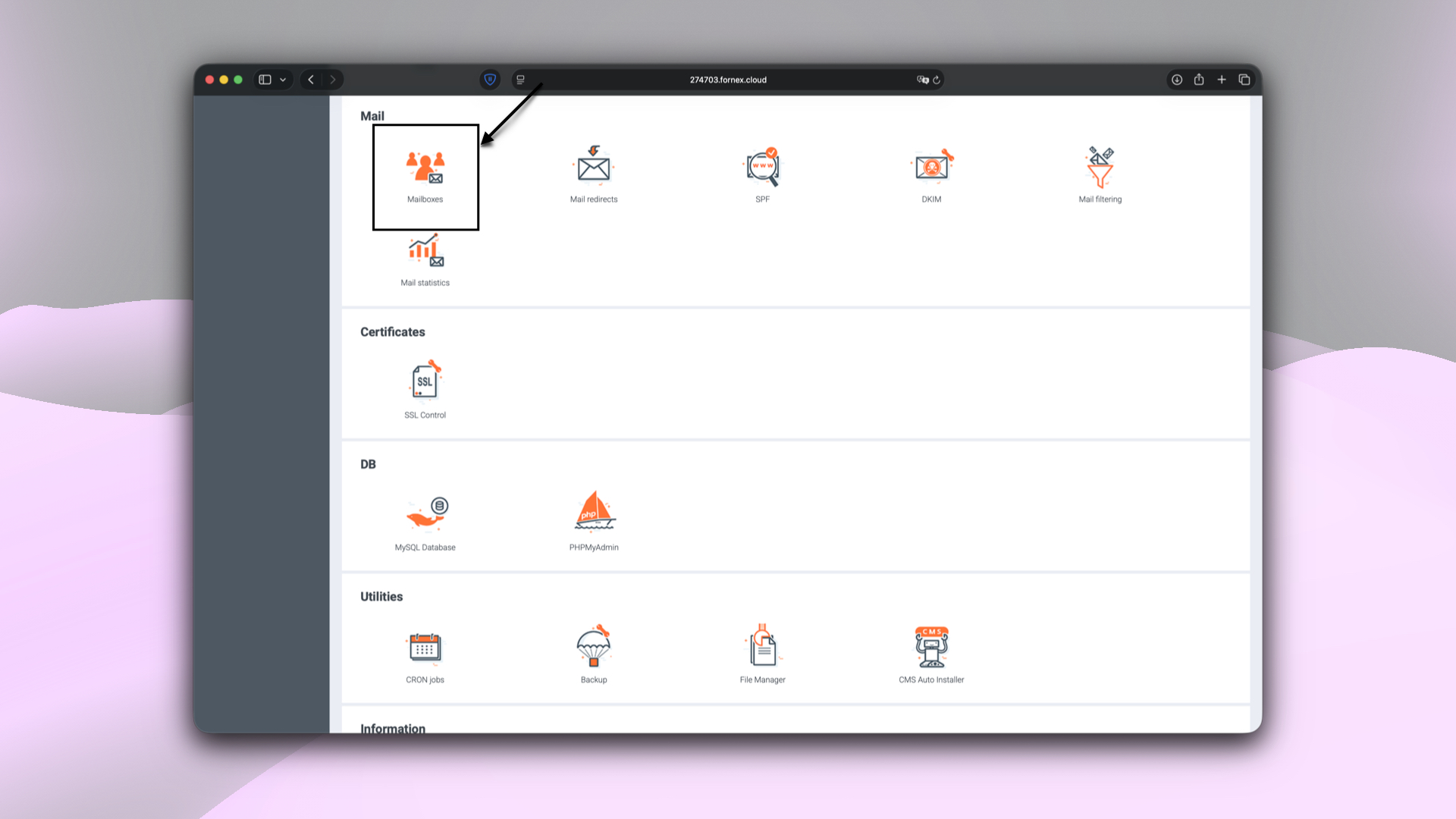 BrainyCP control panel sections
Create a mailbox
To create a new mailbox:
- Fill in the required fields:
- Mailbox name — the local part of the email address.
- Domain — choose a domain from the available list. The Custom domain option is also available to manually enter your own domain.
- Password — password for accessing the mailbox.
- Quota — the maximum allowed size of the mailbox (MB). The quota helps control the size of the mail storage, ensuring the mailbox doesn’t take up too much server space.
- DKIM / SPF — enable both options.
- Click Add.
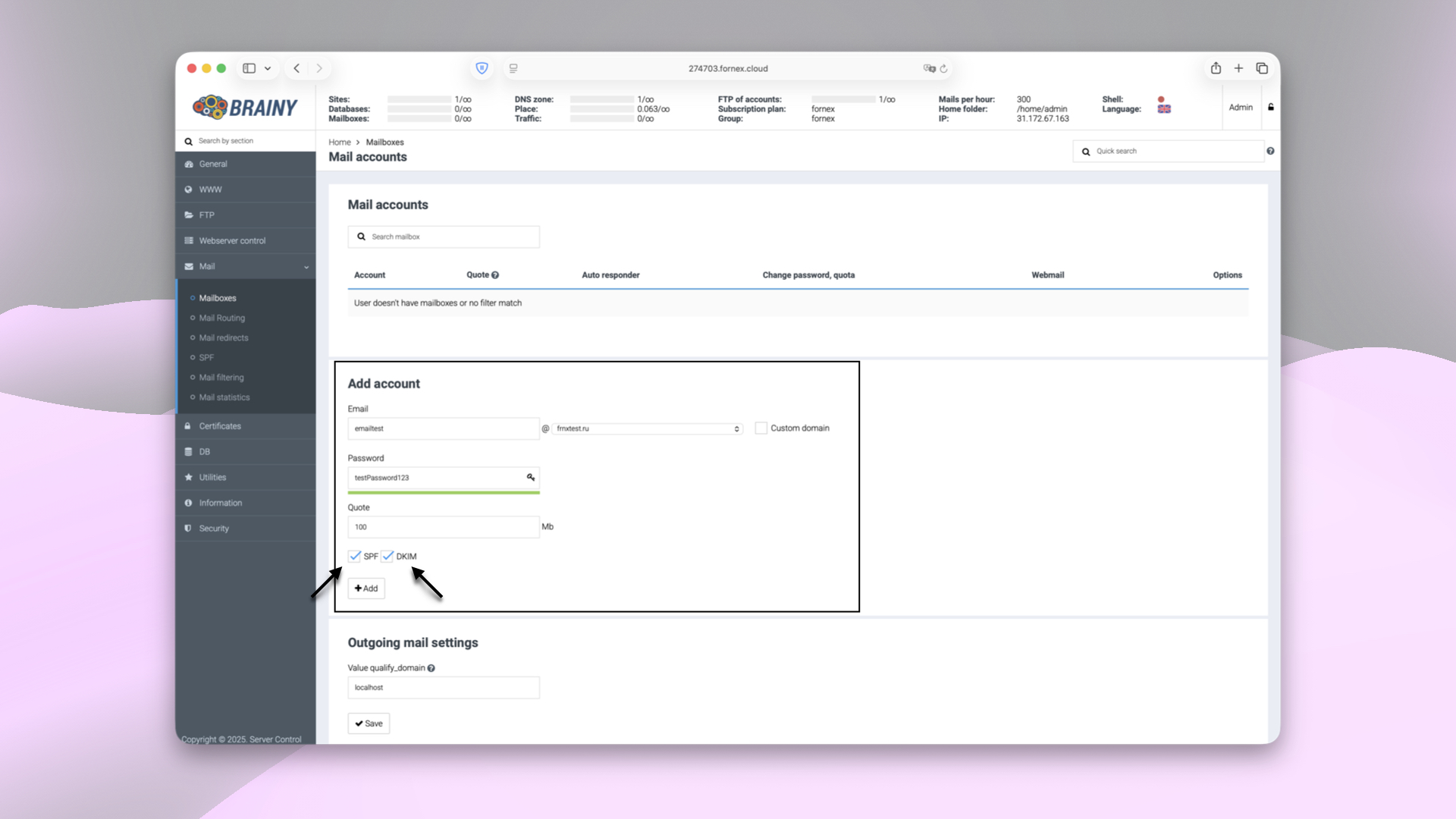 New mail account parameters in BrainyCP
DKIM setup
Private and public keys for DKIM are generated in the folder /etc/opendkim/keys/ and named example.com.dns, example.com.keys.
The key file with the .dns extension contains a TXT record, which you need to add to your DNS panel:
 DKIM record file
The content of the file will be:
mail._domainkey IN TXT "v=DKIM1; k=rsa; p=MIGfMA0GCSqGSIb3DQEBAQUAA4GNADCBiQKBgQDCtFLBxzczISfQ4eCEzH1cztihHeibV8R8DStFcBx9KAor693drnPZHj1vZn1j/OwujwzfFsxAliWmMp1t8sGcZ79hAOOktUe/vB34WVRgFBfNGQZXH4dI3wtVGvKZMkUZLVaHEeg5bZZFVd/fcPl5ZcQ/SZuCxgQIDAQAB" ; ----- DKIM key default for example.com
The first part of the key, mail._domainkey, needs to be entered in the Host field.
"v=DKIM1; k=rsa; p=MIGfMA0GCSqGSIb3DQEBAQUAA4GNADCBiQKBgQDCtFLBxzczISfQ4eCEzH1cztihHeibV8R8DStFcBx9KAor693drnPZHj1vZn1j/OwujwzfFsxAliWmMp1t8sGcZ79hAOOktUe/vB34WVRgFBfNGQZXH4dI3wtVGvKZMkUZLVaHEeg5bZZFVd/fcPl5ZcQ/SZuCxgQIDAQAB"
The second part of the key is for the Value field.
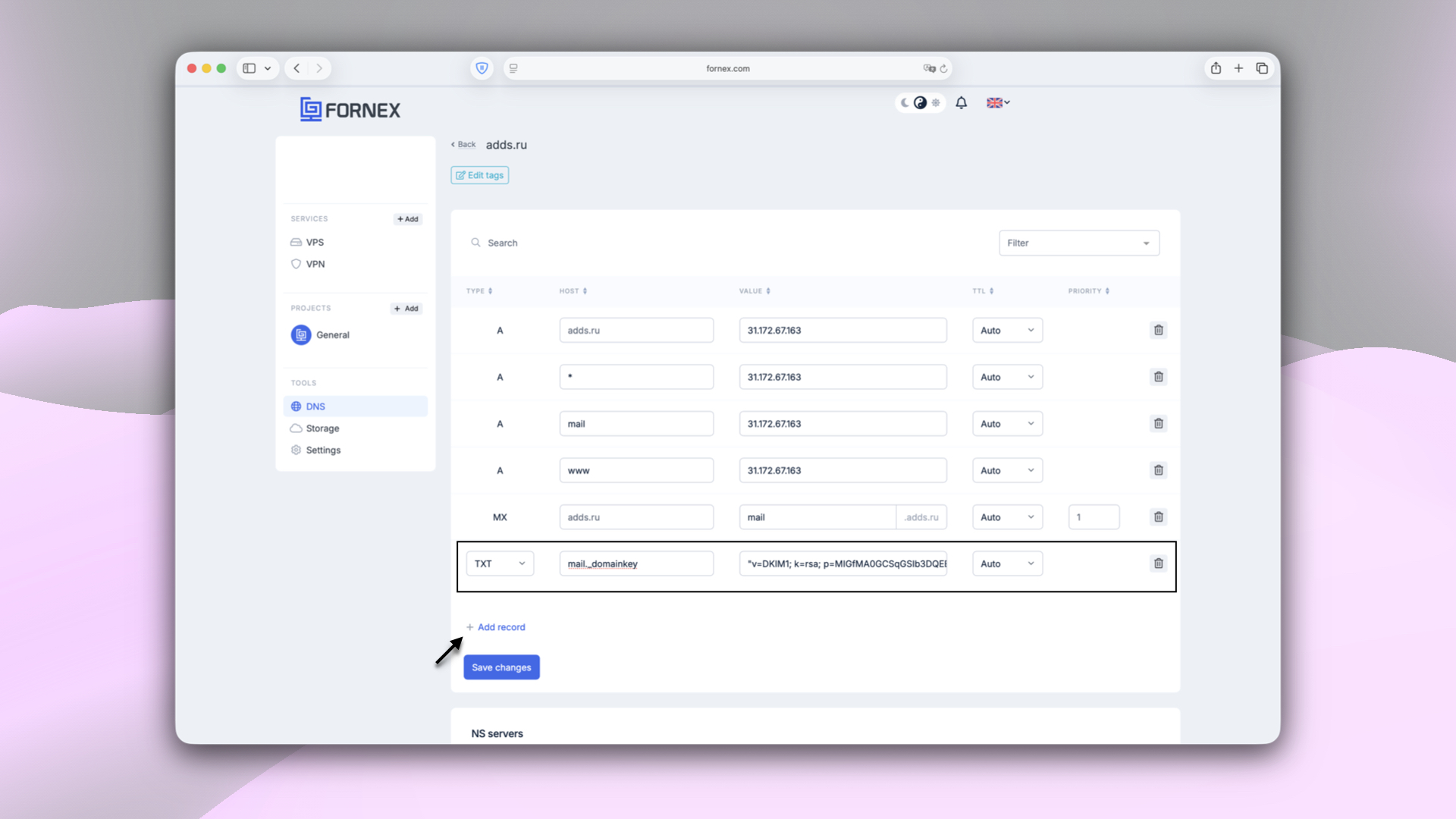 Adding DKIM record in DNS panel
Important
The key must be on one line — if there are line breaks, copy the key to a text editor and remove them to make it one long line.
To verify the DKIM signature, send an email from your domain's mailbox to a third-party mail server and check the source code of the email. The header should contain the "dkim=pass" record.
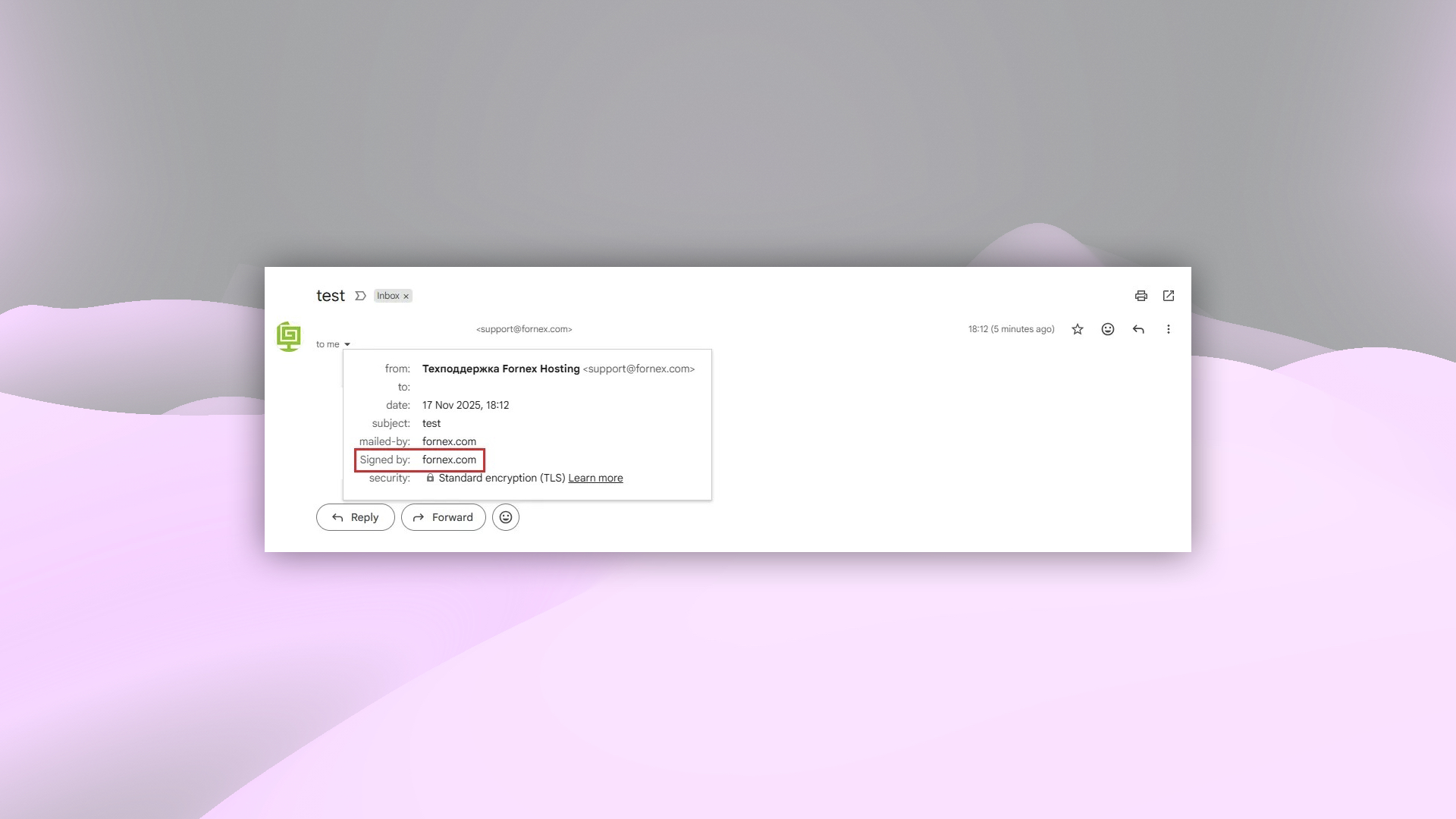 DKIM verification in email headers
SPF setup
In the DNS panel, add a TXT record for your domain. In the Value field, insert the following SPF record, replacing 111.11.11.111 with your server's IP address:
"v=spf1 +a +mx +ip4:111.11.11.111 ~all"
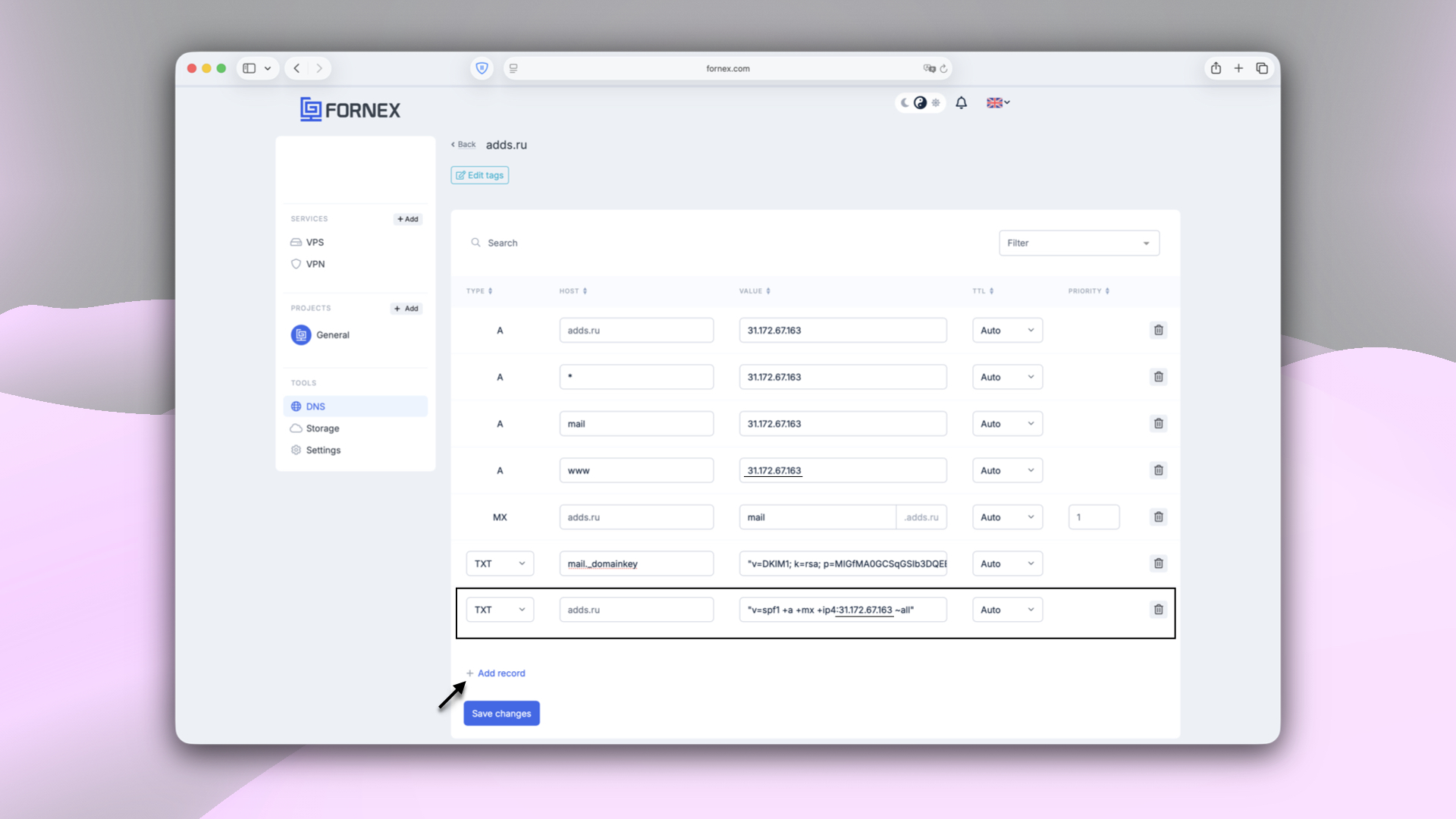 Adding SPF record in DNS panel
Help
If you have any questions or need assistance, please contact us through the ticket system — we're always here to help!