How to disable Internet Explorer Enhanced Security Configuration on Windows Server
Step-by-step instructions for turning off IE ESC through the Server Manager UI.
Internet Explorer Enhanced Security Configuration (IE ESC) is enabled on Windows Server by default. It protects servers from web-based attacks by applying stricter security settings to Internet Explorer. As a side effect, a popup appears every time you visit a new URL, asking you to add it to the browser's trusted zone.
Disabling IE ESC
Connect to the server via RDP, press Win+R, and run ServerManager.
 Launching Server Manager
Go to the Local server tab.
 Local server tab
Find the IE Enhanced Security Configuration entry and click its status — it shows On by default.
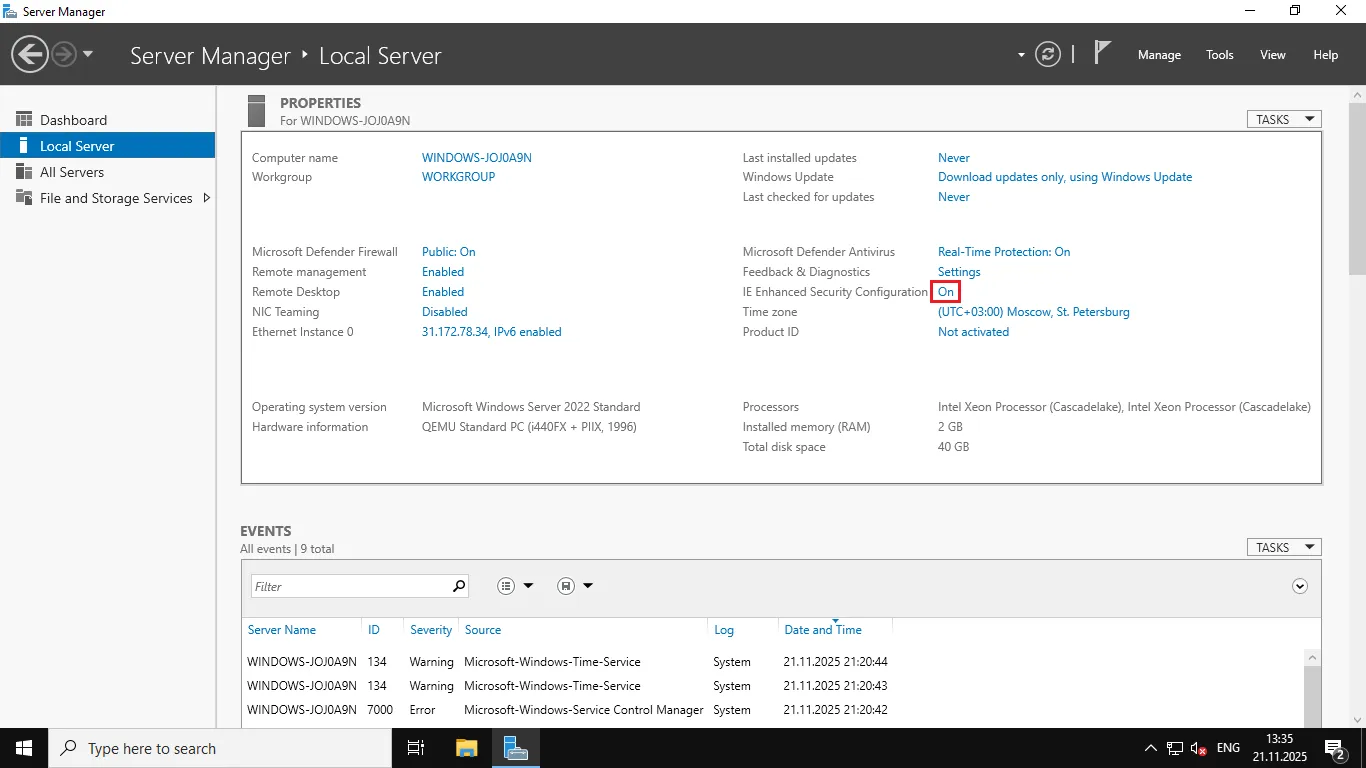 IE Enhanced Security Configuration
In the window that opens, set the configuration to Off for both administrators and users.
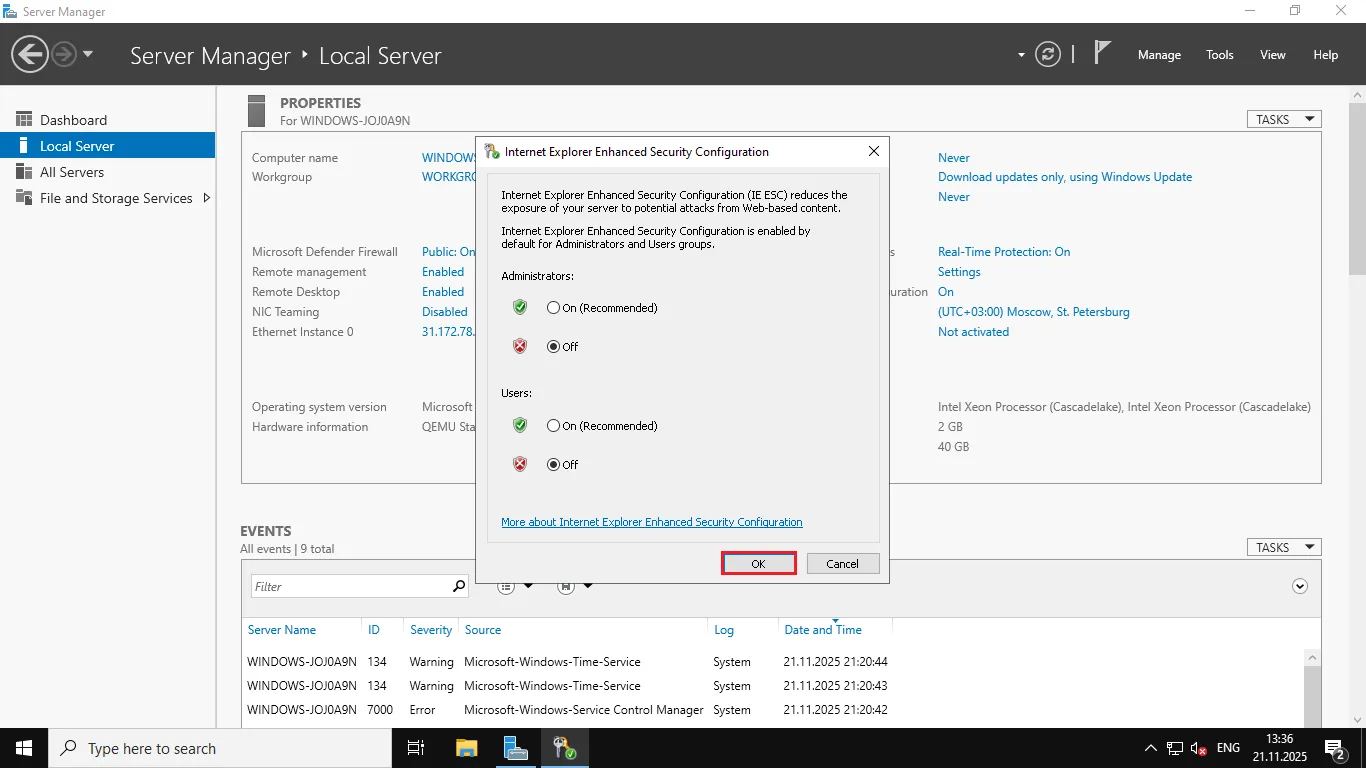 IE ESC configuration settings
Click OK.
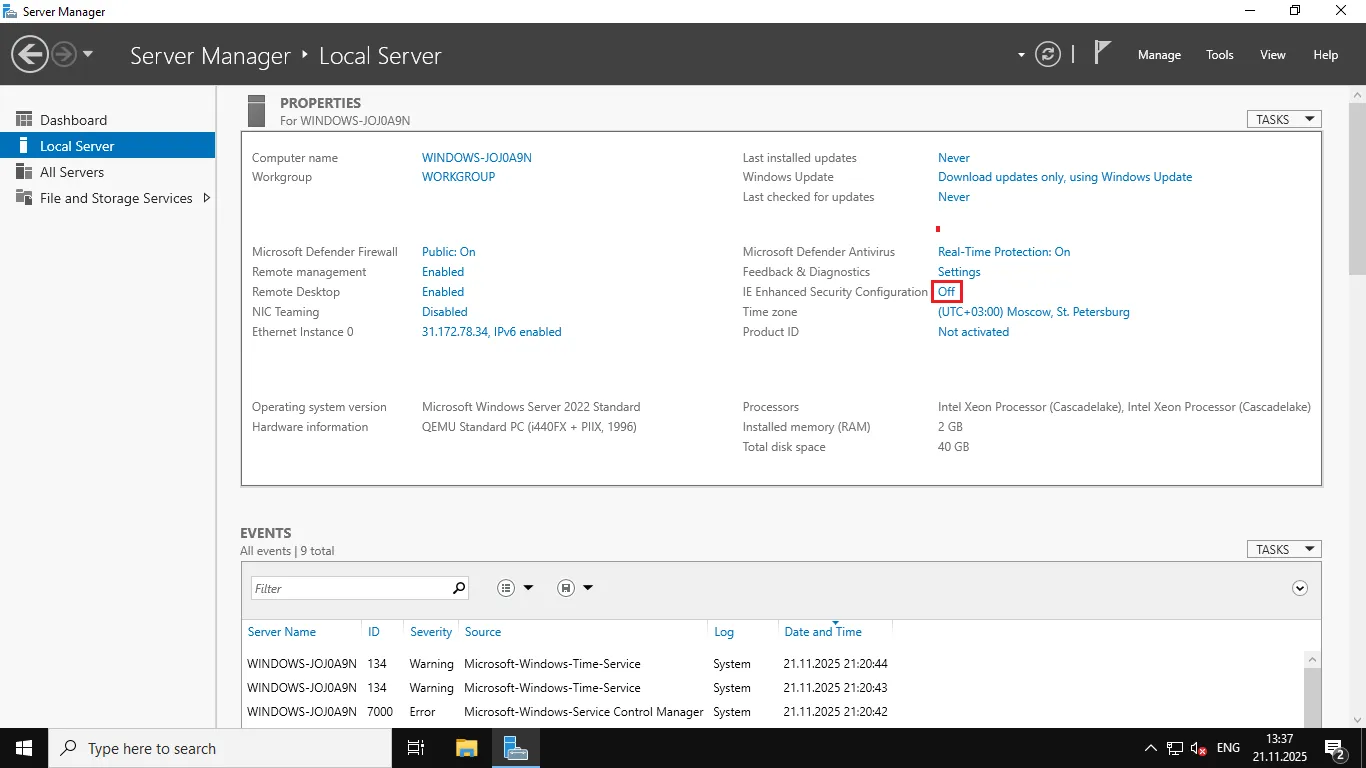 Confirming changes
The IE Enhanced Security Configuration status will change to Off.
Help
If you have any questions or need assistance, please contact us through the ticket system — we're always here to help!