Get started with CloudPanel
Step-by-step guide to setting up the panel and launching your sites with CloudPanel.

CloudPanel is a free, open-source control panel built specifically for high-performance PHP servers. It gives you a clean, fast way to manage websites, databases, SSL certificates, FTP accounts, email, and cron jobs on your VPS or dedicated server.
Quick start
- Log in to the CloudPanel control panel on your VPS using the credentials provided in your Fornex dashboard.
- Take a moment to explore the main dashboard — it gives you a clear overview of all key sections: users, web domains, mail, databases, DNS, backups, and more.
Don't have a VPS yet?
Fornex offers VPS hosting with full root access, and 24/7 support. Get a stable server with NVMe disks for fast and reliable operation. Find more details on the Fornex VPS page.
The home screen shows at a glance:
- Hostname and IP address
- Operating system version
- CPU, memory, and disk usage
- Current system load average
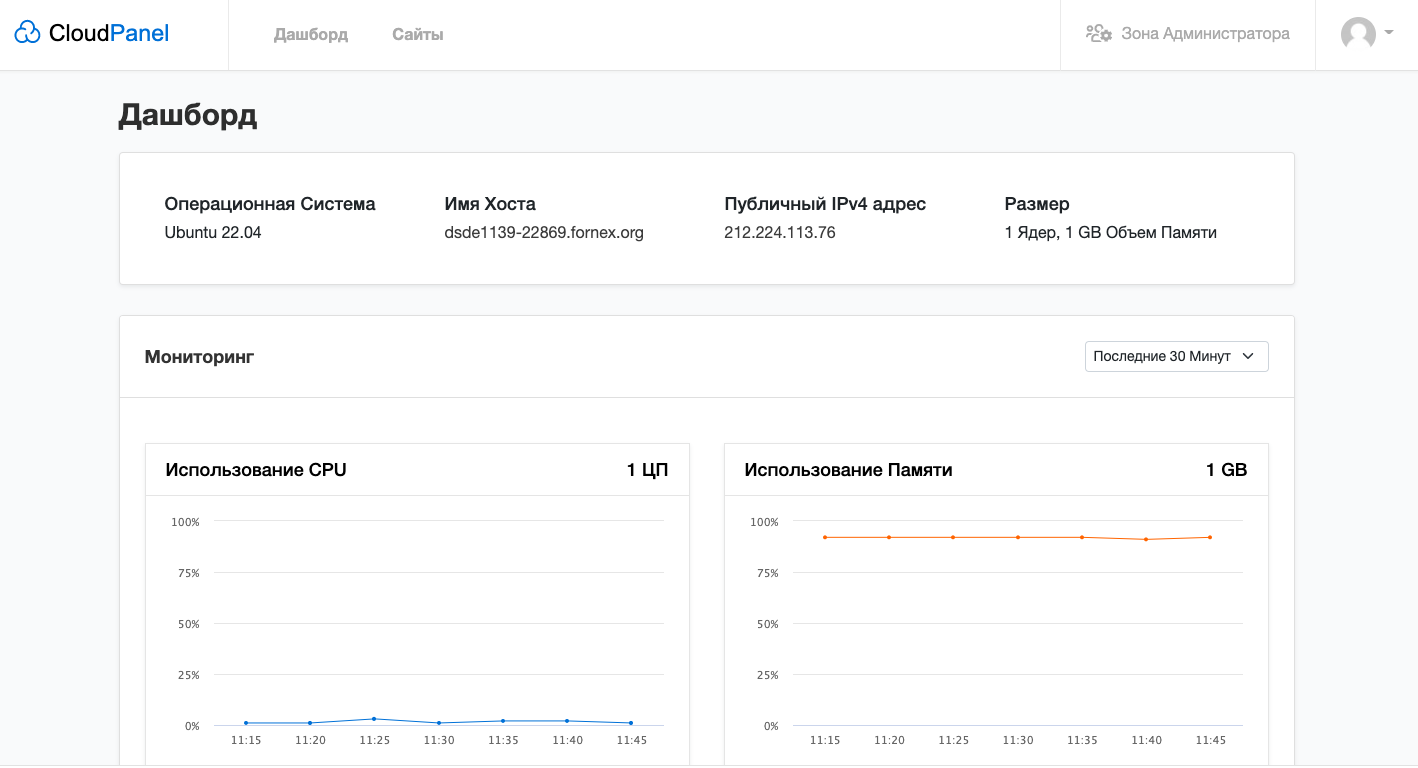 Real-time server resource overview
Adding a Website
- Go to Sites → click Add Site.
- Choose a template (WordPress, Laravel, Symfony, static site, etc.) or select Custom for manual setup.
- Fill in:
- Domain name
- Site user
- PHP version
- Root directory (defaults to
/home/YOUR_USER/htdocs/YOUR_DOMAIN)
- Click Create.
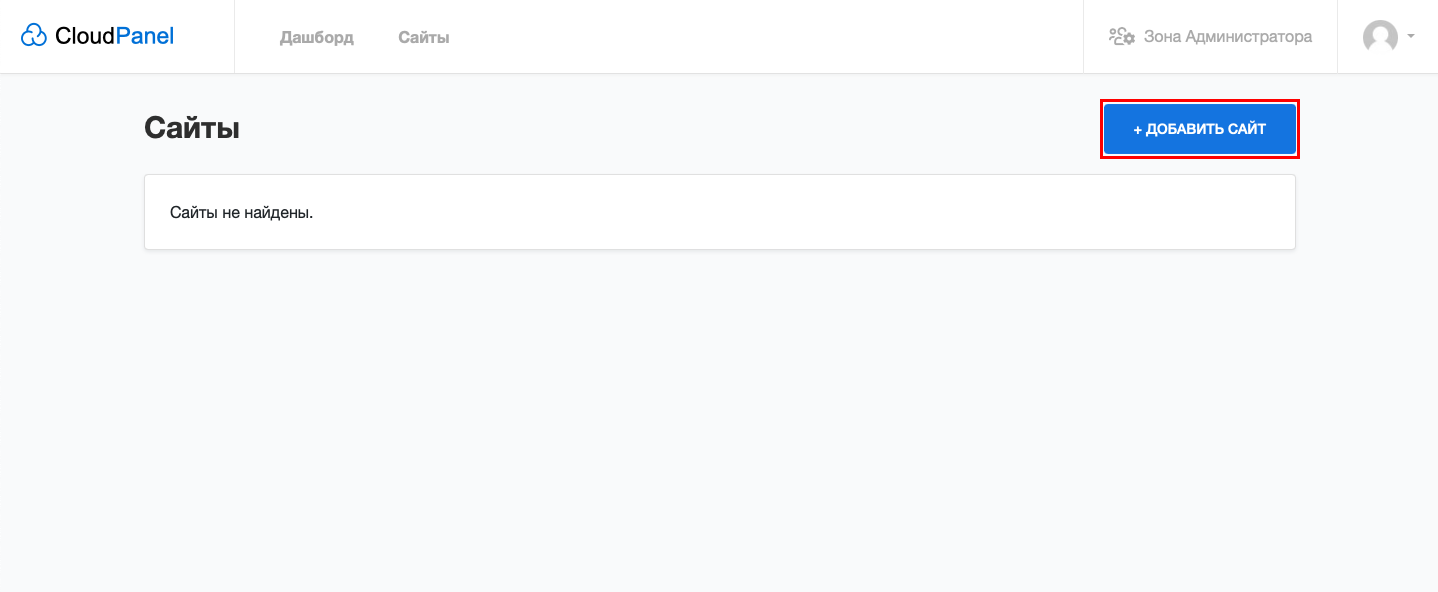 Creating a new site
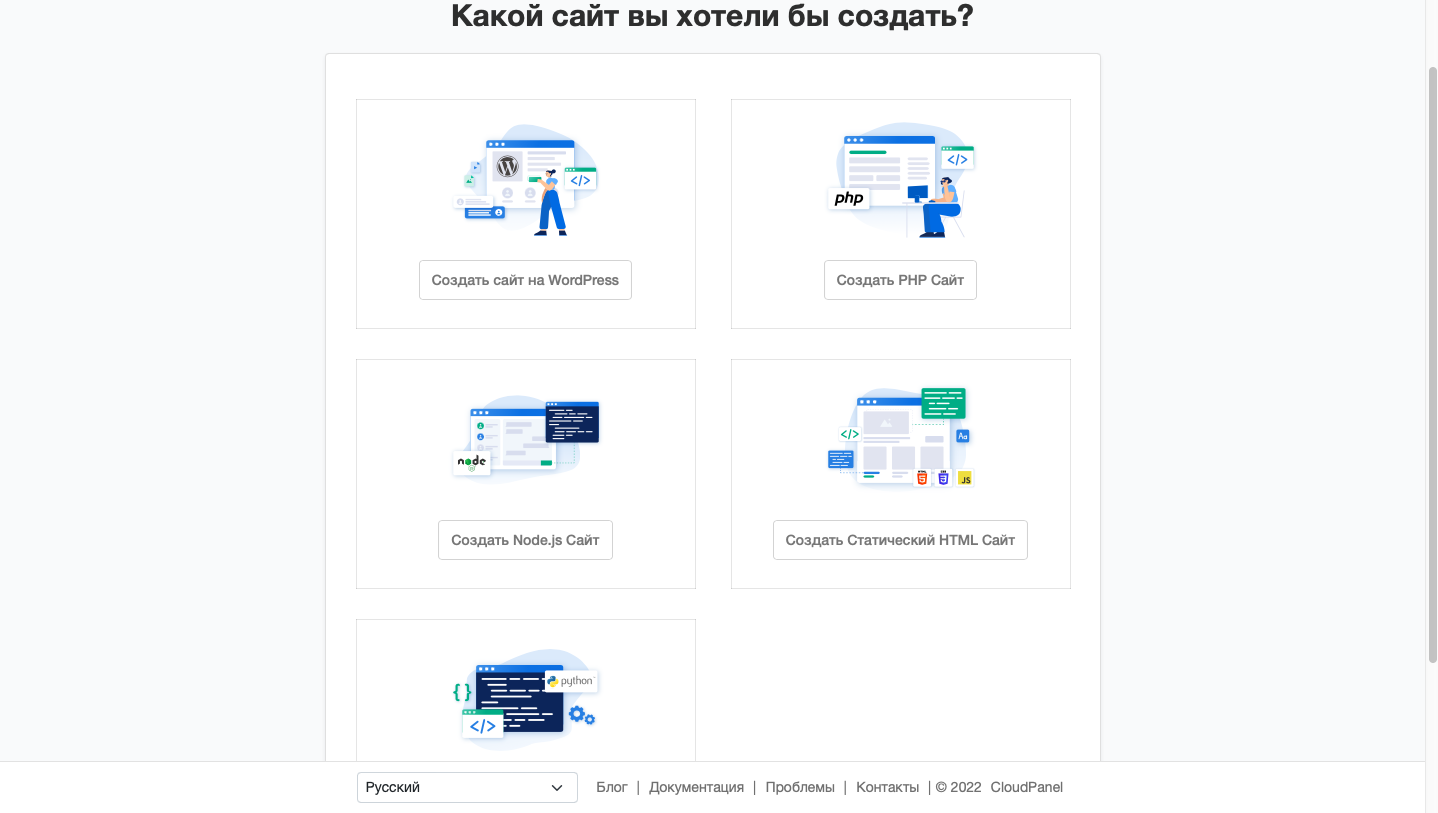 Choosing a site template
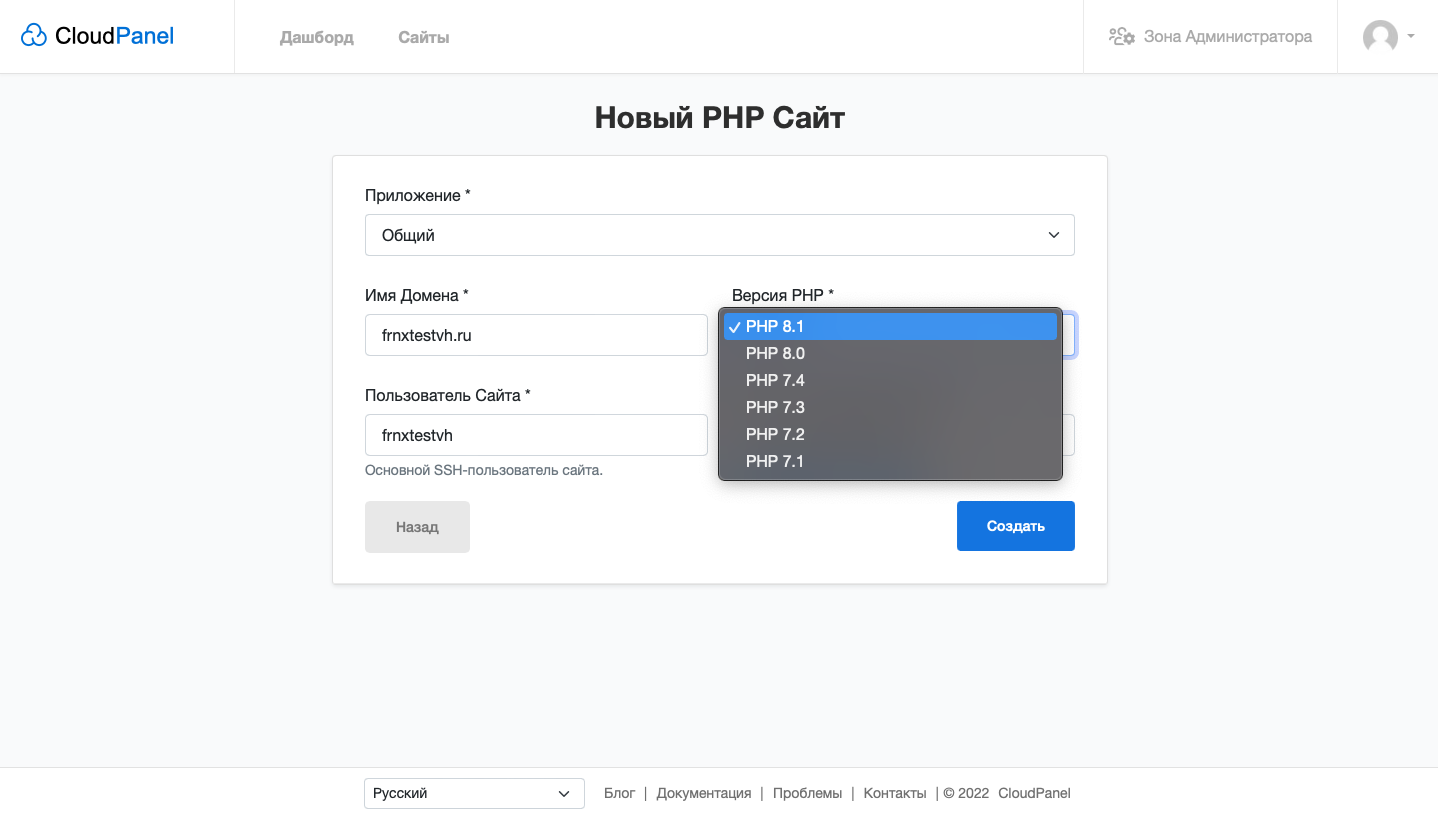 Setting domain and PHP version
Once added, the site appears in the list. Click Manage to access advanced settings: SSL, cron jobs, logs, redirects, aliases, etc.
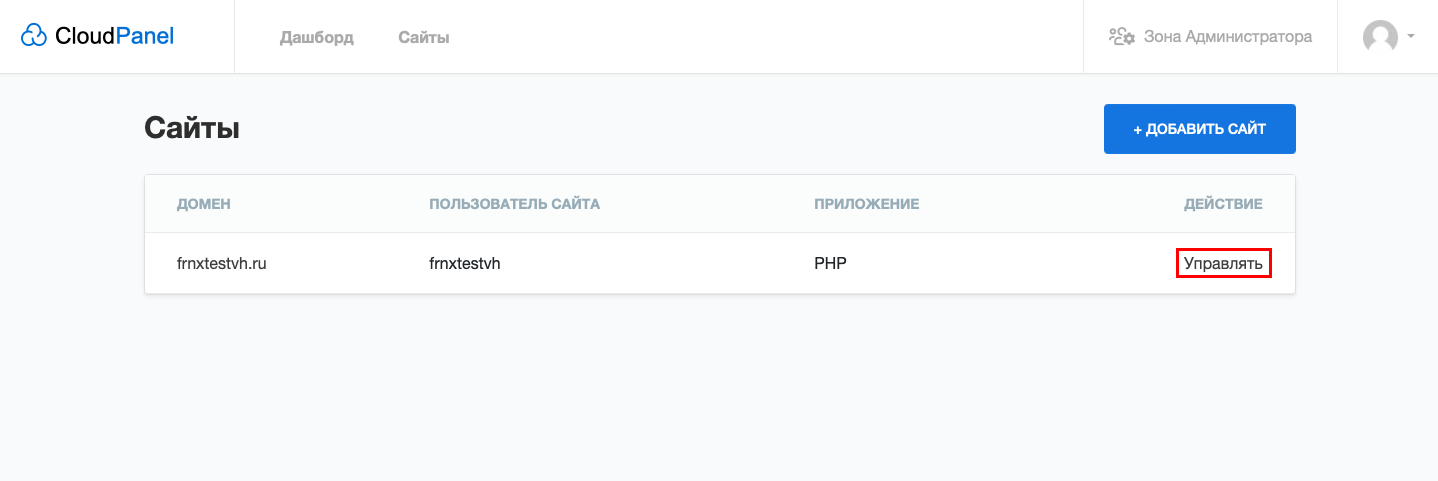 New site in the list
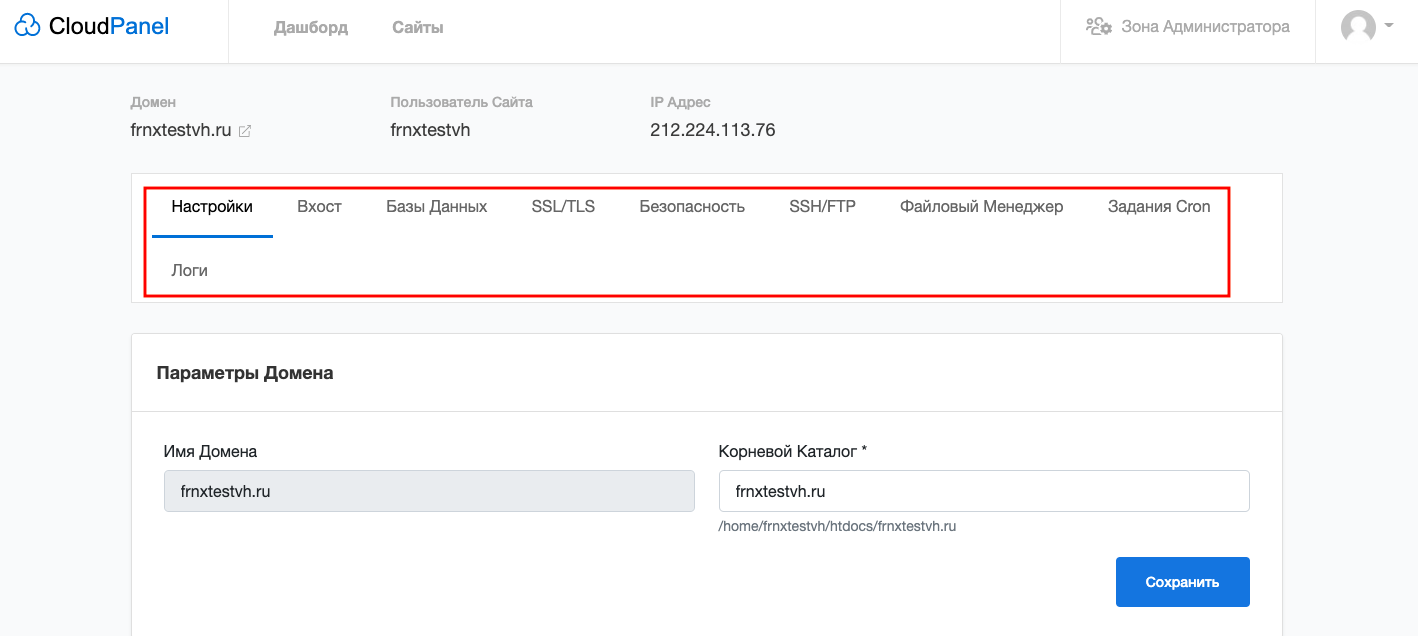 Management options for the site
Creating a Database
- Go to Databases.
- Click Add Database.
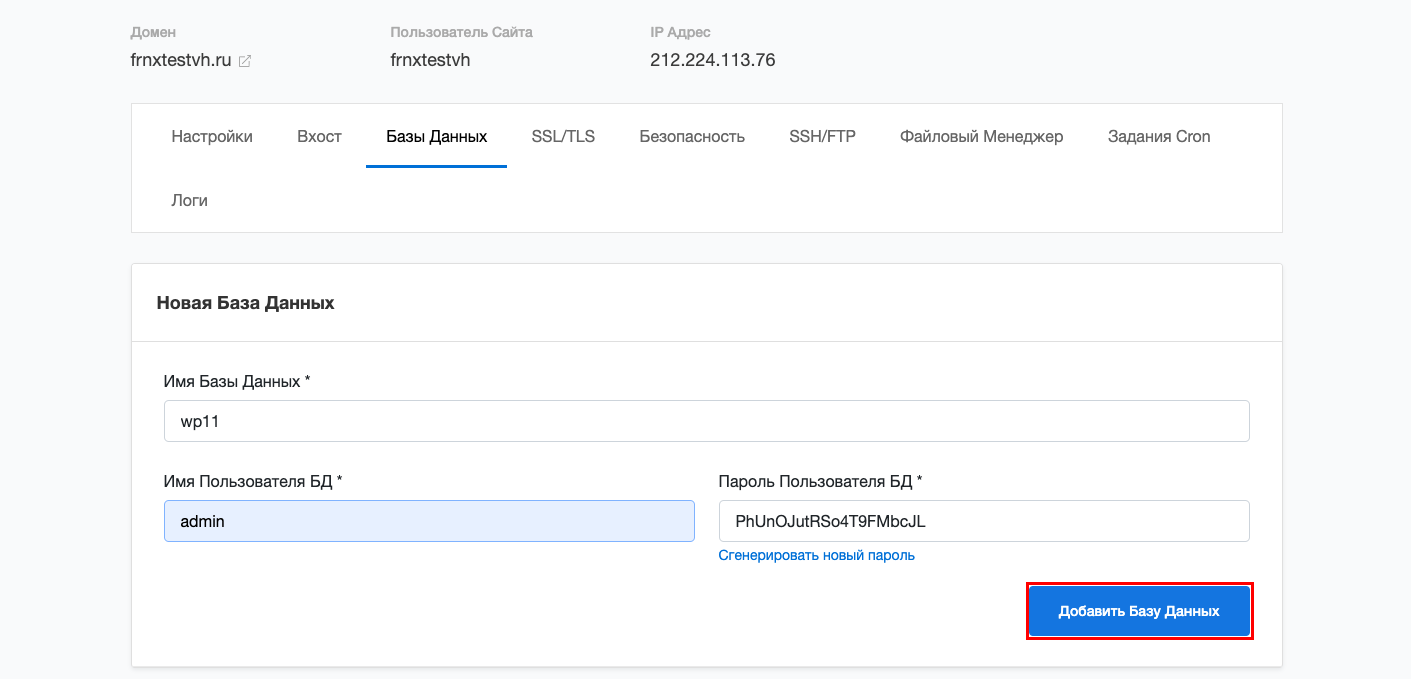
- Enter database name, username, and password.
- Click Create.
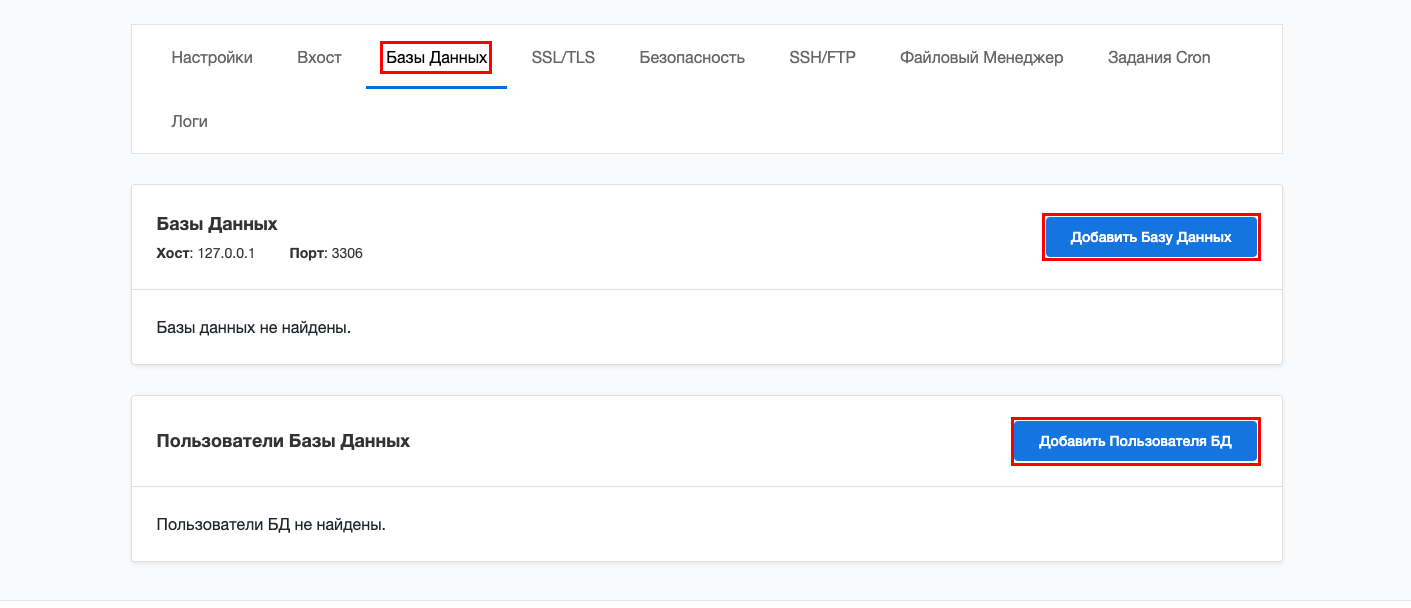 Database creation form
To manage the database, click phpMyAdmin in the database row.
 Opening phpMyAdmin
Creating an FTP Account
- Go to SSH/FTP.
- Click Add FTP User.
- Set username, password, and home directory.
- Click Create.
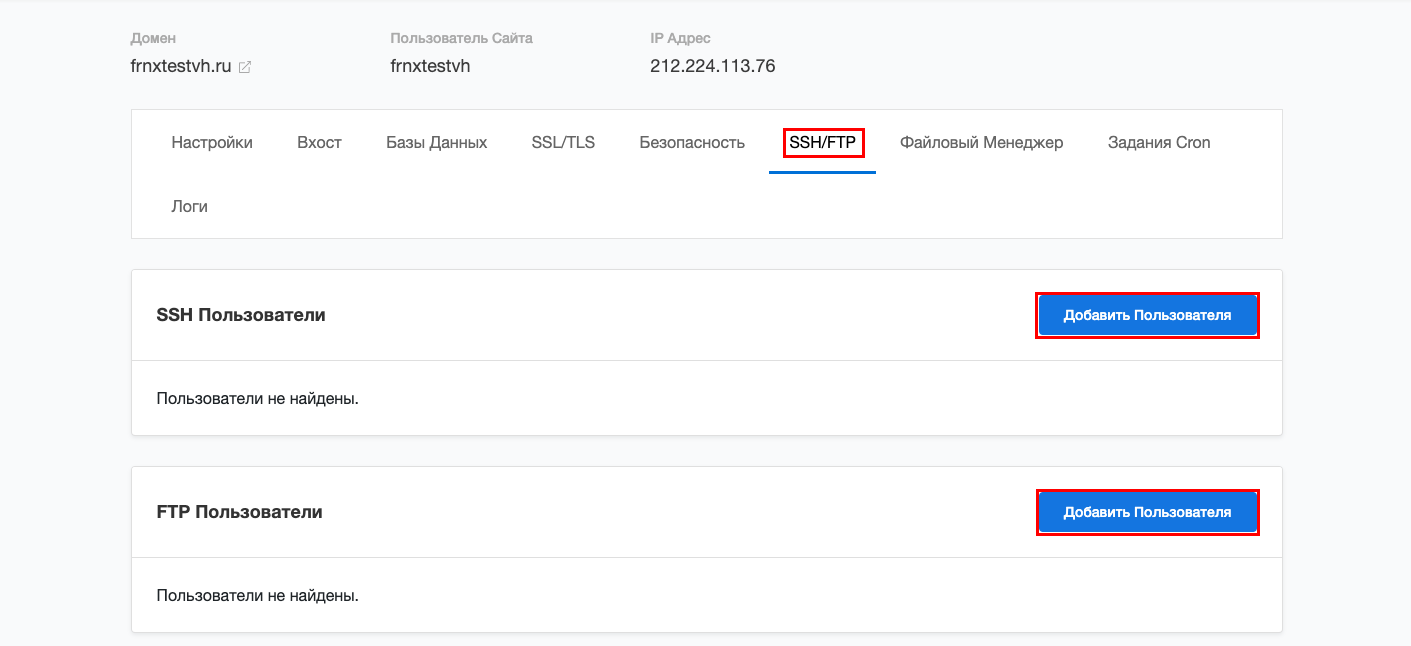 FTP user creation form
Setting Up SSL Certificate
- Go to Sites → select your site → Manage → SSL/TLS tab.
- Click Add Certificate → choose Let’s Encrypt.
- Enter the domain and click Create.
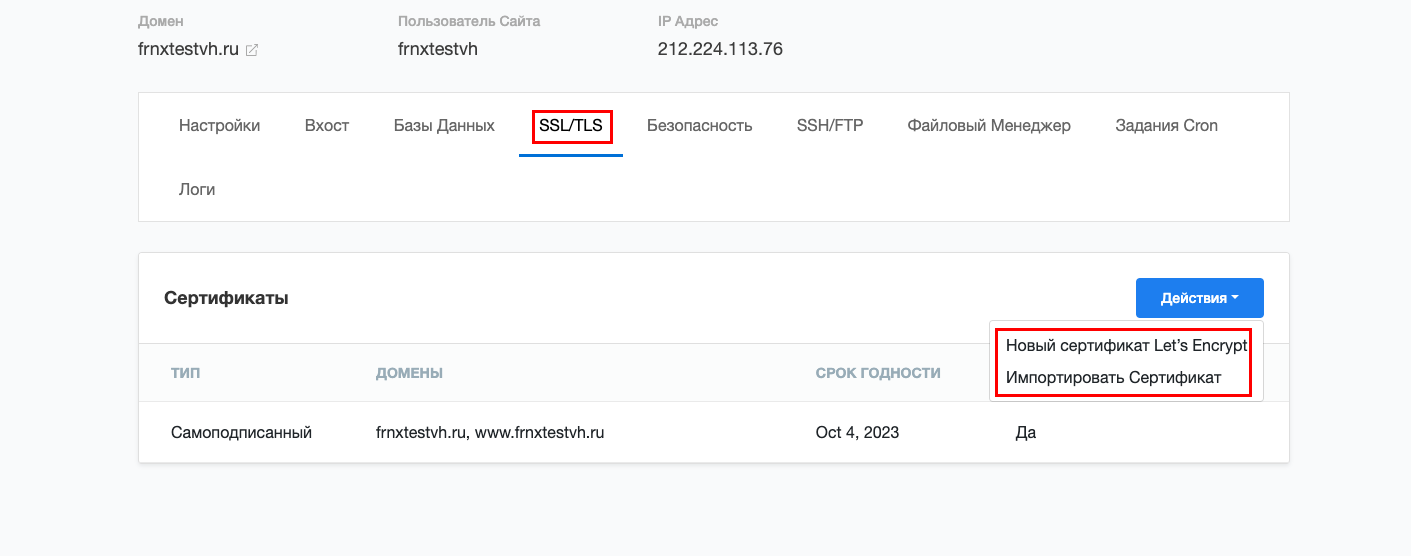 Adding Let’s Encrypt SSL
Setting Up Cron Jobs
- Go to Cron Jobs.
- Click Add Cron Job.
- Specify the user, command, and schedule.
- Click Create.
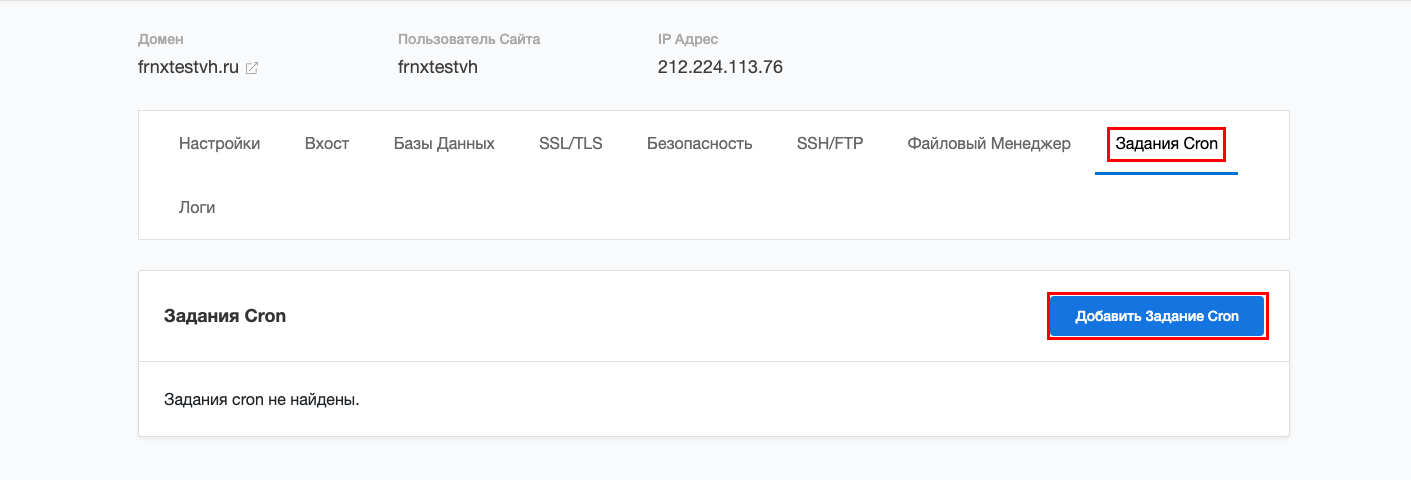 Creating a cron job
Quick Tips
- All changes in CloudPanel are saved instantly — no “apply” button needed.
- It’s best to enable Let’s Encrypt SSL for every domain right after adding it.
- For better security, use strong passwords and enable two-factor authentication (2FA) in the panel settings.
Help
If you have any questions or need assistance, please contact us through the ticket system — we're always here to help!