How to clear your browser cache
Step-by-step instructions for clearing the cache in all major browsers.
Your browser cache is a local stash of web pages, images, videos, and other content your browser saves to your hard drive so it can load them faster on repeat visits.
Clearing it every now and then is a good habit — it frees up disk space and fixes those annoying situations where a website refuses to show its updated version, stubbornly serving you the old design instead.
Google Chrome
- Press Ctrl + Shift + Del.
- In the Clear browsing data window, check only Cached images and files and set the time range.
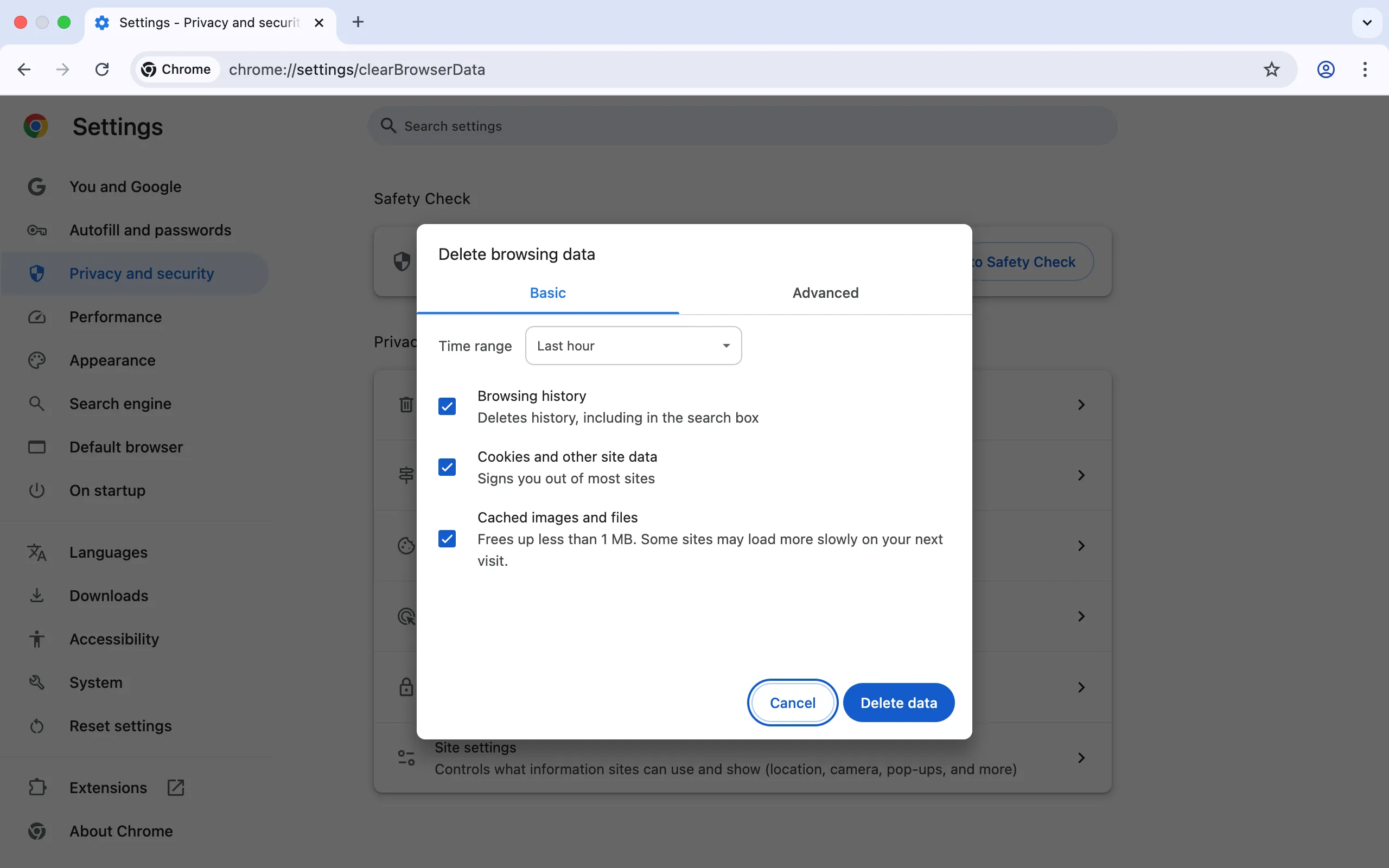 Clearing cache in Google Chrome
- Click Clear data.
Mozilla Firefox
- Press Ctrl + Shift + Del.
- In the Clear Recent History window, open the Time range to clear dropdown and pick your preferred period.
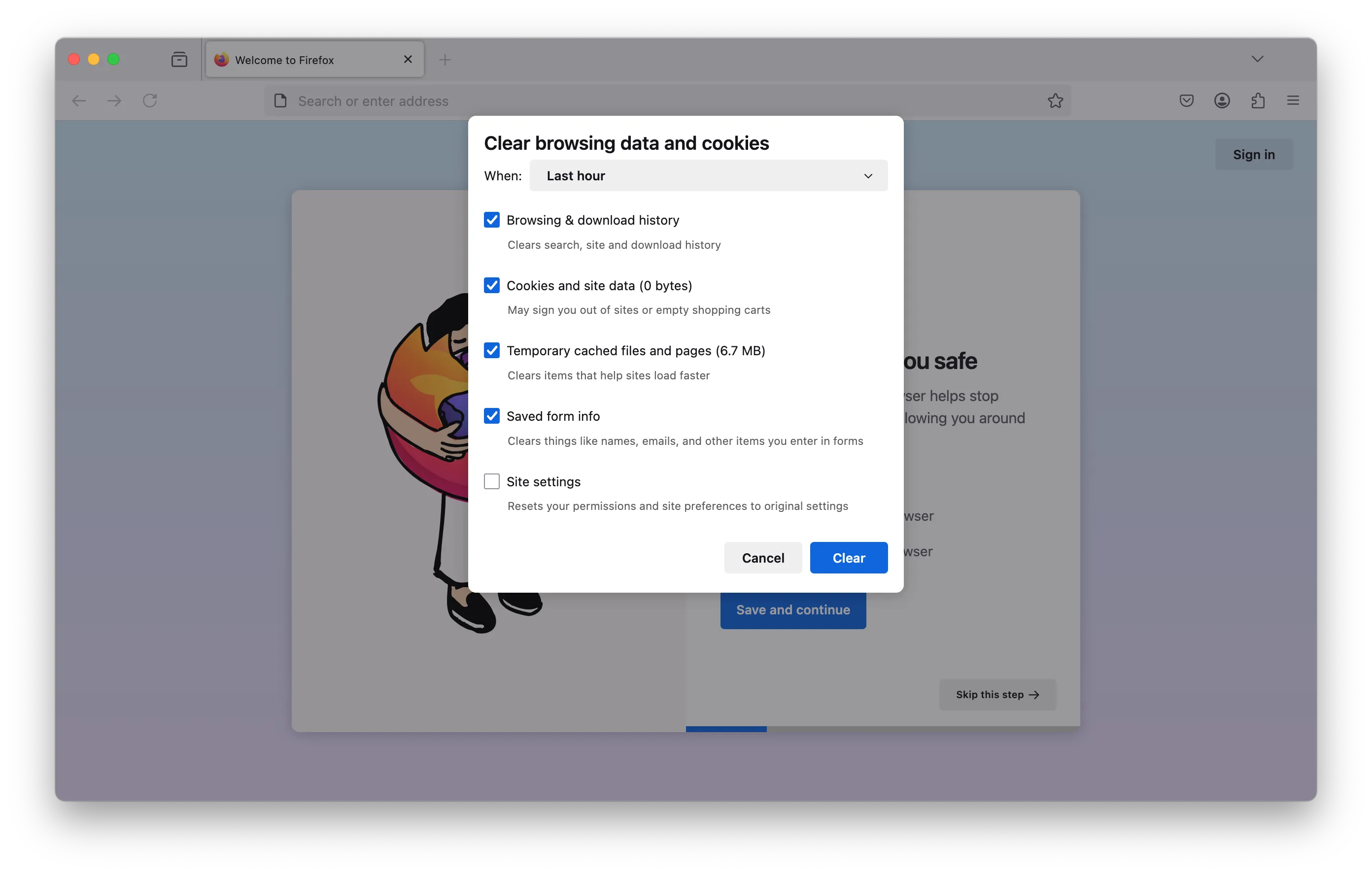 Selecting time range in Mozilla Firefox
- Expand the Details section and make sure only Cache is checked.
 Selecting data type in Mozilla Firefox
- Click Clear Now.
Opera
- Press Ctrl + Shift + Del.
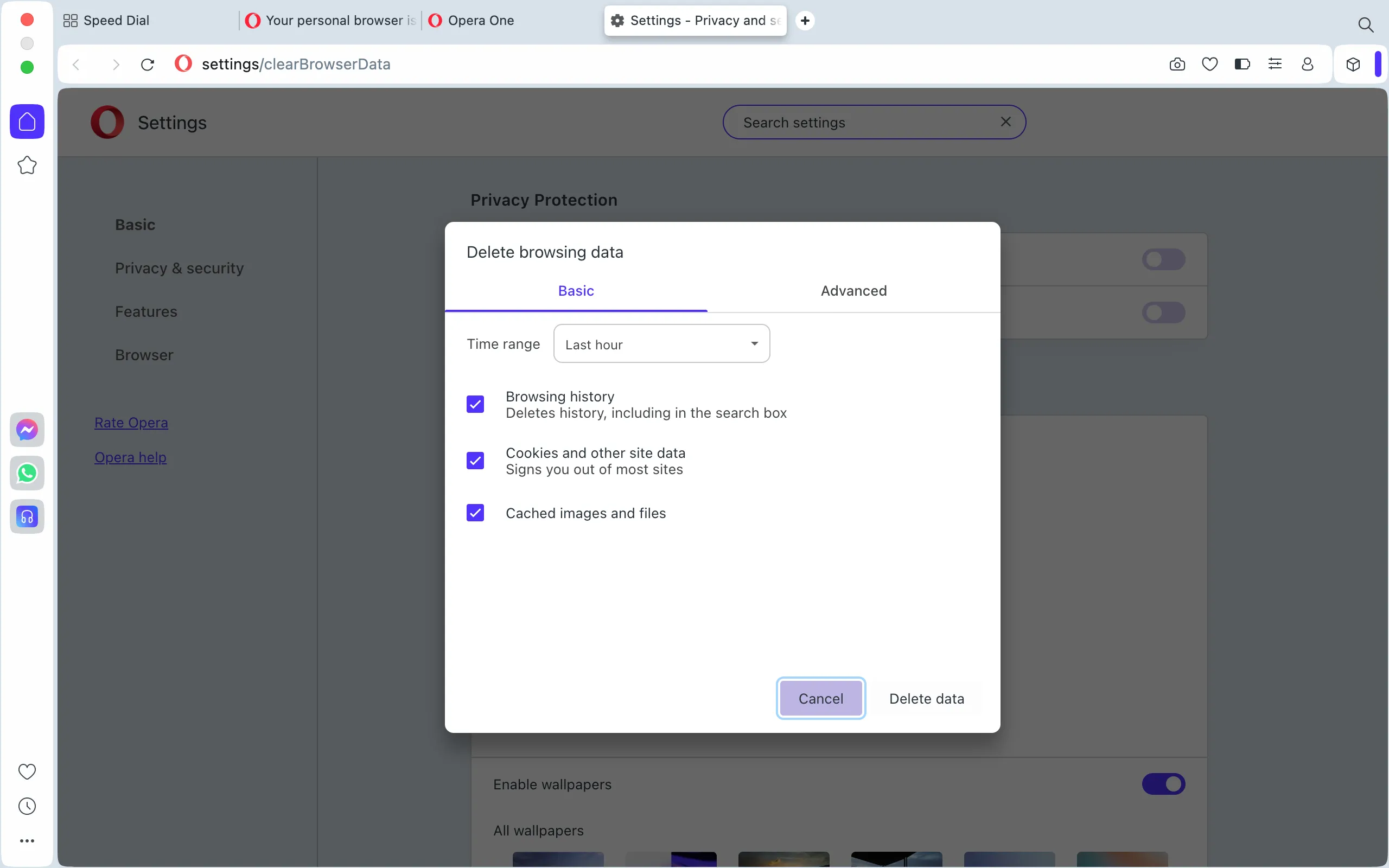
- In the Clear browsing data window, select the time range you want to clear.
 Clearing cache in Opera
- Make sure only Cached images and files is checked, then click Clear data.
Our products and services
Internet Explorer
IE 10 and IE 11:
- Press Ctrl + Shift + Del.
- In the Delete Browsing History window, check Temporary Internet files and website files and make sure everything else is unchecked.
- Click Delete.
IE 8 and IE 9:
- Open the Tools menu in the browser.
- Select Delete Browsing History.
- Check Temporary Internet Files and uncheck everything else.
- Click Delete.
Microsoft Edge
- Click the menu icon and go to Settings.
- Under Clear browsing data, click Choose what to clear.
- Check Cached data and files.
- Click Clear.
Safari
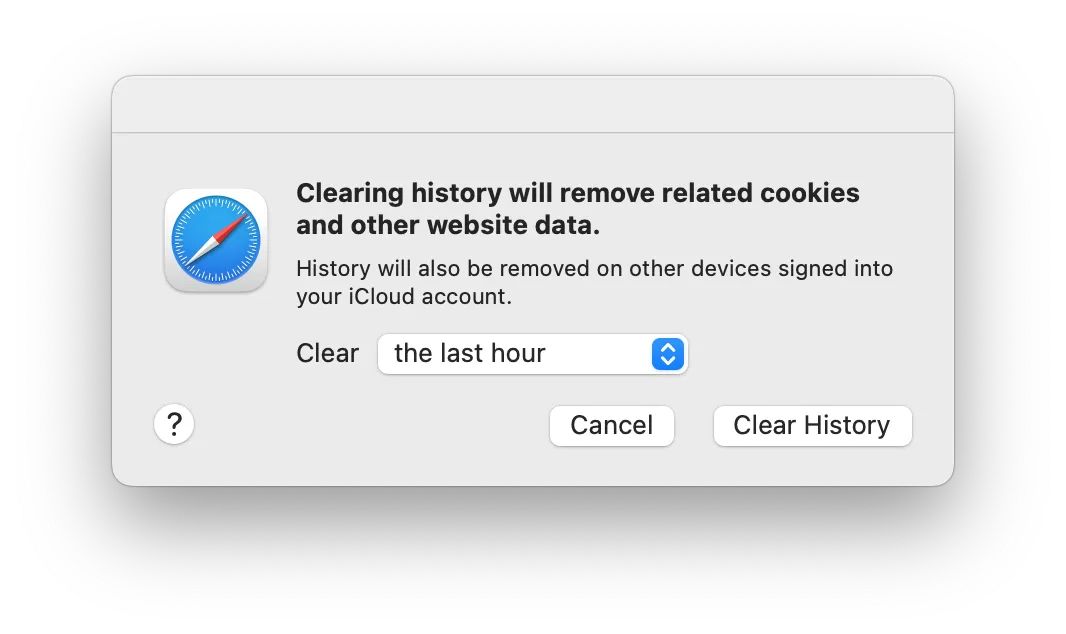
- In the menu bar, go to Safari → Clear History and Website Data.
- Choose your preferred time range.
- Click Clear History.
Help
If you have any questions or need assistance, please contact us through the ticket system — we're always here to help!