Backups in Hestia CP
How to create, configure, and restore backups in the Hestia control panel.
Hestia CP is one of the most popular and easy-to-use server control panels available. It lets you manage websites, email, databases, SSL certificates, cron jobs, and files — all from one clean interface.
Creating a backup
Hestia has a dedicated Backup section that makes creating backups straightforward.
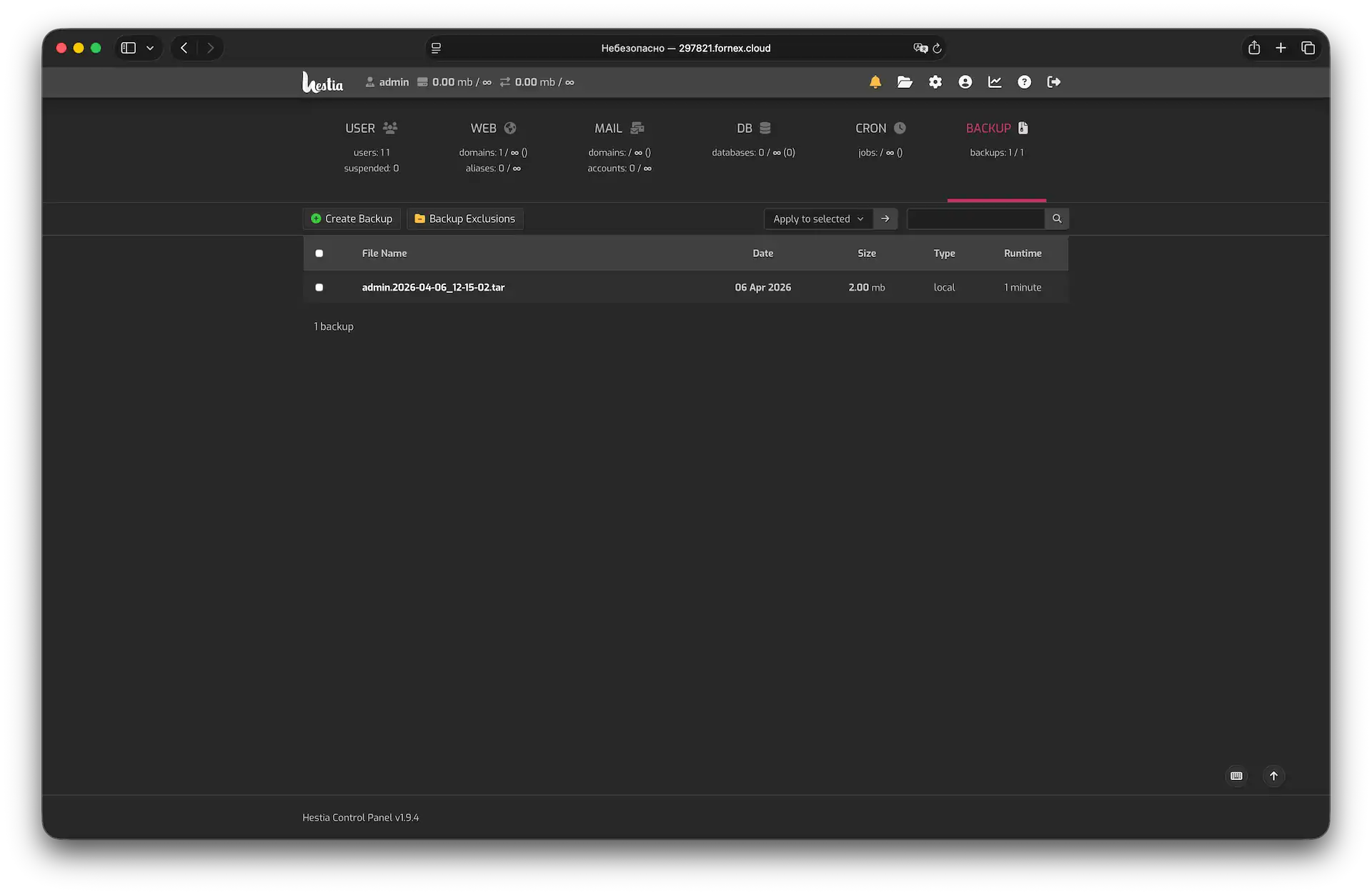 Backup section in Hestia CP
Click Create Backup to queue a backup job. The queue is processed every 5 minutes, so your backup will start shortly. Once it's done, you'll receive an email notification and can download the archive directly from the panel.
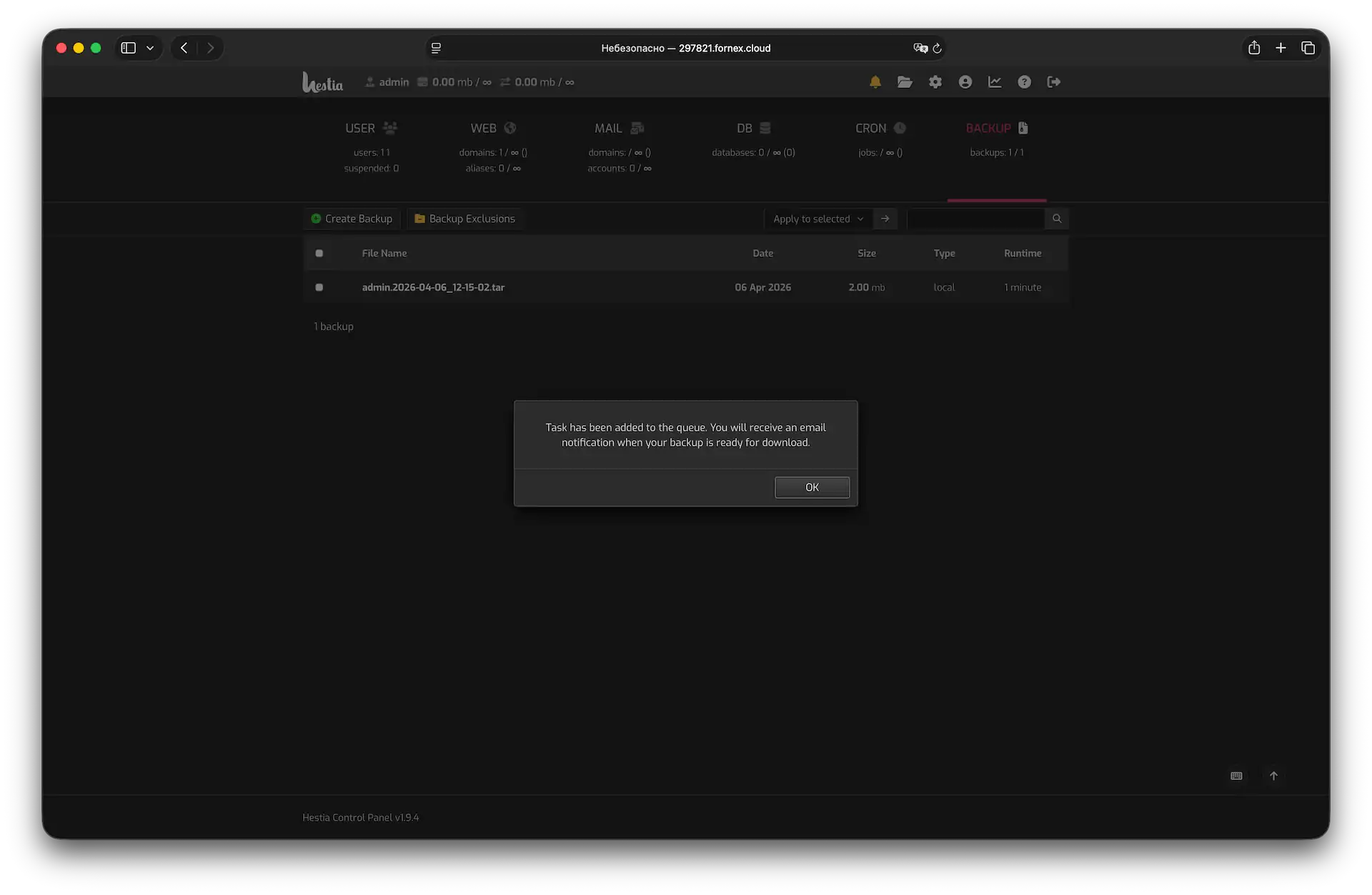 Downloading a backup
A backup includes:
- Website files, SSL certificates, Nginx configs, and Hestia settings for each domain
- System profile configuration files
- MySQL database dumps and their system settings
- The user's cron job file
When logged in as Admin, backups are created for all users in the control panel by default.
Configuring exclusions
If you want to skip certain directories or databases from the backup, click Backup Exclusions.
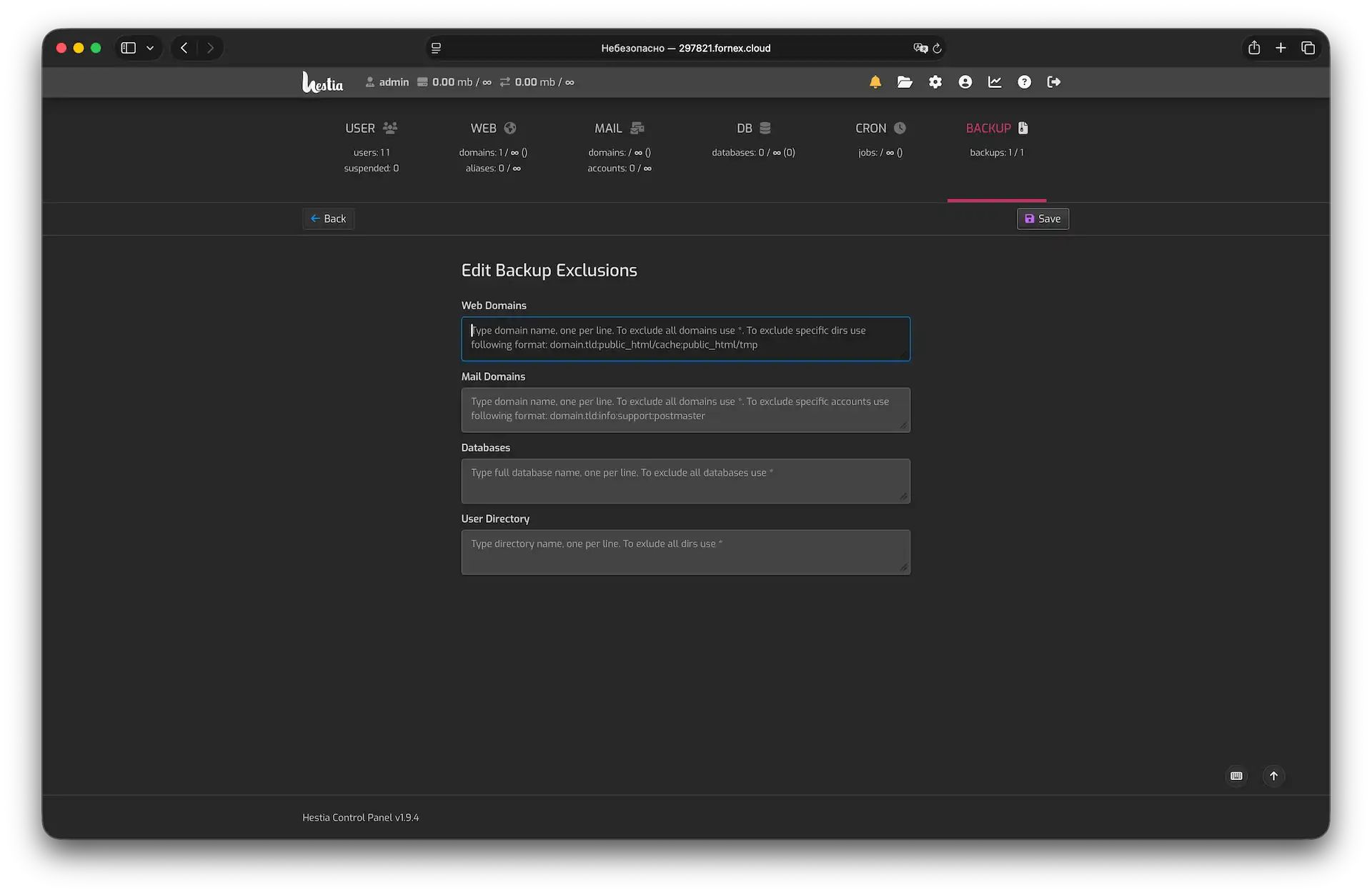 Editing exclusions
Fill in the fields to specify what should be left out — any folders, databases, or other items listed here will be skipped during backup. Click Save to apply your settings.
Once your exclusions are configured, go back to Backup tab, and click Create Backup to run a backup with those settings applied.
Restoring from a backup
Go to the Backup tab and click the Restore button next to the backup you want to recover from.
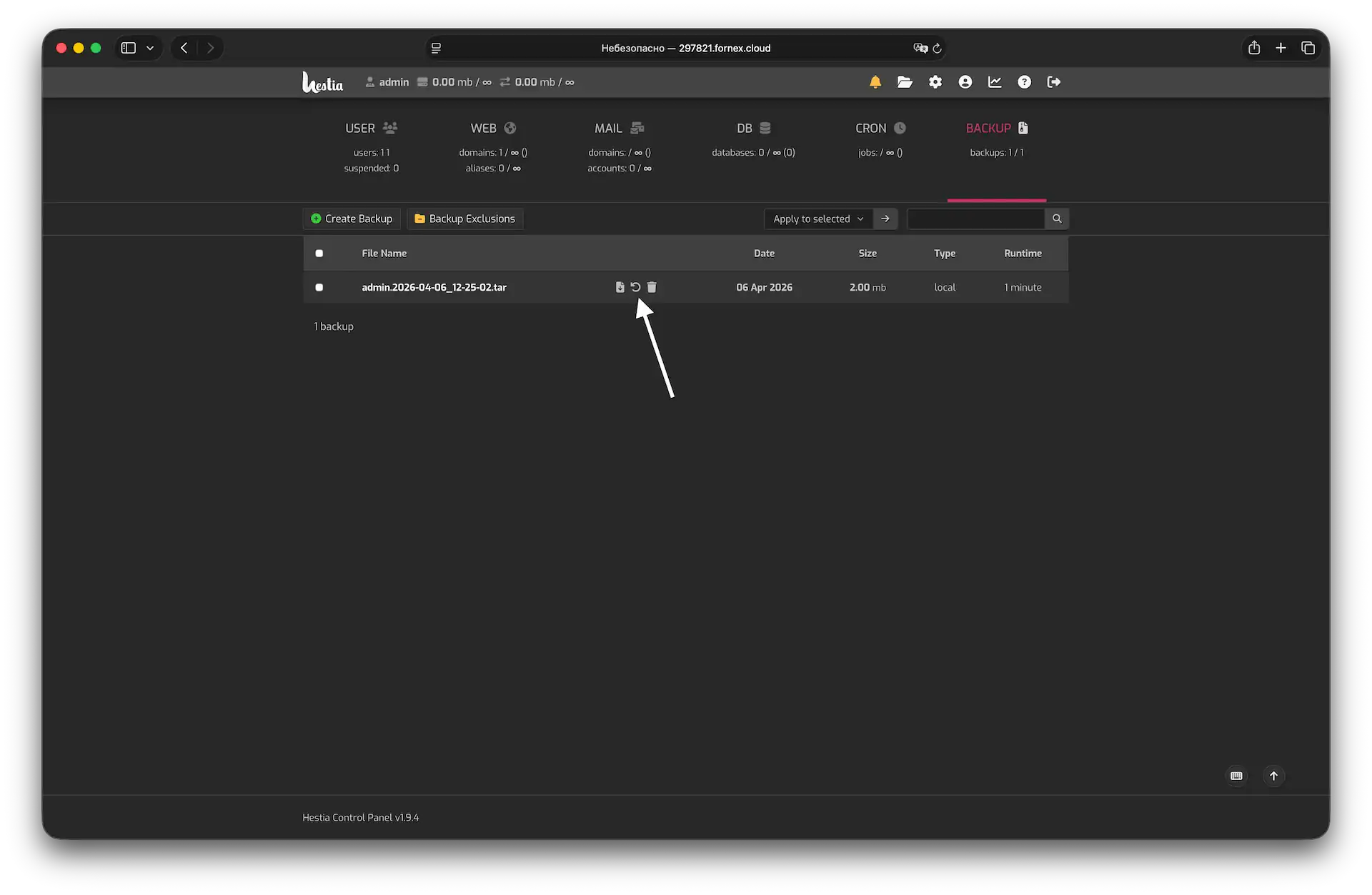 Backup list
In the window that opens, select the specific items you want to restore — or click Restore All to roll everything back to the state it was in when the backup was taken.
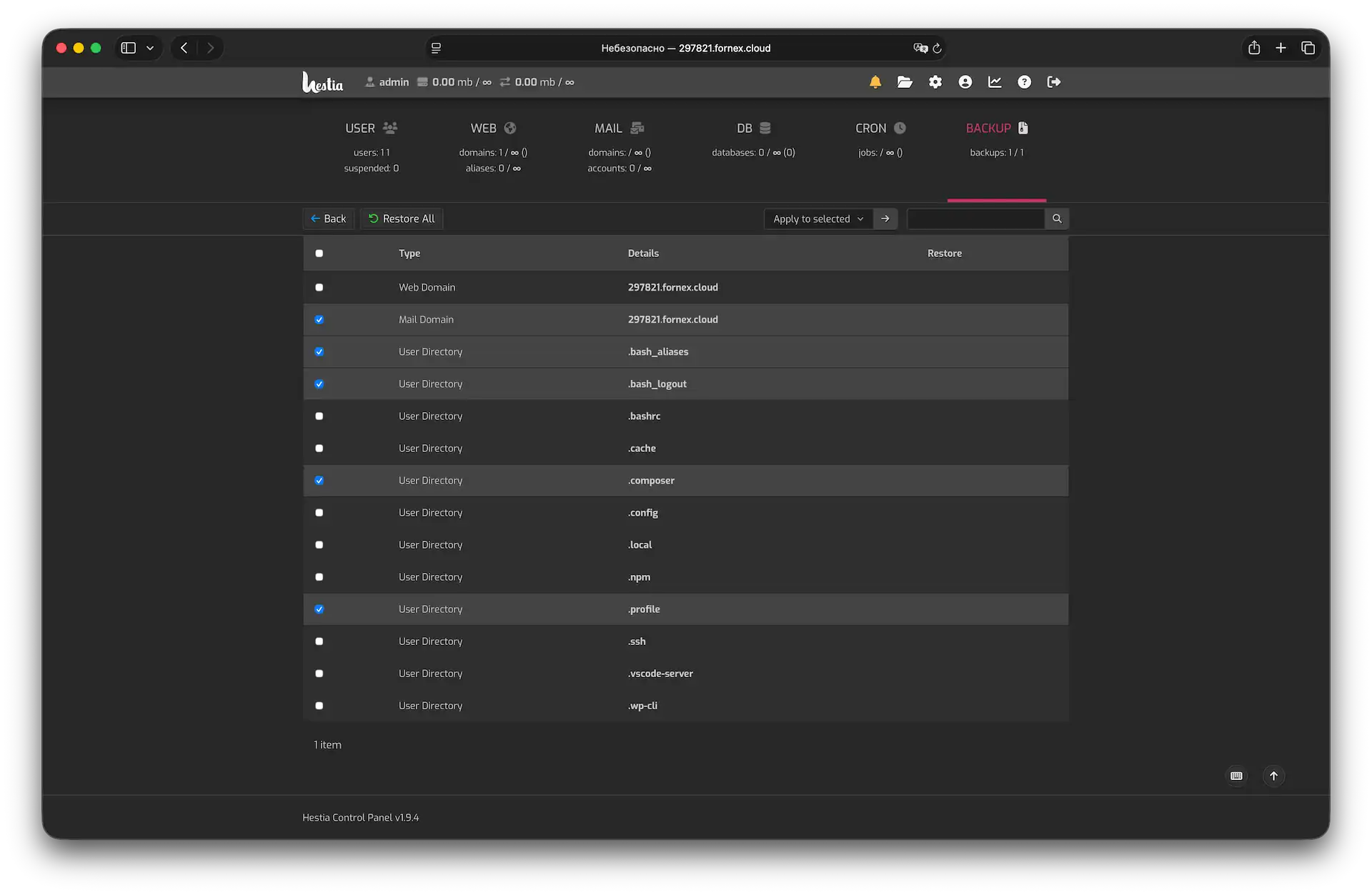 Selecting items to restore
Help
If you have any questions or need assistance, please contact us through the ticket system — we're always here to help!