Get started with aaPanel
A step-by-step guide to setting up and using the aaPanel control panel.
aaPanel is an open-source, lightweight Linux hosting control panel designed for simplicity and efficiency. Whether you are running a VPS or a Dedicated Server, it provides a streamlined interface to manage websites, SSL certificates, databases, FTP accounts, and email services without the need for complex command-line operations.
Getting started
- Log in to your aaPanel interface on your VPS using the credentials provided in your Fornex dashboard.
- Familiarize yourself with the home screen. This dashboard provides a real-time overview of your server's health, including CPU load, RAM usage, and disk I/O.
 The primary dashboard interface
Adding a website
To host your first project, follow these steps:
- Go to the Websites section in the left sidebar and click
Add site. - Enter your primary domain name.
- Configure the essential environment settings:
- Domain name: Your site's address.
- Site Directory: The root path where your files will be stored.
- FTP Account: Toggle this to create file transfer credentials automatically.
- Database: Choose this to provision a database immediately.
- PHP Version: Select the specific PHP version required for your application.
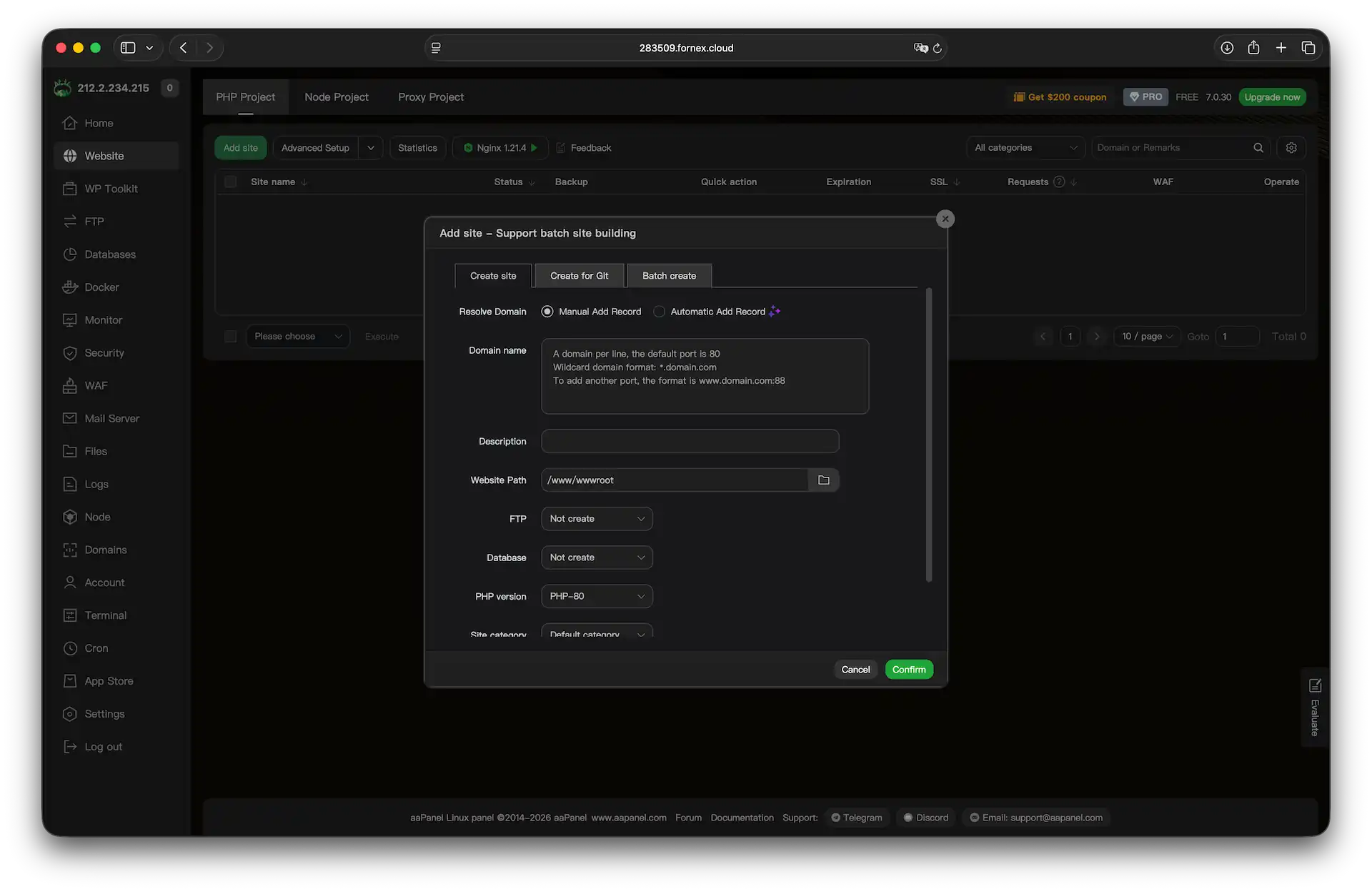 Domain configuration form
Creating a database
- Head over to the Databases section.
- Click
Add DB. - Provide the required details:
- Database Name: A unique identifier for your DB.
- Character Set: Usually
utf8mb4for modern web compatibility. - Username/Password: Credentials for the DB user.
- Access Permissions: Determine if the database is accessible only locally (
127.0.0.1) or from specific external IPs.
- Click
Confirmto finalize the creation.
 Database creation wizard
To manage your data manually, simply click the phpMyAdmin button located in the database entry row.
 Accessing phpMyAdmin
Our products and services
Creating an FTP account
- Go to the FTP menu.
- Click
Add FTP. - Define the Username, Password, and the specific Directory the user should have access to.
- Hit
Confirm.
 FTP user setup
Setting up email
Setting up a mail service requires you to register or log in to your aaPanel account.
- Go to the Mail Server section and click
Install. - Once the installation is complete, open the Mail Domain section.
- Click
Add domainand add your domain with the relevant details.
 Installing the Mail Server module from the App Store
Help
If you have any questions or need assistance, please contact us through the ticket system — we're always here to help!