Cómo crear un acceso directo para una conexión a Escritorio remoto en Windows
Learn how to create a Remote Desktop shortcut in Windows to quickly connect to your VPS with just one click.
Windows Server is Microsoft's server operating system designed for hosting applications, databases, virtualization, and IT infrastructure.
If you regularly connect to a remote server using RDP (Remote Desktop Protocol), creating a shortcut on your desktop is the most convenient option. This allows you to launch your Remote Desktop connection with a double-click, without having to enter the server address every time.
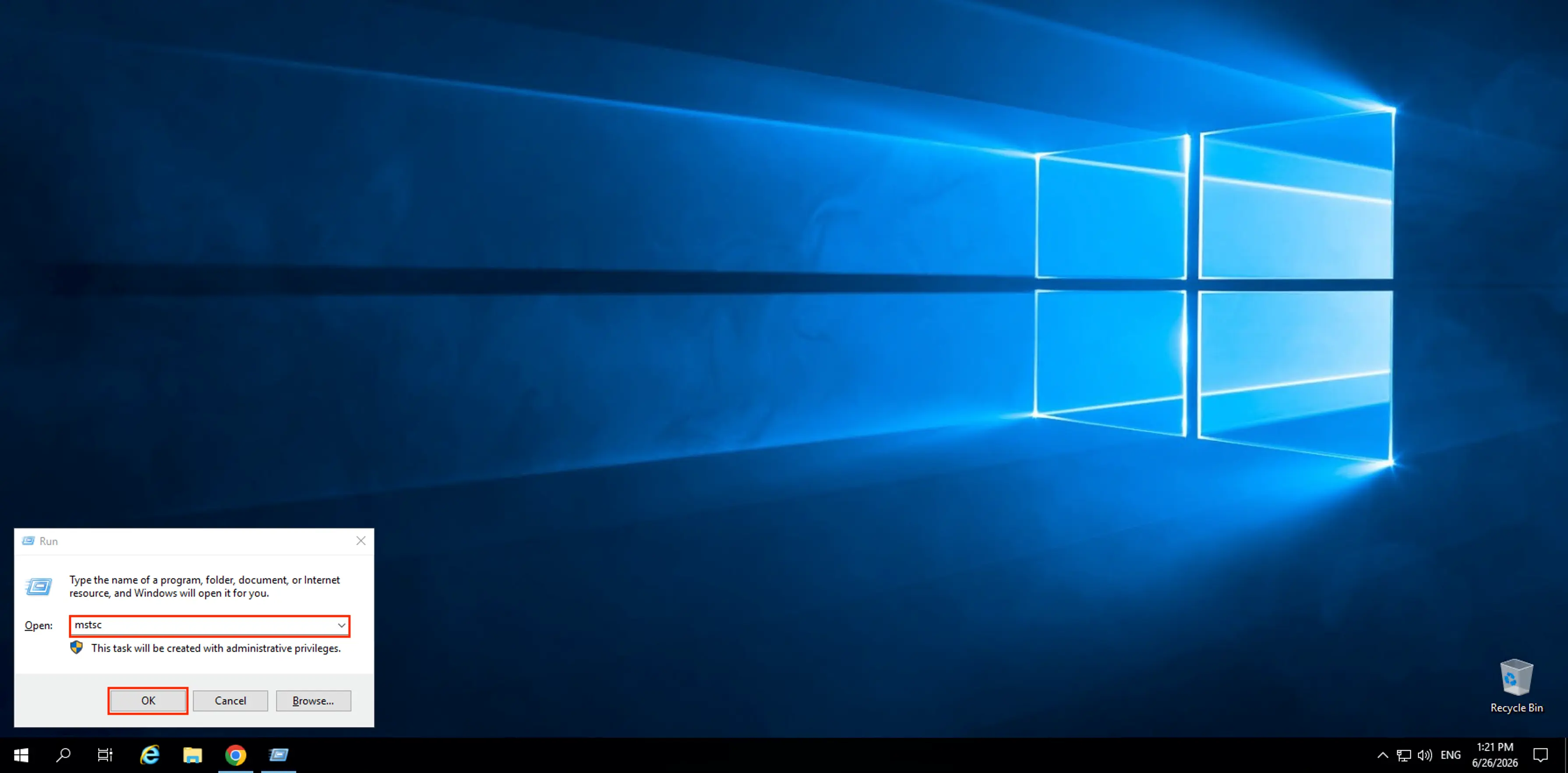
Press Win + R.
Enter the following command:
mstscClick OK.
In the window that opens, enter the required connection settings.
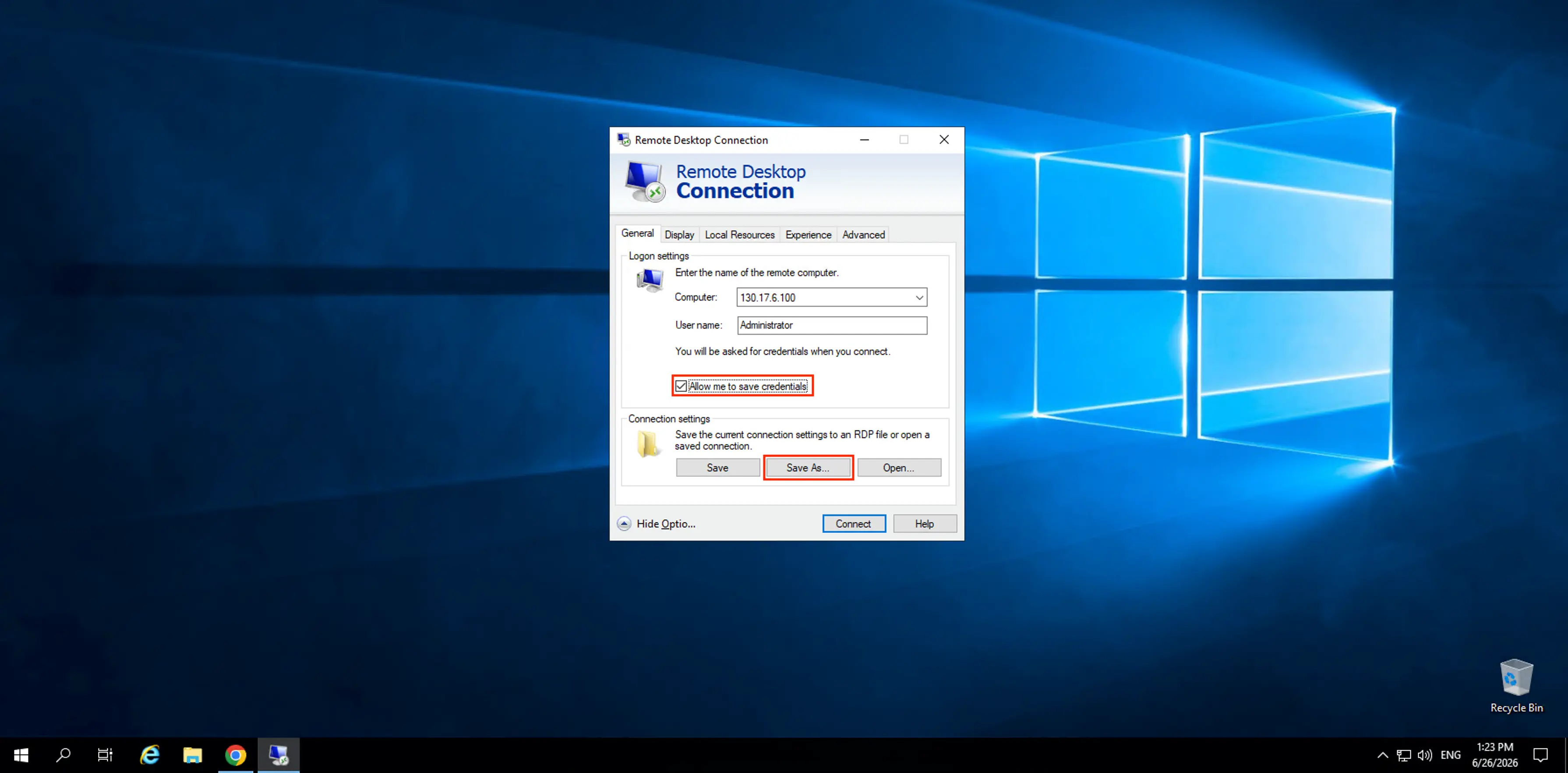
In the Computer field, enter the IP address of your remote server.
If necessary, fill in the User name field.
Click Save As....
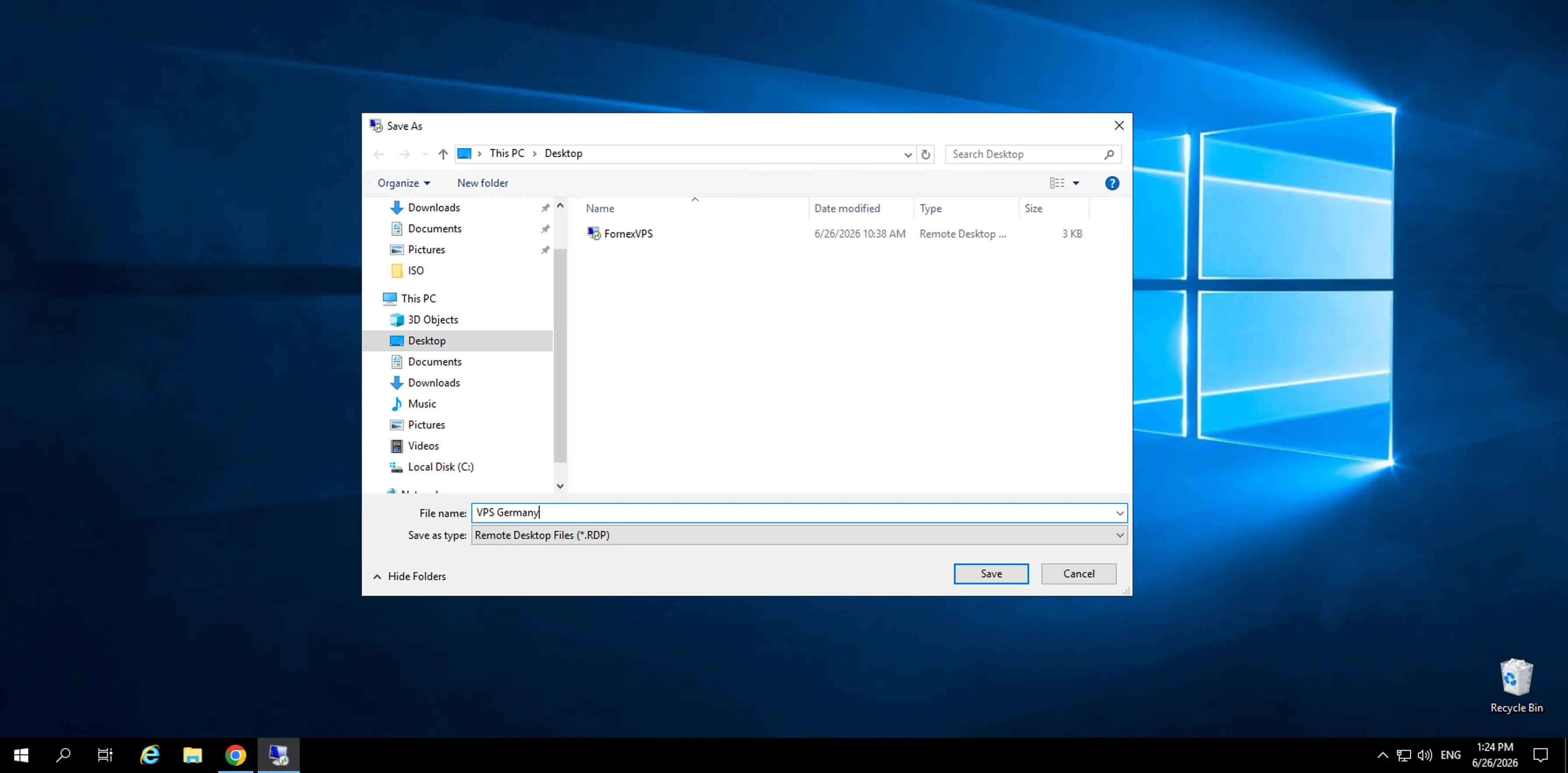
Choose where you want to save the file (for example, on your Desktop) and click Save.
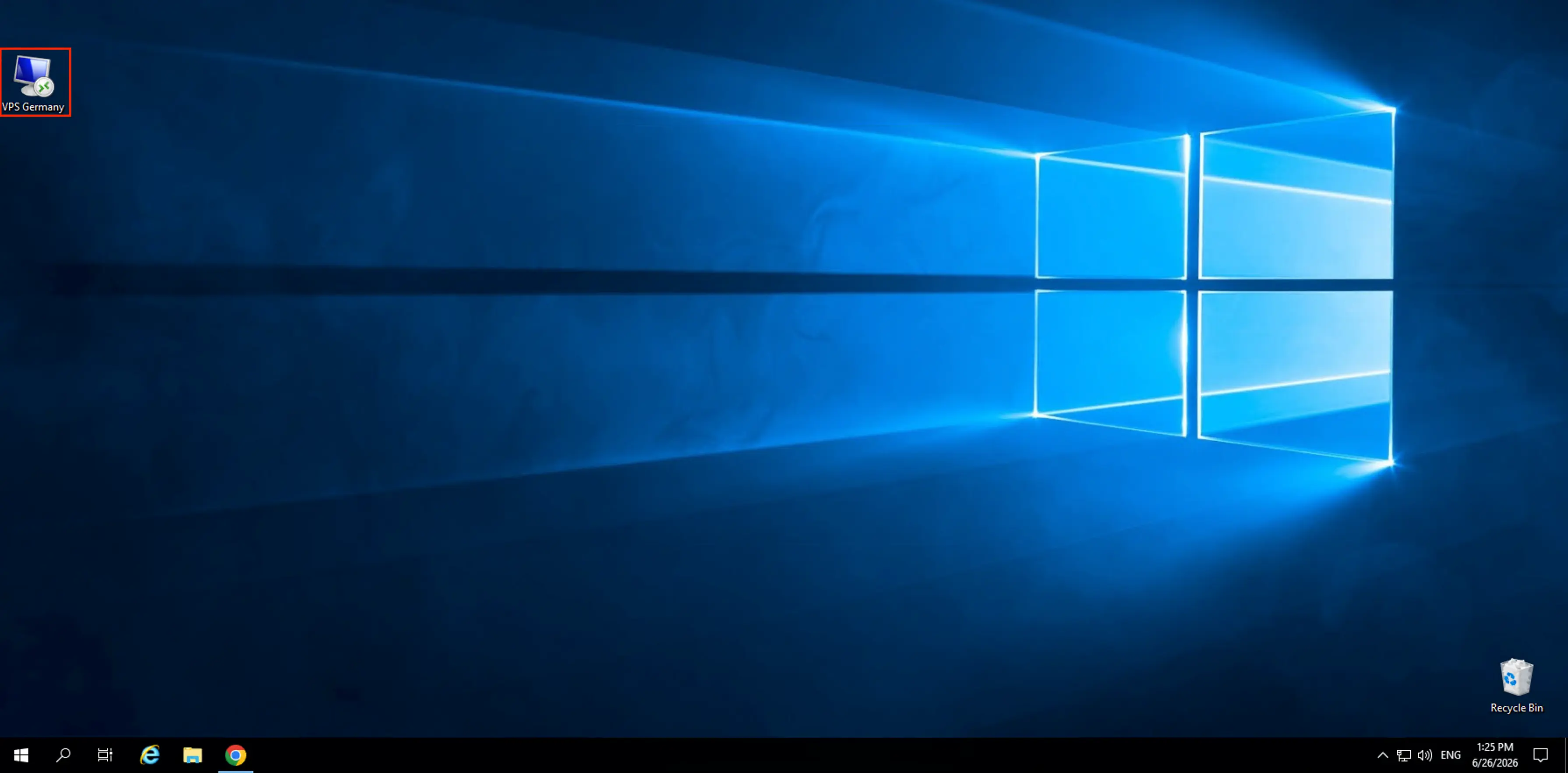
A file with the .rdp extension will be created. This file serves as your Remote Desktop shortcut.
Tip
You can rename the .rdp file to something more descriptive, such as VPS Germany.rdp or Work Server.rdp, for easier identification.
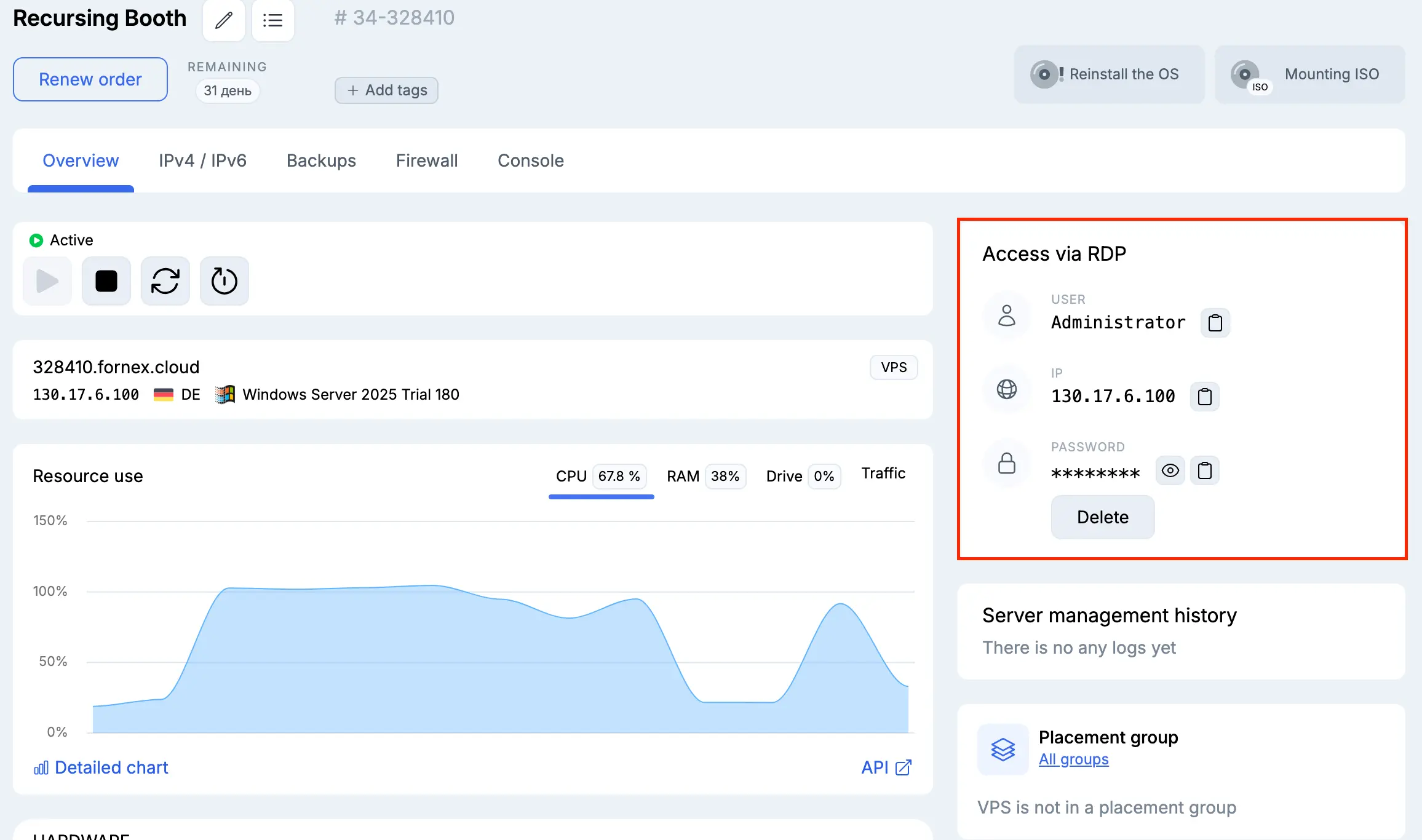
Open the shortcut and enter your account password. You can find your login credentials in the Billing Panel.
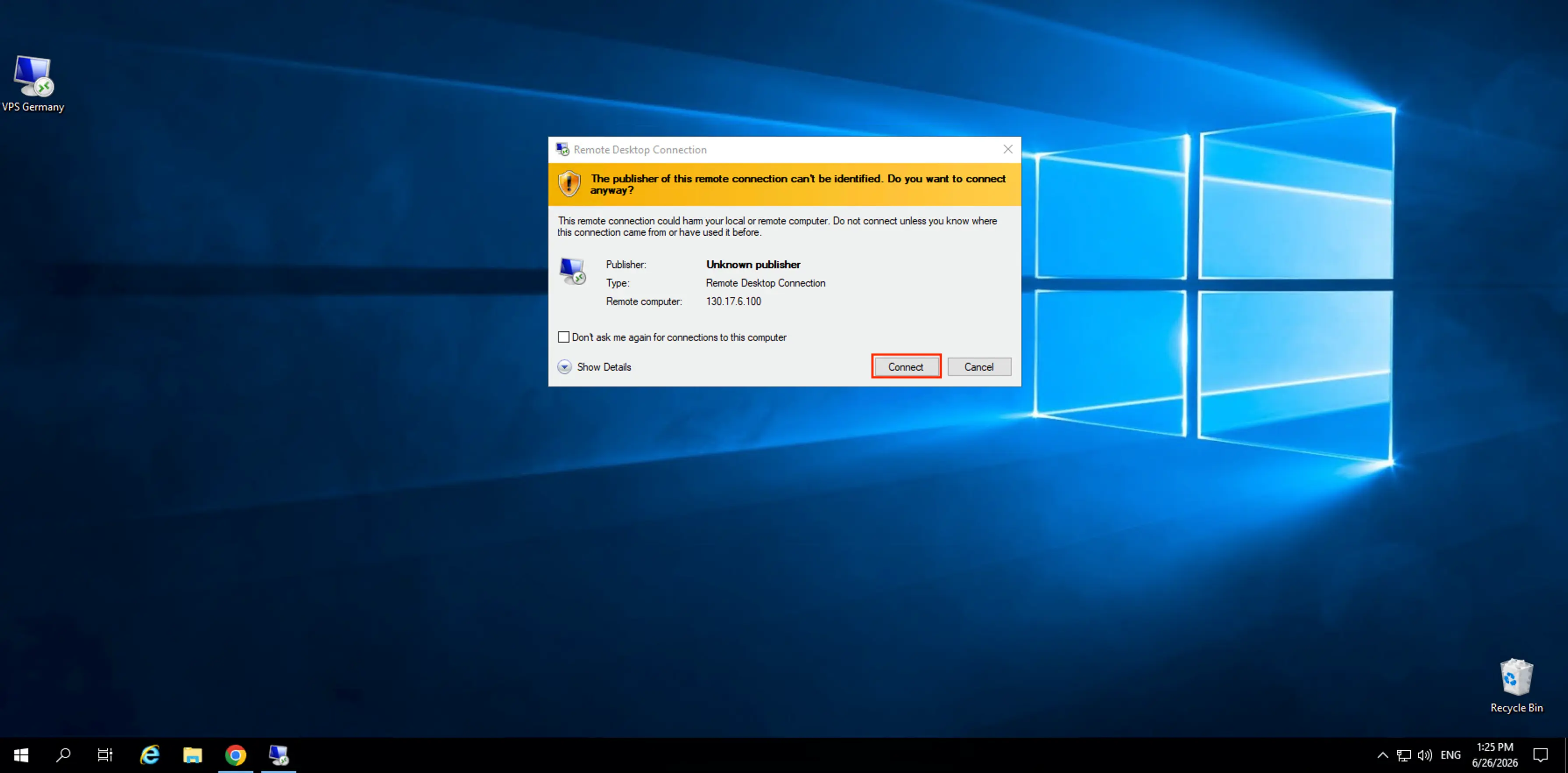
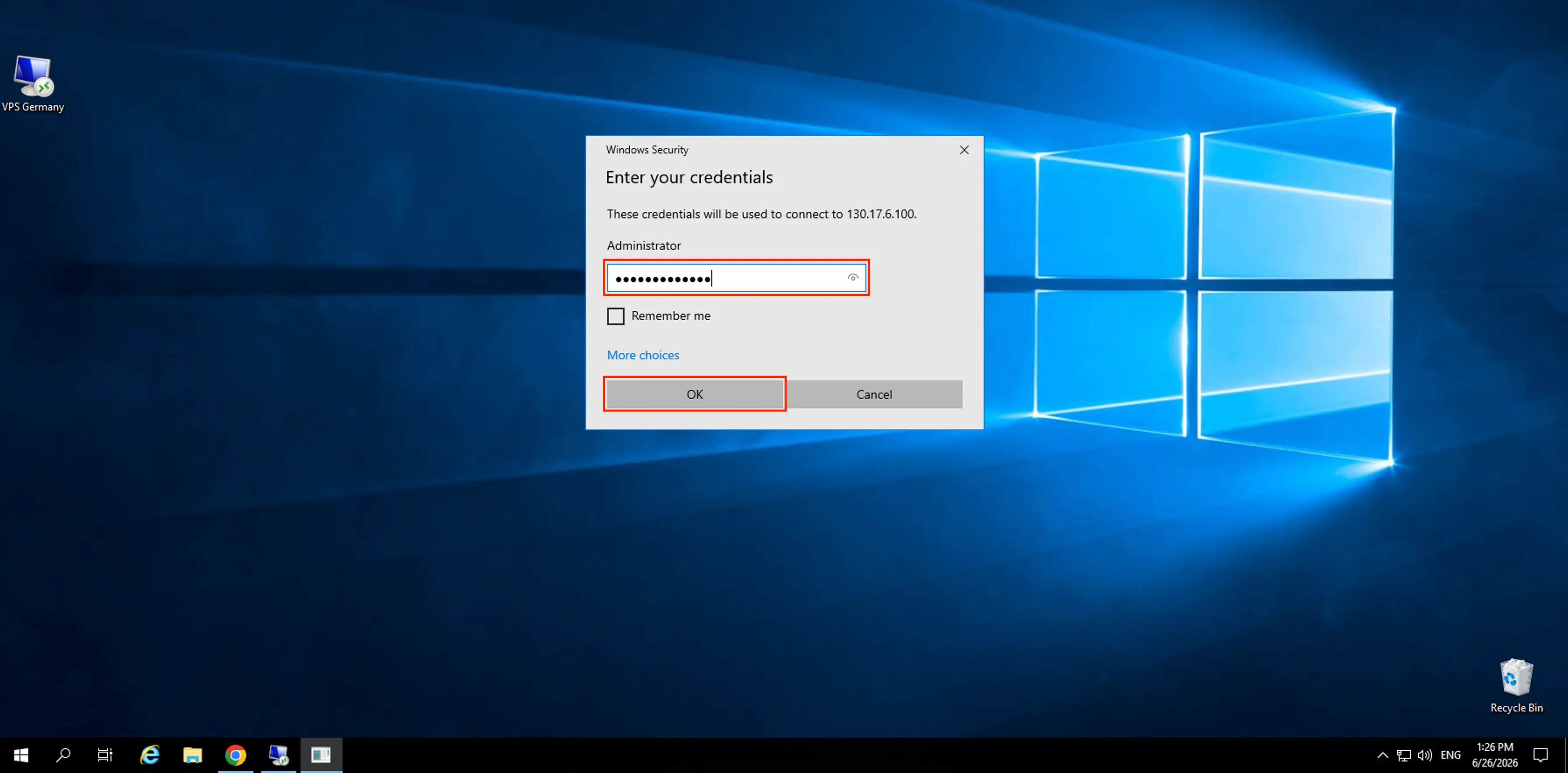
Click OK to connect. The setup is now complete.
Nuestros servicios y productos
Ayuda
¿Tienes dudas o necesitas ayuda? Escríbenos a través del sistema de tickets — siempre estamos aquí para ayudarte!