Restoring access to HestiaCP after VPS migration
Restoring access to HestiaCP after VPS cloning, migration to another data center.
After migrating or cloning a VPS with HestiaCP installed, the server may receive a new IP address. After the IP address changes, the control panel or websites hosted on the server may not work correctly or may become unavailable.
This happens because the HestiaCP configuration and the configuration files generated by it may still contain the server's previous IP address.
After changing the network settings, you need to update the system IP address in HestiaCP and rebuild the configuration files.
Solution
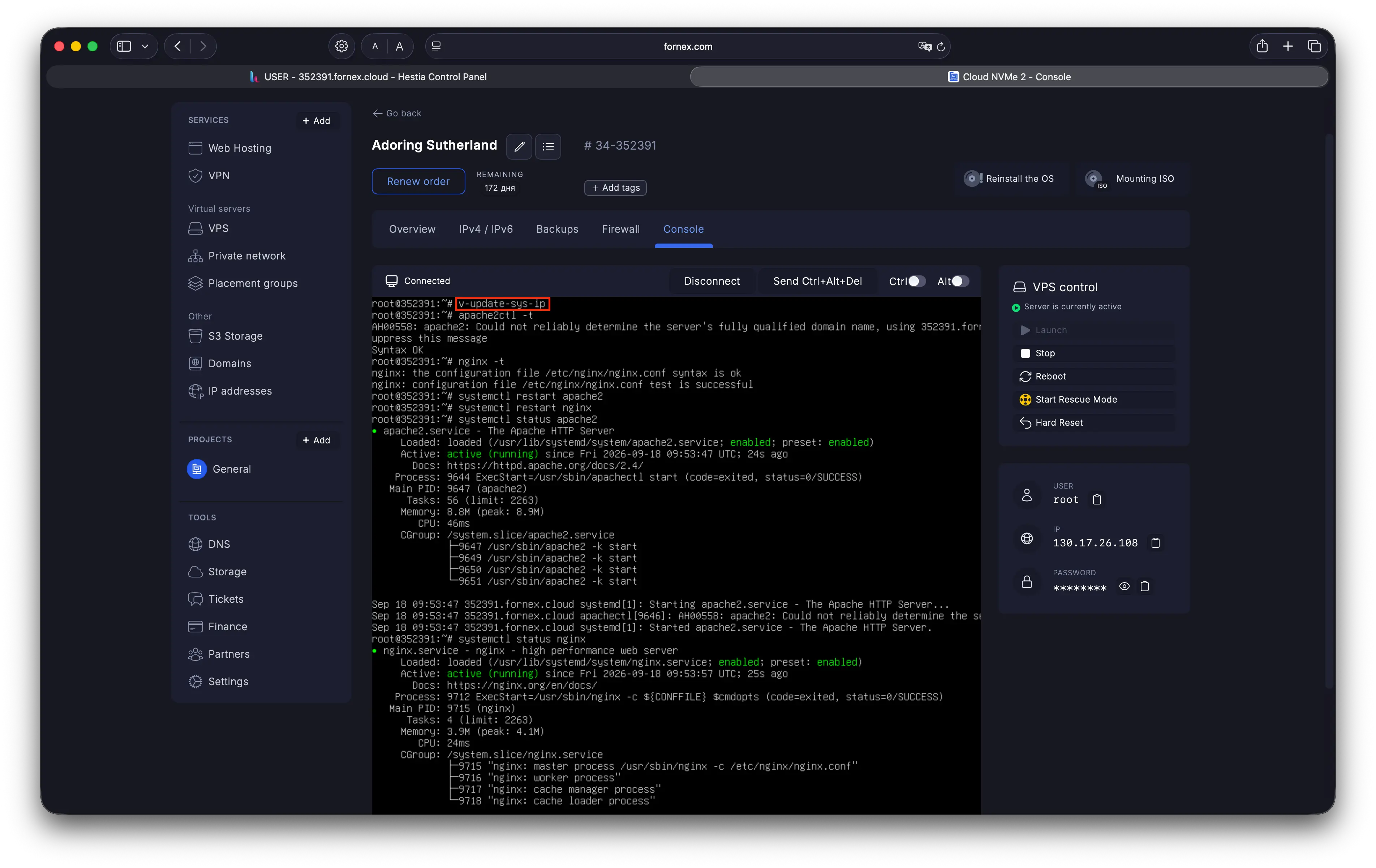
Connect to the VPS console via the Client Area and run:
 Restoring access to HestiaCP after VPS migration
v-update-sys-ipThe command detects the server's current IP address, updates it in the HestiaCP internal database, and rebuilds the configuration files.
After updating the IP address, check the Apache and Nginx configurations before restarting the services.
Check the Apache configuration:
apache2ctl -tIf the output shows Syntax OK, the configuration check was successful.
Next, check the Nginx configuration:
nginx -tIf the configuration check is successful, the following output will be displayed:
nginx: the configuration file /etc/nginx/nginx.conf syntax is ok
nginx: configuration file /etc/nginx/nginx.conf test is successful
If both the Apache and Nginx configurations pass the checks without errors, restart both services:
systemctl restart apache2 nginxAfter restarting the services, check their status:
systemctl status apache2 nginxBoth services should have the active (running) status.
Note
The systemctl status command may open the output in a pager. Press q to exit and return to the console.
After completing these steps, open HestiaCP again — access to the control panel should be restored.
Verification
After completing all the steps, make sure that:
- You can successfully log in to HestiaCP.
- Websites hosted on the VPS are accessible and working correctly.
- The DNS records for your domains point to the current VPS IP address.
Important
If errors are detected when checking the Apache or Nginx configuration, do not restart the affected service until the errors have been resolved.
Hilfe
Bei Fragen oder wenn Sie Unterstützung brauchen, erreichen Sie uns jederzeit über das Ticketsystem — wir helfen Ihnen gern weiter!