Cambio della versione principale di MySQL sul server con ISPmanager5
Istruzioni per cambiare la versione principale di MySQL sul server con il pannello di controllo ISPmanager
Per impostazione predefinita, su Ubuntu 18.04 viene installata la versione 5.7 del server MySQL.
mysqladmin Ver 8.42 Distrib 5.7.25, for Linux on x86_64
Copyright (c) 2000, 2020, Oracle and/or its affiliates. All rights reserved.

Oracle is a registered trademark of Oracle Corporation and/or its
affiliates. Other names may be trademarks of their respective
owners.

Server version		5.7.25-0ubuntu0.18.04.1
Protocol version	10
Connection		Localhost via UNIX socket
UNIX socket		/var/run/mysqld/mysqld.sock
Uptime:			44 min 19 sec

Threads: 1  Questions: 50  Slow queries: 0  Opens: 115  Flushing tables: 1  Open tables: 24  Queries per second avg: 0.018
Prima di eseguire qualsiasi operazione sul server, ti consigliamo vivamente di creare un backup o uno snapshot di tutti i dati del tuo ordine.
Se devi aggiornare MySQL alla versione 8.0, segui i passaggi seguenti: Rimuovi il server MySQL dalla sezione Abilities di ISPmanager. In questo modo verrà rimosso il pacchetto ispmanager-pkg-mysql e il server MySQL dalla sezione Database Servers.

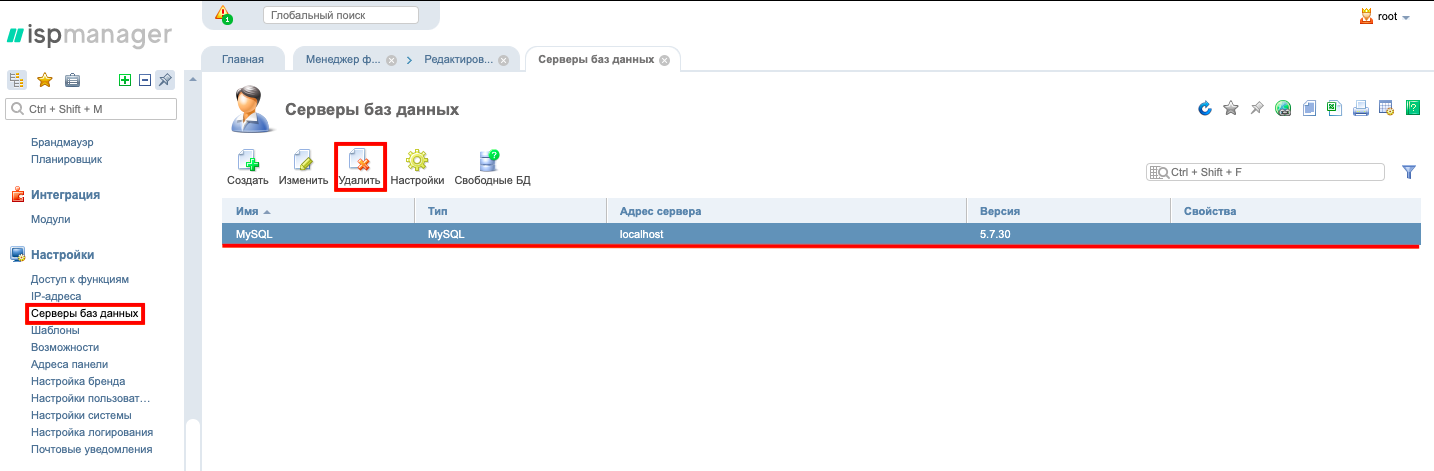
Inizio dell'installazione
Connettiti al server tramite SSH e inserisci il comando che aggiorna gli elenchi dei pacchetti dai repository, per ottenere informazioni sulle versioni più recenti dei pacchetti e delle loro dipendenze.
sudo apt updateInserisci il comando che scarica le nuove versioni dei pacchetti presenti sul server:
sudo apt upgradeScarica il file con wget:
wget -c https://dev.mysql.com/get/mysql-apt-config_0.8.15-1_all.debroot@kvmde54-19861:~# wget -c https://dev.mysql.com/get/mysql-apt-config_0.8.15-1_all.deb
--2020-06-01 14:03:09-- https://dev.mysql.com/get/mysql-apt-config_0.8.15-1_all.deb
Resolving dev.mysql.com (dev.mysql.com)... 137.254.60.11
Connecting to dev.mysql.com (dev.mysql.com)|137.254.60.11|:443... connected.
HTTP request sent, awaiting response... 302 Found
Location: https://repo.mysql.com//mysql-apt-config_0.8.15-1_all.deb [following]
--2020-06-01 14:03:10-- https://repo.mysql.com//mysql-apt-config_0.8.15-1_all.deb
Resolving repo.mysql.com (repo.mysql.com)... 23.44.197.55
Connecting to repo.mysql.com (repo.mysql.com)|23.44.197.55|:443... connected.
HTTP request sent, awaiting response... 200 OK
Length: 35532 (35K) [application/x-debian-package]
Saving to: 'mysql-apt-config_0.8.15-1_all.deb'
mysql-apt-config_0.8.15-1_ 100%[========================================>] 34.70K --.-KB/s in 0.008s
2020-06-01 14:03:10 (4.40 MB/s) - 'mysql-apt-config_0.8.15-1_all.deb' saved [35532/35532]Per verificare che il file sia stato scaricato, digita:
lsroot@kvmde54-19861:~# ls
mysql-apt-config_0.8.15-1_all.deb ubuntu-echoQuindi decomprimi e installa il pacchetto:
sudo dpkg -i mysql-apt-configApparirà una finestra in cui devi verificare che sia selezionato MySQL Server & Cluster (Currently selected: mysql-8.0).
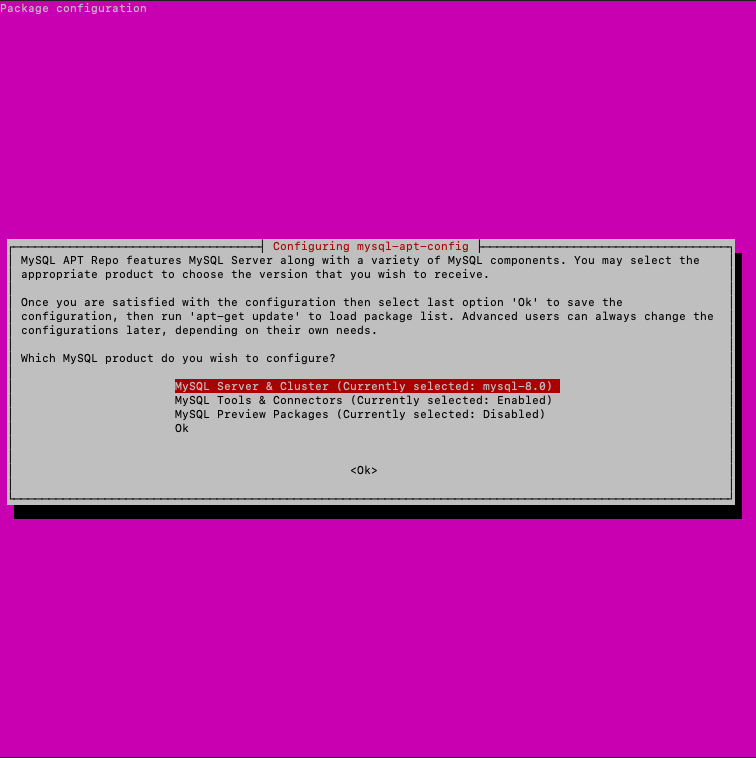
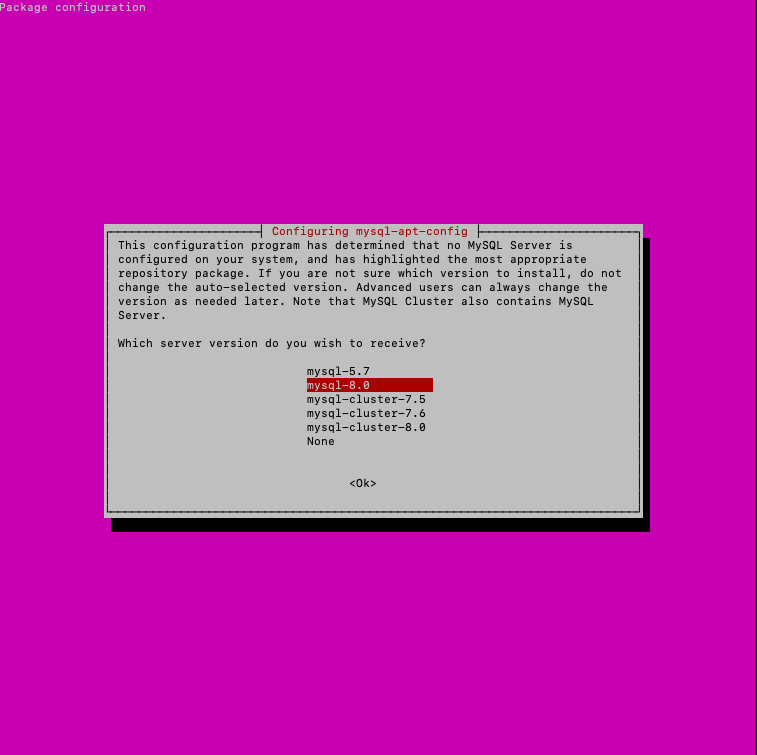
Quindi inserisci i seguenti comandi:
sudo apt updatesudo apt upgradeInstalla il server MySQL:
sudo apt install mysql-serverSi aprirà una finestra in cui dovrai inserire una nuova password root per MySQL (la password di Ubuntu e quella di MySQL possono essere diverse).
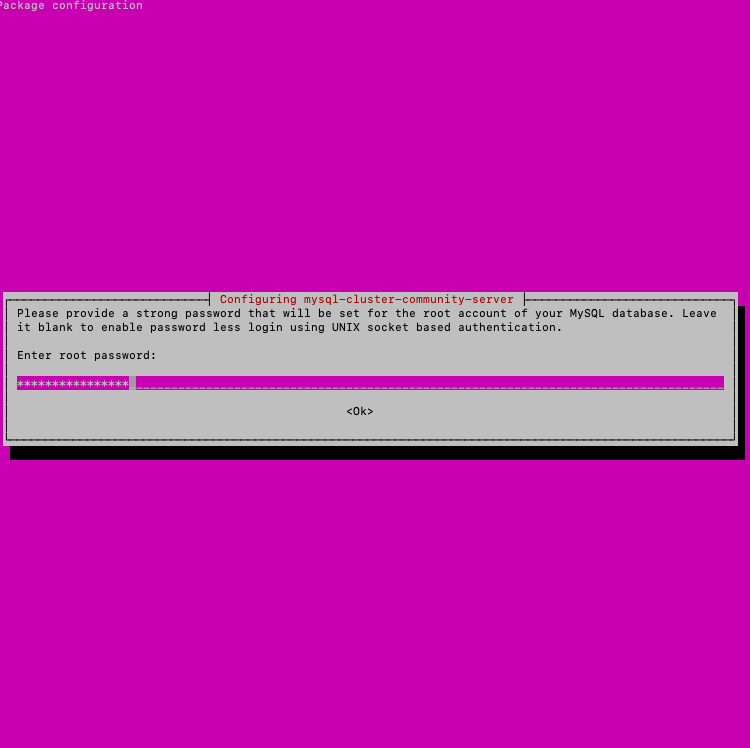
Quindi clicca su Ok.
Nella finestra relativa alla nuova autenticazione di MySQL 8, seleziona Use Strong Password Encryption (Recommended).
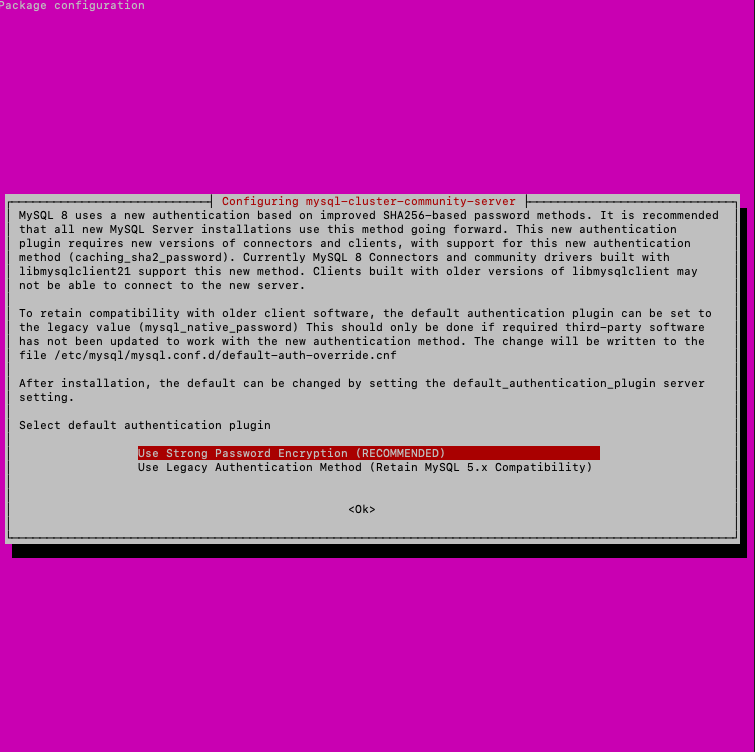
Quindi inserisci il comando:
mysql_secure_installationInserisci la password MySQL.
Alle domande sulla sicurezza puoi rispondere come segue:
root@kvmde54-19861:~# mysql_secure_installation

Securing the MySQL server deployment.

Connecting to MySQL using a blank password.

VALIDATE PASSWORD COMPONENT can be used to test passwords
and improve security. It checks the strength of password
and allows the users to set only those passwords which are
secure enough. Would you like to setup VALIDATE PASSWORD component?

Press y|Y for Yes, any other key for No: N
Please set the password for root here.

New password

Re-enter new password
By default, a MySQL installation has anonymous user,
allowing anyone to log into MySQL without having to have
a user account created for them. This is intended only for
testing, and to make the installation go a bit smoother.
You should remove them before moving into a production
environment.

Remove anonymous users? (Press y|Y for Yes, any other key for No) : y
Success.


Normally, root should only be allowed to connect from
'localhost'. This ensures that someone cannot guess at
the root password from the network.

Disallow root login remotely? (Press y|Y for Yes, any other key for No) : y
Success.

By default, MySQL comes with a database named 'test' that
anyone can access. This is also intended only for testing,
and should be removed before moving into a production
environment.


Remove test database and access to it? (Press y|Y for Yes, any other key for No) : y
 - Dropping test database...
Success.

 - Removing privileges on test database...
Success.

Reloading the privilege tables will ensure that all changes
made so far will take effect immediately.

Reload privilege tables now? (Press y|Y for Yes, any other key for No) : y
Success.

All done!
Per verificare che MySQL sia in esecuzione, digita:
systemctl status mysqlroot@kvmde54-19861:~# systemctl status mysql
Mysql.service - MySQL Community Server
Loaded: loaded (/lib/systemd/system/mysql.service; enabled; vendor preset: enabled)
Drop-In: /etc/systemd/system/mysql.service.d
└─nofile.conf
Active: active (running) since Mon 2020-06-01 14:15:34 CEST; 1min 49s ago
Docs: man:mysqld(8)
http://dev.mysql.com/doc/refman/en/using-systemd.html
Main PID: 31770 (mysqld)
Status: "Server is operational"
Tasks: 39 (limit: 1108)
CGroup: /system.slice/mysql.service
└─31770 /usr/sbin/mysqld
Jun 01 14:15:33 kvmde54-19861.fornex.org systemd[1]: Starting MySQL Community Server...
Jun 01 14:15:34 kvmde54-19861.fornex.org systemd[1]: Started MySQL Community Server.Inserisci il comando per verificare che sia installato MySQL 8.0 e non MySQL 5.*:
mysqladmin -u root -p versionroot@kvmde54-19861:~# mysqladmin -u root -p version
Enter password
mysqladmin Ver 8.0.20 for Linux on x86_64 (MySQL Community Server - GPL)
Copyright (c) 2000, 2020, Oracle and/or its affiliates. All rights reserved.
Oracle is a registered trademark of Oracle Corporation and/or its
its affiliates. Other names may be trademarks of their respective
owners.
Server version 8.0.20
Protocol version 10
Connection Localhost via UNIX socket
UNIX socket /var/run/mysqld/mysqld.sock
Uptime: 2 min 1 sec
Threads: 2 Questions: 11 Slow queries: 0 Opens: 128 Flushing tables: 3 Open tables: 49 Queries per second avg: 0.090
MySQL è stato aggiornato alla versione 8.0.20.
Ora, nel pannello di controllo, nella sezione Abilities, installa il server MySQL.

Al termine dell'installazione, vedrai che la versione di MySQL è cambiata in 8.0.20.
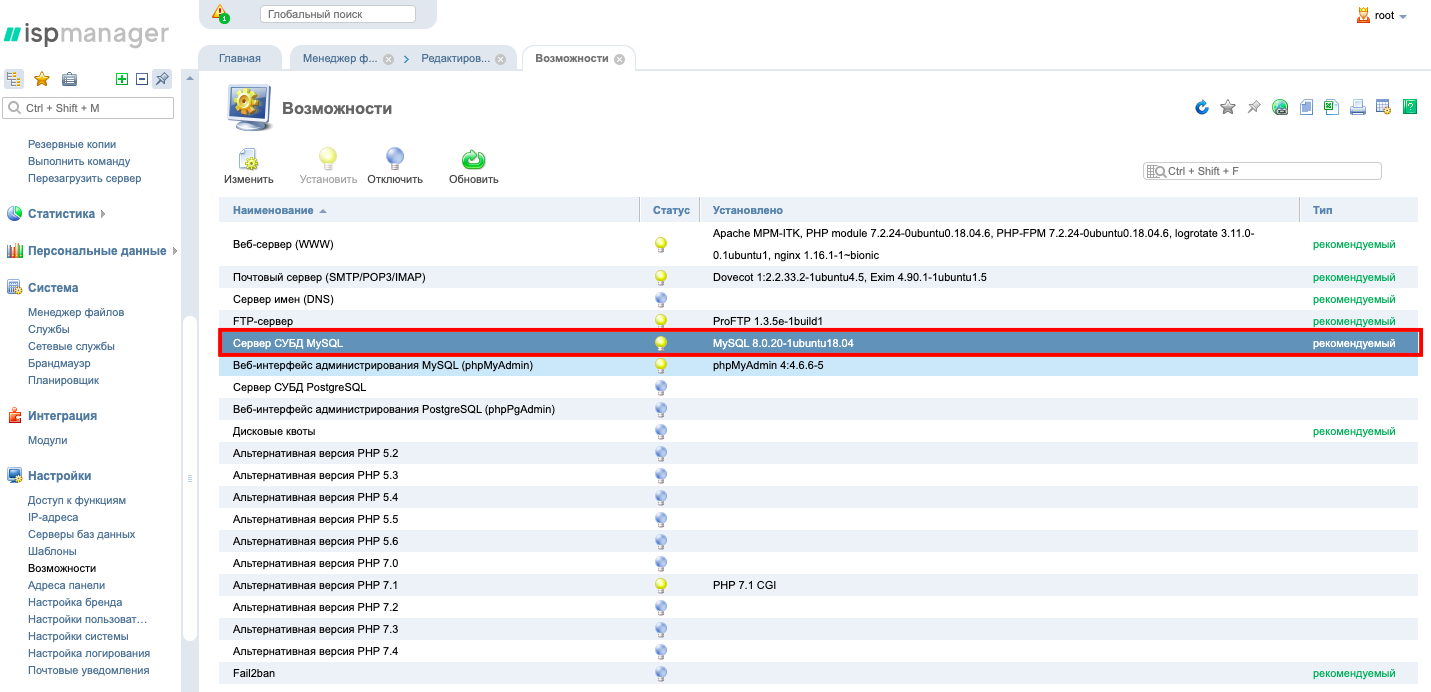
Nella sezione DB Servers comparirà anche il nuovo server.
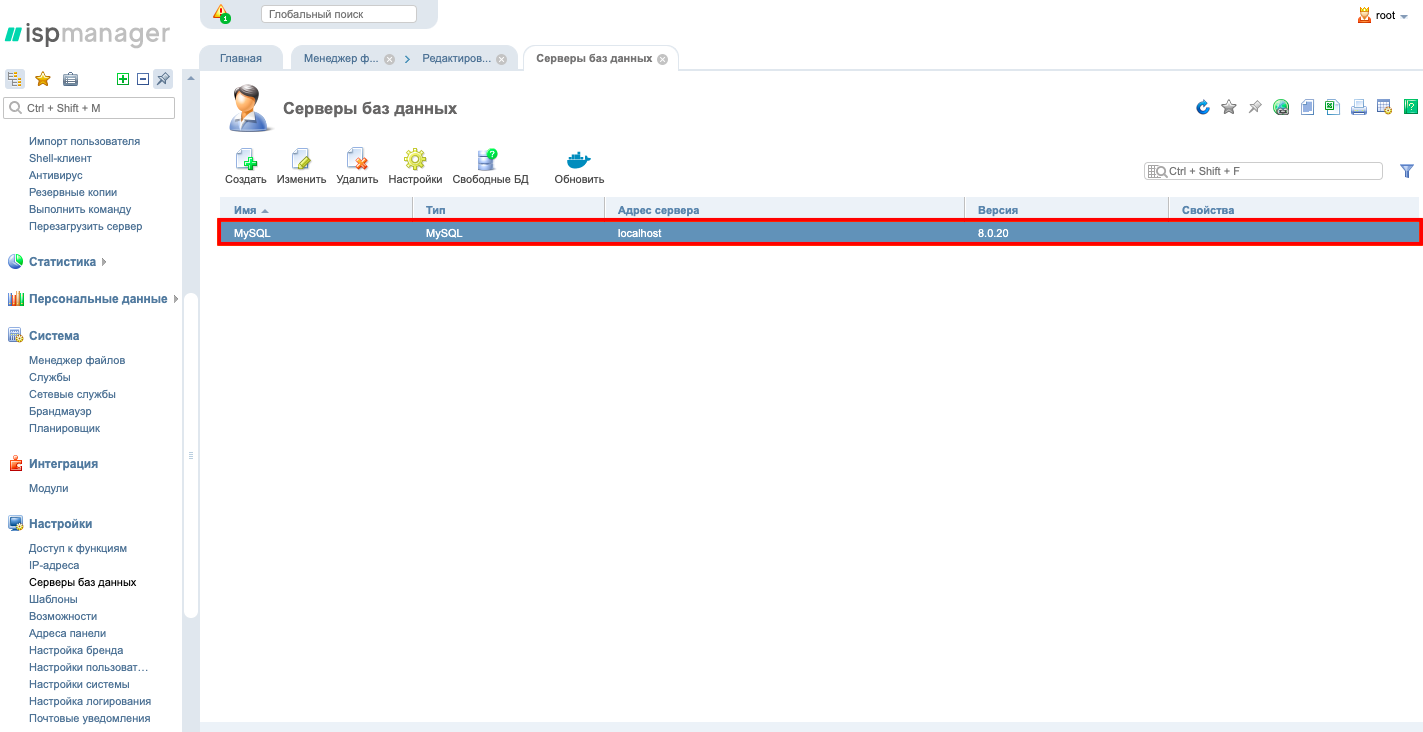
Se hai già tentato di installare MySQL e si è verificato un errore in qualche passaggio, esegui questi comandi per ricominciare il processo dall'inizio:
sudo -i
service mysql stop
killall -KILL mysql mysqld_safe mysqld
apt-get --yes purge mysql-server mysql-client
apt-get --yes autoremove --purge
apt-get autoclean
deluser --remove-home mysql
delgroup mysql
rm -rf /etc/apparmor.d/abstractions/mysql /etc/apparmor.d/cache/usr.sbin.mysqld /etc/mysql /var/lib/mysql /var/log/mysql* /var/log/upstart/mysql.log* /var/run/mysqld
updatedb
exit
Se hai difficoltà nella configurazione o hai ulteriori domande, puoi sempre contattare il nostro team di supporto tramite il sistema di ticket.