Restoring access to BeAdmin after VPS migration
Restoring access to BeAdmin after VPS cloning, migration to another data center.
After migrating or cloning a VPS with BeAdmin installed, the server may receive a new IP address. As a result, the control panel may become unavailable at the previously used address.
The issue may be related to the IP address change, the panel domain's DNS records, the SSL certificate, or the status of the BeAdmin service.
Solution
Connect to the VPS console via the Client Area with root privileges.
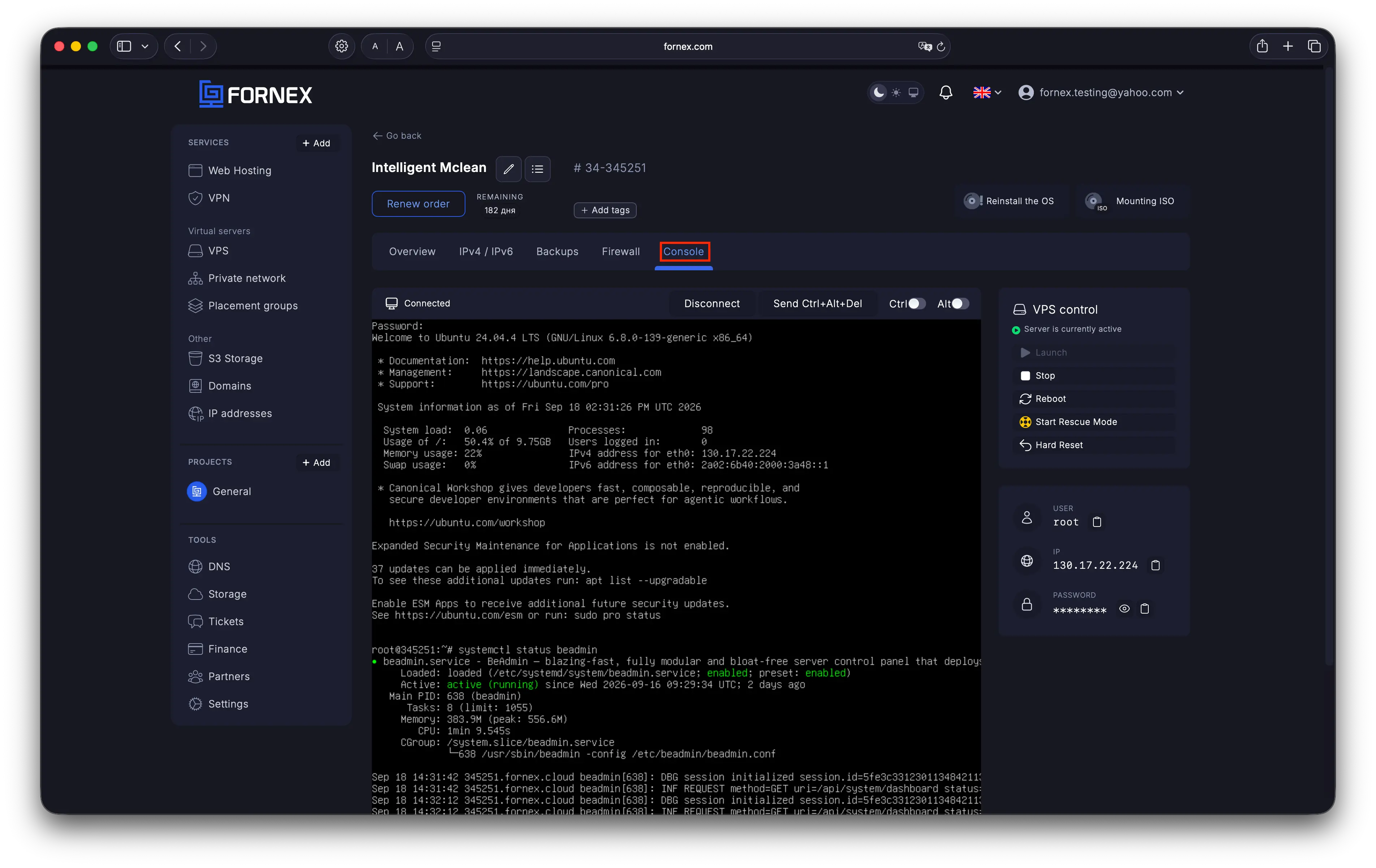 Restoring access to BeAdmin after VPS migration
Check the status of the BeAdmin service:
systemctl status beadminIf the service is running correctly, its status should be active (running).
Note
The systemctl status command may open the output in a pager. Press q to exit and return to the console.
If the service has an inactive or failed status, restart it:
systemctl restart beadminThen check its status again:
systemctl status beadminIf the service does not start or returns to the failed state, check the service logs:
journalctl -eu beadminChecking access via the new IP address
By default, BeAdmin is available over HTTPS on port 8080.
After the migration, try accessing the control panel directly using the new VPS IP address:
https://IP-address:8080where IP-address is the new IP address of the VPS.
When connecting directly via the IP address, your browser may display a warning about an untrusted SSL certificate. This may occur when a self-signed certificate is used.
Checking the port
If the BeAdmin service is running but the control panel is unavailable, make sure that the server is listening for connections on port 8080:
ss -lntp | grep ':8080'Also check the firewall settings on the server and make sure that incoming TCP connections on port 8080 are allowed.
Important
Do not add a new firewall rule before checking the existing configuration. If port 8080 is already allowed or no firewall is being used, no additional changes are required.
Verification
After completing the steps, make sure that:
- the BeAdmin service has the
active (running)status; - port
8080is accessible; - the control panel opens using the current VPS IP address;
- you can successfully log in to BeAdmin.
If the BeAdmin service is running, port 8080 is accessible, and the DNS records are configured correctly, but the control panel is still unavailable, check the service logs:
journalctl -eu beadminThe errors in the logs can help identify the cause of the issue.
Hilfe
Bei Fragen oder wenn Sie Unterstützung brauchen, erreichen Sie uns jederzeit über das Ticketsystem — wir helfen Ihnen gern weiter!